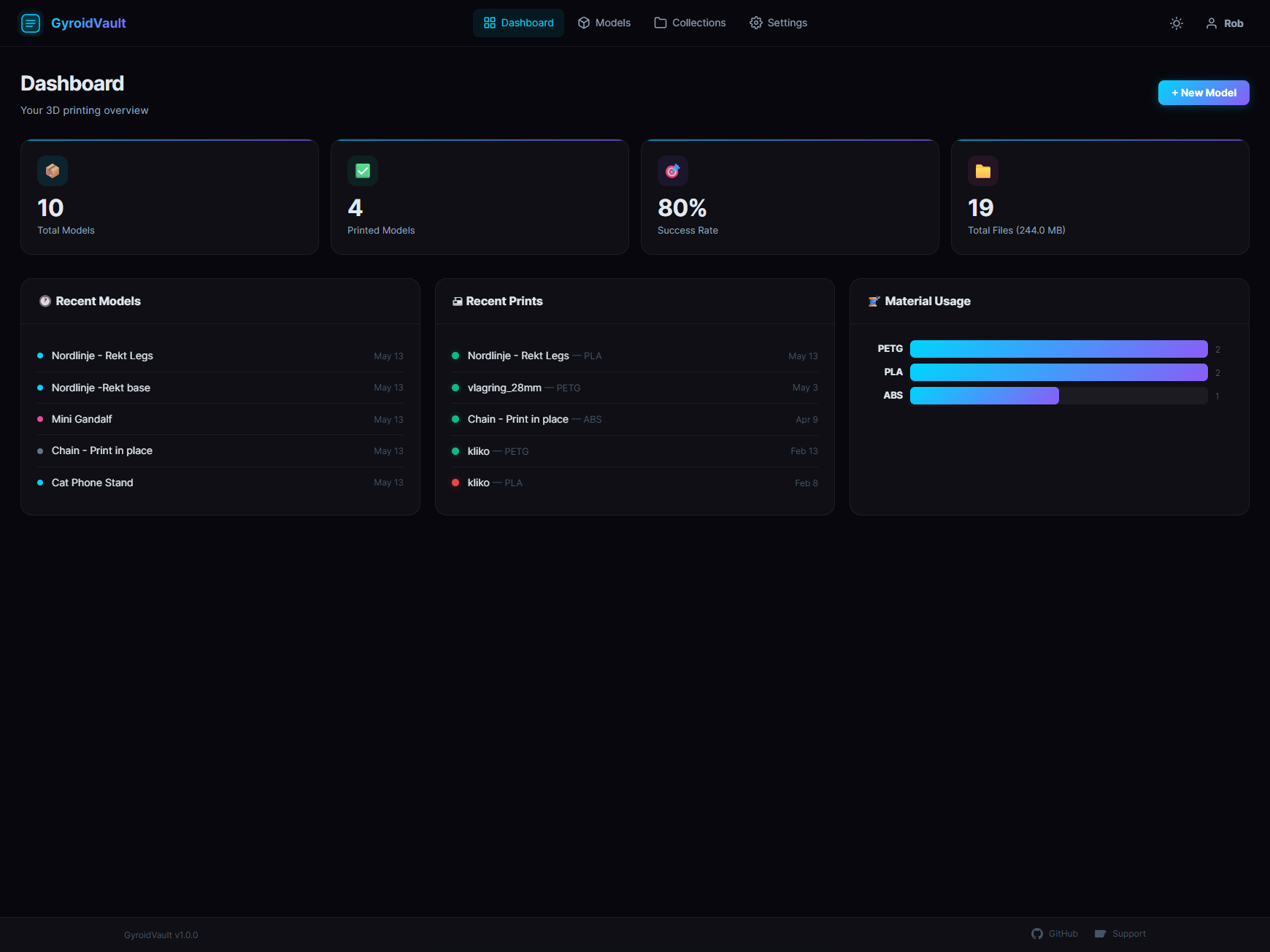
GyroidVault is a self-hosted 3D model library and print manager. It helps you organize your STL, 3MF, and Gcode files, keep track of your print history, and group files into project collections.
⚠️ Early Release Notice: GyroidVault is a brand-new project and still under active development. You may encounter bugs or rough edges. If you do, please open an issue — your feedback helps make GyroidVault better for everyone!
Screenshots
 |
 |
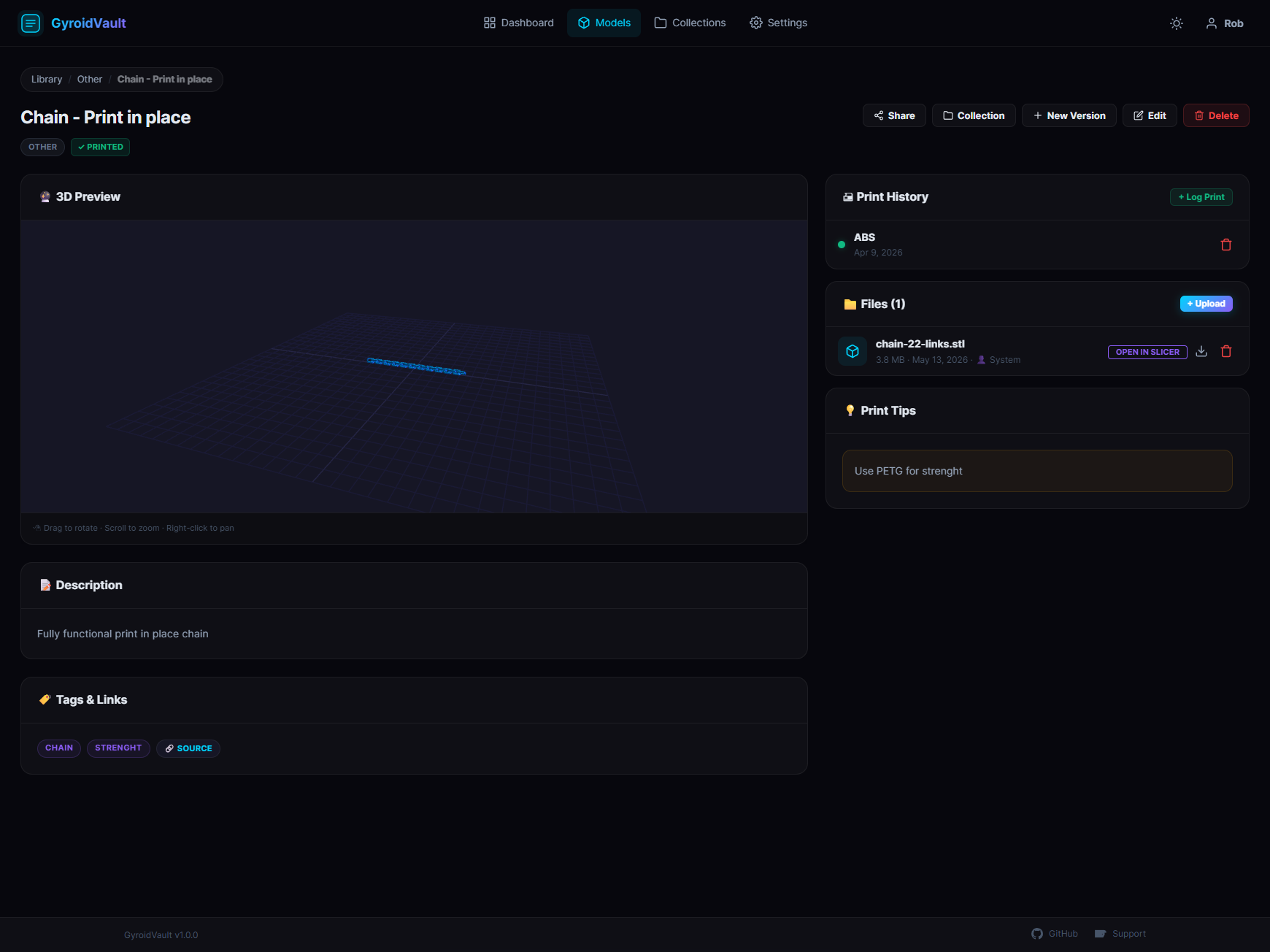 |
|
Features
- Dark/Light Mode: Toggle between dark and light themes depending on your preference.
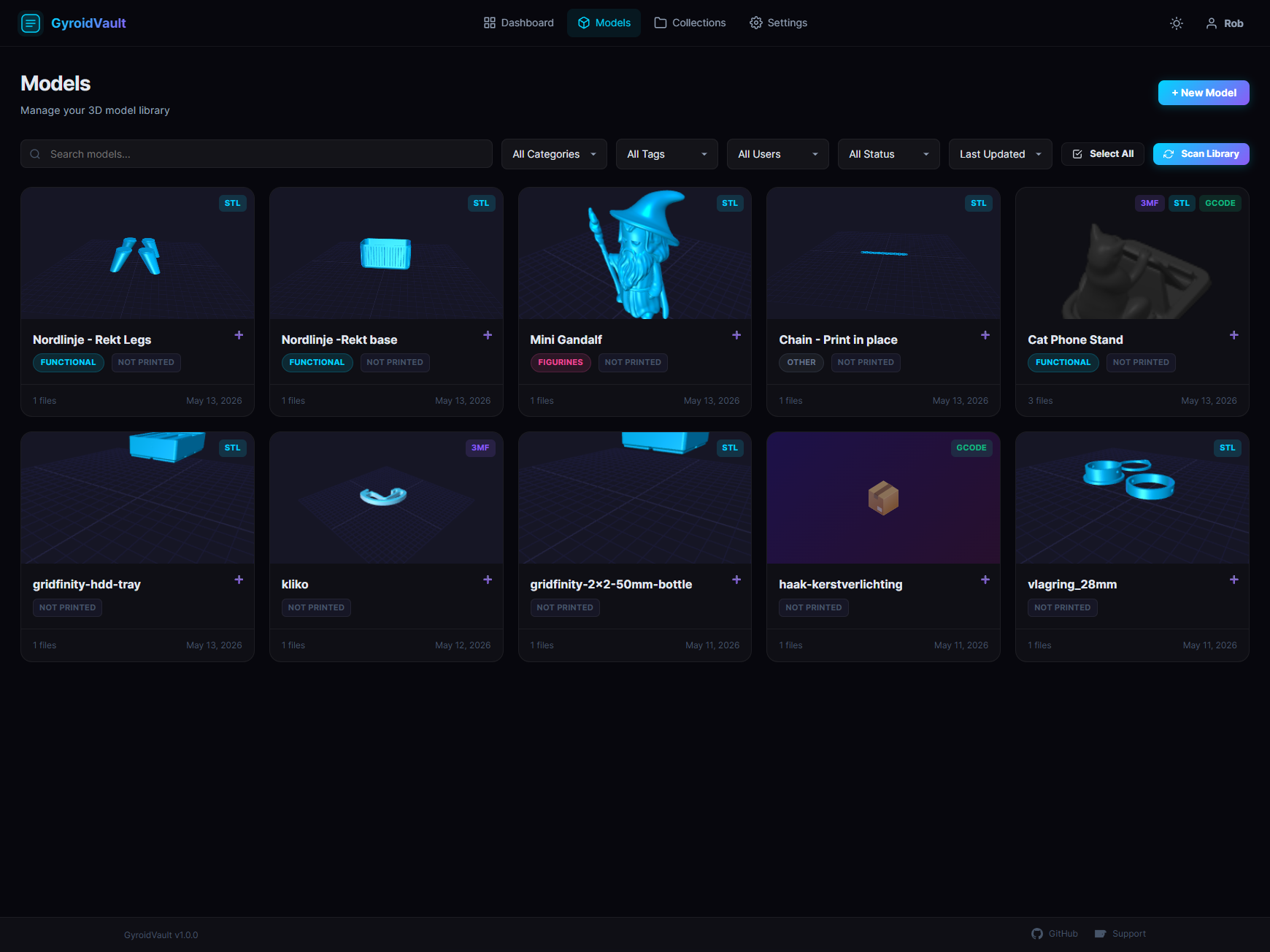
- Batch Actions: Select multiple models to move, delete, or add to collections at once.
- Folder Watching: Automatically scan your local directories to import models, or upload them manually.
- Built-in 3D Viewer: Preview STL and 3MF files directly in your browser.
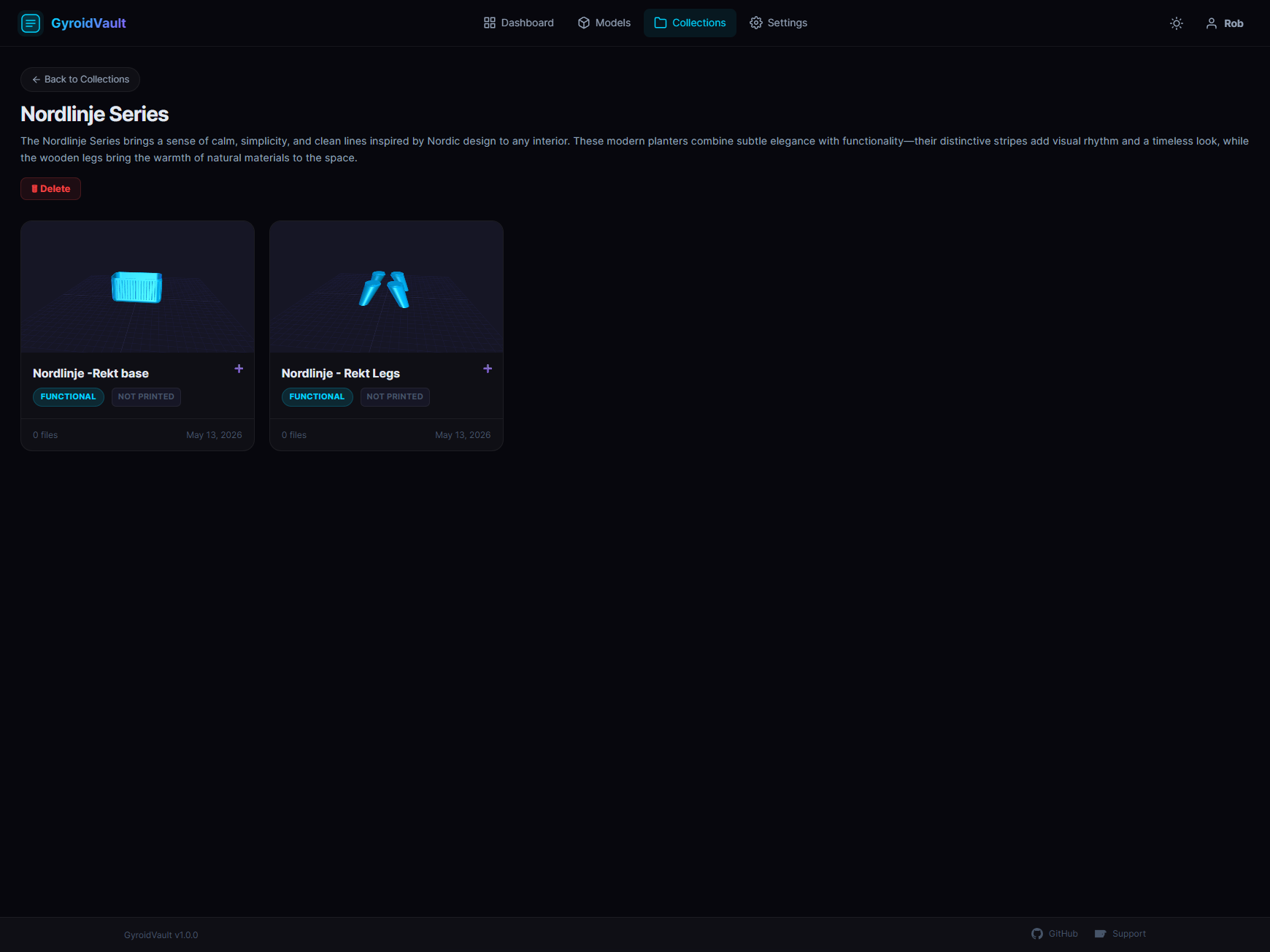
- Collections: Group related files together for multi-part projects.
- Model Versioning: Track design iterations (v1, v2, final) under a single model entry.
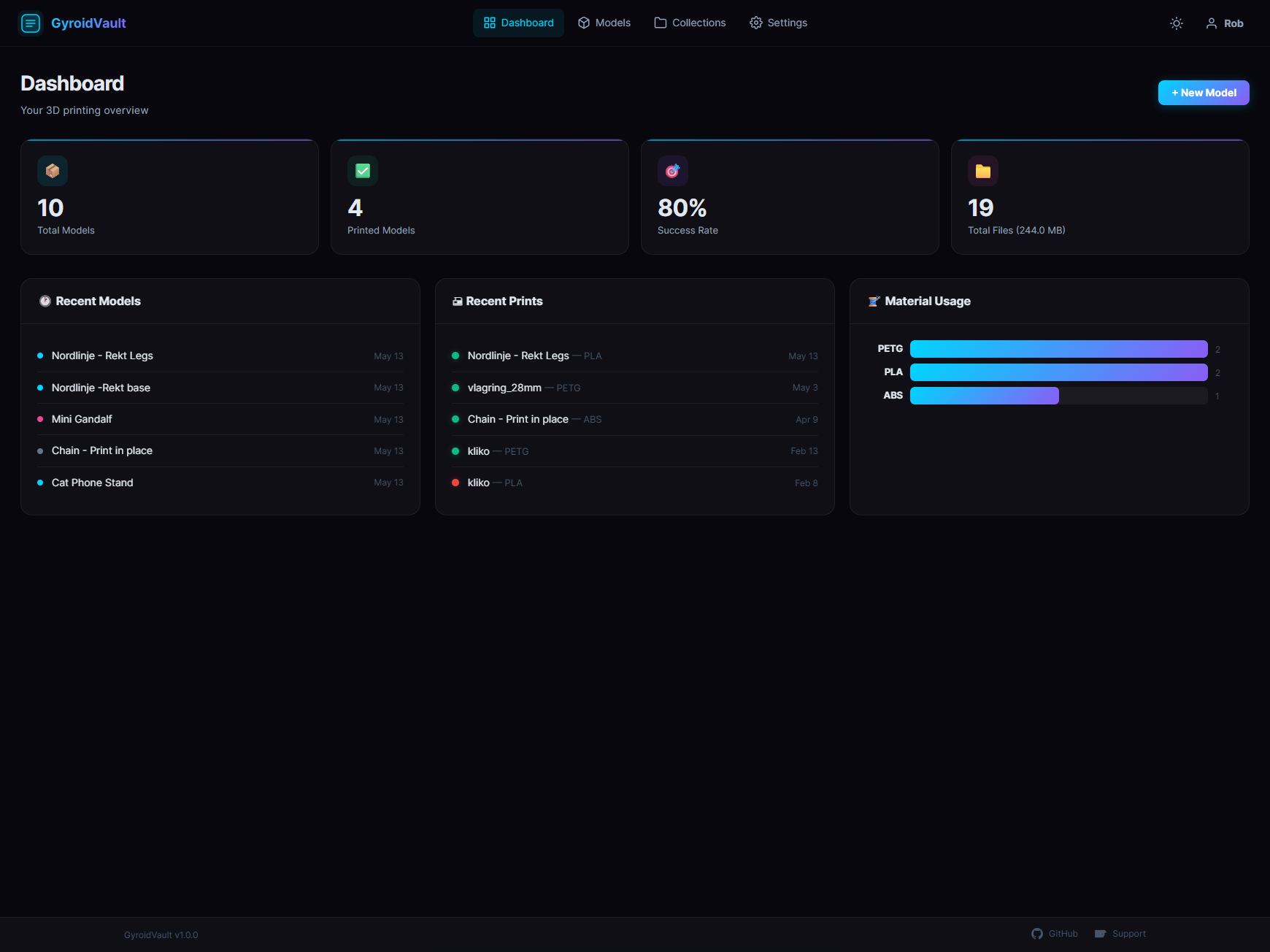
- Print Log: Keep a history of your prints, filament types used, and success rates.
- Public Share Links: Generate secure, expiring links to share specific models with others.
- Slicer Integration: Open files directly in Bambu Studio, PrusaSlicer, OrcaSlicer, or Elegoo Slicer.
- Multi-User & Roles: Set up user accounts and admin controls to restrict access.
Quick Start (Docker Compose)
The easiest way to get GyroidVault running is using Docker Compose.
Create a file named
docker-compose.yml:services: gyroidvault: image: ghcr.io/teecodedev/gyroidvault:latest container_name: gyroidvault ports: - "3457:3000" volumes: - ./data:/app/data - /path/to/your/3dprints:/library environment: - NODE_ENV=production - PORT=3000 - LIBRARY_PATH=/library restart: unless-stoppedConfigure your library: Replace
/path/to/your/3dprintswith the path on your host machine where your models are stored.Start the container:
docker-compose up -dOpen in browser: Go to http://localhost:3457 in your browser.
Initial Setup
1. Registering the Admin
The very first person to register on a new GyroidVault instance automatically becomes the Administrator.
- You do not need an invite code for the first registration.
- If you are prompted for an invite code on a fresh install, make sure your
./datadirectory is empty.
2. Configuring SMTP (Email)
To enable password resets and user invitations, you need to configure SMTP:
- Log in as the Administrator.
- Go to Settings > SMTP & Mail.
- Enter your SMTP server details (Host, Port, User, Password).
- Save and test the configuration.
Manual Installation
- Install Node.js (v18+).
- Clone this repo and run
npm install. - Copy
.env.exampleto.envand configure your settings. - Run
npm start.
Security & Privacy
- Local SQLite Database: Your data stays on your own hardware. No external cloud database or telemetry is forced.
- Admin Control: The first registered user automatically becomes the Admin. Invited users need token codes.
- File Management: Uploaded files are kept locally in the database/uploads structure.
Troubleshooting & Support
Common Issues
- Viewer not loading: Make sure your browser supports WebGL and that you are not using an ad-blocker that blocks Three.js components.
- File scanning issues: Verify that your
LIBRARY_PATHor the volume mapping in Docker is correct and that the app has read permissions for that directory. - Slicer links not opening: Make sure the slicer (Bambu Studio, etc.) is installed and has registered its URL scheme on your OS.
Comments