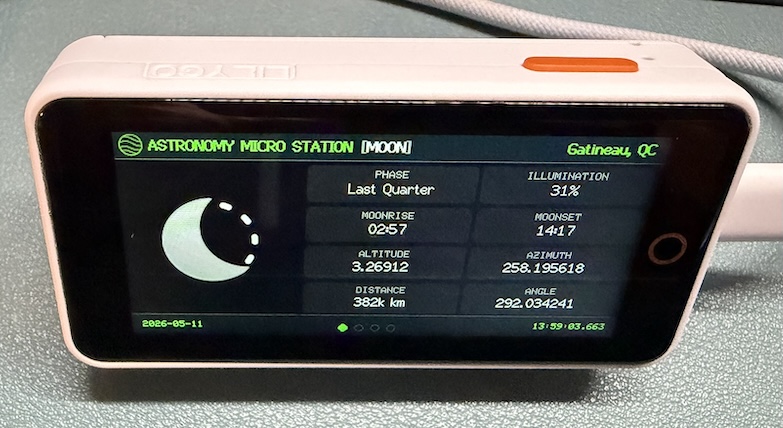
A standalone astronomy display for the LILYGO T-Display S3 Pro (ESP32-S3). Tracks the sun, moon, and light conditions — sunrise, sunset, golden hour, blue hour, twilight phases, moon phase and illumination — across four touch-navigated screens. Data fetched from ipgeolocation.io and cached locally for offline use.
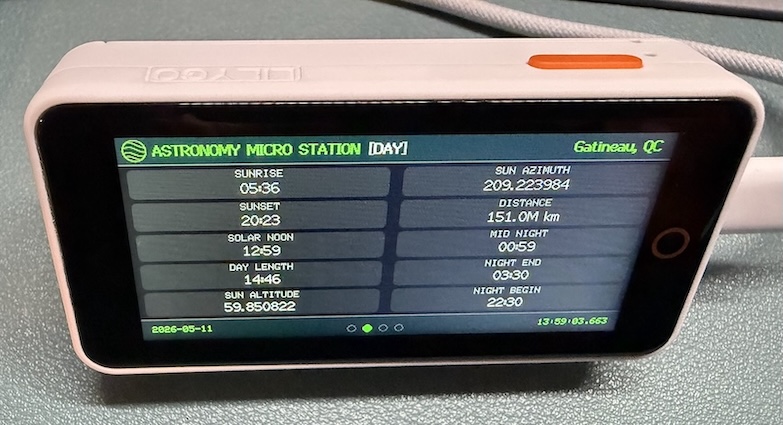
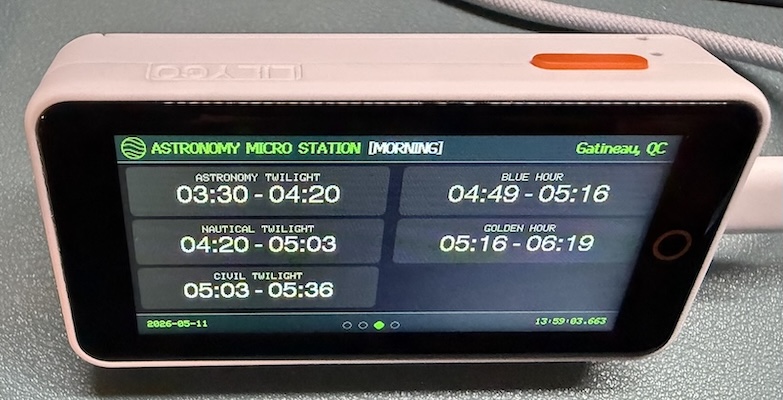
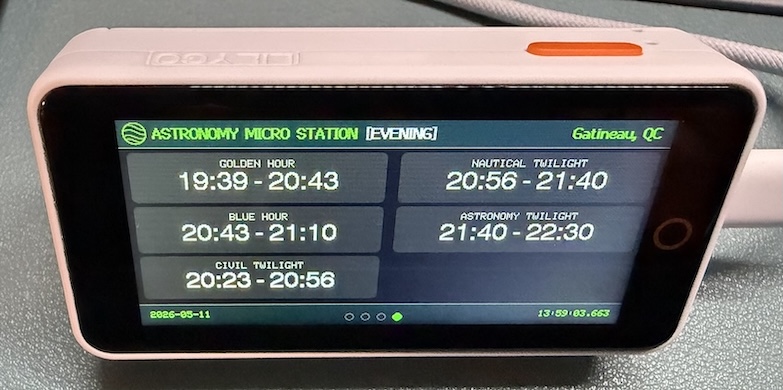
Screens
| # | Screen | Content |
|---|---|---|
| 0 | Moon Detail | Phase image, illumination, rise/set, altitude, azimuth, distance |
| 1 | Day / Sun | Sunrise, sunset, solar noon, day length, altitude, azimuth, night begin/end |
| 2 | Morning Twilight | Astronomical, nautical, civil twilight · blue hour · golden hour (AM) |
| 3 | Evening Twilight | Golden hour · blue hour · civil, nautical, astronomical twilight (PM) |
All data is fetched from the ipgeolocation.io Astronomy API every 15 minutes and cached to LittleFS for offline boot.
Every screen shares a common status bar at the bottom:
| Position | Content |
|---|---|
| Bottom left | Date of last API fetch (2026-05-11) |
| Bottom centre | Navigation dots (active screen highlighted) |
| Bottom right | Time of last API fetch (08:34:11.738) |
Hardware
| Component | Detail |
|---|---|
| Board | LilyGO T-Display S3 Pro |
| MCU | ESP32-S3R8, 240 MHz dual-core LX7 |
| Display | 2.33" IPS TFT, 480×222, ST7796, SPI |
| Touch | CST226SE capacitive (I2C) |
| Light / Proximity | LTR-553ALS-01 (I2C, shared bus) |
| Flash | 16 MB (6 MB app + 8 MB LittleFS) |
| PSRAM | 8 MB OPI (Octal) |
| Battery | Built-in 3.8 V 470 mAh + SY6970 PMIC |
| Connectivity | WiFi 802.11 b/g/n |
GPIO Pin Map
| Function | Pin |
|---|---|
| Display MOSI | 17 |
| Display SCLK | 18 |
| Display MISO | 8 |
| Display CS | 39 |
| Display DC | 9 |
| Display RST | 47 |
| Backlight PWM | 48 |
| I2C SDA (touch + sensor) | 5 |
| I2C SCL (touch + sensor) | 6 |
| Touch RST | 13 |
| Touch IRQ | 21 |
| Brightness UP button | 16 (active LOW) |
| Brightness DOWN button | 12 (active LOW) |
Quick Start
1. Clone the repo
git clone https://github.com/stephanef/astro-micro-station.git
cd astro-micro-station
Open the folder in VSCode with the PlatformIO extension installed — dependencies are resolved automatically on first build.
2. Configure secrets
Copy include/secrets_template.h to include/secrets.h and fill in your credentials:
// Required
#define WIFI_SSID       "your-network"
#define WIFI_PASSWORD   "your-password"
#define ASTRO_API_KEY   "your-key"        // free at ipgeolocation.io

// Required — your coordinates
#define OBSERVER_LAT    43.7001f          // decimal degrees, positive = North
#define OBSERVER_LON    -79.4163f         // decimal degrees, negative = West
#define OBSERVER_TZ     "America/Toronto"
#define UTC_OFFSET_SEC  -18000            // EDT = -14400  |  EST = -18000

// Optional — only needed if MQTT_ENABLED is defined in config.h
#define MQTT_BROKER     "192.168.1.x"     // your Mosquitto broker IP
#define MQTT_USER       ""                // leave empty if broker has no auth
#define MQTT_PASS       ""
Get a free API key at ipgeolocation.io/signup. Free tier: 1000 req/day — at 15-minute refresh this app uses ~96 req/day.
To disable Home Assistant integration entirely, comment out #define MQTT_ENABLED in config.h — the MQTT credentials in secrets.h are then ignored.
secrets.h is gitignored and never committed. config.h (non-sensitive settings) is safe to commit as-is or copy from config.example.h.
3. Build and flash
pio run --target upload
pio device monitor        # 115200 baud
If the board does not auto-enter flash mode:
- Hold BOOT
- Press RESET
- Release BOOT
- Run
pio run --target upload
4. First boot — LittleFS
On the very first boot the LittleFS partition is blank and will be formatted automatically. You will see [LittleFS] OK in the monitor. From that point the last successful API response is cached at /astro_cache.json and loaded on any boot where WiFi is unavailable.
Navigation
| Input | Action |
|---|---|
| Tap anywhere | Next screen (cycles 0 → 1 → 2 → 3 → 0) |
| Long press (> 0.8 s) | Toggle red night-vision mode |
| Wave hand at top sensor | Wake display from dim |
| Brightness UP button (IO16) | Increase backlight, hold to repeat |
| Brightness DOWN button (IO12) | Decrease backlight, hold to repeat |
Backlight dims automatically after DIM_TIMEOUT_SEC seconds of inactivity (default 30 s). Brightness level is preserved across dim/wake cycles.
Night-Vision (Red Mode)
Long-press anywhere to toggle. In red mode:
- Background, cards, and text shift to deep red tones
- Moon phase image is re-rendered as red-luminance (shading preserved)
- Backlight target drops to
BACKLIGHT_RED_MODE(default 60/255)
Home Assistant Integration (optional)
Enable by defining MQTT_ENABLED in config.h (already set by default).
Set MQTT_TOPIC_STATUS to your preferred base topic (default: astronomy).
Auto-discovery — no YAML required
The device uses MQTT Discovery. On every MQTT connection it publishes 19 sensor config messages to homeassistant/sensor/astro_<name>/config. Home Assistant picks these up automatically and creates a single Astro Micro Station device with all sensors grouped under it — no configuration.yaml editing needed, exactly like other auto-discovered devices.
Sensors registered automatically:
| Sensor | Source topic |
|---|---|
| Moon Phase, Moon Illumination, Moonrise, Moonset, Moon Altitude, Moon Azimuth, Moon Distance | astronomy/moon |
| Sunrise, Sunset, Solar Noon, Day Length, Sun Altitude, Sun Azimuth | astronomy/sun |
| Golden Hour AM, Blue Hour AM, Civil Twilight AM | astronomy/morning |
| Golden Hour PM, Blue Hour PM, Civil Twilight PM | astronomy/evening |
MQTT topics
After every successful API fetch (every 15 minutes) the device publishes 4 retained JSON topics:
| Topic | Content |
|---|---|
astronomy |
online / offline (LWT — broker publishes offline automatically if device disconnects) |
astronomy/sun |
date, time, sunrise, sunset, solar noon, day length, altitude, azimuth, distance, night begin/end, midnight |
astronomy/moon |
phase, phase name, illumination %, rise, set, altitude, azimuth, angle, distance |
astronomy/morning |
astronomical, nautical, civil twilight · blue hour · golden hour times |
astronomy/evening |
golden hour · blue hour · civil, nautical, astronomical twilight times |
Troubleshooting — device not appearing in Home Assistant
- Go to Settings → Devices & Services → MQTT → Configure, subscribe to
homeassistant/sensor/astro_sunrise/configand click START LISTENING. You should see a JSON config payload immediately (it is retained). - If nothing appears, check the serial monitor for
[MQTT] Discovery:lines at boot. - If discovery messages are present but no device appears in HA, restart the HA MQTT integration: Settings → Devices & Services → MQTT → Reload.
- Verify broker IP and credentials match
MQTT_BROKER/MQTT_USERinconfig.h.
To disable MQTT entirely, comment out #define MQTT_ENABLED in config.h.
Serial Monitor Output
Key log prefixes for diagnostics:
| Prefix | Meaning |
|---|---|
[Boot] |
Startup sequence |
[WiFi] |
Connection status and RSSI |
[NTP] |
Time sync |
[LittleFS] |
Filesystem mount result |
[AstroAPI] |
HTTP fetch, parse result, cache save/load |
[fetchAstro] |
Heap + PSRAM snapshot after each fetch |
[Display] |
Init, sprite buffer, heap + PSRAM at boot |
[Mem] |
Hourly heap + PSRAM trend (watch min for leaks) |
[Nav] |
Screen change events |
[MQTT] → |
Data topic published (sun / moon / morning / evening) |
[MQTT] Discovery: |
Auto-discovery config published for one sensor |
Example memory line:
[Mem] heap=186432 min=164208 maxBlock=163840 psram=7823104
The min value is the all-time low — a steadily decreasing min indicates a heap leak.
API Data — Refresh Behaviour
All fields are fetched from the API and replaced on every 15-minute refresh — nothing is cached selectively. The distinction below is purely about how fast the API values move, not about how often the device fetches them.
Stable throughout the day (API returns the same value all 24 h)
| Field | Notes |
|---|---|
| Sunrise / Sunset | Set once at midnight for the date |
| Solar noon | Set once for the date |
| Day length | Set once for the date |
| Night begin / end | Set once for the date |
| Astronomical / Nautical / Civil twilight | All begin/end times set for the date |
| Blue hour begin / end (AM & PM) | Set for the date |
| Golden hour begin / end (AM & PM) | Set for the date |
| Moonrise / Moonset | Set for the date |
| Moon phase | Changes once every ~3.7 days |
| Moon illumination | Changes by < 1 % per hour |
Continuously changing (visibly different each 15-minute fetch)
| Field | Rate of change |
|---|---|
| Sun altitude | ~15° per hour near transit |
| Sun azimuth | ~15° per hour |
| Moon altitude | ~0.5° per hour |
| Moon azimuth | ~0.5° per hour |
| Moon distance | Tens of km per hour (perigee/apogee drift) |
Fetch date / time (fetchDate / currentTime) |
Timestamp of the API call — updates every fetch |
Adjusting for Your Location
In include/secrets.h:
#define OBSERVER_LAT    43.7001f          // decimal degrees, positive = North
#define OBSERVER_LON    -79.4163f         // decimal degrees, negative = West
#define OBSERVER_TZ     "America/Toronto"
#define UTC_OFFSET_SEC  -18000            // EDT = -14400  |  EST = -18000
File Structure
astro-micro-station/
├── platformio.ini              # Build config, libraries, pin definitions
├── partitions_custom.csv       # 6 MB app / 8 MB LittleFS
├── include/
│   ├── secrets.h               # ⚠ gitignored — WiFi, API key, MQTT creds, coordinates
│   ├── secrets_template.h      # Safe template — copy to secrets.h and fill in
│   ├── config.h                # Non-sensitive settings (safe to commit)
│   ├── config.example.h        # Template for config.h
│   ├── AstroAPI.h              # ipgeolocation.io data structures + class
│   ├── DisplayManager.h        # Colour palette, screen class declaration
│   ├── MQTTManager.h           # HA status publisher (stub when disabled)
│   ├── icons.h                 # ICON_ASTRO — 22×22 RGB565 PROGMEM
│   └── moon_icons.h            # 8 moon phase images — 155×155 RGB565 PROGMEM
├── src/
│   ├── main.cpp                # Setup, loop, WiFi, NTP, touch FSM, brightness
│   ├── AstroAPI.cpp            # HTTP fetch, JSON parse, LittleFS cache
│   ├── DisplayManager.cpp      # All screen rendering
│   └── MQTTManager.cpp         # MQTT connection + discovery + data publish
└── assets/
    ├── moon-phases/            # Source SVGs for moon phase images (8 files)
    ├── icons/                  # Source PNG for header icon
    └── tools/
        └── svg_to_h.py         # Converts SVGs → moon_icons.h (run in venv)
Regenerating Moon Phase Images
The moon phase header file is generated from SVG sources using a Python script:
cd assets/tools
python3 -m venv venv && source venv/bin/activate
pip install cairosvg pillow
python3 svg_to_h.py
# output written to include/moon_icons.h
Source files are in assets/moon-phases/. The script renders each SVG to 155×155 greyscale RGB565, alpha-composited on black, with 0xFFFF as the chroma key for transparency.
Comments