ha-google-home-bt-proxy
A Home Assistant integration that turns Google Home and Nest speakers into Bluetooth proxies.
Features
- Bluetooth Remote Scanner: Uses Home Assistant's native Bluetooth remote scanner interface (
habluetooth.BaseHaRemoteScanner) to inject discovered BLE advertisements directly into Home Assistant. - Signal Filtering and Smoothing: Supports rolling median and exponential moving average (EMA) filters to reduce RSSI fluctuations. Can be disabled to forward raw calibrated values.
- Distance Estimation: Calculates approximate distance in meters using a log-distance path loss formula. Can be disabled if distance calculations are not needed.
- Distance Cutoff: Drops advertisements beyond a configured
max_distancethreshold. - Target Filtering: Provides
all,known_only(named or IRK-resolved devices), andwhitelistmodes to suppress randomized private addresses (RPAs) and filter noise. - Scan Orchestration: Serializes active Bluetooth scans across speakers in round-robin order to minimize 2.4GHz Wi-Fi and Bluetooth interference.
- Playback Awareness: Detects active Cast V2 media sessions and Bluetooth audio connections to throttle or pause scans during media playback.
- Per-Speaker Settings: Overrides scan intervals, timeouts, playback handling, and calibration offsets per speaker or falls back to global defaults.
- Entities and Controls: Provides status and packet counter sensors, an on/off switch to toggle scanning per speaker, and a button to trigger manual scans.
- Token Handling: Automatically handles Google local authorization token renewal and retries connection failures with backoff.
- Diagnostic Tool: Includes
scripts/probe_speaker.pyto inspect local speaker endpoints and verify device capabilities.
Screenshots
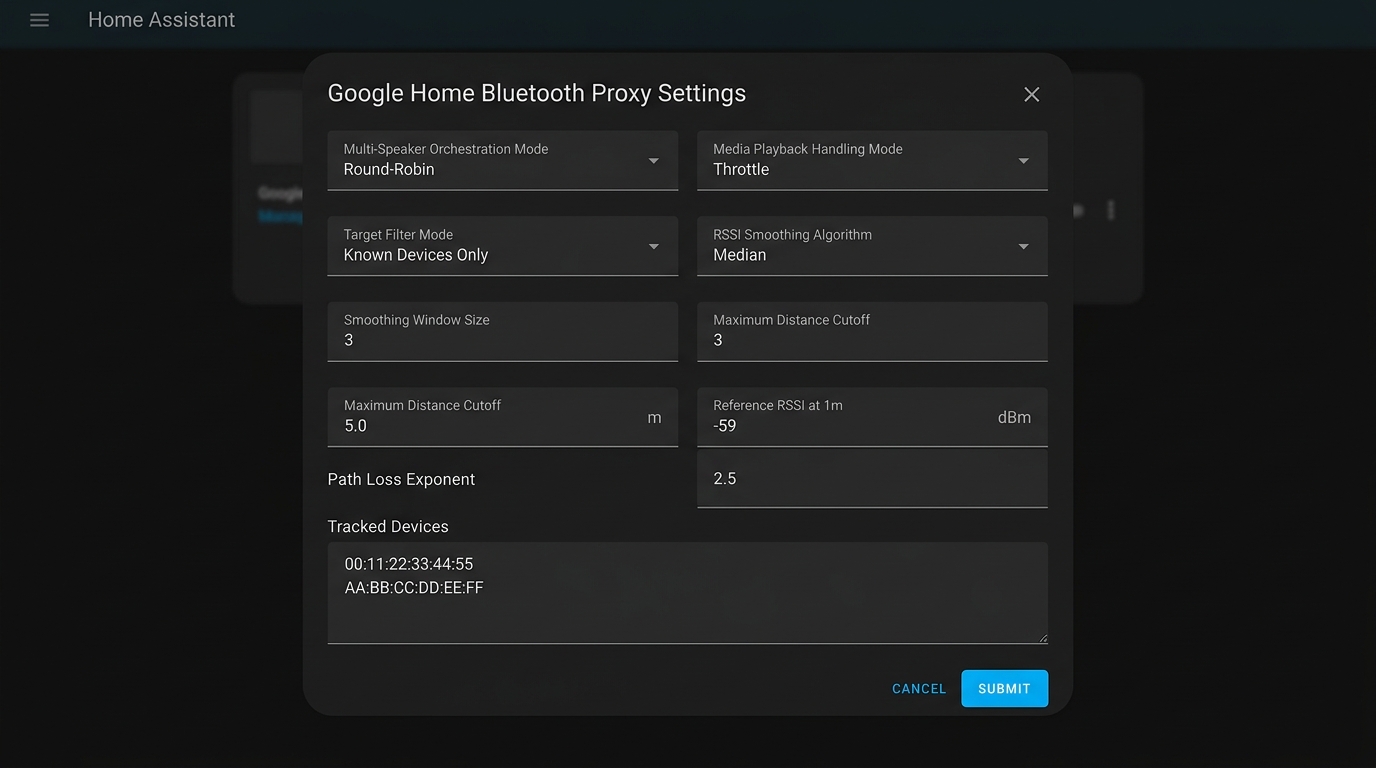
Options Flow showing orchestration, distance gating, and signal smoothing settings.
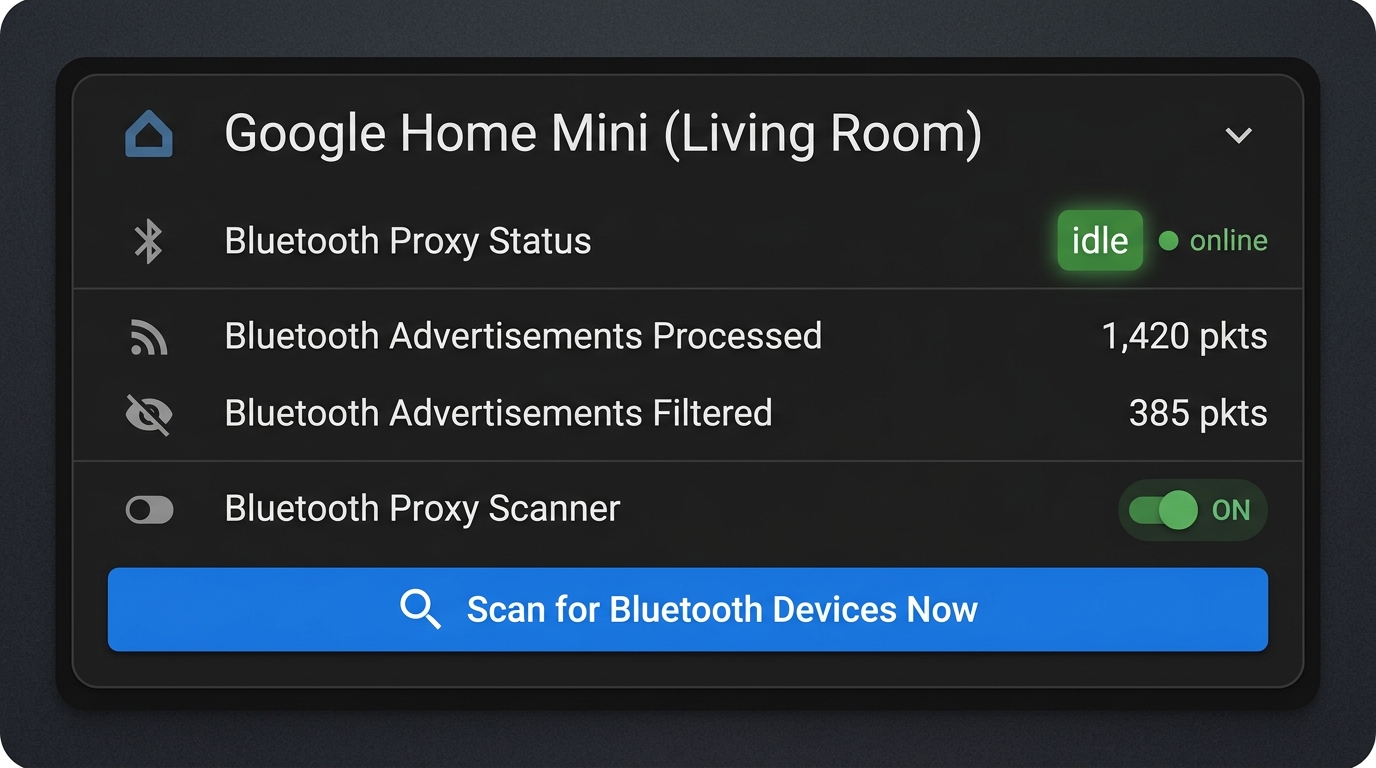
Device card showing operational status, packet counters, proxy toggle switch, and scan trigger button.
Hardware Compatibility
For technical details on ports and protocols, see docs/hardware_matrix.md.
| Device | Operating System | BLE Proxy | Playback Detection | Status |
|---|---|---|---|---|
| Google Home Mini (1st Gen) | CastOS | Supported | Cast V2 + A2DP | Fully supported |
| Google Nest Mini (2nd Gen) | CastOS | Supported | Cast V2 + A2DP | Fully supported |
| Google Home / Home Max / Nest Audio | CastOS | Supported | Cast V2 + A2DP | Fully supported |
| Google Nest Hub / Hub Max | Fuchsia / CastOS | Partial | Cast V2 | Experimental; display radios prioritize Thread/Zigbee |
| Android TV / Google TV (Shield, smart TVs) | Android TV OS | Unsupported | Cast V2 | Playback detection only; Bluetooth is managed by Android OS |
| Third-Party Cast Soundbars | Cast Linux | Unsupported | Cast V2 | Playback detection only; firmware rejects scan commands |
| Cast Speaker Groups | Virtual mDNS | Unsupported | Cast V2 | Skipped; virtual group endpoint with no physical radio |
Installation
HACS (Recommended)
- In Home Assistant, open HACS > Integrations.
- Open the menu in the top-right corner and select Custom repositories.
- Enter
https://github.com/spelech/ha-google-home-bt-proxyas the Repository and select Integration as the Category. - Click Download, then restart Home Assistant.
Manual Installation
Copy custom_components/google_home_bt_proxy into your Home Assistant config/custom_components/ directory:
cp -r custom_components/google_home_bt_proxy /path/to/homeassistant/config/custom_components/
Restart Home Assistant.
Configuration
- In Home Assistant, navigate to Settings > Devices & Services > Add Integration.
- Search for Google Home Bluetooth Proxy.
- Authenticate using your preferred method:
- Existing Google Home Users (Automatic 1-Click): If you already run the popular
ha-google-homeintegration, your credentials and master token are automatically detected and imported with 1 click. - Browser Token / Cookie Copy (~30 Seconds): Enter your Google account email and paste the one-time
oauth_tokencookie value (oauth2_4/...or master tokenaas_et/...).
- Existing Google Home Users (Automatic 1-Click): If you already run the popular
- The integration discovers supported speakers on your local network and sets up Bluetooth scanner proxies for them.
How to Retrieve Your Browser Token
Google has blocked automated password authentication (gpsoauth) on almost all modern accounts. To safely retrieve your token directly from Google:
- In a desktop browser (Chrome, Edge, Brave, Firefox), open:
https://accounts.google.com/EmbeddedSetup - Sign into your Google account and click "I agree" on the setup screen.
- Open Developer Tools (
F12orCtrl+Shift+I/Cmd+Opt+I). - Go to Application (Chrome/Edge/Brave) or Storage (Firefox) > Cookies >
https://accounts.google.com. - Copy the value of the cookie named
oauth_token(starts withoauth2_4/...), then close the browser tab. - In Home Assistant, paste that token directly into the OAuth Token or Master Token field (raw strings like
oauth_token:"oauth2_4/..."are cleaned automatically).
For a detailed step-by-step walkthrough with visual screenshots, see the Authentication Guide.
Configuration Options
Click Configure on the integration card to adjust settings globally or for specific speakers:
- Configure Settings For: Choose
Global Settingsor a specific speaker to customize. - Bermuda BLE Optimization Mode (
bermuda_mode): Auto-optimizes RF packets for Bermuda BLE Trilateration (default:trueif Bermuda is installed, elsefalse). - Filter Peer Speakers (
filter_peer_proxies): Automatically suppresses BLE packets emitted by peer Google Home/Nest speakers (default:true). - Multi-Speaker Orchestration (
orchestration_mode):round_robinto serialize scans across speakers, orindependent(default:round_robin). - Idle Scan Duration (
scan_timeout): Duration in seconds for each active scan (default:4s). - Idle Scan Interval (
scan_interval): Pause between scans in seconds (default:4s, ensures total cycle $\le 10\text{s}$). - Playback Scan Duration / Interval (
playing_scan_timeout,playing_scan_interval): Scan timing while media is playing (defaults:2sand30s). - Playback Handling Mode (
playback_mode):throttle(slower scans during playback),skip_ceiling(pause until max duration), orignore(default:throttle). - Minimum RSSI Threshold (
rssi_threshold): Minimum signal level in dBm to ingest (default:-90 dBm). - RSSI Calibration Offset (
rssi_offset): Hardware calibration adjustment in dBm applied to incoming signals (default:0 dBm; bypassed in Bermuda Mode). - Target Filter Mode (
filter_mode):all,known_only(named or IRK-resolved devices), orwhitelist(default:all). - Tracked Devices (
tracked_devices): Comma-separated list of MAC addresses, prefixes (e.g.AA:BB:CC), or name substrings. - Enable RSSI Smoothing (
enable_rssi_smoothing): Enables rolling smoothing filter (default:true; bypassed in Bermuda Mode). - RSSI Smoothing Algorithm (
rssi_filter_mode):none,median, orema(default:median). - Smoothing Window Size (
rssi_filter_window): Number of samples kept for smoothing (default:3). - Enable Distance Estimation (
enable_distance_estimation): Enables distance calculation and distance gating (default:true). - Maximum Distance Cutoff (
max_distance): Drops packets estimated beyond this distance in meters (0.0disables cutoff, default:0.0m). - Reference RSSI at 1 Meter (
ref_power): Expected RSSI at 1 meter in dBm (default:-59 dBm). - Path Loss Exponent (
path_loss_exponent): RF attenuation factor $n$ (indoor default:2.5). - Known IRKs (
known_irks): Resolves private addresses for iOS and macOS devices (format:name:hex_key, one per line).
Bermuda Integration & Architecture
Bermuda BLE Trilateration is a Home Assistant integration that tracks BLE devices (beacons, smart watches, phones) and performs real-time room presence estimation using Bluetooth proxy data.
ha-google-home-bt-proxy includes native, first-class compatibility with Bermuda (validated against Bermuda v0.8.7+).
⚠️ Important Scan Result Caveats (Local API vs Hardware Sniffers)
Google Home and Nest speakers operate as Bluetooth proxies by querying Google's local on-device REST API (/setup/bluetooth/scan_results). Because this is an active Bluetooth inquiry scan implemented in the speaker firmware rather than a raw hardware BLE sniffer (like an ESP32), several physical and architectural caveats apply:
[!WARNING] No Raw Manufacturer Data / No iBeacon UUID Support
- Firmware Limitation: Google Home's local API returns only parsed device records:
mac_address,rssi,name,device_type, anddevice_class. It does not return raw advertisement payloads, manufacturer-specific data (manufacturer_data), service UUIDs, or calibrated TX power bytes.- Bermuda Impact: Bermuda detects iBeacons (
0x004C0215) exclusively by parsingadvert.manufacturer_data. Because this payload is stripped by the Google Home local API, Bermuda cannot identify or track iBeacon UUIDs through Google Home speakers.- What IS Supported: Devices with static Bluetooth MAC addresses, and modern smartphones/smartwatches with rotating Resolvable Private Addresses (RPAs) tracked via Home Assistant's native Private BLE Device integration (IRK).
[!NOTE] Smartphone Sleep & Lock Behavior (iOS / Android)
- Battery Conservation: When locked with the screen off, iOS and modern Android versions aggressively throttle or completely cease unassociated BLE advertisement transmissions.
- Symptom: Your phone or smartwatch may only report distance or show as "Home" when unlocked, awake, or actively communicating.
- Solution: For continuous 24/7 background tracking while locked, enable the BLE Transmitter sensor in the Home Assistant Companion App on your phone (under Settings > Companion App > Manage Sensors > BLE Transmitter). This commands the phone OS to maintain periodic BLE broadcasts even when asleep.
[!TIP] Active Inquiry Cadence vs Passive Sniffing
- ESP32 proxies listen passively 100% of the time. Google Home speakers perform periodic active inquiry sweeps (default: 4 seconds scanning, followed by 4 seconds pause).
- This 8-second total cycle is specifically optimized to stay under Bermuda's strict 10-second packet freshness cutoff (
AREA_MAX_AD_AGE).
📋 Bermuda Setup & Configuration Requirements
To successfully use Google Home speakers for distance estimation and room presence in Bermuda, satisfy the following requirements:
1. Mandatory Area Assignment in Home Assistant (Crucial)
- Why: In Bermuda's core trilateration engine (
coordinator.py:1350-1355), any scanner without an assigned Area (area_id is None) is strictly disqualified from distance calculations and area contests. An area-less speaker will trigger aREPAIR_SCANNER_WITHOUT_AREAissue and will never attribute room presence or distance to tracked devices. - How:
ha-google-home-bt-proxyautomatically inspects Home Assistant's Device Registry to inherit existing Area assignments from official Google Cast or Google Home device entries, and continuously synchronizes Area assignments between the speaker device and the core Bluetooth scanner entry. - Verification: Go to Settings > Devices & Services > Google Home Bluetooth Proxy > click each speaker > ensure an Area is assigned.
2. Enabling Per-Scanner Distance Entities (Distance to <Speaker>)
- Why: Bermuda deliberately configures all individual per-scanner distance entities (
sensor.<device>_distance_to_<speaker>) as disabled by default (entity_registry_enabled_default = False) to prevent dashboard clutter. - Symptom: Looking at your tracked device in Home Assistant shows
Area,Distance(closest overall), andFloor, but does not show individual Google Home speakers. - How to Enable:
- In Home Assistant, go to Settings > Devices & Services > Bermuda BLE Trilateration.
- Click on your tracked device (e.g., your phone or watch).
- Click Entities (or enable Show disabled entities).
- Find Distance to
and click Enable entity.
3. Tracking Modern Phones & Watches with Private BLE Device (IRK)
- Because Google Home scan results do not include iBeacon manufacturer data, devices that use rotating Resolvable Private Addresses (RPAs) must be tracked using Identity Resolving Keys (IRK).
- Add the Private BLE Device integration in Home Assistant, enter your device's IRK (extracted via macOS Keychain or ESPHome BLE tools), and Bermuda will automatically track that device across all Google Home proxies.
4. Calibrate Offsets Inside Bermuda (Not in Proxy Settings)
- In Bermuda BLE Optimization Mode (
bermuda_mode: true), the proxy automatically forwards raw instantaneous RSSI and sets a 0 dBm internal offset so that Bermuda can perform its own asymmetric velocity filtering and cross-scanner trilateration. - To balance signal variations between Google Home Mini (Gen 1) and Nest Mini (Gen 2) hardware, apply antenna offsets inside Bermuda: Settings > Devices & Services > Bermuda > Configure > Configure Scanner Offsets.
Bermuda Optimization Mode Settings & Architecture
When Bermuda Mode is active (bermuda_mode: true), the integration automatically enforces specific RF ingestion rules based on Bermuda's internal architecture:
| Setting / Feature | Value in Bermuda Mode | Why It Has To Be That Way |
|---|---|---|
| Proxy RSSI Smoothing | Disabled (Raw Passthrough) | Bermuda's distance calculation (bermuda_advert.py) uses an asymmetric velocity-limiting filter. In RF physics, a stronger RSSI peak is almost always true line-of-sight, whereas weaker readings reflect temporary body/wall occlusion. Proxy-side rolling median or EMA filters clip these instantaneous peaks and add artificial phase delay, severely degrading Bermuda's ability to track moving targets. |
| Proxy RSSI Offset | 0 dBm (Bypassed) | Bermuda has its own built-in scanner calibration matrix (CONF_RSSI_OFFSETS in Configure Bermuda > Configure Scanner Offsets). Applying offsets inside the proxy causes double-calibration and throws off Bermuda's cross-scanner trilateration math. |
| Total Scan Cycle | $\le 10$ Seconds ($4\text{s}$ scan + $4\text{s}$ interval) | Bermuda enforces a strict constant: AREA_MAX_AD_AGE = max(DISTANCE_TIMEOUT / 3, UPDATE_INTERVAL * 2) = 10.0s. Any Bluetooth advertisement packet older than 10.0 seconds is disqualified from winning an area presence contest, even if it is the closest proxy. Keeping total cycle time at 8 seconds ensures packets are always fresh. |
| Peer Proxy Suppression | Enabled (filter_peer_proxies) |
Google Home and Nest speakers broadcast their own Bluetooth inquiry responses. Without suppression, neighboring speakers register as ghost beacons, spam HA device registries, and create cross-proxy interference. The proxy filters out base MACs and Bermuda-style $\pm 3$ MAC math offsets (mac_math_offset). |
| Device Registry Connection | dr.CONNECTION_NETWORK_MAC |
Bermuda's scanner discovery (bermuda_device.py:328-336) cross-references active scanners against the Device Registry using ("mac", altmac). If this network connection is missing, Bermuda cannot discover the speaker's address_wifi_mac or Area assignment and refuses to instantiate distance_to_<scanner> sensors. |
See docs/bermuda_calibration.md for full step-by-step calibration and troubleshooting walkthroughs.
Diagnostic Probe Script
The repository includes a script to test speaker endpoints and verify compatibility:
uv run scripts/probe_speaker.py --host 192.168.1.110

# Scan probe: runs an inquiry scan with local auth token
uv run scripts/probe_speaker.py --host 192.168.1.110 --token "your-token" --timeout 5 --check-cast
Options
--host: IP address of the speaker or Cast device.--port: HTTPS API port (default:8443).--token: Local authorization token.--timeout: Scan duration in seconds (default:5).--check-cast: Probes the Cast V2 TLS socket on port8009.
The script tests:
GET /setup/eureka_info: Firmware version and capabilities.GET /setup/bluetooth/status: Bluetooth state.POST /setup/bluetooth/scan: Triggers an active inquiry scan.GET /setup/bluetooth/scan_results: Displays detected devices and RSSI values.- Port
8009: Checks Cast V2 media controller connectivity.
Development & Testing
This project uses uv, ruff, and pytest:
# Install dependencies
uv sync

# Format and lint checks
uv run ruff format --check .
uv run ruff check .

# Run tests with coverage
uv run pytest --cov=custom_components/google_home_bt_proxy --cov-fail-under=80 -v
Comments