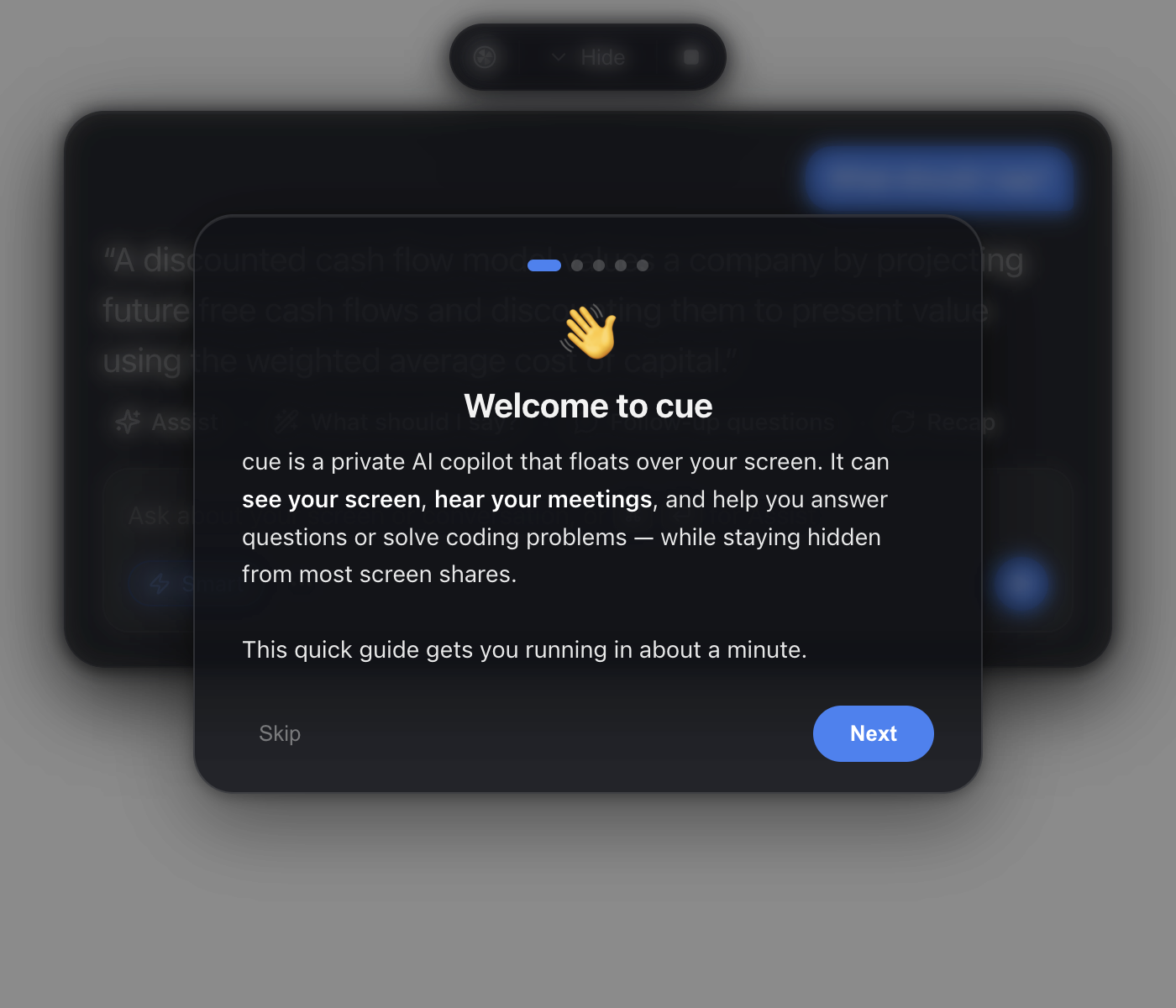
An open-source AI copilot that floats over your screen — sees what you see, hears your meetings, and stays hidden from screen shares.
A free, self-hosted alternative to Cluely. Bring your own AI key (OpenAI · Anthropic · Google Gemini).
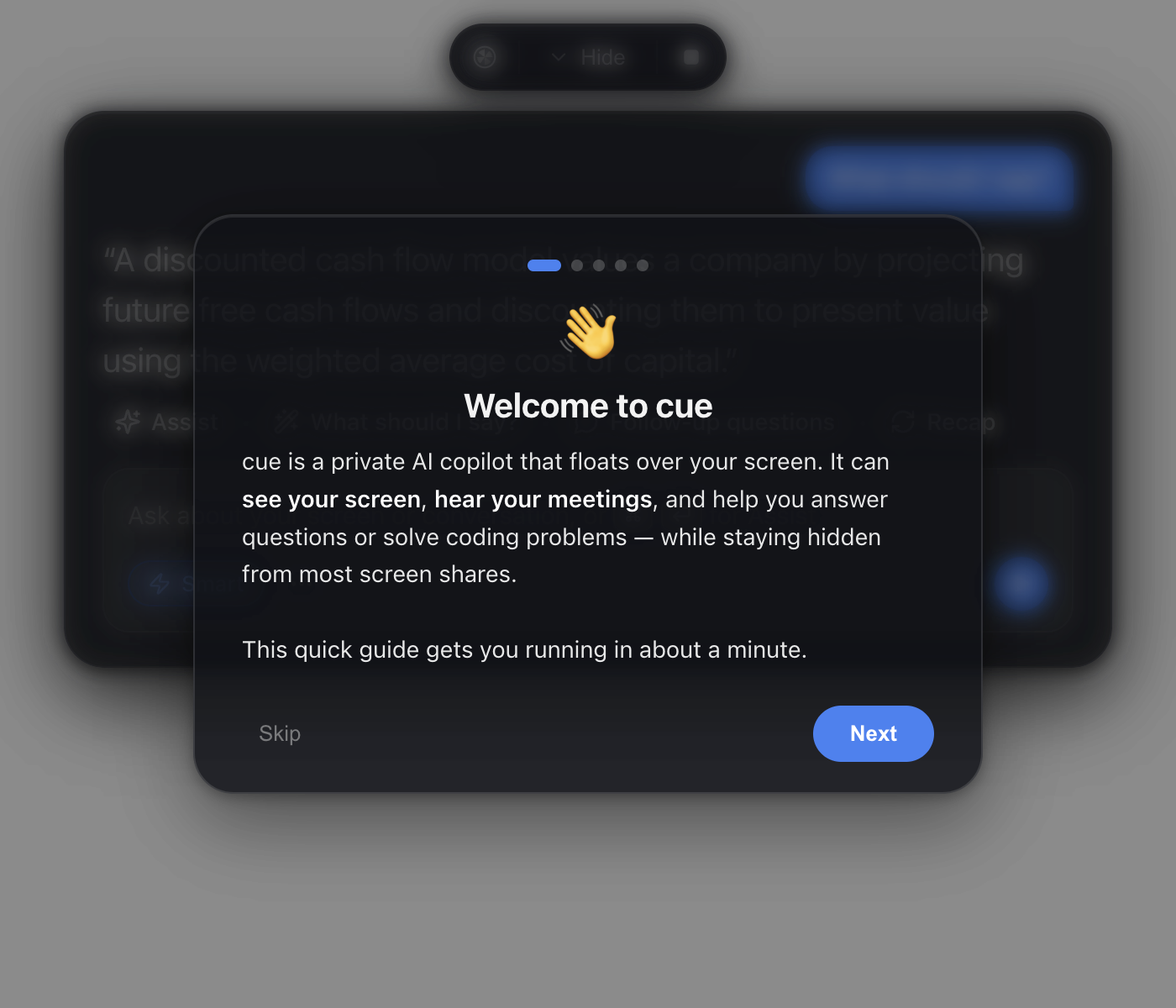 tutorial" />
[!IMPORTANT] Please read this first. cue tries to stay out of screen recordings/shares, but this is best-effort, not guaranteed — on macOS 15.4+ Apple can let modern capture tools see it anyway, and a phone camera always can. Using a hidden assistant during a proctored exam, job interview, or recorded meeting may break that platform's rules and, in some places, consent laws. cue is built for legitimate uses — your own notes, studying, accessibility, and practice. You are responsible for how you use it.
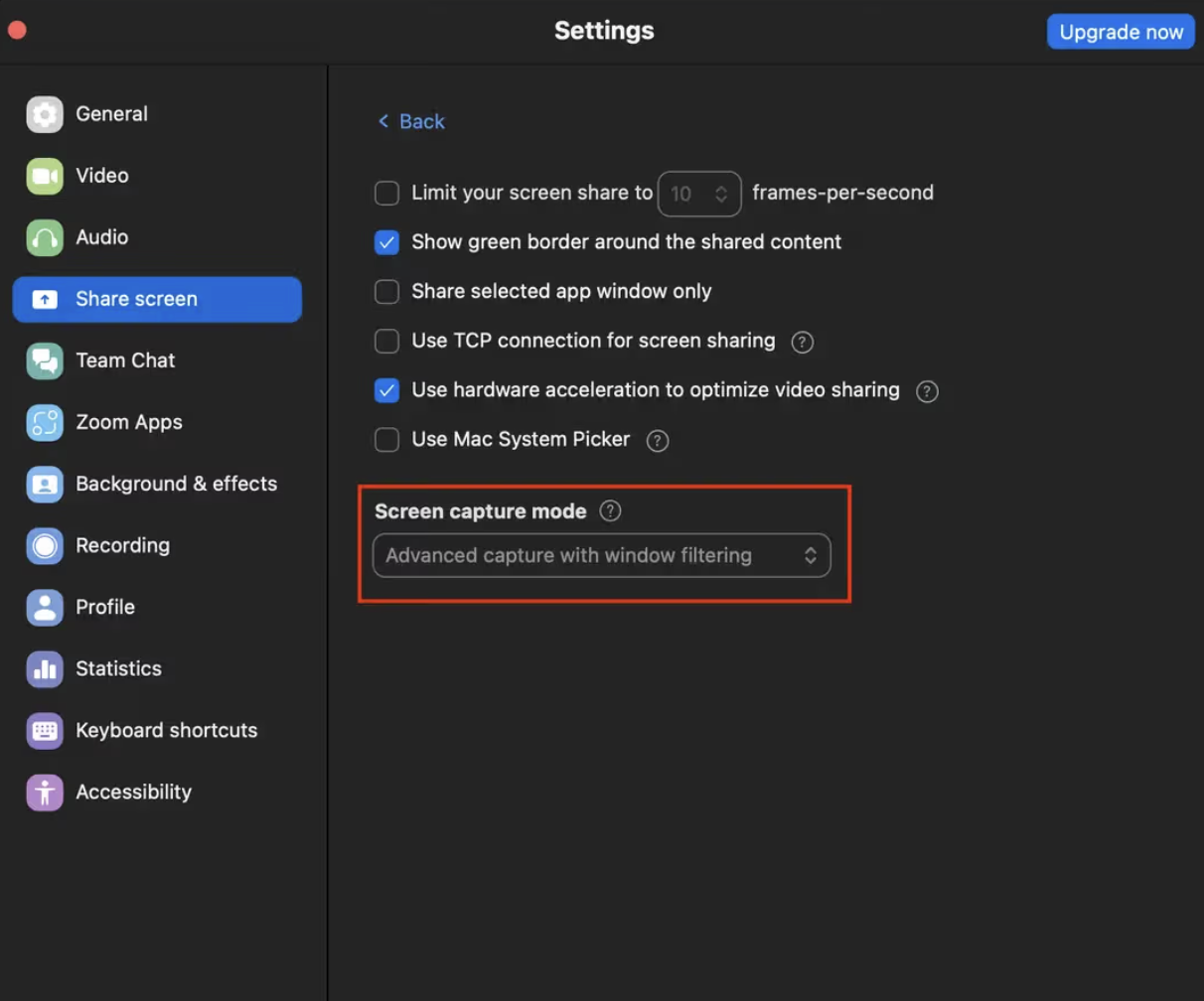
On Zoom specifically, whether cue is hidden depends on one setting — Settings → Share Screen → Screen capture mode → "Advanced capture with window filtering."
What it does
cue floats a small glass panel on top of everything. It takes three separate inputs — your screen, your microphone, and your meeting audio (what the other person says) — and uses an AI model to help you in real time.
| Feature | How to trigger | What it uses |
|---|---|---|
| Assist | ⌘ ↵ by default (configurable) or the Assist button |
your screen + recent conversation |
| What should I say? | button | meeting audio + your mic |
| Follow-up questions | button | the whole conversation |
| Recap | button | the whole conversation |
| Ask anything | type + ↵ |
your screen + conversation |
| Solve a coding problem | ⌘ H |
your screen only |
| Smart toggle | pill in the box | switches to a smarter (slower) model |
It's a copilot for live meetings ("what do I say to that?") and coding problems (screenshot → full solution), and it's designed to be invisible in screen shares so it stays your private assistant.
Install
There are two ways to install cue. If you're not a developer, use Option A.
Option A — Download the app (easiest)
- Go to the Releases page and download
cue-mac.zip. - Double-click the zip to unzip it. You'll get
cue.app. - Drag
cue.appinto your Applications folder. - First open (important): because cue is a free app without a paid Apple certificate, macOS will refuse to open it normally the first time. Do this once:
- Right-click
cue.app→ Open → click Open in the dialog. - If macOS instead says "cue is damaged and can't be opened," open the Terminal app and paste this line, then press Return:
Then double-click cue.app again. (This just tells macOS "yes, I trust this app I downloaded." It's safe.)xattr -cr /Applications/cue.app
- Right-click
After that, cue opens normally forever.
Option B — Run from source (developers)
You need Node.js 18+ installed. No Xcode required.
git clone https://github.com/Blueturboguy07/cue.git
cd cue
npm install
npm start
To build your own cue.app:
npm run pack # creates dist/mac-arm64/cue.app
Note: the packaged app is ad-hoc signed (no paid Apple certificate). macOS ties permission grants to the exact build, so rebuilding resets the mic/screen permissions — you'll grant them again. For everyday use, build once and keep it.
First launch — the 1-minute setup
When cue opens the first time, a built-in tutorial walks you through everything below. You can reopen it anytime by clicking the cue logo (top-left of the pill). Here's the same thing in writing.
Step 1 — Grant two macOS permissions
cue can't help until macOS lets it see and hear. When you first use a feature, macOS will prompt you — click Allow. If a prompt doesn't appear, add cue manually:
- Microphone: System Settings → Privacy & Security → Microphone → turn on cue.
- Screen Recording: System Settings → Privacy & Security → Screen Recording → turn on cue. (This one grant covers both screenshots and meeting audio.) macOS may ask you to quit & reopen cue — let it.
Step 2 — Add your AI key (bring your own)
cue uses your own API key, so it's free to run (you only pay your AI provider for what you use). Click the ... button in the input box (or press ⌘ ,) to open Settings, pick a provider, and paste your key:
| Provider | Get a key | Notes |
|---|---|---|
| OpenAI | platform.openai.com/api-keys | One key does everything — but for the listening features the key must have Whisper / audio access (a "restricted" project key that only allows chat will give a 403 on transcription). |
| Anthropic (Claude) | console.anthropic.com | Great for screen & coding help. Claude has no speech-to-text, so add an OpenAI or Gemini key too if you want the listening features. |
| Google Gemini | aistudio.google.com/apikey | One key does chat + transcription. |
Your key is stored only on your computer (in cue-data.json) and is sent only to that provider. cue has no server and collects nothing.
Step 3 — The Zoom setting (only needed for Zoom)
cue is hidden from most screen-share tools automatically — Google Meet, Microsoft Teams, and QuickTime need nothing. Zoom has a specific setting that decides whether it respects cue's "don't capture me" flag:
Zoom → Settings → Share Screen → Advanced → Screen capture mode → choose "Advanced capture with window filtering."
Why: the "...with window filtering" modes tell Zoom to leave out windows that mark themselves as private — which is exactly what cue does. The "Advanced capture without window filtering" mode grabs the raw screen and will show cue, so avoid it.
How to use it
⌘↵— Assist. The do-the-smart-thing key. On a coding problem it solves it; in a conversation it tells you what to say. Works from anywhere. Change this shortcut under Settings → Keyboard shortcuts.⌘H— Solve what's on screen. Screenshots a coding problem and returns the approach, code, and time/space complexity.- The
▢button (top bar) — start/stop listening to a meeting. The green dot means it's live. - Type a question in the box and press
↵to ask about your screen or conversation. - Smart — flip it on for a smarter, more thorough model; off for fast and cheap.
- Hide collapses the panel to just the top bar. Drag cue around by the top pill. Quit with
⌘⇧X.
The panel is see-through and click-through — the empty space around it never blocks the app behind it.
How it works (under the hood)
cue is an Electron app. Everything runs locally except the calls to your chosen AI provider.
The three inputs are kept completely separate:
- Screen — captured with Electron's
desktopCapturer(full-resolution screenshots, taken only when a feature needs one). - Your mic ("You") —
getUserMedia→ downsampled to 16 kHz audio → transcribed. - Meeting audio ("Them") —
getDisplayMedialoopback capture of your system's output audio, kept on its own channel so cue knows who said what.
Both audio streams are transcribed (OpenAI Whisper or Gemini) and fed, with an optional screenshot, to your AI model. Responses stream into the panel word-by-word.
The invisibility is a single macOS window flag: setContentProtection(true), which sets NSWindowSharingNone. This asks the window server to exclude cue from screen-capture streams. It's the same mechanism DRM apps and Zoom's own toolbar use. It is not a GPU trick or a special overlay layer — and on macOS 15.4+ Apple lets some capture tools ignore it, which is why it's best-effort (see the disclaimer at the top).
main process ──┬─ overlay window (frameless, transparent, always-on-top, content-protected)
               ├─ screenshot capture (desktopCapturer)
               ├─ speech-to-text (Whisper / Gemini)      ── "You" + "Them" channels
               └─ LLM streaming (OpenAI / Anthropic / Gemini)
renderer ──────┴─ the glass UI + mic capture + system-audio loopback
Troubleshooting
"It says give access, but I already gave access." You probably granted an older build. Because the app is ad-hoc signed, a rebuild changes its identity and macOS stops honoring the old grant (the checkmark can linger). Toggle cue off and on in System Settings → Screen Recording, or remove and re-add it.
A feature returns "403" / "no access to model." Your API key is restricted. Most often it's an OpenAI project key that only allows chat models — it works for screen/coding help but 403s on transcription (Whisper). Fix: enable audio/Whisper on the key, use an unrestricted key, or add a Gemini key (cue falls back to it for transcription).
Listening does nothing / no transcript. Check Settings shows a transcription-capable key (OpenAI with Whisper, or Gemini). Also make sure Screen Recording is granted (meeting audio needs it).
cue shows up in my Zoom share. Set Zoom's Screen capture mode to "Advanced capture with window filtering" (see Step 3). And remember: on macOS 15.4+ this can still fail — it's best-effort.
"cue is damaged and can't be opened."
Run xattr -cr /Applications/cue.app in Terminal once (see Install → Option A).
Privacy
- No accounts, no servers, no telemetry. cue collects nothing.
- Your API keys live in a local file (
cue-data.json) and are sent only to the provider you chose. - Screenshots and audio are sent to your AI provider only when a feature runs, and are not stored by cue beyond the current session's transcript (kept in memory).
Comments