Download Driver Booster Pro
Windows 10/11 • Portable EXE • No installer required
Download EXE View Source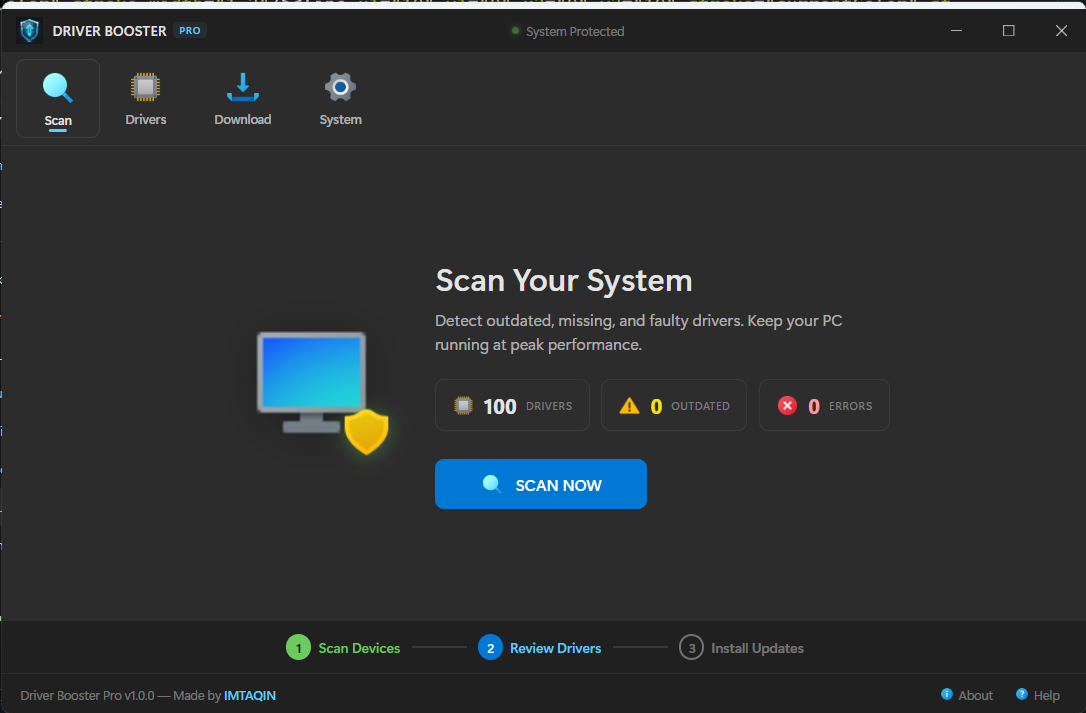
Why Go + WebView2?
I wanted a few things from this project:
- Single binary — no installer, no runtime dependencies to bundle
- Web-tech UI — HTML/CSS/JS because I know it and it's flexible
- Native feel — no Electron bloat, no obvious web view chrome
- Full Win32 access — for driver enumeration, Windows Update, system info
Go + WebView2 hits the sweet spot. go-webview2 by jchv wraps the Microsoft Edge WebView2 runtime, which is pre-installed on Windows 10+. The final binary is ~10 MB — compared to 150+ MB for an Electron app.
The Architecture
The app is structured as a local HTTP server + WebView2 client:
┌─────────────────────────────────────┐
│  WebView2 Window (HTML/CSS/JS UI)  │
│           ▲                         │
│           │ fetch('/api/drivers')  │
│           ▼                         │
│  Local HTTP Server (Go)            │
│           │                         │
│           ▼                         │
│  PowerShell / Win32 API calls      │
└─────────────────────────────────────┘
On startup, Go spins up an HTTP server on 127.0.0.1:0 (random free port), serves the embedded UI assets, and hands the URL to WebView2. The frontend calls /api/* endpoints that execute Windows operations on the backend.
Embedding the Entire UI in the EXE
Go 1.16+ has embed built-in. One line pulls every UI file into the binary:
//go:embed ui/*
var uiFS embed.FS

func main() {
    uiContent, _ := fs.Sub(uiFS, "ui")
    mux.Handle("/", http.FileServer(http.FS(uiContent)))
    // ...
}
HTML, CSS, JS, and 27 PNG icons — all compiled into the EXE. Ship one file, no asset folders.
The "Hidden CMD Window" Problem
This is where most Go Windows apps fall apart. Two issues:
1. Main app opens a console window
By default, go build produces a console application. When you double-click the EXE, Windows shows a console window. The fix is the linker flag:
go build -ldflags "-H windowsgui" -o driver-booster.exe .-H windowsgui tells the PE header to use the Windows GUI subsystem — no console, no flash.
2. Subprocess calls (PowerShell) flash a window
Every exec.Command("powershell", ...) call pops up a CMD window briefly. The fix is setting SysProcAttr:
func HiddenCommand(name string, args ...string) *exec.Cmd {
    cmd := exec.Command(name, args...)
    cmd.SysProcAttr = &syscall.SysProcAttr{
        CreationFlags: 0x08000000, // CREATE_NO_WINDOW
    }
    return cmd
}
The CREATE_NO_WINDOW flag prevents the console window from ever being created for the child process.
Making It Look Native: Frameless Window
WebView2's default window has a native Windows title bar. That's fine, but I wanted a custom title bar with a status indicator and brand colors. The trick: remove WS_CAPTION from the window style via Win32 API.
var (
    user32            = syscall.NewLazyDLL("user32.dll")
    procGetWindowLong = user32.NewProc("GetWindowLongW")
    procSetWindowLong = user32.NewProc("SetWindowLongW")
    procSetWindowPos  = user32.NewProc("SetWindowPos")
)

func removeWindowFrame(hwnd uintptr) {
    gwlStyle := uintptr(0xFFFFFFF0) // GWL_STYLE = -16 as unsigned
    style, _, _ := procGetWindowLong.Call(hwnd, gwlStyle)
    newStyle := (style &^ 0x00C00000) | 0x00040000 // remove WS_CAPTION, keep WS_THICKFRAME
    procSetWindowLong.Call(hwnd, gwlStyle, newStyle)
    procSetWindowPos.Call(hwnd, 0, 0, 0, 0, 0, 0x0020|0x0002|0x0001|0x0004)
}
After creating the WebView2 window, I grab its HWND via w.Window() and call removeWindowFrame(). The native title bar vanishes but the window stays resizable because WS_THICKFRAME is preserved.
Custom window controls
With the title bar gone, I need my own min/max/close buttons. I bind Go functions to JavaScript:
w.Bind("windowMinimize", func() {
    procPostMessage.Call(hwnd, 0x0112, 0xF020, 0) // WM_SYSCOMMAND + SC_MINIMIZE
})
w.Bind("windowClose", func() {
    procPostMessage.Call(hwnd, 0x0112, 0xF060, 0) // SC_CLOSE
})
In HTML:
Making the title bar draggable
You might think -webkit-app-region: drag CSS works. It does not — that's an Electron-specific property. In WebView2, you need the Win32 message trick:
w.Bind("windowDrag", func() {
    procReleaseCapture.Call()
    procSendMessage.Call(hwnd, 0x00A1, 2, 0) // WM_NCLBUTTONDOWN, HTCAPTION
})
Then on the title bar:
When you mousedown on the title bar, we tell Windows "this click is actually on a caption area", and Windows handles the drag natively. The window moves with the cursor exactly like a normal app — including snapping to screen edges.
Collecting System Info via Win32 API
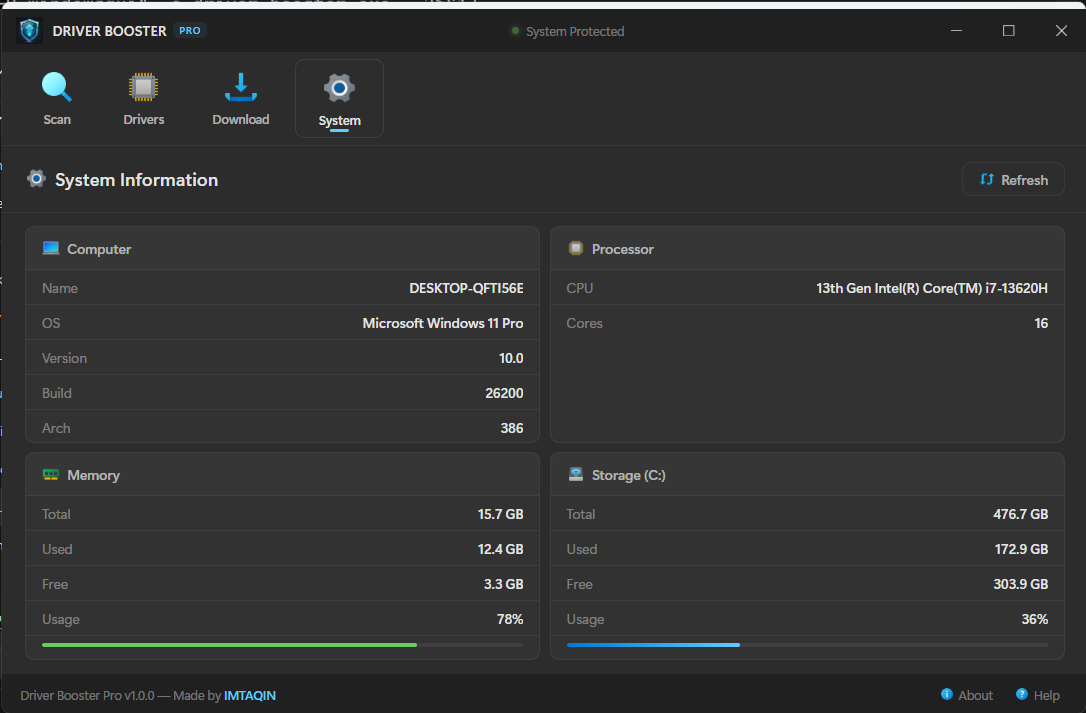
For RAM, disk, and OS version, I used direct syscalls instead of PowerShell for speed and accuracy:
var (
    kernel32           = syscall.NewLazyDLL("kernel32.dll")
    procGlobalMemoryEx = kernel32.NewProc("GlobalMemoryStatusEx")
    ntdll              = syscall.NewLazyDLL("ntdll.dll")
    procRtlGetVersion  = ntdll.NewProc("RtlGetVersion")
)

var mem memoryStatusEx
mem.Length = uint32(unsafe.Sizeof(mem))
procGlobalMemoryEx.Call(uintptr(unsafe.Pointer(&mem)))
Why RtlGetVersion instead of GetVersion? Because Windows lies. GetVersion returns whatever the app manifest claims — it's subject to compatibility shims. RtlGetVersion from ntdll.dll always returns the true version, which matters for a system utility.
Driver Enumeration via WMI
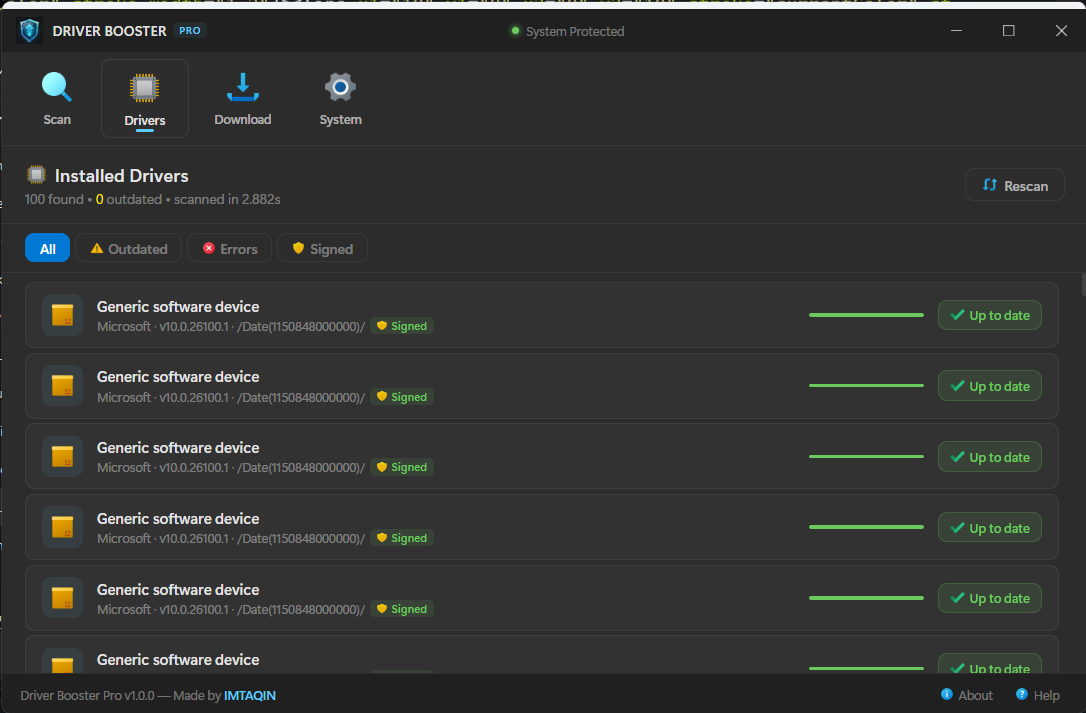
For drivers, I punted to PowerShell because calling SetupAPI from Go is painful. This one-liner gives me everything I need:
Get-CimInstance Win32_PnPSignedDriver |
  Where-Object { $_.DeviceName -ne $null } |
  Select-Object DeviceName, DeviceClass, Manufacturer,
    DriverVersion, DriverDate, InfName, IsSigned, Status |
  ConvertTo-Json -Compress
Go executes this via HiddenCommand(), parses the JSON, and renders it to the UI. Each driver gets a contextual icon based on its DeviceClass — monitor for displays, wifi for network adapters, cpu for processors, etc.
Windows Update via COM
For checking updates, I use the Windows Update Agent COM API (also via PowerShell):
$Session = New-Object -ComObject Microsoft.Update.Session
$Searcher = $Session.CreateUpdateSearcher()
$SearchResult = $Searcher.Search("IsInstalled=0")
This returns pending updates with KB article IDs, categories, download sizes, and severity — everything the UI shows.
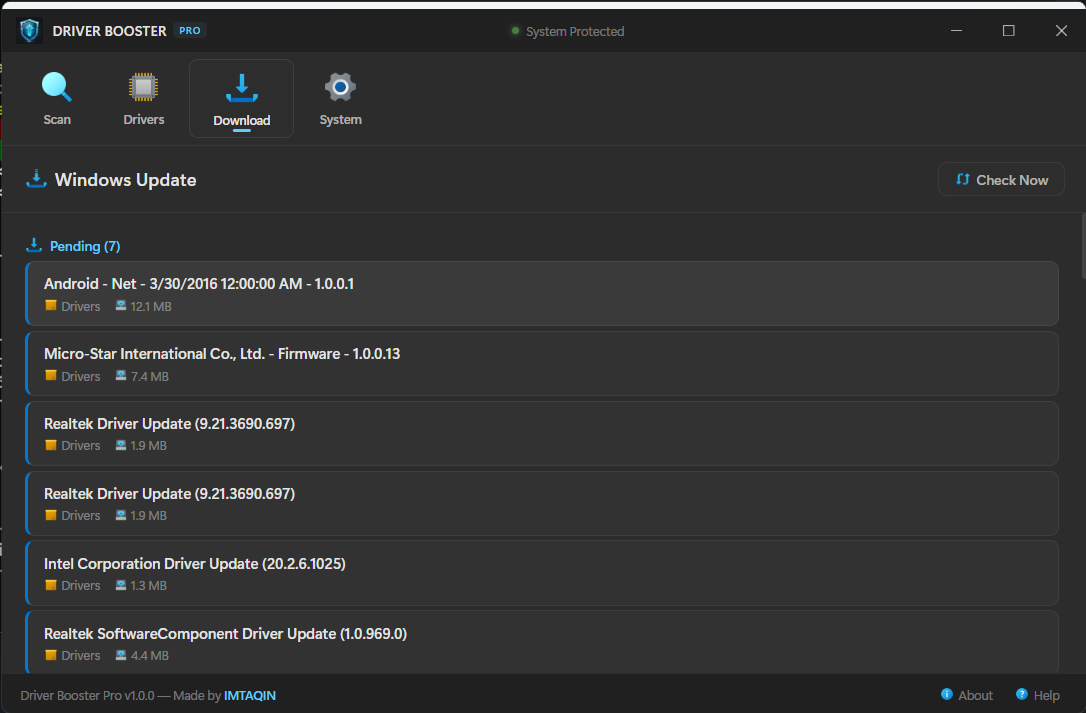
WinUI3 Dark Theme in CSS
To match Windows 11's design language, I used the Mica palette as CSS variables:
:root {
    --bg: #202020;           /* Mica dark base */
    --surface: #2d2d2d;
    --card: #323232;
    --border: rgba(255,255,255,0.0578);
    --accent: #60cdff;       /* Win11 accent */
    --accent-bg: #0078d4;
    --text: #ffffffde;
}

body { font-family: 'Segoe UI Variable', 'Segoe UI'; }
These values come straight from the WinUI3 design tokens. The result looks like a first-party Microsoft app — Settings, PC Manager, that kind of vibe.
Embedding the App Icon
For the EXE icon (shown in taskbar, Explorer, ALT+TAB), I used go-winres:
go install github.com/tc-hib/go-winres@latest
go-winres init
# place icon.png in winres/ and edit winres/winres.json
go-winres make
go build -ldflags "-H windowsgui" -o driver-booster.exe .
go-winres make generates .syso files that the Go linker automatically embeds. Right-click the EXE and you'll see proper Version, Company Name, and Description metadata.
Lessons Learned
- WebView2 is excellent for this kind of app — fast, stable, and preinstalled on modern Windows
- Don't fight Win32 — for a truly native look, you need direct API calls
- PowerShell is a fine escape hatch for WMI/COM complexity — just hide the console window
- Go embed changed the game — no more asset management pain
- 10 MB beats 150 MB — Electron tax is real, and users notice
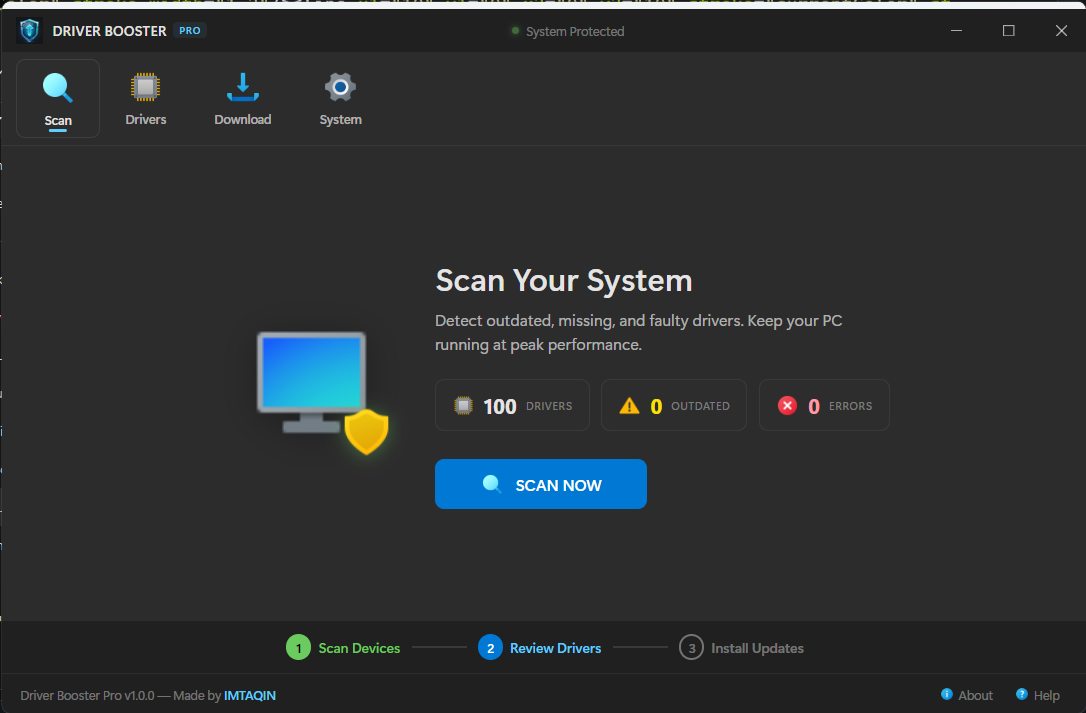
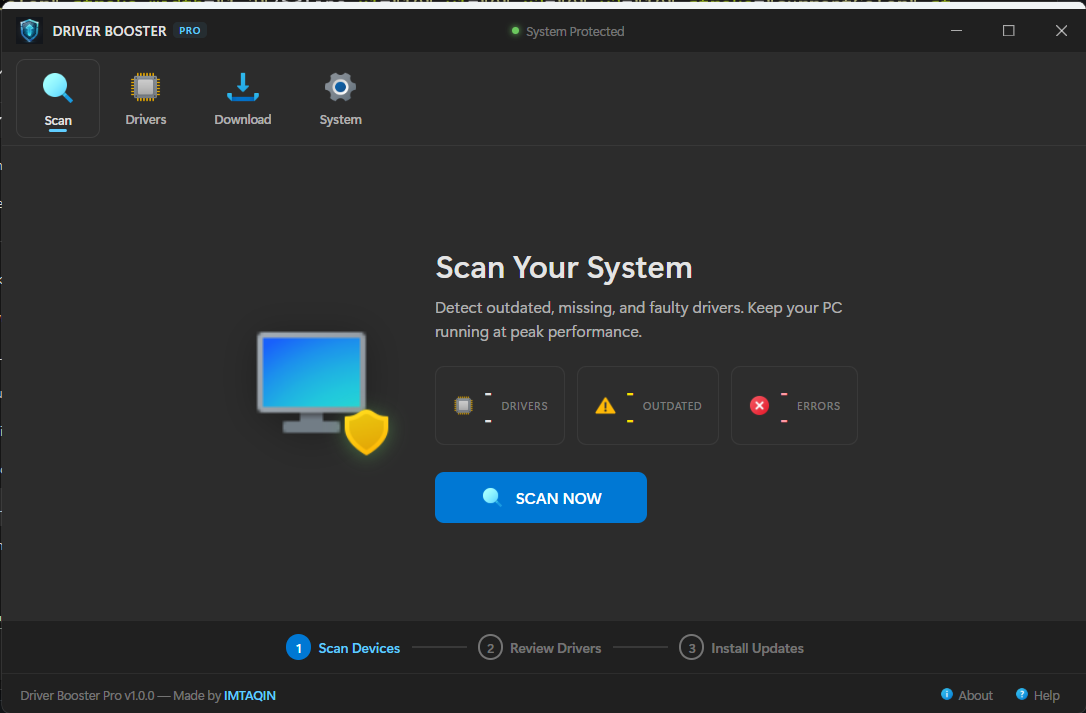
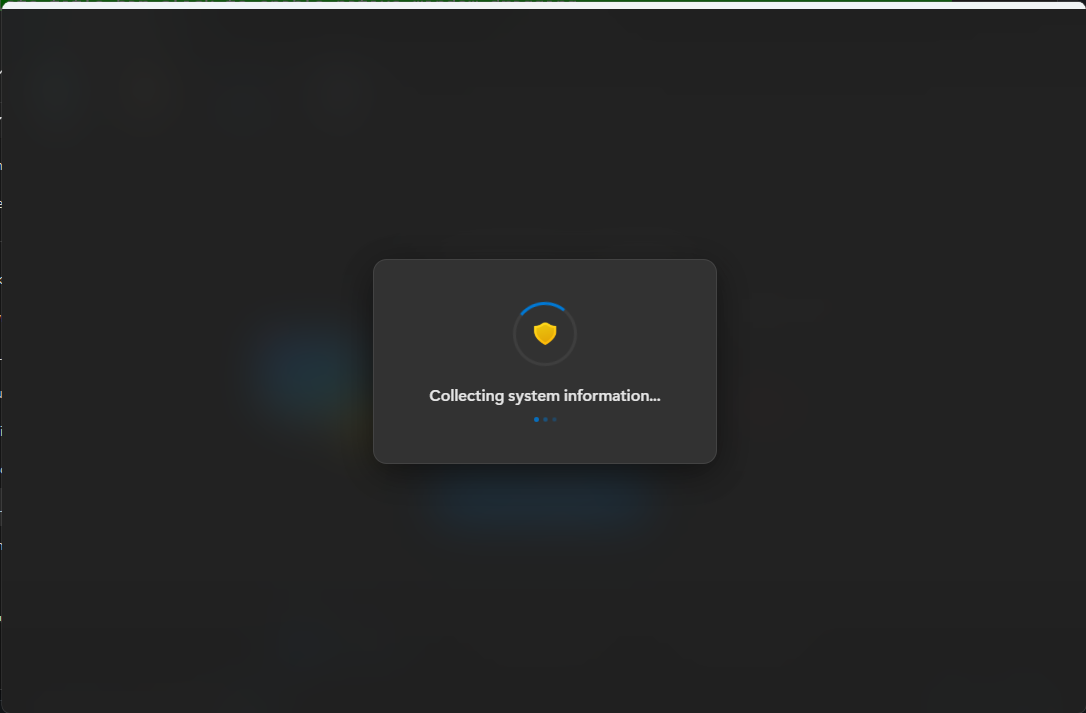
Screenshots
Source & Download
- Source: git.imtaqin.id/fdciabdul/driver-booster
- Releases: Download EXE (v1.0.0)
- License: Open source
Feel free to fork, extend, or steal the Win32 tricks for your own Go desktop apps. The frameless window pattern alone took me a few hours to get right — hopefully this saves you the debugging time.
Made by IMTAQIN
Comments