CUKTECH Screen Controller
Native macOS and Windows controllers for the CUKTECH AP01 display.
Custom images and GIFs · Live Claude/Codex quotas · Local Wi-Fi refresh · RAM-backed updates
Platform support · Windows guide · Preparation checklist · Beginner guide · Install the app · Use with a coding agent
English · 简体中文 · Visual Tutorial · Skill
Choose how you want to use it
CUKTECH Screen Controller provides two ways to control the AP01 display.
New to developer tools? Start with the step-by-step beginner guide.
No Xiaomi gateway is required. A stock AP01 only needs stable power, an online Mi Home pairing, and a computer on the same LAN. The app's gateway-free onboarding action obtains a restricted FDS ticket and still asks for explicit confirmation immediately before the one-time Flash write.
| Method 1: macOS / Windows app | Method 2: coding agent on macOS / Windows | |
|---|---|---|
| Best for | Everyday use with a native UI | First-time setup, diagnostics and deep customization |
| Interface | CUKTECH Screen Controller desktop app | Claude Code, Codex, OpenCode, WorkBuddy or another terminal-capable agent |
| Custom images | Choose PNG, JPG or GIF and push | Convert, validate and deploy through repository tools |
| Quota dashboard | Live Claude and Codex usage on both systems | Configurable renderer with the same account collectors |
| First-time loader | Gateway-free package, BFNP preflight and confirmed install | Complete compatibility, build and installation workflow |
| Daily refresh | Wi-Fi update to AP01 RAM | Wi-Fi update to AP01 RAM |
Platform support
The complete daily-use workflow is available on both platforms:
- macOS: native SwiftUI app for Apple Silicon, macOS 14 or later;
- Windows: native-feeling PySide6 app for 64-bit Windows 10 and 11;
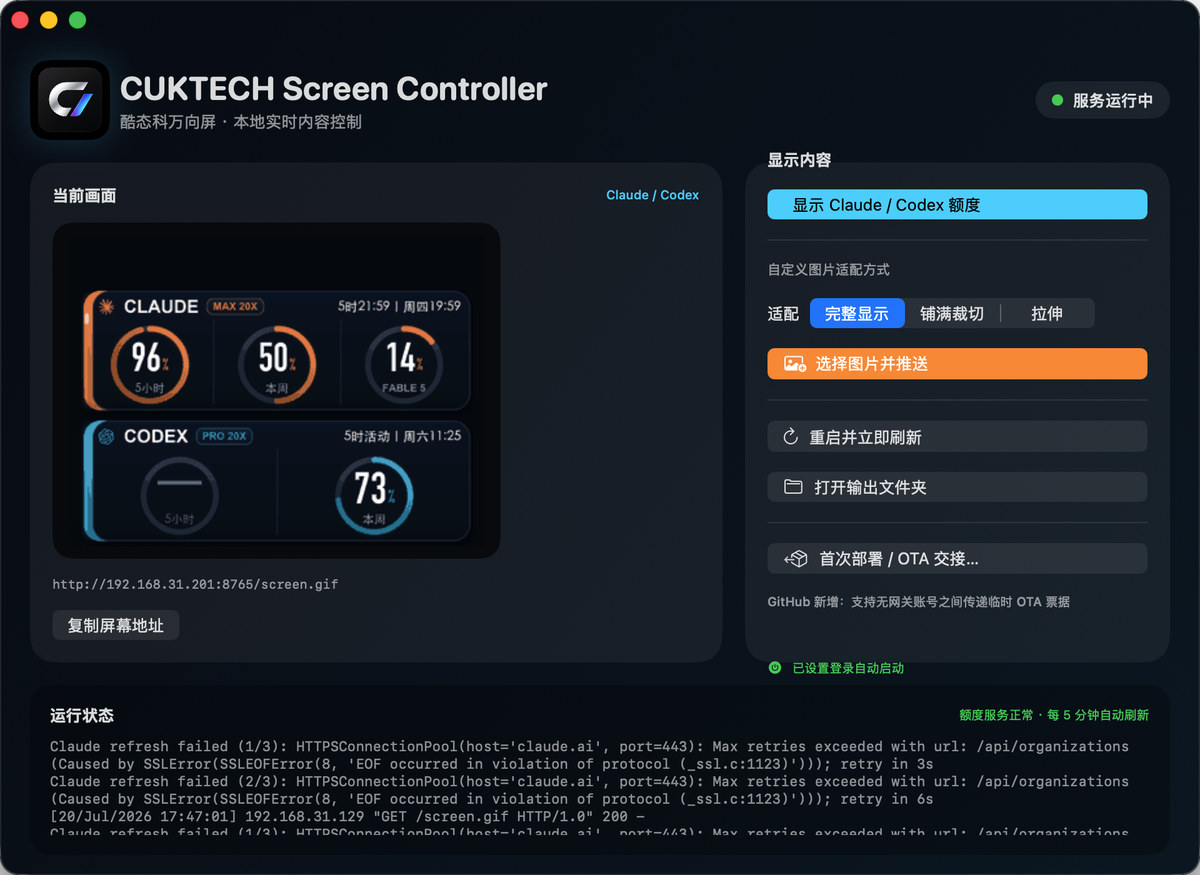
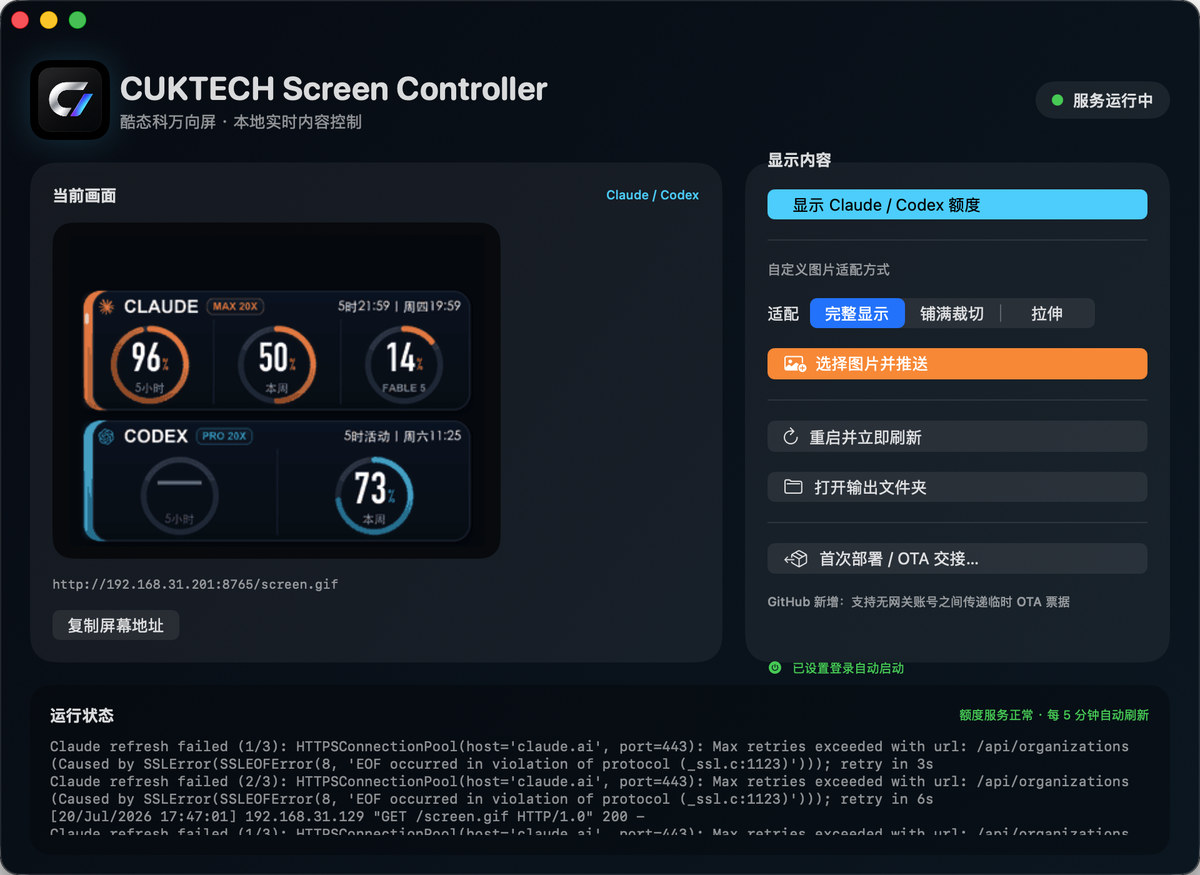
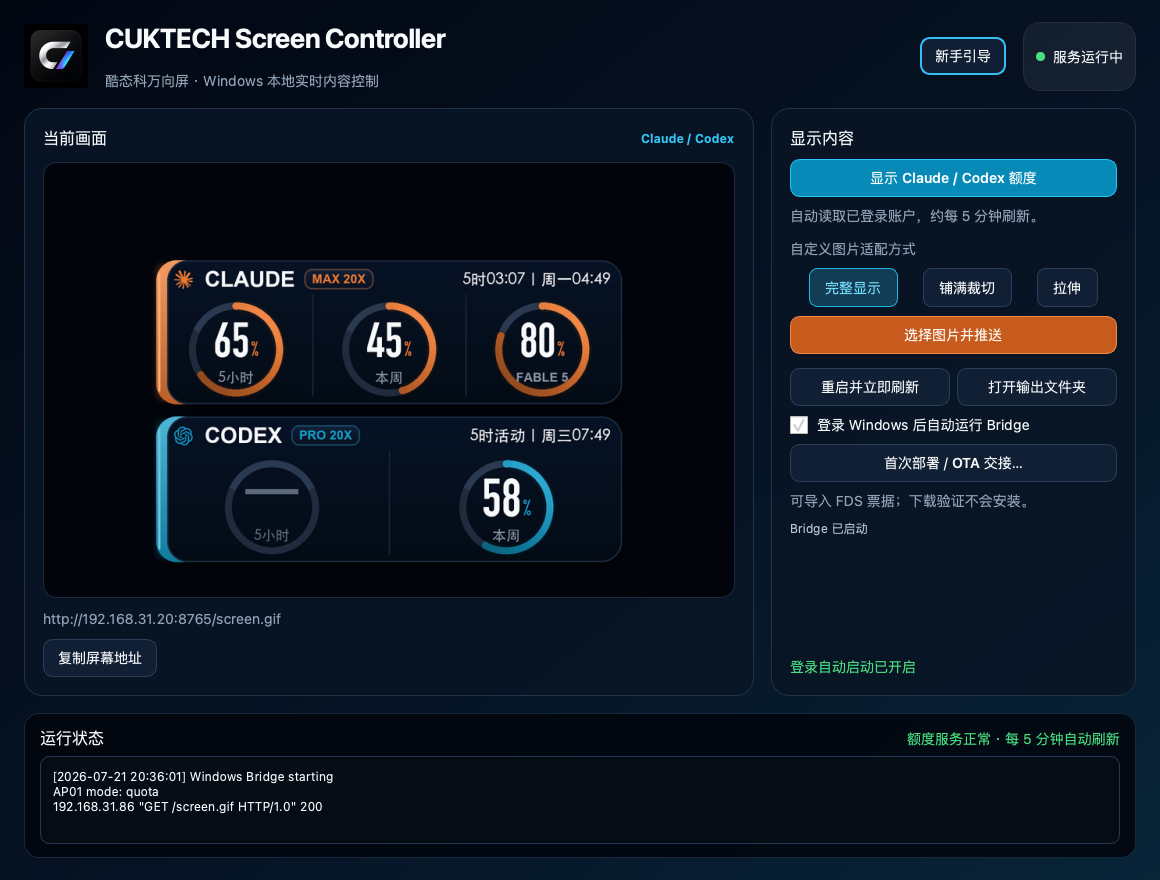
- both apps provide live preview, custom images/GIFs, Claude/Codex quota mode, Bridge status, login startup, onboarding, and gateway-free OTA setup;
- the Python and coding-agent toolkit also runs on both systems for image conversion, validation, diagnostics and deeper customization;
- Windows uses
scripts/setup-windows.ps1andscripts/diagnose-windows.ps1; macOS uses the scripts undermacos/.
See the Windows guide.
Method 1 — Install the desktop app
Download the latest CUKTECH Screen Controller package from GitHub Releases.
- Windows 10/11 x64: extract
CUKTECH-Screen-Controller-0.4.1-Windows-x64.zip, then double-clickInstall CUKTECH Screen Controller.cmd. See the Windows guide. - Apple Silicon macOS: extract
CUKTECH-Screen-Controller-v0.4.1-macOS-arm64.zip, then double-clickInstall CUKTECH Screen Controller.command.
Both installers enable the login background Bridge. The Windows package is self-contained; the macOS installer creates its isolated Python runtime on the first run.
Current requirements
- macOS 14+ on Apple Silicon or Windows 10/11 x64;
- host computer and AP01 on the same non-isolated LAN;
- Claude Desktop and the official Codex app already signed in for quota mode;
- internet access for live quotas and first-time OTA operations.
- users do not need to buy a Xiaomi gateway; the shared FDS relay is used only during the one-time loader setup.
Network and device preparation
[!IMPORTANT] Reserve the Bridge computer's IP before the first loader installation. AP01 stores a literal
http://COMPUTER_IP:8765/screen.gifURL and does not follow DHCP changes. Prefer a router DHCP reservation. If the address later changes, restore the old address first (no Flash write); only when that is impossible should you stabilize a new address and rebuild/reinstall the loader (one Flash write). See the Bridge IP reservation and recovery guide.
| Scenario | AP01 / charging station | Host computer | Internet required? |
|---|---|---|---|
| Already-patched screen showing local artwork | Powered and connected to the home LAN | Same reachable LAN with Bridge running | No; local LAN is enough |
| Claude / Codex quota dashboard | Powered and connected to the home LAN | Same LAN with the official apps signed in | Host computer: yes, to refresh quota data |
| First loader installation on a stock screen | Paired and online in Mi Home, with stable power | Internet access and the same reachable LAN | AP01 and host computer: yes |
- Normal screen delivery uses Wi-Fi/LAN, not USB or the base contacts;
- do not use a guest network, and disable AP/client isolation. Ethernet on the host is fine when it can reach the AP01 on the same LAN;
- allow incoming connections when macOS or Windows asks. VPNs and firewalls must allow local
LAN access to TCP port
8765; - before a first loader installation, have the AP01 owner's Mi Home account
available and verify model
njcuk.enstor.ap01and firmware1.0.2_0031; - keep the host awake and logged in for live refreshes. If it becomes unreachable, the current live GIF self-expires to a disconnected page after about seven minutes;
- before installing the loader, reserve the host's DHCP address in the router. On macOS keep Private Wi-Fi Address fixed rather than rotating and bind the MAC currently shown by the router;
- if the router cannot reserve an address, explicitly plan for restoring the embedded old IP after a DHCP change or rebuilding/reinstalling the loader once for a stabilized new IP. Do not repeatedly flash while the IP is still changing.
See the full preparation and connectivity checklist.
The app can show Bridge status, switch between quota and custom artwork,
preserve animated GIFs, select contain / cover / stretch, and automate
the gateway-free package, BFNP preflight, download-only verification and
explicitly confirmed installation.
The app never silently installs firmware. It performs read-only Mi Home checks, obtains and verifies the package, then presents a separate explicit confirmation immediately before the one-time loader install.
Method 2 — Give this repository to a coding agent
Copy this repository URL into Claude Code, Codex, OpenCode, WorkBuddy, or another coding agent that can read GitHub and run terminal commands:
https://github.com/wqytommy666/cuktech-screen-controller
Suggested prompt:
Use https://github.com/wqytommy666/cuktech-screen-controller as the source of
truth. Read AGENTS.md, README.md and
skills/cuktech-ap01-screen-kit/SKILL.md first.

I am not a programmer, so ask for one manual action at a time. I have a
CUKTECH AP01 detachable display. Detect whether this computer runs macOS or
Windows. On macOS run ./macos/diagnose.sh. On Windows read
docs/WINDOWS_GUIDE.md and run scripts/diagnose-windows.ps1. Start with read-only
compatibility and network checks. Confirm the LAN address, Bridge health, and
whether the real-time loader is already installed.

Before any first-loader build, identify the Bridge computer's current IP and
MAC in the router, create a DHCP reservation, reconnect, and prove that the
address remains unchanged. If the router cannot reserve it, explain that AP01
stores a literal IP: later address changes require restoring the old IP, or
stabilizing a new IP and rebuilding/reinstalling the loader with confirmation.

Then install the Bridge and configure either the automatic Claude/Codex quota
dashboard or my custom image. Verify /health and an AP01 GET /screen.gif 200 request, and
enable automatic startup for the current operating system. If the loader is missing, build
and validate the exact compatible image first and ask before installing it.
Normal screen refreshes must use the RAM-backed /tmp slots and must not
reinstall firmware.
Agents without native Codex Skill support can still read SKILL.md as a
complete operating guide.
The repository also includes AGENTS.md, CLAUDE.md, a read-only diagnostic,
and setup/diagnostic commands for both platforms:
./macos/diagnose.sh
./scripts/setup-macos.sh

.\scripts\diagnose-windows.ps1
.\scripts\setup-windows.ps1 -InputImage "C:\Pictures\screen.png"
One-time installation and daily refreshes are different
- One-time loader installation: writes firmware Flash once and supports
only model
njcuk.enstor.ap01on firmware1.0.2_0031. - Normal image and quota refreshes: rotate GIF files through
/tmp/.ap01q*.gif, which is RAM-backed. They do not rewrite firmware or resource partitions. - If the Bridge computer goes offline, AP01 shows a disconnected page after about seven minutes and resumes the live dashboard when the Bridge returns.
How to tell whether quota data is current
- the app reads the signed-in Claude/Codex sources every five minutes;
- each live plan badge includes a green status dot and the latest successful refresh time for comparison with the AP01 clock;
- a collection failure atomically replaces old values with a large Disconnected / Please connect screen;
- the delivered live GIF self-expires after roughly seven minutes, so even a powered-off computer cannot leave an apparently current quota card forever;
- the next successful refresh automatically restores the live dashboard.
What is this?
CUKTECH Screen Controller provides native macOS and Windows apps plus a cross-platform toolkit for the detachable display used
by the CUKTECH 10 charging station (njcuk.enstor.ap01). It provides a clean
workflow for:
- turning any image into a lightweight AP01-safe animated GIF;
- designing a high-legibility 320×240 status screen;
- rendering live quota dashboards from signed-in Claude Desktop and Codex;
- serving updates from a macOS or Windows computer over local Wi-Fi;
- installing the one-time AP01
1.0.2_0031real-time loader; - changing content later without another firmware install.
The included quota dashboard is only a starting point. Replace it with artwork, calendar, weather, energy telemetry, build status, Home Assistant metrics, or any screen you want.
Highlights
| Custom screen | Live quota dashboard | Lightweight runtime |
|---|---|---|
| Convert artwork to a verified 320×240 GIF89a asset. | Claude 5-hour / week / Fable 5 and Codex 5-hour / week. | Bounded animation, typically under 90 KB. |
contain, cover, and stretch layouts. |
Dark OLED-oriented UI, provider icons, reset clocks, Chinese labels. | AP01 stores updates in RAM-backed /tmp, not its resource partition. |
Architecture
flowchart LR
  A["Custom art or data sources"] --> B["macOS / Windows renderer and Bridge"]
  B -->|"GIF89a · 320×240 · LAN HTTP"| C["AP01 real-time loader"]
  C --> D["/tmp/.ap01q0.gif\n/tmp/.ap01q1.gif\n/tmp/.ap01q2.gif"]
  D --> E["LVGL virtual-pet screen"]
The first firmware installation adds the loader. Every later screen refresh is fetched over Wi-Fi and rotated through RAM-backed files.
Advanced and manual setup
1. Create a local environment
git clone https://github.com/wqytommy666/cuktech-screen-controller.git
cd cuktech-screen-controller
python3 -m venv .venv
.venv/bin/python -m pip install -r requirements.txt
Windows PowerShell:
py -3 -m venv .venv
.\.venv\Scripts\python.exe -m pip install -r requirements.txt
2. Make a custom screen from any image
.venv/bin/python ap01_prepare_screen.py ./my-artwork.png artifacts/screen.gif \
  --fit contain --background '#01040B'
.venv/bin/python ap01_screen_bridge.py artifacts/screen.gif --port 8765
The converter outputs a 320×240 GIF89a. Still images become a reliable two-frame
container; animated GIFs retain visible motion with bounded frame count and
timing. Replace artifacts/screen.gif atomically whenever you want new content;
the AP01 will retrieve it on its next refresh.
3. Render a Claude + Codex dashboard
Sign in to Claude Desktop and Codex on the computer running the bridge, then run:
.venv/bin/python quota_dashboard.py
.venv/bin/python -u ap01_wifi_bridge.py --bind 0.0.0.0 --port 8765 --interval 300
Open artifacts/quota-dashboard@2x.png to inspect the design preview. The
bridge exposes:
http://COMPUTER_LAN_IP:8765/screen.gif
http://COMPUTER_LAN_IP:8765/api/v1/quota
http://COMPUTER_LAN_IP:8765/health
Automatic account discovery supports both platforms: macOS reads the Claude
Safe Storage key through Keychain, while Windows decrypts the current user's
Claude Electron profile with DPAPI. Codex uses its local app-server on both.
First-time real-time firmware setup
The built-in binary patch targets only AP01 model njcuk.enstor.ap01 on
firmware 1.0.2_0031. Keep the Bridge computer and AP01 on the same
non-isolated LAN and reserve that computer's DHCP address before building the URL.
Treat the reservation as a precondition rather than an optional optimization. Follow the stable-IP guide, reconnect the host, and verify the reserved address before generating the firmware.
# Confirm and download the matching stock image through the signed-in Mi Home account.
.venv/bin/python mi_cloud.py firmware
.venv/bin/python mi_cloud.py download

# Build a fallback screen image and inject the local HTTP loader.
.venv/bin/python ap01_custom_ota.py artifacts/screen.gif \
  --firmware artifacts/ap01-1.0.2_0031.bin \
  --output artifacts/ap01-1.0.2_0031-screen-compat.bin

.venv/bin/python ap01_realtime_patch.py \
  --input artifacts/ap01-1.0.2_0031-screen-compat.bin \
  --output artifacts/ap01-1.0.2_0031-screen-realtime.bin \
  --build-dir artifacts/realtime-build \
  --url http://COMPUTER_LAN_IP:8765/screen.gif \
  --refresh-seconds 300

# Validate transport, then install the exact prebuilt image.
.venv/bin/python ap01_install_firmware.py \
  artifacts/ap01-1.0.2_0031-screen-realtime.bin --download-only
.venv/bin/python ap01_install_firmware.py \
  artifacts/ap01-1.0.2_0031-screen-realtime.bin --install
Start the bridge before the final installation. A bridge log such as
AP01_IP "GET /screen.gif" 200 confirms end-to-end operation.
Xiaomi FDS upload prerequisite
Normal users: no gateway required
CUKTECH Screen Controller 0.4 includes a restricted shared FDS relay flow. The
desktop app sends only its private-LAN Bridge URL, refresh interval, target
model and firmware version. Mi Home credentials, AP01 DID, passwords, tokens,
and Claude/Codex sessions never leave the owner's computer. The relay rejects
arbitrary firmware uploads and builds only the reviewed loader from a
SHA-256-pinned 1.0.2_0031 stock image.
The app checks model/version and online state, downloads and verifies the BFNP image, performs a download-only device validation, and finally asks for explicit install confirmation. The user's own Mi Home session still sends the OTA command to their own AP01. After that one-time step, all screens use LAN and RAM; neither the shared relay nor a gateway is needed for daily use.
See the relay operator guide for the protocol, deployment and security boundaries.
Advanced users: own gateway or manual ticket
The AP01 itself has no server-side FDS upload configuration. Passing the AP01
DID/model to /home/genpresignedurl therefore returns code=-6 (invalid config for fds). In the original transport, these are two different device
identities:
- an FDS-enabled
lumi.gateway.*orxiaomi.gateway.*identity obtains the signed upload URL; - the AP01 DID receives the later
miIO.otadownload command.
There is no AP01 bucket, model alias, or hard-coded object name to enter. If the AP01 owner's account has no FDS-enabled gateway, a trusted gateway account can upload the exact same BIN and pass the short-lived signed URL back.
On the uploader's Mac/account:
.venv/bin/python ap01_install_firmware.py \
  artifacts/screen-realtime.bin \
  --upload-only --url-output /tmp/ap01-ota-url.txt
If automatic discovery is ambiguous, add a real gateway identity owned by
that account: --fds-did DID --fds-model lumi.gateway.MODEL.
On the AP01 owner's Mac/account, immediately validate download without installing:
.venv/bin/python ap01_install_firmware.py \
  artifacts/screen-realtime.bin \
  --download-only --ota-url-file /path/to/ap01-ota-url.txt --timeout 360
The signed URL is transferable, but temporary. Both sides must use the same BIN bytes; do not rebuild between upload and download validation.
For an agent-ready Chinese runbook with diagnostics and completion criteria, see AP01 FDS solution without a local gateway.
Screen contract
| Requirement | Value |
|---|---|
| Physical display | 320×240 |
| Container | GIF89a |
| Animation | At least 2 frames; slow animation is preferred |
| Recommended size | ≤ 90 KB |
| Firmware slot limit | 221,445 bytes |
| Runtime loader limit | 256 KiB |
| Overlay reserve | Leave rows 0–39 clear to preserve the stock clock/date |
Flash behavior
Firmware installation is a one-time Flash write. Normal content and quota refreshes are different: the loader writes GIF slots, metadata, and its ACK record only to these RAM-backed paths:
/tmp/.ap01q0.gif
/tmp/.ap01q1.gif
/tmp/.ap01q2.gif
/tmp/.ap01q.meta
/tmp/.ap01q.ack
That means changing artwork or refreshing quotas does not repeatedly write the AP01 firmware or resource partitions.
Privacy
- Claude and Codex data is fetched from official clients signed in as the local macOS or Windows user.
- Session credentials remain in memory.
- Rendered JSON contains quota values only.
- The repository excludes firmware images, Xiaomi account credentials, signed download URLs, device IDs, local IP addresses, and generated artifacts.
Coding-agent Skill
This repository includes a self-contained Codex skill:
cp -R skills/cuktech-ap01-screen-kit ~/.codex/skills/
Then use prompts such as:
Use $cuktech-ap01-screen-kit to turn this image into an AP01 screen.
Use $cuktech-ap01-screen-kit to design and deploy a Claude/Codex quota dashboard.
Use $cuktech-ap01-screen-kit to diagnose why AP01 is not refreshing.
The skill contains the reusable project template, deterministic converters, firmware workflow, network checks, and bilingual task guidance.
Repository layout
ap01_prepare_screen.py     Convert arbitrary images into AP01-safe GIFs
ap01_screen_bridge.py      Serve mutable artwork over LAN
quota_dashboard.py         Render live Claude + Codex quota UI
ap01_wifi_bridge.py        Refresh and serve the quota dashboard
ap01_realtime_patch.py     Build the 1.0.2_0031 RAM-backed loader
ap01_install_firmware.py   Deliver an already-built image through Xiaomi OTA
realtime_payload/          AP01 loader source
skills/                    Installable Codex skill
macos/                     SwiftUI app, installer and release packager
windows/                   Windows GUI, runtime, installer and release packagers
scripts/*windows.ps1       Windows source setup and read-only diagnostics
Development
.venv/bin/python -m unittest -v test_quota_dashboard.py test_ap01_install_firmware.py test_platform_support.py test_windows_runtime.py
.venv/bin/python ap01_prepare_screen.py docs/images/quota-dashboard-preview.png /tmp/ap01.gif
See CONTRIBUTING.md for contribution conventions. The project is released under the MIT License.
Comments