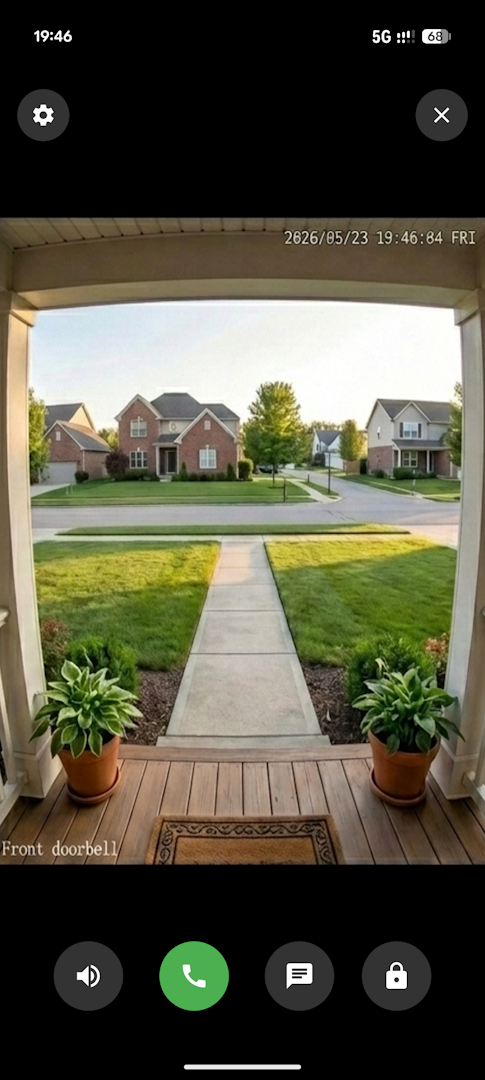
An Android doorbell application built for Home Assistant. Integrates with built-in go2rtc from the Frigate or AlexxIT/WebRTC integrations for 2-way audio and video streaming.
Features
- ⚡ WebRTC Video & Audio: Low latency streaming using WebRTC.
- 🎙️ 2-Way Audio Intercom: Supports talking back through your camera using Android's native acoustic echo cancellation.
- 🔐 Biometric Door Lock Integration: Unlock your front door from the video stream using Android Fingerprint, Face Unlock, or PIN.
- 💬 Quick Replies: Trigger pre-recorded Home Assistant
selectentity messages.
Requirements
This app directly hooks into Frigate or AlexxIT/WebRTC for 2-way audio support.
- Home Assistant
- Frigate Integration OR AlexxIT/WebRTC Integration
App Setup
When you first launch the app, you will be prompted for:
- Home Assistant URL: The local or remote URL to your Home Assistant instance that is accessible from the device (e.g.,
https://192.168.1.100:8123). Note: WebRTC strictly requires a secure HTTPS connection to function. Standard HTTP URLs will fail to establish a video/audio stream. - Long-Lived Access Token: Generate this in your Home Assistant user profile.
- go2rtc Stream Name: The exact name of the camera stream as configured in go2rtc config (e.g.,
front_door_camera).
Optional Integrations
- Connect in 2-way mode instantly: Optionally enable this toggle to skip the initial receive-only mode and hook directly into 2-way audio when the stream opens. (Note: This feature is mutually exclusive with Quick Replies).
- Quick Reply Entity ID: Provide the ID of a
selectentity (e.g.,select.doorbell_quick_reply) to enable instant pre-recorded messages. Entering an entity here will automatically disable the instant 2-way mode above to prevent audio conflicts. - Door Lock Entity ID: Provide the ID of a
lockentity (e.g.,lock.front_door) to add a biometric-protected unlock button to the camera feed.
Development
This project leverages the following major external libraries:
- Stream WebRTC Android for low-latency WebRTC video and audio networking.
- OkHttp for WebSocket and REST API communication.
- Gson for JSON parsing.
To build the project, open it in Android Studio and run a standard Gradle build.
Personal Setup Notes
For my personal setup, I am using this app with Home Assistant, Frigate, a Reolink Wi-Fi doorbell, and a SwitchBot lock.
Reolink & Frigate 2-Way Audio
The Reolink doorbell has issues dropping the call if you use WebRTC 2-way audio on the exact same stream that Frigate is using to record and detect. To prevent the doorbell from locking up and refusing to ring when all systems try to use the same stream, I set up a separate, dedicated go2rtc stream in Frigate specifically to use with this app.
Here is the config for the 2-way stream in the Frigate go2rtc section:
    doorbell_camera_2way:
      - rtsp://admin:your_password_here@192.168.1.10:554/Preview_01_sub
      - ffmpeg:doorbell_camera_2way#audio=opus#audio=copy
(This Frigate documentation page is very helpful in setting up 2-way communications).
Reolink Quick Replies & SwitchBot
I use a SwitchBot lock integrated through Home Assistant, which works flawlessly with the lock button in the app.
The auto-reply feature of the Reolink doorbell is quite finicky and actually refuses to work if a 2-way audio stream is actively going on. Because of this limitation, if the quick reply option is set up, this app connects in a receive-only streaming mode first. It only switches over to 2-way audio when you explicitly hit the Call button, allowing the quick reply functionality to work uninterrupted while viewing the live feed.
Fast Actionable Notifications
To get immediate notifications with an image when the doorbell is pressed, I use a custom automation that relies on the Reolink camera's built-in snapshot HTTP API rather than the default Home Assistant camera snapshot functionality. This is significantly faster!
Prerequisites:
- Enable Reolink HTTP Server: Make sure the HTTP/HTTPS web server is enabled in your Reolink doorbell's network settings so the snapshot API works.
- Downloader Integration: You must add the
downloaderintegration to your Home Assistantconfiguration.yaml. - Download Directory: Configure the
downloaderdownload directory to start withwww(e.g.,www/doorbell) so that Home Assistant can serve the image to the notification. (Files inwwware accessible via/local/in Home Assistant).
Blueprint Import:
You can easily add this automation using the blueprint below:

Manual Automation Code:
If you prefer to set it up manually, here is the automation YAML. Note: Due to Home Assistant limitations, you must manually edit the entity_id under triggers at the very top to match your doorbell sensor. For everything else, simply update the values in the variables: block at the very bottom!
alias: Doorbell visitor notification
description: ""
triggers:
  - entity_id: binary_sensor.doorbell_visitor
    from: "off"
    to: "on"
    trigger: state
actions:
  - action: downloader.download_file
    data:
      url:  "{{camera_snapshot_url}}"
      filename: "{{ snapshot_file_name }}"
      overwrite: true
  - wait_for_trigger:
      - trigger: event
        event_type: downloader_download_completed
    timeout: "{{ wait_timeout }}"
    continue_on_timeout: false
  - data:
      title: "{{notification_title}}"
      message: "{{ as_timestamp(now()) | timestamp_custom('%d:%m %H:%M', true) }}"
      data:
        ttl: "{{ notification_ttl }}"
        priority: "{{ notification_priority }}"
        channel: "{{notification_channel}}"
        image: "/local/{{ downloader_path }}/{{ snapshot_file_name }}"
        notification_icon: mdi:doorbell-video
        clickAction: app://com.novasoftware.hadoorbell
    action: "{{ notify_service }}"
mode: single
variables:
  camera_snapshot_url: http://192.168.1.10/cgi-bin/api.cgi?cmd=Snap&channel=0&user=admin&password=your_password_here
  notify_service: notify.mobile_devices
  notification_channel: alarm_stream
  notification_title: There is somebody at the door!
  notification_ttl: 0
  notification_priority: high
  snapshot_file_name: snapshot_doorbell.jpg
  downloader_path: doorbell
  wait_timeout: "00:10:00"
Comments