RTSP bridge + web viewer for Reolink cameras that speak the proprietary Baichuan protocol.
Inspired by, and a pure C#/.NET reimplementation of, the original Neolink project by @thirtythreeforty, whose reverse engineering of the Baichuan protocol made all of this possible, and its actively maintained fork QuantumEntangledAndy/neolink.
Neolink.NET is for Reolink IP cameras that talk the proprietary "Baichuan" protocol on TCP port 9000 instead of standard RTSP/ONVIF (B800/D800, B400/D400, E1, Lumus, 510A, Duo, TrackMix, and many others).
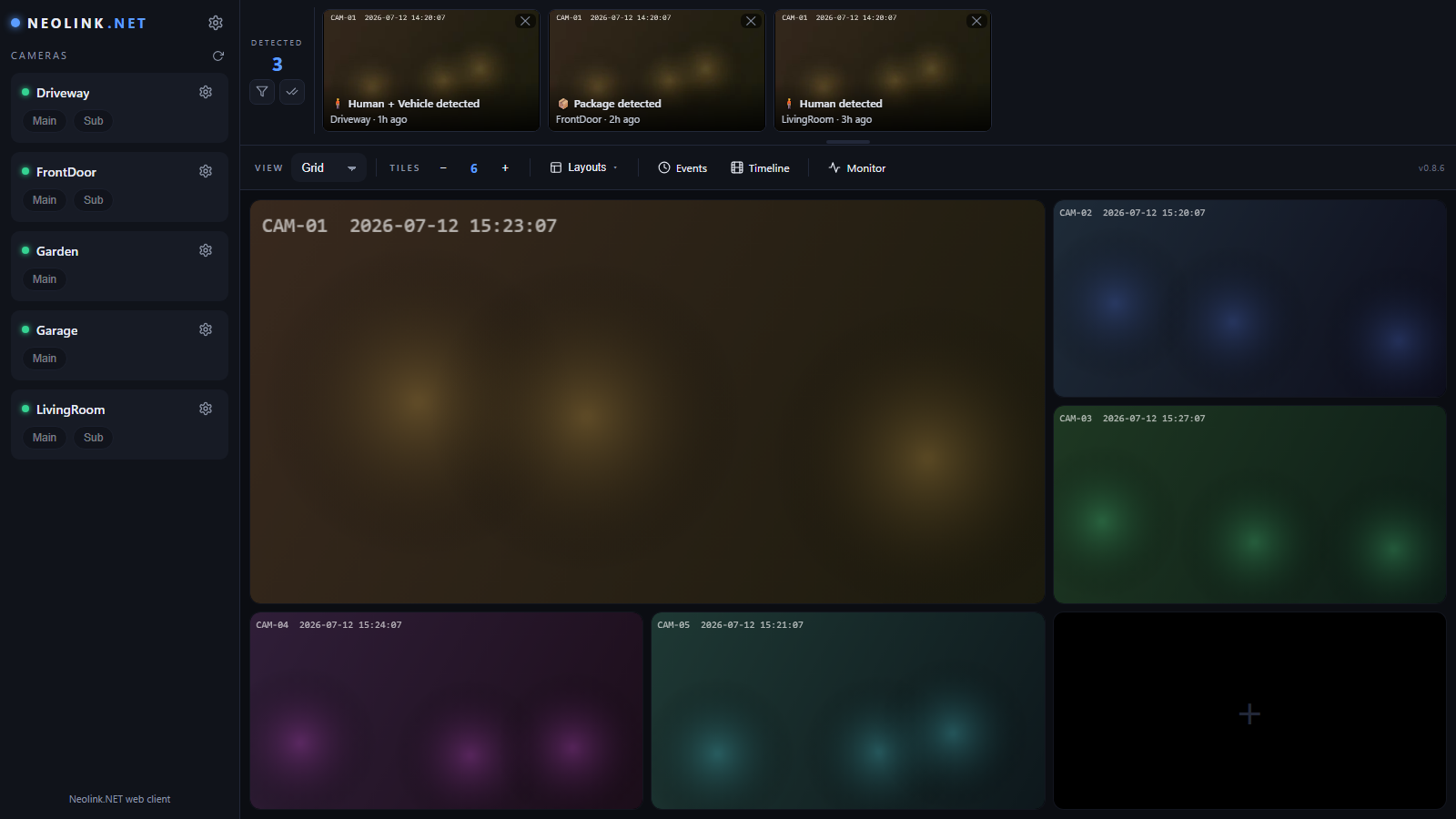
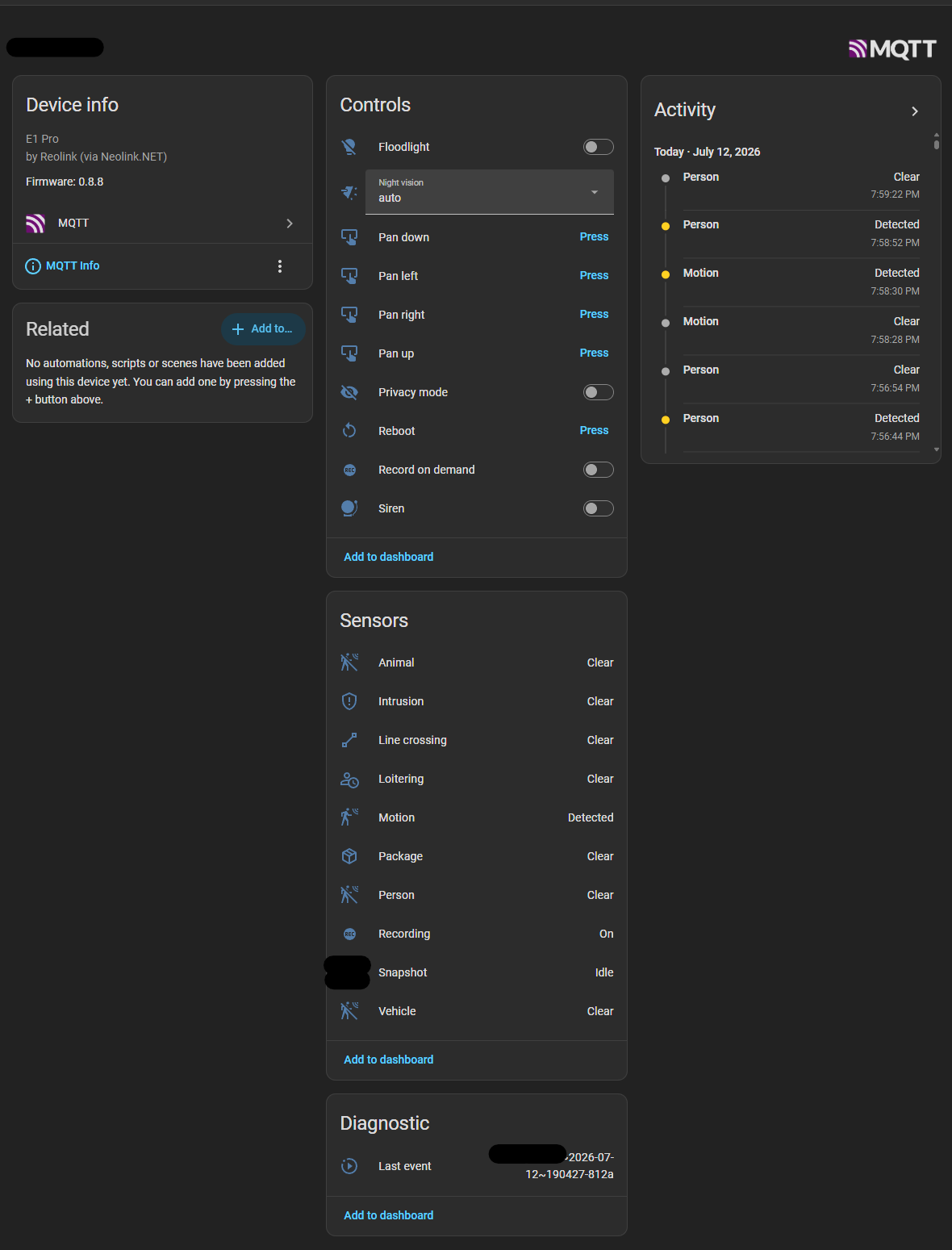
Your NVR software (Frigate, Blue Iris, Home Assistant, Shinobi, VLC, ffmpeg, …) connects to Neolink.NET, which logs into the camera, demuxes its media stream, and re-serves it as standards-compliant RTSP. On top of that, Neolink.NET ships a built-in browser UI — a multi-camera wall with live low-latency video, no plugins, no transcoding, no GStreamer — and a native MQTT integration for Home Assistant: each camera appears in HA automatically (via MQTT Discovery) with motion/person/vehicle/animal sensors, controls, and availability, driven by the camera's own detections.
The cameras are unmodified and no Reolink NVR is required.
┌──────────┐  Baichuan (9000)  ┌─────────────────┐  RTSP (8654)   ┌──────────────────┐
│ Reolink  │ ────────────────► │                 │ ─────────────► │ Frigate / VLC /  │
│ cameras  │                   │   Neolink.NET   │                │ Blue Iris / HA   │
└──────────┘                   │  (one process)  │  HTTP/WS (8655)┌──────────────────┐
                               │                 │ ─────────────► │ Browser web UI   │
                               └─────────────────┘                └──────────────────┘
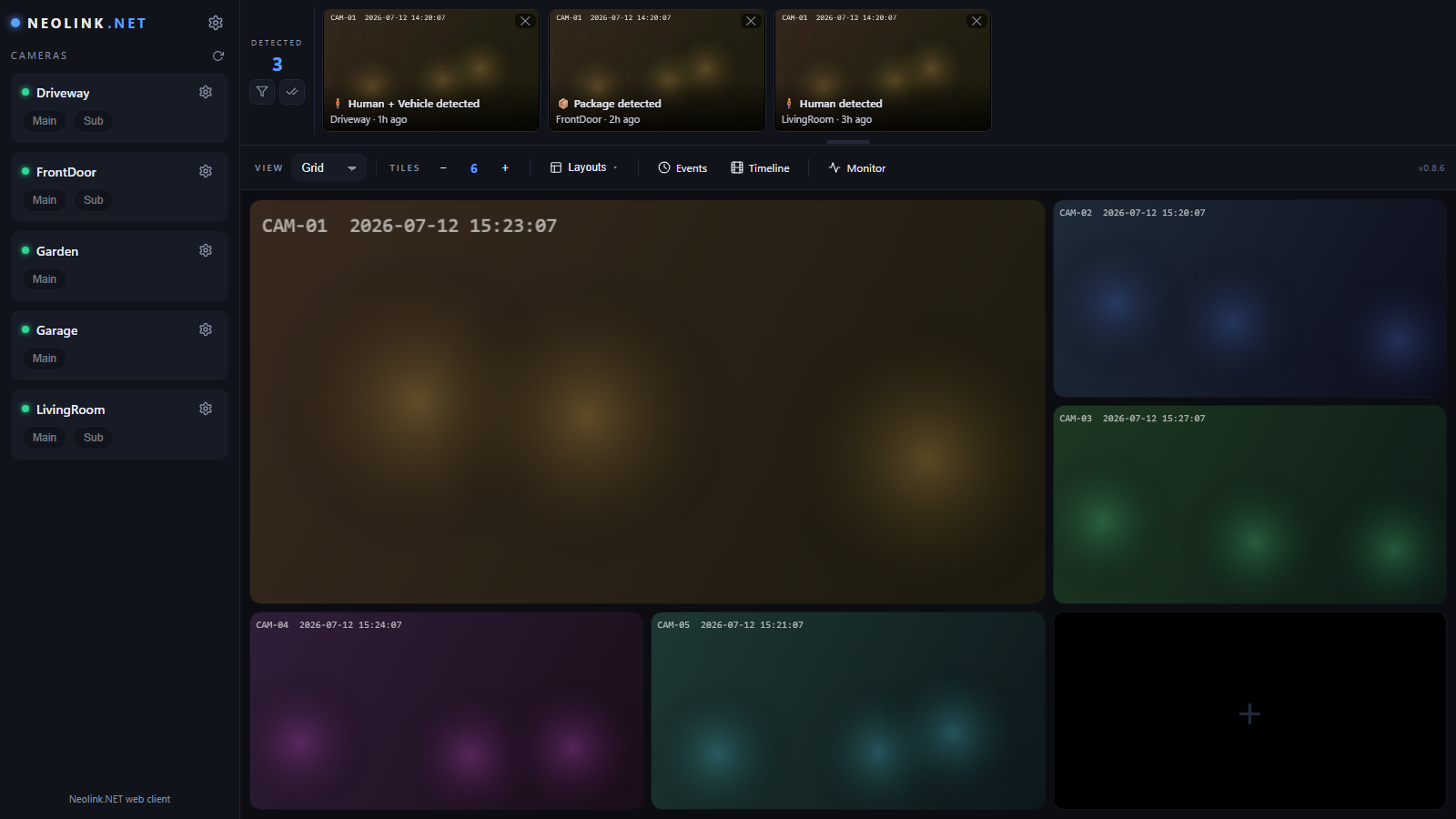
 Events page — deep-linkable review, 1–16× playback, HD/SD |
 Timeline — synced scrubbing, event marks, footage calendar |
 Camera settings — staged changes, applied only when you say so |
All screenshots show synthetic demo footage.
Lightweight by design — the camera does the heavy lifting
Neolink.NET runs no object detection of its own: it never decodes, transcodes, or analyses a single video frame for motion or AI. All of that already happens on the camera, whose dedicated silicon detects motion and classifies people, vehicles and animals in real time. Neolink.NET simply listens for the alarm messages the camera pushes over the Baichuan connection (the same events that drive Reolink's own app) and relays them to Home Assistant as MQTT sensors — and doorbell button presses as MQTT events. That means:
- No GPU, no Coral, no CPU-hungry inference — unlike setups where a server re-analyses every stream, Neolink.NET adds essentially zero processing load. It runs comfortably on a Raspberry Pi or a small NAS container.
- Event-driven, not polled — sensors fire the instant the camera sees something, with no scan interval and no per-frame work.
- AI is only as good as the camera — person/vehicle/animal labels come from the camera's firmware, so enable the detection types you want in the Reolink app and Neolink.NET surfaces exactly those.
The trade-off is that detection quality and available classes are whatever your camera model provides (rather than a tunable server-side model like Frigate's); in exchange you get an integration light enough to leave running forever.
Features
RTSP bridge
- H.264 / H.265 video and AAC audio are repackaged, not re-encoded; ADPCM audio is decoded to PCM (L16)
- TCP-interleaved and UDP RTP transports, RTSP Basic auth, per-camera user permissions
- One camera connection feeds any number of RTSP clients (cameras fall over at ~2–3 direct connections — the bridge multiplexes)
- Slow/stalled clients are isolated: they drop to the next keyframe or get disconnected; they can never affect the camera connection or other clients
Web UI (optional, built in)
- Live video in the browser via fMP4 over WebSocket + Media Source Extensions — ~1 s latency, no plugins, no ffmpeg
- Live audio for cameras with AAC sound: streams start muted (browser autoplay rules), a speaker button on the tile/quick-view unmutes; event clips and 24/7 recordings carry the audio track too. ADPCM-only cameras play audio via RTSP only (browsers can't decode raw PCM in MP4)
- Two-way talk (opt-in) for cameras with a speaker (doorbells, floodlight
cams): a mic button on the maximized tile / quick view streams your microphone to
the camera — the browser's PCM is resampled and ADPCM-encoded server-side, no
plugins. Disabled by default; enable it in Server settings → Web UI (or
"ui": { "talk": true }in the config). Needs HTTPS (or localhost): browsers only expose the microphone in secure contexts - Camera wall with five layout modes: Grid (1–16 tiles), Focus (hero + thumbnail strip, click to promote), Mosaic (classic CCTV wall), Theater (one camera, center stage), Free (draggable, resizable floating windows)
- Per-tile stream selection (main/sub), maximize/restore, browser fullscreen
- Camera settings & controls panel (⚙ next to each camera): capabilities are discovered from the camera itself — device info (model, firmware, serial), the full stream encode tables (resolution with each one's framerate/bitrate menus), battery status, and — where the camera supports them — PTZ (press-and-hold pad), optical zoom & focus sliders, status LED / floodlight toggles with brightness and auto-at-night mode, PIR on/off, a latched siren (sounds until you stop it), privacy mode, and reboot. Device settings stage and are sent only on "Apply to camera" — with an up-front warning when a change restarts the stream or can reboot the camera
- Battery cameras (Argus etc.) are auto-detected: charge badge in the sidebar,
sleep-friendly by default (the camera dozes while nobody watches),
always_onper camera to hold it awake — see Battery cameras - Tiered storage (optional): an SSD tier for fresh event clips and a cold archive tier that expired footage moves to instead of being deleted (per camera, per recording type, BETA) — with capacity watching: an amber banner at 90% used, a red banner when a disk is full (recording halts cleanly and auto-resumes), per-location storage cards on the Monitor page, and a live "footage lifecycle" strip in each camera's recording settings — see Tiered storage
- Email alerts (opt-in) for critical events — storage full, sustained overload, a camera offline past a per-camera threshold, recording write failures — with a "resolved" follow-up when each clears. SMTP configured in the UI; the password is encrypted at rest; fully isolated so a bad mail server can't affect anything else — see Email notifications
- Everything persists in browser localStorage: server address, layout, tile assignments, window geometry
- Adaptive jitter buffer that measures each stream's delivery cadence
Home Assistant / MQTT (optional)
- A device per camera appears in Home Assistant automatically via MQTT Discovery — no YAML on the HA side
- Motion / person / vehicle / animal
binary_sensors driven by the camera's own detections (event-driven, no server-side inference, no polling), plus battery, night vision, floodlight, PIR, PTZ, reboot, siren and privacy-mode entities where the camera supports them — and a per-camera Last event sensor whose state is the newest event's id, published the instant the event starts, so a notification's tap action can deep-link straight to the exact clip (/events?event={id}) - Video doorbells: a button press is published as an MQTT event — surfacing
in HA as an
evententity (device_class: doorbell) for ring automations — and is also logged and recorded as a "Doorbell pressed" event with pre-roll like any other detection - Two-level availability (service + per-camera), retained state so HA repopulates after restarts; MQTT 3.1.1 spoken natively — no external MQTT library
- See Home Assistant (MQTT) for setup and the full entity list
Protocol / robustness
- Full login handshake including modern encryption: BCEncrypt (XOR), AES-128-CFB, and FullAes (2023+ firmwares where the media stream itself is encrypted)
- Automatic reconnection with exponential backoff; transient auth failures retried
- Media-stream resynchronization: a corrupt packet skips forward instead of tearing down the connection
- A crash in one camera's pipeline can never take down other cameras or the process
- Zero native dependencies, zero NuGet packages — builds fully offline
Quick start (Home Assistant add-on)
Running Home Assistant OS (or Supervised)? Neolink.NET installs as a native add-on — no Docker commands, no YAML files:

- Click the badge (or Settings → Add-ons → Add-on Store → ⋮ → Repositories →
add
https://github.com/borexola/neolink.net), then install Neolink.NET. - Add your cameras in the add-on's Configuration tab (name, IP, account).
- Start it and click OPEN WEB UI.
If the Mosquitto broker add-on is installed, the MQTT connection is wired
up automatically at every start — cameras appear as Home Assistant devices with
no further setup. Recordings land in /media/neolink, so clips show up in HA's
media browser. Full details in the add-on's Documentation tab
(neolink-addon/DOCS.md).
Running Home Assistant in a plain container (no Supervisor)? Use the Docker route below — everything works the same, including the MQTT integration.
Quick start (Docker — recommended)
Prebuilt multi-arch images (linux/amd64 + linux/arm64) are published to GitHub
Container Registry on every push to main and every v* release tag.
1. Pull the image
docker pull ghcr.io/borexola/neolink.net:latest
Available tags:
| Tag | Meaning |
|---|---|
latest |
most recent build of main |
0.6.0, 0.6 |
a specific release (created from v0.6.0 git tags) — pin these in production |
main |
same as latest, explicit branch tag |
beta |
rolling pre-release test channel (built from the beta branch) — try new features early; not for production |
Docker selects the right architecture (x86-64 server, Raspberry Pi 4/5, ARM NAS) automatically. Verify the pull:
docker image inspect ghcr.io/borexola/neolink.net:latest --format '{{.Os}}/{{.Architecture}} {{.Created}}'
deniedorunauthorizedwhen pulling? The package is public, so no login is needed. If you see this on a fresh setup you are likely logged into ghcr.io with an expired token — rundocker logout ghcr.ioand pull again.manifest unknown? The tag doesn't exist (typo, or a release tag that hasn't been built yet) — check the available tags on the package page.
2. Create a config
mkdir -p config
curl -o config/config.json https://raw.githubusercontent.com/borexola/neolink.net/main/src/Neolink.Server/config.example.json
Edit it: camera names, IP addresses, and credentials (same login as the Reolink app).
New to it? You can skip this step. If
config.jsondoesn't exist on first start, Neolink.NET writes a commented starter config and boots straight to the web UI (empty, no crash-loop) — then editconfig.jsonto add your cameras and restart. Handy for one-click installs (Unraid, Portainer).
3. Run
# /config is a directory mount: config.json lives in it, and runtime settings
# from the web UI (settings.json) are persisted next to it.
# TZ sets the time zone for timestamps and the UI clock (defaults to UTC).
docker run -d --name neolink --restart unless-stopped \
    -p 8654:8654 -p 8655:8655 \
    -e TZ=Europe/London \
    -v "$PWD/config:/config" \
    ghcr.io/borexola/neolink.net:latest
Then check it came up:
docker logs -f neolink # prints the ready-to-use RTSP and web UI URLs
- Web UI: http://localhost:8655
- RTSP:
rtsp://localhost:8654/<camera-name>
Or with compose
Save this as docker-compose.yml next to your config/ directory
(or curl -O https://raw.githubusercontent.com/borexola/neolink.net/main/docker-compose.yml):
services:
  neolink:
    image: ghcr.io/borexola/neolink.net:latest
    container_name: neolink
    restart: unless-stopped
    environment:
      - TZ=Europe/London   # time zone for timestamps + the UI clock (defaults to UTC)
    ports:
      - "8654:8654"   # RTSP (TCP-interleaved works for ffmpeg/Frigate/VLC)
      - "8655:8655"   # web UI + API; remove if webui:false and API unused
    volumes:
      - ./config:/config   # holds config.json + web-UI settings.json
      # Recording storage — uncomment and set "recording": { "path": "/recordings" } in config.json:
      # - ./recordings:/recordings
      # Optional tiered storage (see "Tiered storage" below). Map a volume for EVERY tier
      # path you set, or that footage lands inside the container and is lost on recreate:
      # - /mnt/fast-ssd/neolink:/clips     # fast SSD tier  → "clips_path": "/clips"
      # - /mnt/bigdisk/neolink:/archive    # cold archive   → "archive_path": "/archive"
    # For RTSP over UDP transport, use host networking instead of port maps:
    # network_mode: host
Then:
docker compose up -d
docker compose logs -f    # shows the rtsp:// and web UI URLs
Unraid
An Unraid Community Applications
template ships in unraid/. Add
https://github.com/borexola/neolink.net under Apps → Settings → Template
Repositories, then search Neolink.NET in Apps — or paste the raw
template URL
into Docker → Add Container. First start writes a starter config and opens
the web UI; edit config.json in the Config share to add cameras. See
unraid/README.md.
Upgrading
docker pull ghcr.io/borexola/neolink.net:latest
docker rm -f neolink
docker run -d --name neolink ...   # same run command as above
# or, with compose:
docker compose pull && docker compose up -d
Building the image from source
git clone https://github.com/borexola/neolink.net.git && cd neolink.net
docker build -t neolink.net .
docker run -d --name neolink -p 8654:8654 -p 8655:8655 \
    -v "$PWD/config:/config" neolink.net
Then:
- Web UI: http://localhost:8655
- RTSP:
rtsp://localhost:8654/<camera-name>
RTSP over UDP transport needs
network_mode: hostinstead of port mapping. TCP-interleaved transport (the default for ffmpeg/Frigate, and--rtsp-tcpin VLC) works fine with plain port mapping.
Quick start (from source)
Requires the .NET 10 SDK.
git clone https://github.com/borexola/neolink.net.git
cd neolink.net
cp src/Neolink.Server/config.example.json src/Neolink.Server/config.json  # edit it
dotnet run --project src/Neolink.Server -c Release
Single-file, self-contained binaries:
dotnet publish src/Neolink.Server -c Release -r linux-x64 # or win-x64, linux-arm64, ...
Stream URLs
| URL | Content |
|---|---|
rtsp://host:8654/driveway |
main stream (alias) |
rtsp://host:8654/driveway/mainStream |
main stream (high resolution) |
rtsp://host:8654/driveway/subStream |
sub stream (low resolution) |
http://host:8655/ |
web UI |
http://host:8655/api/cameras |
JSON list of cameras and stream state |
ws://host:8655/api/stream?path=/driveway/subStream |
live fMP4 (MSE-compatible) |
GET /api/cameras/driveway/capabilities |
device info + discovered features (ptz/led/pir/battery) |
GET /api/cameras/driveway/streaminfo |
encode profiles: resolution, framerate/bitrate options |
GET /api/cameras/driveway/battery |
battery charge/status (battery cameras) |
GET/POST /api/cameras/driveway/led |
status LED & floodlight — {"state":"open"}, {"lightState":"close"} |
GET/POST /api/cameras/driveway/pir |
PIR motion sensor — {"enabled":true} |
POST /api/cameras/driveway/ptz |
pan/tilt — {"command":"left","speed":32} (up/down/left/right/stop) |
POST /api/cameras/driveway/reboot |
reboot the camera |
POST (control) endpoints require HTTP Basic auth when users are configured,
honouring the same per-camera permitted_users rules as RTSP; with no users
configured they are open, like everything else. Feature discovery is live: the
server probes the camera once per connection and the web UI only shows the
controls the camera actually supports.
RTSP audio backchannel (two-way talk without the web UI)
Cameras with a speaker also expose an ONVIF Profile-T audio backchannel on the
same RTSP mount, so go2rtc, Home Assistant's
WebRTC Camera and other ONVIF-aware clients can talk through the camera. A client
that sends Require: www.onvif.org/ver20/backchannel on DESCRIBE is offered an
extra sendonly PCMU/8000 track; the G.711 audio it streams is decoded and fed to
the same talk pipeline the web UI's mic button uses. Plain players (VLC, ffmpeg)
never see the extra track — it only appears when a client asks for it.
It rides the two-way-talk opt-in: set "ui": { "talk": true } (or Server settings
→ Web UI → Two-way talk). Example go2rtc source:
streams:
  driveway:
    - rtsp://<neolink-host>:8654/driveway#backchannel=1
Configuration
JSON with comments and trailing commas allowed — see config.example.json. Legacy TOML configs from the original Rust neolink are also accepted.
Top level
| Option | Default | Description |
|---|---|---|
bind |
0.0.0.0 |
Address to serve on |
bind_port |
8654 |
RTSP port |
web_port |
8655 |
Web UI + HTTP/WS API port; 0 disables both |
webui |
true |
Serve the browser UI on web_port; false = API only |
web_bind |
= bind |
Separate bind address for the web port |
users |
(none) | RTSP Basic-auth users: { "name", "pass" }. Omit for open access. Separate from web-UI accounts! |
recording |
(none) | Event recording (see below). Omit to disable |
mqtt |
(none) | MQTT / Home Assistant integration (see below). Omit to disable |
ui |
(defaults) | Web-UI specific settings (see below) |
Web-UI settings ("ui": { ... })
| Option | Default | Description |
|---|---|---|
enabled / port / bind |
= webui / web_port / web_bind |
Grouped aliases of the top-level web options |
state_dir |
config dir | Where the UI's server-side state persists: users.json (sign-in accounts) and settings.json (per-user layouts/filters/recording switches) |
reset_admin_password |
false |
Recovery: while true, the login screen allows setting a new admin password. Turn it back off after use |
trickle_speed |
4 |
Playback speed of the review strip's ambient clip previews |
Persistence across deployments — three locations must live on volumes or your state resets every deploy: (1) the config directory (or
ui.state_dir) holdingusers.json+settings.json— lose it and accounts, layouts and filters reset; (2) therecording.pathdirectory — lose it and footage and the reviewed/dismissed state (stored in each event'sevent.json) reset, so previously dismissed events reappear; (3)config.jsonitself. The docker-compose example mounts (1)+(3) via./config:/config; uncomment its./recordings:/recordingsline for (2) when you turn on recording.
Web UI sign-in
Authentication is off by default — no database, no config required. The
first visitor is prompted to create the admin account (or dismiss and do it
later via ⚙ → "Enable login…"); creating it turns sign-in on for the whole UI
and API. Accounts live in users.json next to your config: passwords are
stored as PBKDF2-SHA256 (210k iterations, per-user salt, constant-time
verification — safe for an open-source, file-based setup), and sessions are
HMAC-signed tokens that expire after 30 days and are invalidated the moment a
password changes.
The admin manages accounts from ⚙ → Users…: add normal users, change any
password, delete users (the admin itself can't be deleted). Every account
keeps its own UI settings — layout, tiles, review-strip filters — stored
server-side, so people don't fight over one shared view. Forgot the admin
password? Set "reset_admin_password": true in the config, restart, use
"Reset admin password…" on the login screen, then set the flag back to
false.
The admin also gets ⚙ → Server settings…: a form that edits most of
config.json (network ports, web UI, recording) and writes it back to the file
(atomically, keeping a .bak; comments are not preserved, and RTSP users still
need a text editor). The Cameras tab (beta) adds, edits and deletes cameras
from the same panel — Reolink and generic RTSP alike — with live validation, a
Test connection button (a real Baichuan login for Reolink; an RTSP
round-trip for generic URLs), and write-only passwords: a stored password is
never sent to the browser, and leaving the field blank keeps it. Saved changes
apply on the next restart, which the admin can trigger with Restart
service… — the process exits and your container/systemd restart policy brings
it back within seconds while the UI reconnects on its own. When a newer release
exists on GitHub, a dismissable banner links to it.
Recording ("recording": { ... })
💾 Slow disks are handled: all recording I/O runs on dedicated low-priority writer threads behind a bounded memory budget, so an HDD that stalls (cache flushes, spin-ups, network shares) can never lag the service or the live streams — if the disk falls behind, recorded frames are dropped (with a log warning) and recording resumes at the next keyframe.
Two recording modes, both switchable per camera at runtime from the web UI
(camera ⚙ → RECORDING) — the switches persist in settings.json next to your
config file (in Docker: the /config mount), so they survive restarts:
- Detection events: the camera's own motion/AI detections (person, vehicle, animal — pushed over the Baichuan connection, no polling and no server-side ML) become labeled events with video clips and thumbnails. New events appear in a review strip at the top of the web UI; click to play, ✕ to dismiss. The 🕘 Events button opens the full history grouped by day. Per camera you can also pick which detection types to record (🧍 person, 🚗 vehicle, 🐾 animal, 📦 package, 👁 motion) — detections of disabled types are discarded entirely. ⚠ The camera does the detecting: person/vehicle/animal labels only arrive when the matching Smart Detection is enabled in the Reolink app (camera → Settings → Detection). The chips are a Neolink.NET-side filter on what arrives; the camera's own settings are never changed.
- Continuous (24/7): classic NVR-style recording into rolling
segment_minutes-long MP4 files, browsable under 🕘 → Recordings (grouped by day, click to play). Off by default; enable per camera in the UI.
| Option | Default | Description |
|---|---|---|
path |
required | Storage directory. In Docker, mount a volume here (e.g. ./recordings:/recordings) |
clips_path |
= path |
Optional fast tier: new event clips are written here (point it at an SSD for snappy event playback); continuous footage stays on path |
archive_path |
unset | Optional cold tier: enables per-camera archiving — aged footage is moved here instead of deleted. Use a different (bigger/slower) drive; in Docker, map a second volume (e.g. -v /mnt/bigdisk:/archive) |
retention_days |
7 |
Events older than this are deleted (0 = keep forever) |
pre_seconds |
5 |
Video included from before the detection (pre-roll) |
post_seconds |
8 |
Quiet time after the last detection before the event closes |
max_clip_seconds |
120 |
Hard cap per event; continued activity starts a new event |
stream |
auto |
Stream to record: auto (main if served), mainStream, subStream |
segment_minutes |
10 |
Continuous recording: time limit for one segment file |
max_segment_size_mb |
256 |
Continuous recording: size limit for one segment file — a new file starts at the next keyframe once the segment reaches this size or segment_minutes, whichever comes first (keeps high-bitrate streams from producing huge files) |
continuous_retention_days |
= retention_days |
Days to keep continuous footage (0 = forever) |
Everything is fragmented MP4 (H.264/H.265 passthrough, video-only) playable in
the browser and by ffmpeg/VLC. Storage layout is plain files, with everything
for one camera-day under a single date folder —
recordings/<camera>/<date>/detections/<time>-<id>/{event.json, clip.mp4, thumb.jpg, preview.mp4}
for events and recordings/<camera>/<date>/continuous/<HH-mm-ss>.mp4 for 24/7
footage — so backups and external tooling are trivial. Recordings from older
versions (events directly under the date folder, continuous under
<camera>/continuous/<date>) are migrated to this layout automatically on
startup — directory renames, instant regardless of footage size. Set
"record": false on a camera to start with events off (the UI switch can
re-enable it).
Tiered storage (optional)
Everything works with the single path folder — the tiers below are strictly
opt-in and existing setups keep behaving exactly as before:
- Fast clips tier (
clips_path): point it at an SSD and new event clips land there for instant review scrubbing, while bulky 24/7 footage stays on the big disk. - Archive tier (
archive_path): once set, each camera's ⚙ → RECORDING section gains Archive event clips and Archive continuous footage switches. Retention stays the single clock: when footage reaches the end of its retention window, an enabled type is moved to the archive instead of deleted (e.g. "Keep event clips: 30" moves clips to the archive on day 30). One extra knob sets how long the archive keeps footage (blank = forever). The events list and the timeline read archived footage transparently. Use a different drive for the archive — in Docker, map a second volume (e.g.-v /mnt/bigdisk:/archivewith"archive_path": "/archive";docker-compose.ymlships commented examples for both tiers). On the Home Assistant add-on no extra mapping is needed: pointarchive_pathat a folder under/shareor/media— NAS shares added in HA under Settings → System → Storage appear there automatically.
Capacity is watched for you: when any configured location climbs past 90% used, the web UI shows an amber warning banner; if one actually runs out of space, recording to it halts cleanly (no partial files) with a red banner until space is freed — recording resumes automatically. When split storage is configured, the 📈 Monitor page grows a STORAGE section showing every location's free space live.
⚠ Docker: map a volume for every configured tier. Missing directories are created at startup so recording never blocks — but if a configured container path has no volume behind it, that directory lands in the container's writable layer: footage records fine yet lives inside the container (gone on
docker rm) and fills the Docker host's disk. If the Monitor's STORAGE section shows a tier with the same capacity as the root disk, that's the sign.
Per camera
| Option | Default | Description |
|---|---|---|
name |
required | Name used in the RTSP URL and web UI |
address |
required | Camera IP/hostname; port defaults to 9000 |
http_address |
(none) | The camera's HTTP(S) web interface (host, host:port or full URL). Enables changing stream profiles (resolution/fps/bitrate) from the web UI via the documented Reolink HTTP API |
username / password |
required | The camera's own login (same as the Reolink app) |
stream |
both |
mainStream, subStream, externStream, both, or all |
channel_id |
0 |
Channel when connecting through a Reolink NVR (0-based) |
permitted_users |
all users | Restrict this camera's mounts to specific users |
record |
true |
Initial default for this camera's "Detection events" switch (changeable in the web UI) |
Behind a reverse proxy (HAProxy / nginx / Caddy)
The web UI works behind a TLS-terminating reverse proxy (e.g. HAProxy on
OPNsense) pointing at web_port. Two things matter:
- WebSocket upgrade must be allowed for
/_blazor(the UI's interactive circuit) and/api/stream(live video). Most proxies pass theUpgradeheader by default; in HAProxy make sure the backend has a generoustimeout tunnel(e.g.1h) so long-lived streams aren't cut. - The container never needs to reach its own public URL. The UI runs on Blazor Server, so its API calls execute inside the container; when the configured server address is the page's own origin, those calls automatically short-circuit to loopback instead of going back out through the proxy — no hairpin NAT, split DNS, or internal-CA trust required. (Symptom of the old behaviour: the page loads but the camera list shows "Cannot reach https://… The SSL connection could not be established".)
Only the browser-facing traffic (the page, the live-video WebSocket, event clips/thumbnails) traverses the proxy, so your TLS certificate only needs to be valid for the browser.
Home Assistant (MQTT)
Add an mqtt section and Neolink.NET connects to your broker and publishes
Home Assistant MQTT Discovery
config, so a device per camera appears automatically — no YAML in HA.
"mqtt": {
  "broker": "192.168.1.10",
  "username": "neolink",
  "password": "secret"
}
| Option | Default | Description |
|---|---|---|
broker |
required | MQTT broker host (usually the Home Assistant / Mosquitto box) |
port |
1883 |
Broker port (8883 with tls: true) |
username / password |
(none) | Broker credentials |
client_id |
neolink |
Client id (must be unique on the broker) |
base_topic |
neolink |
Root of the state/command topics |
discovery |
true |
Publish HA discovery config so entities appear automatically |
discovery_prefix |
homeassistant |
Must match HA's MQTT integration setting |
keepalive |
30 |
Keep-alive interval (seconds) |
tls |
false |
Connect with TLS (certificates are not validated) |
Entities created per camera, according to what it supports:
| Entity | Type | Notes |
|---|---|---|
| Motion / Person / Vehicle / Animal | binary_sensor |
From the camera's alarm pushes (AI labels need Smart Detection enabled in the Reolink app) |
| Package / Line crossing / Intrusion / Loitering | binary_sensor |
Created up front like the core four, so automations can be built before the first event — they stay Clear until the camera pushes one (smart/perimeter detection must be configured in the Reolink app for that to ever happen) |
| Doorbell | event |
Video doorbells: every button press publishes an MQTT event (event_type: press, device_class: doorbell) — the natural trigger for ring automations |
| Visitor | binary_sensor |
Momentary doorbell-press pulse; HA clears it itself after a few seconds |
| Record on demand | switch |
Record a clip on demand from HA, regardless of what the camera detects — one clip, stops by itself; see below (appears when the server records events for this camera) |
| Suspend (beta) | switch |
ON = Neolink.NET holds no connection to the camera, so it isn't viewed or recorded here (the camera itself keeps running — its own SD/cloud recording is unaffected). Stays usable while the camera is intentionally offline |
| Recording | binary_sensor |
ON while the server is writing this camera's footage right now — an event clip (detection or on-demand) or a continuous segment |
| Battery | sensor |
Battery cameras; charge status + temperature as attributes |
| Wi-Fi signal | sensor |
Diagnostic; RSSI in dBm from the camera's own status pushes (Wi-Fi cameras) |
| Siren | switch |
Sound the siren until turned off (audio-alarm cameras); state follows the camera's own siren pushes, so it stays honest even when the camera's rules trigger it |
| Siren sounding | binary_sensor |
Read-only: ON while the siren is sounding (appears on the first status push) |
| Night vision | select |
auto / on / off |
| Floodlight | light |
Cameras with a spotlight |
| PIR sensor | switch |
Enable/disable the PIR |
| Reboot, Pan up/down/left/right | button |
PTZ buttons on pan-tilt cameras |
| Snapshot | camera |
Latest JPEG, refreshed periodically (when the camera supports snapshots) |
| Volume (beta) | number |
Speaker volume 0-100 via the camera's HTTP API — governs sirens, alerts and two-way talk |
| Auto-tracking (beta) | switch |
Follow detected subjects, on cameras that support AI tracking |
| PTZ preset (beta) | select |
The camera's saved positions; picking one moves the camera there |
| Spotlight (beta) | light |
White-LED cameras (Lumus/Elite): on/off, plus brightness where the HTTP white LED answers |
| IR brightness (beta) | number |
Infrared LED intensity 0-100, on cameras that report it |
| Doorbell light (beta) | switch |
The doorbell's button light |
| Play quick reply (beta) | select |
Video doorbells: picking a pre-recorded message plays it through the speaker |
| Picture settings (beta) | number/select/switch |
Image brightness/contrast/saturation/hue/sharpness, day/night mode, anti-flicker, flip and mirror — per what the camera reports (config category) |
A separate Neolink.NET Server device carries the server's own health
(published every stats_interval seconds): CPU, memory, recordings size, write
rate, viewers, cameras online/recording, uptime, and storage:
| Entity | Type | Notes |
|---|---|---|
| Storage free / Storage used | sensor |
The main recordings volume (recording.path) |
| Clips free / Clips used | sensor |
Only when a separate clips_path is configured |
| Archive free / Archive used | sensor |
Only when a separate archive_path is configured |
| Storage full | binary_sensor (problem) |
ON when any recording drive is out of space and recording to it has stopped — the hook for an unattended "free up space" notification even when nobody has the web UI open |
Only storage that actually exists is published: a plain single-folder install gets no clips/archive sensors, and removing a tier later clears its sensors from HA automatically.
Doorbell presses are published to {base_topic}/{camera}/doorbell with the
payload {"event_type":"press"}, so non-HA consumers (Node-RED, scripts) can
subscribe to the same topic. Press events are deliberately not retained —
a retained press would re-ring your automations after every broker restart. The
entity is announced on the first detected press, so it appears in HA the first
time someone rings. Presses are also logged and recorded as regular "Doorbell
pressed" events with pre-roll video.
On-demand recording (the Record on demand switch). Most Reolink firmwares cannot be
told to record on demand — but Neolink.NET is already the recorder, so it doesn't
need the camera's cooperation. Switching ON records one clip for that
camera exactly as if a detection were running: pre-roll included, retention
applies, and the footage appears in the timeline and review strip labeled
External. The recording stops by itself when the clip reaches
max_clip_seconds (the switch flips back OFF — retrigger it for a longer
capture) or when you switch it OFF early. The trigger deliberately ignores the
camera's event-type filter and capture schedule (it is explicit intent, not a
detection) but respects the per-camera events on/off switch.
The same recording can be started from the web UI: press the ⏺ record button in any camera tile's toolbar (it sits next to the mic on the maximized view). A red chip with a countdown sits on the video for as long as the clip records — whichever side started it, the web UI and the HA switch always show the same state. A "record while the door is open" automation:
automation:
  - alias: Record garage cam while the door is open
    trigger:
      - platform: state
        entity_id: binary_sensor.garage_door
    action:
      - service: >
          {{ 'switch.turn_on' if trigger.to_state.state == 'on' else 'switch.turn_off' }}
        target:
          entity_id: switch.garage_record_on_demand
(Setups that added the camera before the switch was renamed keep their original
switch.garage_record entity id — discovery reuses the same unique id.)
(A door open longer than max_clip_seconds ends the clip at the cap; the
turn_off when the door closes is then simply a no-op.)
Non-HA consumers can publish ON / OFF to {base_topic}/{camera}/record/set
directly, or use the web API: POST /api/cameras/{name}/record with
{"active": true|false}.
Availability is two-level: entities show unavailable when either the Neolink.NET service (a Last-Will topic) or the individual camera goes offline. State and discovery messages are retained (press events excepted, as above), so Home Assistant repopulates after a restart. Commands from HA (toggle the floodlight, reboot, nudge PTZ…) are executed on the camera over the same Baichuan connection. No external MQTT library is used — Neolink.NET speaks MQTT 3.1.1 directly, keeping the zero-dependency build.
Plain MQTT (port 1883) is unencrypted. For a LAN broker that's typical; enable
tls(port 8883) if the broker is remote.
Tap a phone alert straight to the footage
The web UI's Events page is deep-linkable: …/events/{camera} opens filtered
to that camera with its newest clip already playing. Point a Home Assistant
notification's tap action at it and a "motion detected" push takes you one tap
from the alert to the recording (and a Go live button is right there to jump
to the feed):
automation:
  - alias: Notify on driveway motion
    trigger:
      - platform: state
        entity_id: binary_sensor.driveway_motion   # a Neolink.NET camera sensor
        to: "on"
    action:
      - service: notify.mobile_app_your_phone
        data:
          title: Driveway motion
          message: Motion detected on the driveway
          data:
            # HA companion app: tapping the notification opens this URL
            clickAction: https://neolink.example.com/events/Driveway
Plain /events (no camera) opens the full recent-events list. And when you know
the exact event — its id from GET /api/events — /events?event={id} opens
and plays that specific clip, even one older than the recent list (the page
jumps to its day). All forms require the web UI to be reachable from the phone —
usually via your reverse proxy.
Linking to the exact event from HA: with MQTT enabled, every camera that
records events gets a Last event sensor (e.g.
sensor.driveway_last_event) whose state is the newest event's id — published
the instant the event starts, alongside the motion trigger, so it is already
current inside the automation that the motion fired. Point the tap action at
the exact clip:
          data:
            clickAction: >-
              https://neolink.example.com/events?event={{ states('sensor.driveway_last_event') }}
(You can also trigger the automation on the Last event sensor itself — a state
change is a new recording, and trigger.to_state.state is the id.) Clips
that auto-open from such a link start muted; tap the speaker to unmute.
Email notifications
For the things you want to hear about even when you're not looking at a
dashboard, Neolink.NET can email critical alerts. It's off until you opt in:
open ⚙ Server settings → Notifications, turn it on, enter one recipient
address and your SMTP details, and Send test email to confirm. Settings
apply immediately (no restart) and are stored separately from config.json.
All alerts default on once enabled; disable any you don't want. Each is edge-triggered and de-duplicated — you get one email when a condition starts (re-reminded at most every 6 hours while it persists) and a short "resolved" follow-up when it clears:
| Alert | Fires when |
|---|---|
| Storage full / recovered | A recording drive runs out of space and recording halts; then when space is freed |
| Server overload | CPU stays near maximum for several minutes |
| Camera offline / back online | A camera is unreachable longer than its threshold (default 10 min, configurable per camera; 0 = never); then when it reconnects. Battery cameras dozing are not treated as an outage |
| Recording write failures | Footage fails to write to disk — a failing/disconnected drive or a permissions problem (distinct from "full") |
Isolation: the notifier runs on its own background task and swallows every error, so a wrong or unreachable mail server only logs a warning — it can never affect recording, streaming or MQTT.
SMTP transport: STARTTLS (587) and implicit SSL/TLS (465) are both
supported, with AUTH LOGIN. Use a provider app password where offered
(Gmail, Outlook, etc.) rather than your main account password.
About the password at rest. The SMTP password is encrypted with AES-256-GCM;
the key is an owner-only secret.key in the state dir, or the
NEOLINK_SECRET_KEY environment variable if set (so the key can live only in
the environment). It is write-only in the UI and never returned by the API.
Be aware of the inherent limit: to send email the app must be able to recover
the password, so this protects it against casual disk/backup exposure but not
against someone who already has full read access to the server's files (they'd
have both the key and the ciphertext). That trade-off is unavoidable for any
self-hosted app that sends its own authenticated email.
Using with Frigate
cameras:
  driveway:
    ffmpeg:
      inputs:
        - path: rtsp://<neolink-host>:8654/driveway/subStream
          roles: [detect]
        - path: rtsp://<neolink-host>:8654/driveway/mainStream
          roles: [record]
Neolink.NET keeps exactly one connection per camera stream regardless of how many
Frigate roles/consumers attach, and hands stalled ffmpeg processes a hard disconnect
within 10 s so Frigate's watchdog recovers quickly. For headless Frigate boxes set
"webui": false (or "web_port": 0).
Battery cameras (Argus etc.)
Battery-powered Reolinks (Argus Eco/Pro, Reolink Go, battery doorbells) speak the same Baichuan protocol over the same direct TCP connection as mains cameras — an awake battery camera streams out of the box, no special transport needed. What sets them apart is power management: left to the default always-connected behavior, a permanent stream holds the camera awake and flattens the battery in a day or two. That's what this support is about — knowing the camera is battery-powered and managing sleep deliberately:
- Auto-detected: a camera that reports a battery gets a charge badge in the sidebar (with a charging bolt when powered), and defaults to sleep-friendly mode — Neolink.NET disconnects while nobody watches so the camera can power down, and reconnects when you open one of its streams. A dozing camera shows an "asleep" badge instead of the red offline one.
"always_on": true(per camera in the config) holds the connection — and therefore the camera — awake around the clock. That's what you want for motion events, MQTT and recording, which all need a live connection; it also drains a battery in a day or two, so pair it with a solar panel or USB power."always_on": falseforces sleep-friendly mode even if battery detection fails.
Limitations to know about (all inherited from how these cameras work, not fixable from our side):
- The camera must be reachable by IP over Wi-Fi (
"address"in the config — give it a DHCP reservation). The UID/P2P relay transport is not implemented, so cameras that can only be reached through Reolink's cloud relay won't connect. - A sleeping camera cannot be woken over TCP. Reconnection succeeds when the
camera wakes itself: PIR motion, the Reolink app, or
always_onhaving held it awake in the first place. Expect "open stream → wait" to work only if something wakes the camera; withalways_onthis never comes up. - While asleep there are no motion events, no MQTT updates, no recording, no snapshots — the camera is off the network on purpose. It still records PIR events to its own SD card, as it does with the official app.
Perimeter protection (line/zone crossing)
If you configured perimeter protection in the Reolink app (line crossing, intrusion/zone, loitering), those smart alerts can drive events INSTEAD of the plain person/vehicle/animal detections — no need for non-detection zones.
The perimeter labels are opt-in and recorded only after you enable them: in
the camera's panel (⚙) → Event types, tick line-crossing / intrusion /
loitering (and untick the standard detections if you want crossings ONLY).
Until then an untouched setup records exactly what it always did — a crossing
still shows up as plain motion+person. Once enabled, perimeter events appear in
the strip with their own 🚧/🚷/🕒 icons.
Confirmed working against real hardware (Reolink Elite WiFi): newer firmware
nests the perimeter verdict in a smartAiTypeList inside the alarm push — rule
type (crossline / intrusion / loitering), the zone/line index, and the
object class that tripped it — and Neolink.NET maps all of it to event labels.
Older firmware variants that put the token in AItype or the status list are
handled too.
If your model still doesn't produce these events, run a short capture: set the
environment variable NEOLINK_DEBUG_ALARMS=1 (docker:
-e NEOLINK_DEBUG_ALARMS=1) and trip the line once. Every alarm/smart-event
push is then logged with its full raw XML at the normal Info level — no need
for NEOLINK_LOG=debug and its per-packet flood. Grab the
alarm push <AlarmEventList …> lines from around the crossing and open an
issue with them so the mapping can be extended.
Web UI notes
- H.265 in the browser: sub streams are H.264 and play everywhere. Main streams on many Reolink models are H.265, which browsers only decode with hardware support (Safari, Edge, Chrome with HW decode; not Firefox). The UI detects this and suggests the sub stream. This is a browser limitation — the RTSP side serves H.265 fine.
- Latency adapts to the camera: ~1 s for cameras that deliver per-frame, more for cameras that batch whole GOPs (the buffer must cover the delivery gap).
- Two-way talk is off by default: enable it in
Server settings → Web UI → Two-way talk (writes
"ui": { "talk": true }to the config; applies after a restart). It also needs a secure context — browsers only allow microphone capture over HTTPS (or onlocalhost). Behind a reverse proxy with TLS it just works; on a plainhttp://lan-ippage the mic button reports that HTTPS is required. The mic button only appears on cameras that advertise talk support (and only while maximized or in quick view).
Versioning & releases
The app's version lives in one place — <Version> in
src/Neolink.Server/Neolink.Server.csproj — and shows up everywhere: the
startup log, neolink.net --version, /api/features, and the bottom of the
web UI's sidebar. Releasing = pushing a git tag: tag vX.Y.Z and the
docker workflow builds the multi-arch images with that exact version baked in
(-p:Version from the tag), so every release increments the reported version
without a code change. Untagged builds report the csproj version.
Pushing to the beta branch publishes ghcr.io/borexola/neolink.net:beta
— a rolling pre-release channel, separate from latest and the version tags —
for trying new features before a stable release.
Self-tests & development
dotnet run --project src/Neolink.Server -- selftest
# with protocol samples from the original Rust repository:
dotnet run --project src/Neolink.Server -- selftest --config /path/to/rust/neolink-repo
tools/fake_camera.py implements enough of the camera side of the protocol to test the
full pipeline without hardware:
python3 tools/fake_camera.py /path/to/rust-repo/crates/core/src/bcmedia/samples 9000 &
# point a config at address = "127.0.0.1:9000", run neolink, then:
ffprobe -rtsp_transport tcp rtsp://127.0.0.1:8654/testcam
Testing uncommitted changes on a real server (local Docker image)
To try work-in-progress on a production-like box without pushing anything to
GitHub: build an image straight from your working tree, carry it over as a
tar, and load it there. The Dockerfile copies src/ as-is, so uncommitted
edits are included.
On the dev machine (repo root). The image tag and tar name are FIXED
(neolink.net:test → neolink-test.tar), so the server-side commands never
change between test builds; only the VERSION label varies. Keep that label
X.Y.Z-something — the update checker compares by the numeric prefix, and a
label without one would see every release as an update:
docker build -t neolink.net:test --build-arg VERSION=0.8.8-test .

# sanity checks: the right version AND the right code (the suite runs in-image)
docker run --rm --entrypoint dotnet neolink.net:test neolink.net.dll --version
docker run --rm --entrypoint dotnet neolink.net:test neolink.net.dll selftest

docker save neolink.net:test -o neolink-test.tar
On the server (after copying the tar over):
docker load -i neolink-test.tar

# replace the previous test container if one exists — a plain `docker start`
# later would silently resurrect the OLD image, so remove it outright
docker stop neolink-test && docker rm neolink-test

docker run -d --name neolink-test \
  --restart unless-stopped \
  -p 8654:8654 -p 8655:8655 \
  -e TZ=Europe/London \
  -v /srv/neolink/config:/config \
  -v /srv/neolink/recordings:/recordings \
  neolink.net:test
Notes:
- The config mounted at
/config/config.jsonmust use container paths (e.g."path": "/recordings"), matching the volume mounts. - Config and recordings live in the host mounts, so stopping/removing the container never touches them.
- Confirm which build is live at the top toolbar of the web UI — it shows the exact version string you baked in.
- Old test images pile up; reclaim disk with
docker rmi neolink.net:<old-tag>. - The image is built for the dev machine's Docker platform (typically
linux/amd64). For an ARM server, add
--platform linux/arm64to the build.
Project layout
src/Neolink.Server/          the service (RTSP + web API + optional web UI host)
  Bc/                        Baichuan wire protocol: header codec, BCEncrypt/AES/FullAes, XML
  Protocol/                  camera connection (message routing), login/stream/ping ops
  Media/                     BcMedia demuxer (I/P-frames, AAC, ADPCM), Annex-B utils, fMP4 muxer
  Streaming/                 per-camera reconnect service and the fan-out StreamHub
  Rtsp/                      RTSP server, sessions, RTP packetization, SDP
  Web/                       HTTP/WebSocket API + Blazor host (camera list, live fMP4)
  Config/                    JSON/TOML config (dependency-free mini parser)
src/Neolink.WebClient/       the web UI (Blazor razor class library, hosted in-process)
tools/fake_camera.py         protocol-level camera simulator for tests
The protocol implementation is a faithful port of the Rust neolink_core crate,
including its odd corners: 31-character MD5 credential mangling, XOR "encryption" keyed
by channel, nonce-derived AES session keys, binary-mode switching via
<binaryData>1</binaryData> extensions, encryptLen-padded FullAes media payloads, and
8-byte-padded media packets.
Troubleshooting
- Run with
--verbose(orNEOLINK_LOG=debug) for protocol-level logging. 503 Service Unavailableon DESCRIBE / web tiles stuck on "connecting…": the camera is not connected yet (wrong address/credentials, camera booting) — check the service logs.- "authentication failed … retrying in 30s": the camera rejected the configured username/password. Cameras also reject transiently while rebooting or when their user table is full, so the bridge keeps retrying at a slow pace. Five wrong attempts can lock the account for a few minutes.
- "Connection closed while waiting for message ID 1": usually an encryption negotiation problem — make sure you're on the latest build (FullAes support).
- Cameras limit concurrent Baichuan clients; if the Reolink app is streaming
mainStream, usestream: "subStream"or close the app. - Choppy browser video on Firefox for main streams: that's H.265 — use the sub stream or a Chromium/Safari browser with hardware HEVC.
- Configured
clips_path/archive_pathbut the folders look empty on the host (Docker): recording never blocks on a missing directory — Neolink.NET creates it at startup. If no volume is mapped at that container path, the directory is created inside the container's writable layer: footage records fine but lives in the container (surviving restarts, destroyed bydocker rm) and eats the Docker host's disk. Map a volume for every configured tier. The Monitor page's STORAGE section is the tell: tiers on the container layer report the same total/free bytes as the root disk.
Compared to the original Rust neolink
Improvements: built-in web UI, no GStreamer/native dependencies, no transcoding of AAC, per-client backpressure, in-stream resynchronization.
Not (yet) supported: TLS for RTSP (rtsps:// — put a TLS-terminating proxy in front)
and the UID/UDP discovery + relay transport (battery cameras work over direct TCP —
see Battery cameras — but cameras reachable ONLY via
Reolink's P2P relay are not). The auxiliary features (PIR, reboot, status LED,
two-way talk) are covered by the web UI and API instead of CLI subcommands.
Project status & disclaimer
Neolink.NET is a personal project. I built it for my own use because the existing options did not fully meet my needs, and I publish it in the hope that it is useful to others in the same situation.
It is provided "as is", without warranty of any kind — no guarantee of correctness, reliability, security, or fitness for a particular purpose, and no commitment to support, maintenance, or timely fixes. Evaluate it against your own requirements before depending on it, particularly where security footage or around-the-clock monitoring matters. Issues and pull requests are welcome and handled on a best-effort basis. The license contains the formal warranty and liability disclaimers.
Comments