Access Control for Home Assistant
Give everyone in the house their own Home Assistant.
Guests see the lights. Kids get their own dashboard. Nobody but you
touches the locks, the add-ons, or the settings.
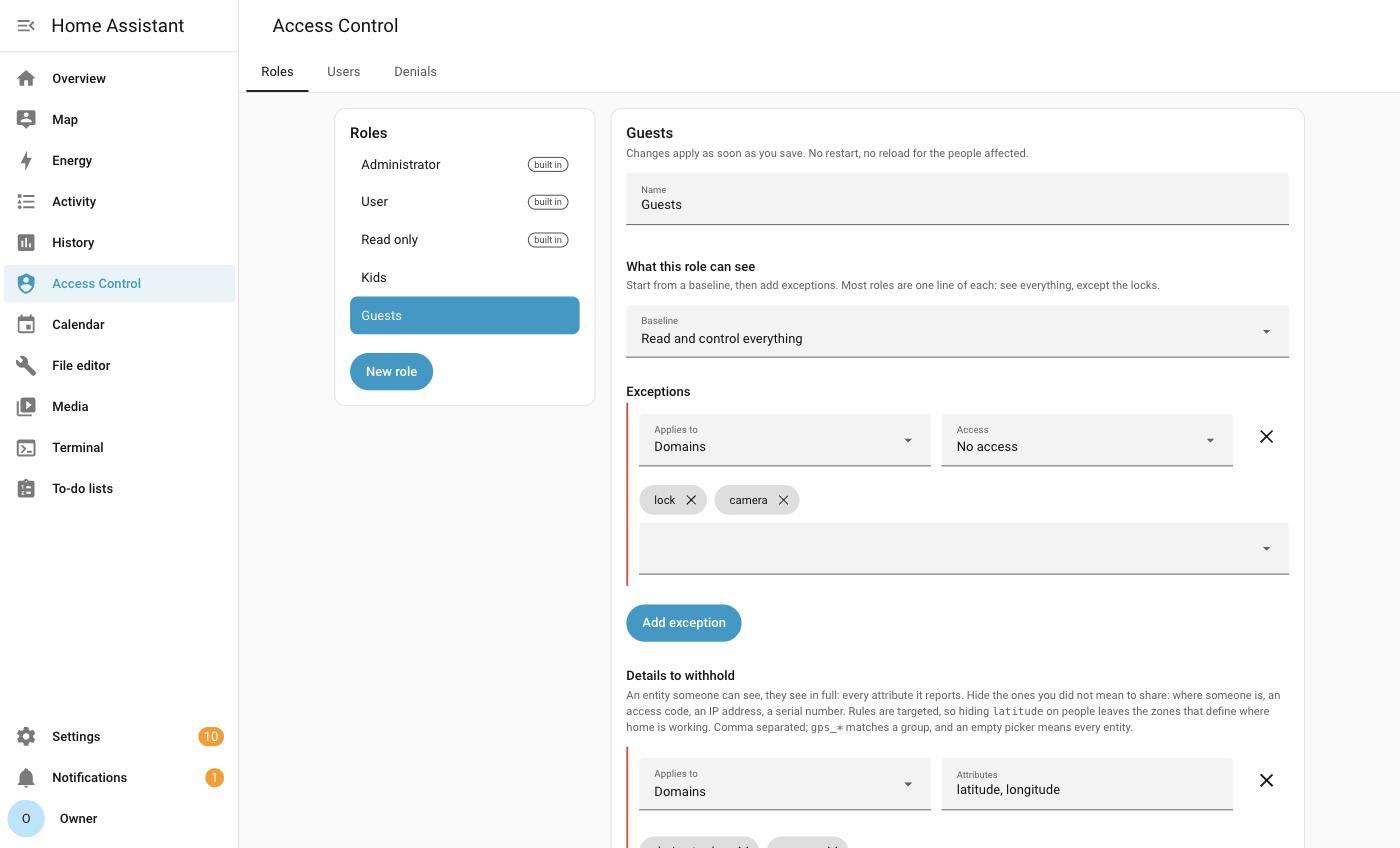
One role, read out loud: see and control everything, except the locks and cameras, and don't show anyone where people are.
[!CAUTION] This is an alpha. It works, it's tested, and it survived a round of deliberately trying to break it. But it's new, and it hasn't lived in real houses yet. Don't make it the only thing between someone and your front door yet. Try it, break it, and tell me what happened.
The problem
Home Assistant has two kinds of user: administrator, and everyone else.
That's the whole model. "Everyone else" still sees every device in your home: every camera, every lock, every sensor. There's no way to hand a house guest a dashboard with just the living room lights on it, or to give your kid a tablet that can't unlock the front door.
What you can control
🏠 Entities: what they see and touch
No access, read, or read and control, as a baseline plus exceptions. Target them however you already think about your house:
| Areas | "nothing in the bedroom" |
| Domains | "no locks, no cameras" |
| Labels | "only what I tagged shared" |
| Floors | "the ground floor only" |
| Entities / devices | one specific thing |
Chosen with the same pickers you use everywhere else in Home Assistant.
Or let a dashboard say it for you. Each dashboard gets three levels, and a role holding one at sees what is on it or can control it gets whatever that dashboard shows, without naming a single entity:
| Can open | the screen loads, showing only what the role is allowed elsewhere |
| Sees what is on it | plus reading every entity on that dashboard |
| Can control it | plus operating them |
This is worked out when a request is judged, not when the role is saved, so adding a card to a dashboard extends its holders straight away and removing one takes it back. It reads the dashboards themselves, so a card type nobody has heard of counts the same as a built-in one. A denial elsewhere still wins, so putting a forbidden entity on a dashboard does not unlock it.
📍 Details: how much of an entity they see
An entity someone can see, they normally see in full: every attribute it reports. Often that's more than you meant to share:
| Where someone is | latitude, longitude on people and trackers |
| Access codes | the code attribute a lock or alarm exposes |
| Network details | IP addresses, MAC addresses, hostnames |
| Identifiers | serial numbers, device IDs, account names |
| Noise | diagnostics and internals nobody needs to read |
Rules name both the attributes and the entities they apply to, so hiding
latitude on people and trackers leaves the zones that define where home is
working normally.
Hidden attributes are gone from the dashboard, the state API, history, live updates, and templates.
📱 Apps, dashboards and add-ons: where they can go
Everything in the sidebar, ticked or unticked:
| Dashboards | give the kids their own and hide yours |
| Add-ons | no File Editor, no Terminal, no Node-RED |
| Built-in screens | Energy, History, Logbook, Map, Media, To-do |
| Custom panels | anything else that shows up there |
Home Assistant treats all of these as the same kind of thing, so this does too: one list, read from your instance, whatever you happen to have installed.
🕗 Hours: when the role applies at all
Give a role a window of days, hours, or both, and it only applies inside it. Add as many windows as the arrangement needs; any one of them is enough:
| A cleaner | weekdays, 09:00 to 17:00 |
| Someone with a split shift | Monday and Tuesday, 10:00 to 12:00, and again 15:00 to 19:00 |
| A babysitter | Friday and Saturday, 18:00 to 23:00 |
| Weekends on different hours | weekdays 09:00 to 17:00, weekends 10:00 to 22:00 |
| A night guest | every day, 22:00 to 06:00 |
Outside them the role is simply not held, and holding no role means no access rather than the access they had before. An end before the start runs through midnight, and the window belongs to the day it opened, so Friday 22:00 to 02:00 is still in force at one on Saturday morning.
It takes effect on connections that are already open, so someone does not keep what they had until they close the tab.
⚙️ Commands: what they can change
Ordinary use, or everything including settings. Which half is which is read from Home Assistant's own markings rather than a list kept here, so it stays right as Home Assistant grows.
Between those two, hand over one part of the settings without the rest:
| Automations | build and debug automations, blueprints and traces |
| Scripts, Scenes | write them, and reach nothing else |
| Dashboards | create and edit them for everyone |
| Helpers | counters, timers, schedules, tags |
| Areas, floors and labels | rearrange how the house is organised |
| Devices and integrations | add and configure the hardware |
| Users | create people and change their passwords |
| Backups | make them, download them, restore them |
Each one says how many commands it covers on your instance, because they're found there rather than listed here.
[!NOTE] Automations, scripts and scenes run with no user context, exactly as they do in stock Home Assistant. Someone who can write one can make it do anything, whatever their role allows directly. Those three record that you trust someone rather than containing them.
Four roles come ready to use — Administrator, Editor, User and Read only — and any of them can be cloned and changed. Editor is the one most people are after: everything a User can do, plus building automations, scripts, scenes, dashboards and helpers, and nothing that reaches users, backups or integrations.
And the parts that make it usable:
🙈 Hidden means hidden. A restricted entity isn't greyed out. It isn't in the dashboard, the search, the history, or the API. As far as that person's Home Assistant is concerned, it doesn't exist.
🖱️ No YAML. All of the above is done in a normal Home Assistant panel.
🏠 Your setup is untouched. No core files patched, no automations rewritten, no entities renamed. Uninstall and everything is exactly as it was.
📋 A log of every refusal, so when someone says "it stopped working" you can see what and why.
Take a look
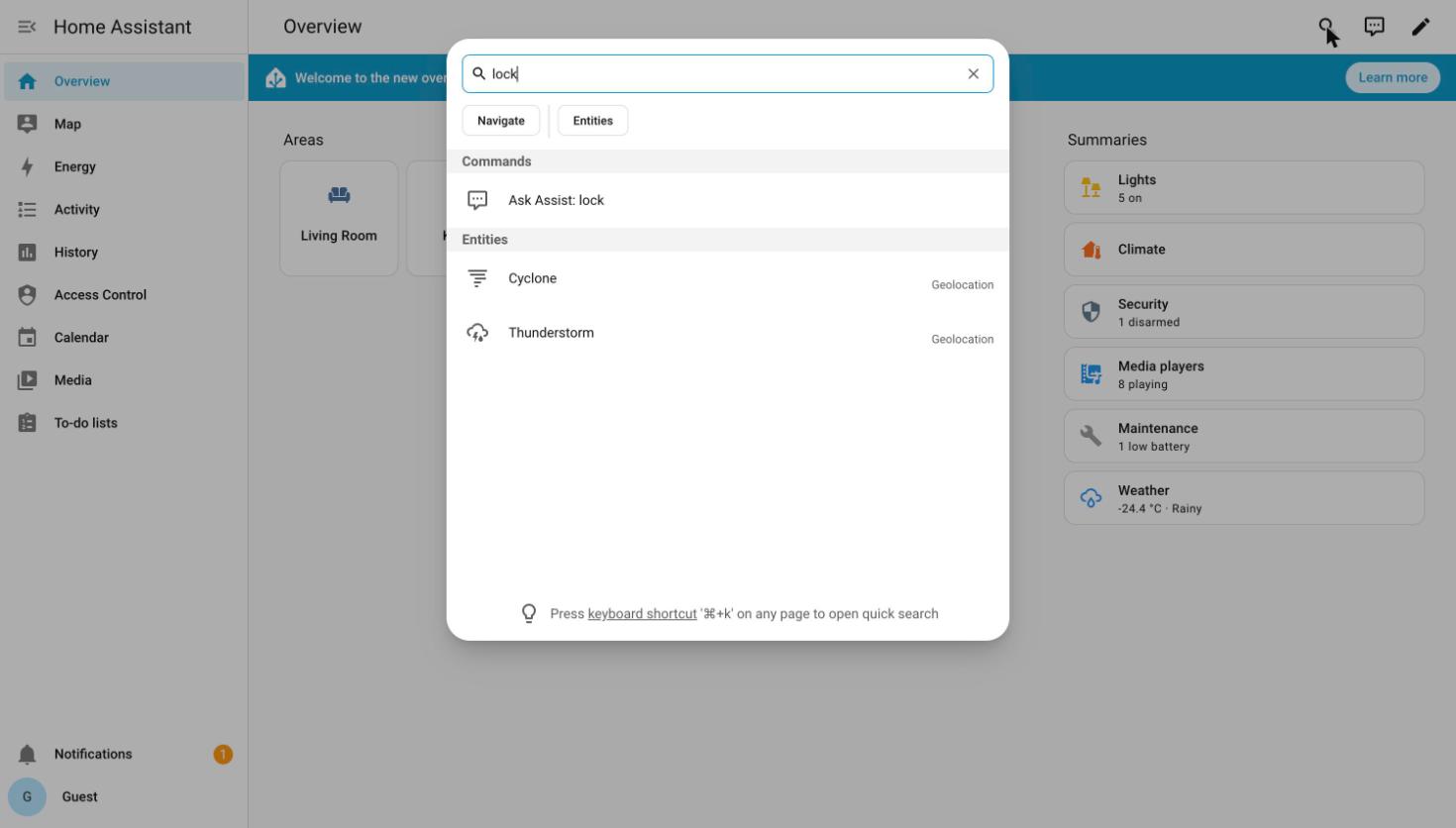
A guest searching for "lock". There's nothing to find. |
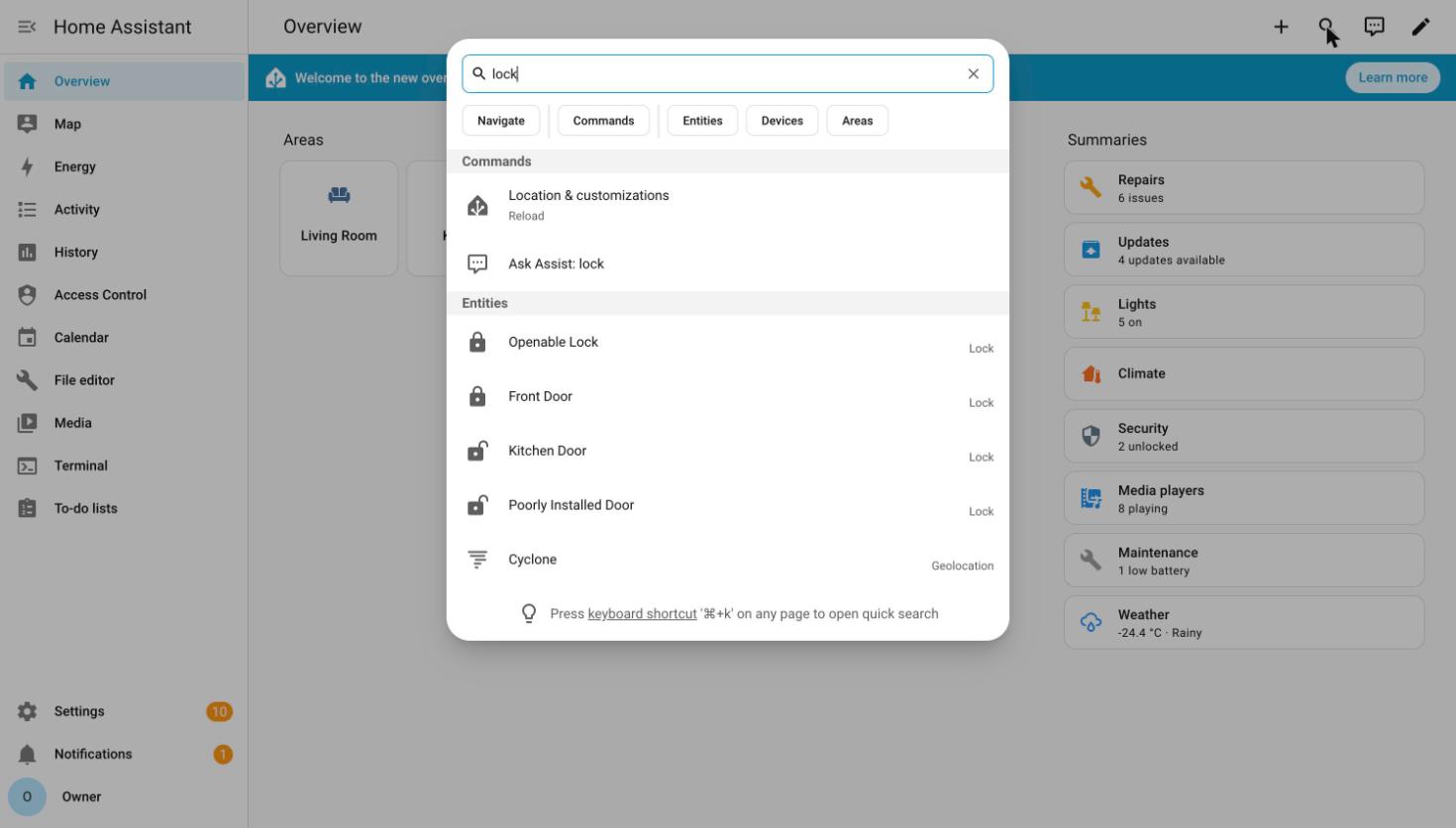
The same search, same house, signed in as yourself. |
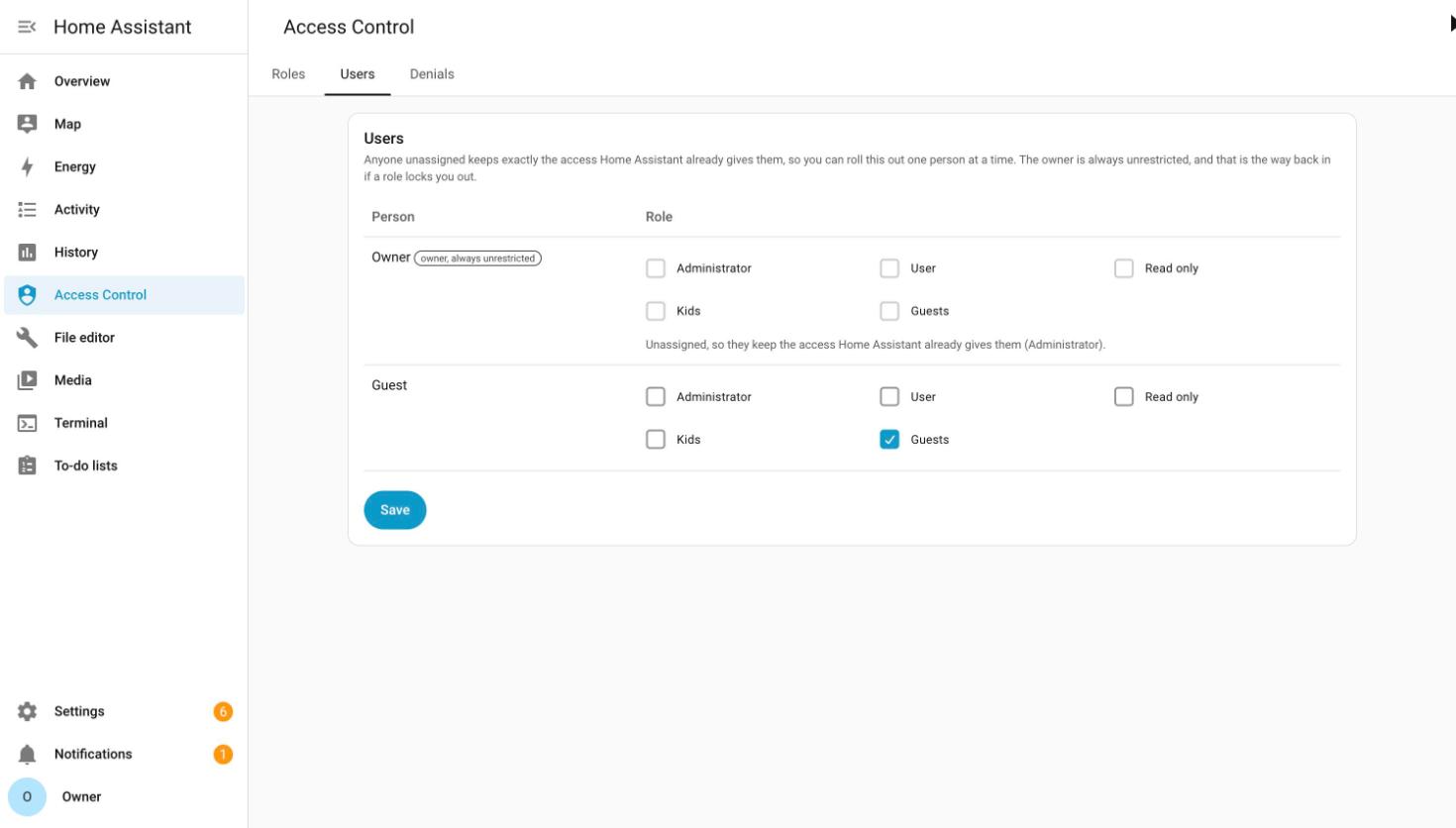
Who gets what. Leave someone unassigned and nothing changes for them. |
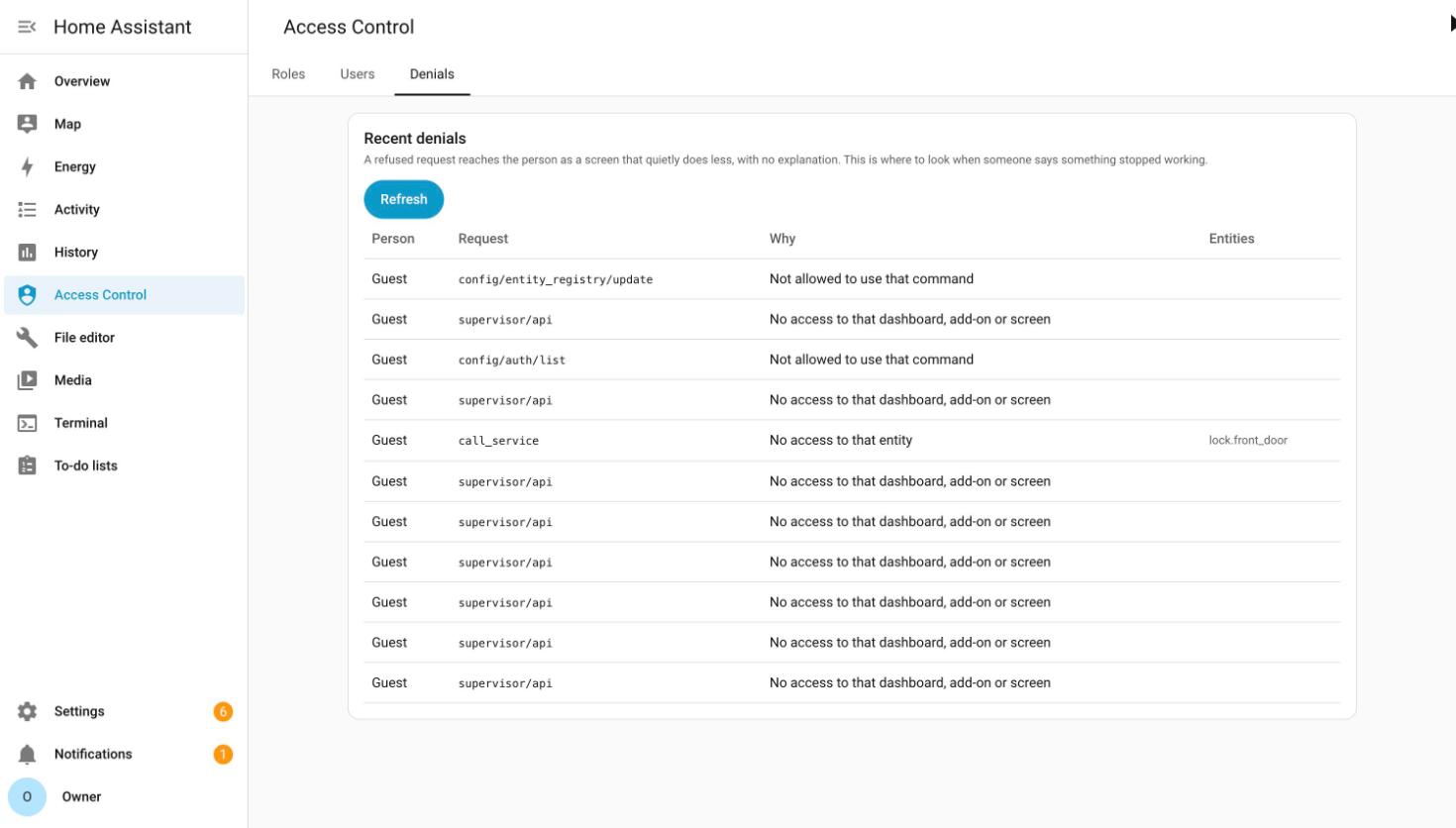
When someone says "it stopped working", look here first. |
How it works, in one minute
It sits in front of Home Assistant and reads everything going past. When your guest's browser asks for the state of the house, it answers, minus the parts they're not allowed to see. When it asks to unlock a door, it says no.
The useful part is that it ships no list of what's dangerous. Home Assistant already marks its own administrative features, and this reads those markings live, on your instance, with your integrations installed. That's why it doesn't need updating every time Home Assistant does.
Longer version in docs/DESIGN.md.
Install
Three steps, in this order. Each one leaves you with a Home Assistant you can still reach.
The end state: Home Assistant on 127.0.0.1:8124, reachable only from its
own machine, and this integration on 8123, the address everyone already
uses. Bookmarks, the companion app, your Google or Alexa setup all keep working,
and nobody gets signed out, because to a browser it is the same address as
before.
1. Move Home Assistant to port 8124
Settings → System → Network, under HTTP, set Server port to 8124.
Leave Server host alone for now.
Home Assistant restarts, then asks you to confirm it's still reachable. Do
that at http://your-ha:8124. If you can't get there, it puts the old port back
by itself.
Port 8123 is now free, which is what step 2 needs. Nothing answers there until
then, so pick a moment when a few minutes of that is fine.
2. Install this integration
With HACS:

That button adds this as a custom repository in your own Home Assistant. Then
Download, and restart. By hand instead: HACS → ⋮ → Custom repositories →
paste https://github.com/FezVrasta/ha-rbac, category Integration.
Without HACS: copy custom_components/ha_rbac into your
config/custom_components and restart.
Then add Access Control from Settings → Devices & Services. It defaults to
answering on 8123 and forwarding to 127.0.0.1:8124, so there is nothing to
fill in.
http://your-ha:8123 now works again, and everything through it is filtered.
8124 still works too, unfiltered, which the last step closes.
[!NOTE] Nothing changes for anyone until you give someone a role, so it is safe to stop here and look around first.
3. Close Home Assistant's own door
[!IMPORTANT] This is the step that makes it real. Until you do it, anyone can walk straight around the filtering by connecting to
8124with the login they already have. It warns you at startup if you skip it.
Back to Settings → System → Network, and this time set Server host
(under Advanced) to 127.0.0.1.
Home Assistant restarts and asks you to confirm once more. Confirm from
http://your-ha:8123, which is the proxy, and still works. If something has
gone wrong it reverts by itself.
That's it.
"So is port 8124 wide open?"
No. 127.0.0.1 isn't a firewall rule, it's the only address Home Assistant
will accept a connection on, and it means "this machine, nothing else". After
step 3 Home Assistant isn't listening on your network at all. The port still
exists, but only from inside the box, and nothing on your LAN can open it.
This integration runs inside Home Assistant, so it reaches 8124 over that
same internal address. It never needs the port reachable from anywhere else,
which is why closing it costs nothing.
It works the same on every install type: Home Assistant OS, Supervised,
Container and Core. It's a Home Assistant setting, not a Docker or firewall one.
In Docker you can also just not publish 8124, but you don't have to for this
to hold.
On Home Assistant OS and Supervised, Supervisor keeps working throughout: it reaches Home Assistant over an internal socket rather than the network port.
Your first role
- Open Access Control in the sidebar.
- Clone Read only, name it something like Guest, and add the areas or domains to hide as exceptions. Untick any apps, dashboards or add-ons they shouldn't reach.
- Go to Users, pick the person, choose the role, save.
Have them reload, and their Home Assistant is now smaller.
Anyone without a role keeps exactly the access Home Assistant already gave them, so you can roll this out one person at a time.
If you get locked out
A role gone wrong is the easy case: you can't lock out the owner account. That's built into the code and can't be changed from the panel, so sign in as the owner and fix the role.
The harder case is this integration failing to load. After step 3 Home Assistant answers only on its own machine, and without the proxy nothing is answering in its place, so it's off your network entirely. That's the right direction to fail in, but check now that you can reach the machine itself, by a shell or its console.
From there, two ways back. Tunnel to Home Assistant:
ssh -L 8124:127.0.0.1:8124 your-ha-host
and browse http://localhost:8124 for plain, unfiltered Home Assistant. Or put
the setting back: open .storage/http in your config directory, delete the
"server_host" entry from the "stable" block, and restart. Home Assistant
answers on the network again.
[!WARNING] On Home Assistant OS and Supervised, the Terminal & SSH add-on is not a way in by default. Its web terminal is served through the Home Assistant you can no longer reach, so it needs a real SSH port set in its configuration while things still work. The tunnel won't run from inside it either, because add-ons get their own container network and
127.0.0.1there is the add-on rather than Home Assistant. Editing the file does work, at/homeassistant/.storage/http.
What it doesn't cover
It holds against anyone on your network: someone with a guest login cannot see or touch what their role forbids, from a browser, the app, or the API. Four things sit outside that.
Anyone with a shell on the machine Home Assistant runs on. Home Assistant's credential store is a file on disk, and whoever can read it can sign in as you. That defeats Home Assistant's own login, not just this layer, so don't give a shell account to someone you're restricting.
Add-ons, on Home Assistant OS and Supervised. They reach Home Assistant through a private channel nothing can sit in front of, so an add-on with API access ignores roles entirely.
Automations. They run as the system rather than as a person, so an automation can still touch anything. Same as stock Home Assistant.
Webhooks. /api/webhook/... is authenticated by an unguessable id rather
than by a person, and the body may be encrypted, so there's nothing for a role
to apply to. That's how the companion app talks to Home Assistant, and anyone
holding one of those ids can act through it.
Full detail in docs/DESIGN.md.
Comments