LCU
Codex computer use, decoupled from the Codex app.
https://github.com/user-attachments/assets/bd9d0809-8a6c-4931-a51c-b98daf05cb5f
LCU exposes Codex's original computer-use runtime to your harness without requiring Codex authentication. The official ChatGPT desktop app must still be installed locally: it supplies the runtime and instructions, while LCU handles setup and harness integration.
Quick start
Copy this into your agent:
Install and configure LCU for this harness using the latest release.
Follow https://raw.githubusercontent.com/amontlabs/lcu/main/docs/INSTALLATION.md
Check my OS, architecture, and prerequisites, then guide me through any required permissions.
Features
- Desktop apps: read windows, click, type, and take screenshots.
- Chrome, when enabled: read and control tabs through the official extension, with site approval.
- In your harness: adapters are available for Pi, Codex CLI, and Claude Code, with experimental Oh My Pi and Hermes integrations. See setup and verification limits.
Approve apps from Claude, natively
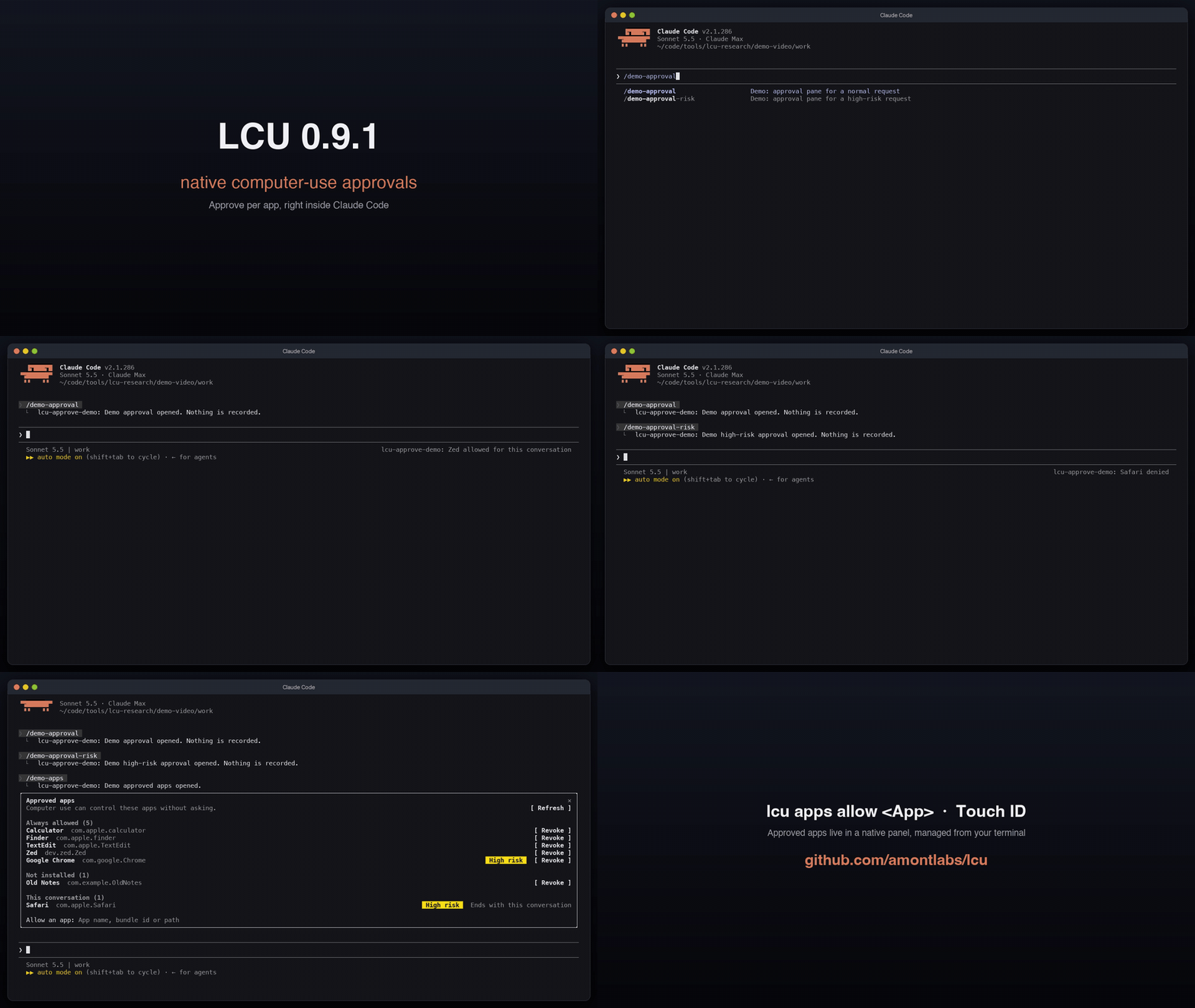
The first time an agent controls an app (Zed, Notes, Safari), the computer-use runtime asks you to allow it. The Claude app's Code tab used to fail that request with "Computer Use was not approved". lcu setup --agent claude-code now installs a small Claude Code mod, lcu-approve, that shows the question as a native Computer use approval pane in the Claude app, and in the terminal.
- Allow this conversation for the current chat only.
- Always allow to remember the app (offered only when the runtime allows it).
- Deny to refuse.
The /computer-use-apps command opens an Approved apps panel in the same place: one line per always-allowed app with Revoke (macOS asks for Touch ID or your password), apps that are no longer installed grouped below, this conversation's grants, and an Allow field.
Only you can answer: the model cannot see, press or fake the pane. High-risk apps show the runtime's own warning (reworded to say "computer use" and "the agent"), and the app hosting the agent is never approved. Needs the Claude app or Claude Code 2.1.287+. How it works, how to remove it.
In the Claude app, register LCU through Claude Code (lcu setup --agent claude-code), not through Settings > Connectors; see installation.
Manage approved apps with Touch ID
"Always allow" is remembered. Review and change that list from the terminal (macOS), without opening the Codex app:
lcu apps                 # what is always allowed today
lcu apps allow Zed       # Touch ID (or your password), then Zed is allowed
lcu apps revoke Zed      # take it back
- Pass an app name, a bundle identifier or an
.apppath. - Listing is free;
allowandrevokeneed you at the machine, so an agent running them is stopped by the prompt. - Running sessions pick the change up immediately.
- Browsers, password managers and other high-risk apps come with a warning; apps Computer Use refuses outright (Terminal, iTerm2) are declined.
Permissions
Your harness decides whether the agent may call LCU's tools (Claude's "don't ask again" on the first card, Codex's tool approval, and so on). LCU decides, per app, whether that agent may touch it, in every permission mode. lcu setup --approval auto is optional and meant for unattended machines (VMs, CI): it pre-allows LCU's two model tools in the harness, and leaves per-app approval in force. See approval mode.
Requirements
Install the official ChatGPT desktop app, Python 3.12+, and your harness first. LCU checks the installed app for compatibility and uses its original runtime. For Codex CLI, update before setup to get the required hook support.
| Platform | Requirements |
|---|---|
| Linux ARM64 or x86-64 | Ubuntu 24.04-compatible glibc system, an active X11 desktop, and D-Bus |
| macOS on Apple Silicon | The signed ChatGPT app, with Accessibility and screen-recording permissions approved during first use |
Windows 11 x64 remains a candidate. Intel Macs, native Wayland, and musl Linux are unsupported. See verification and limits for tested behavior.
Install manually
Download the archive and matching .sha256 file from the latest release:
| Platform | Archive |
|---|---|
| macOS on Apple Silicon | lcu-<version>-darwin-arm64.tar.gz |
| Linux ARM64 | lcu-<version>-linux-arm64.tar.gz |
| Linux x86-64 | lcu-<version>-linux-x64.tar.gz |
Follow the installation guide to verify the checksum, extract the archive, and register LCU in your harness. Setup offers an agent chooser and desktop-readiness guidance. Chrome and computer-audio recording are opt-in.
For development, see building from source.
Enable Chrome
Ask your agent:
Enable Chrome control in my LCU setup using the installation guide:
https://raw.githubusercontent.com/amontlabs/lcu/main/docs/INSTALLATION.md#desktop-and-browser
Enable the official extension in your Chrome profile and restart your harness. Then ask it to use LCU to list Chrome tabs. Sites still require approval. Claude Code's Chrome support remains experimental because some interruptions do not trigger tab cleanup; see adapter limitations.
Enable computer-audio recording
Pass --audio when setting up a maintained harness, for example:
~/.local/share/lcu/current/bin/lcu setup --agent pi --audio
The installer does not add lcu to your PATH; run its installed path (/opt/lcu/current/bin/lcu on Linux). See the lcu command.
This enables the installed original runtime's optional computer-audio recording API and its original approval flow. LCU does not add audio-specific instructions, and a saved recording is not audio delivered to the model. See the audio opt-in verification record.
Pi commands
In interactive Pi, /lcu stop requests original Computer Use Stop for a selected app during the active LCU turn (macOS only). /lcu pick selects an original app or browser target and appends it to the editor draft while Pi is idle; review and submit the draft yourself. See adapter command behavior and limits.
Documentation
- Installation: downloads, harness setup, permissions, sessions, and upgrades. Update with
lcu update; update notices can be turned off withLCU_NO_UPDATE_CHECK=1. - Harness adapters: custom clients, approvals, lifecycle, and result handling.
- Verification: tested behavior and remaining gaps.
- Development: source builds and isolated desktop tests.
LCU is MIT licensed. Release archives contain LCU and third-party setup dependencies. The OpenAI app and its instructions come from your local installation and retain their own terms; see dependency provenance.
Comments