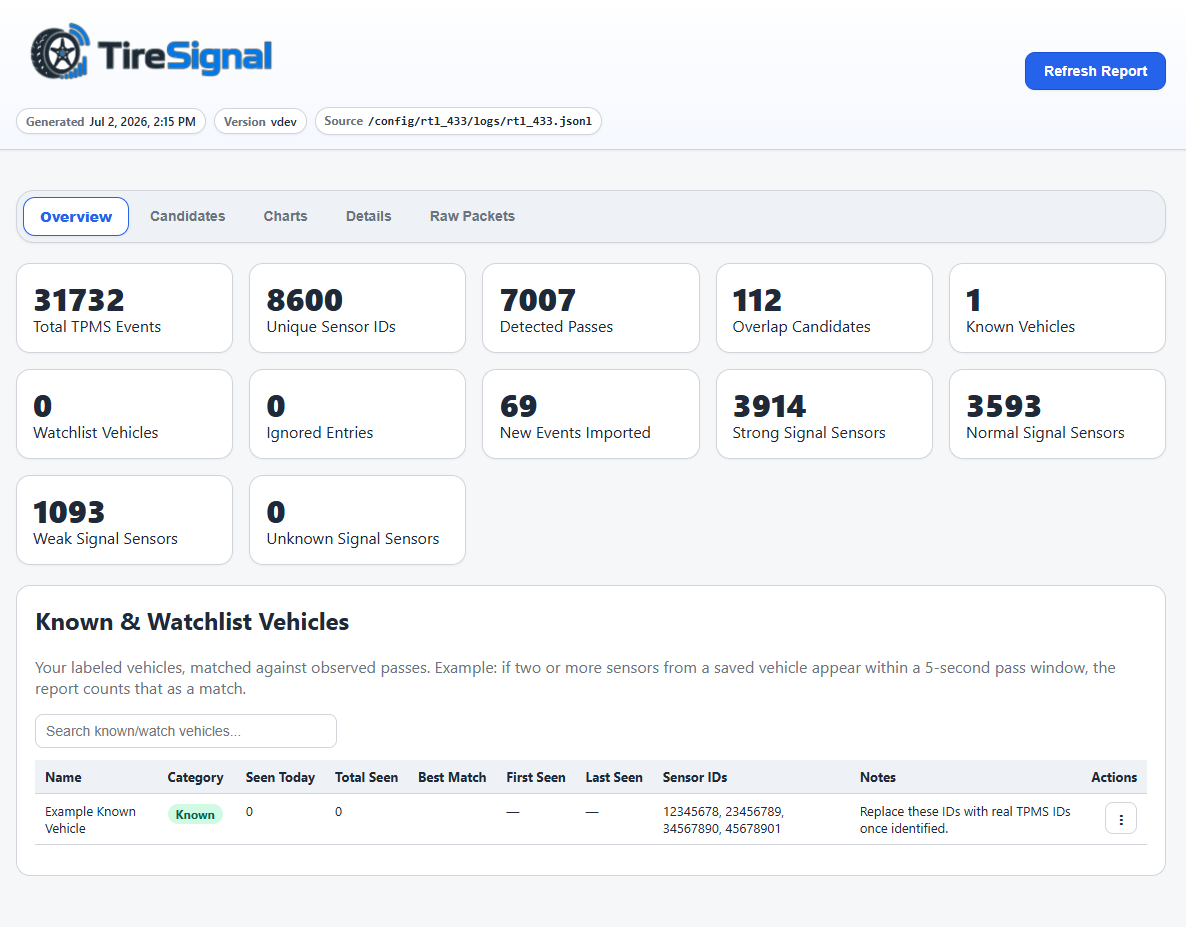
TireSignal is a Home Assistant add-on for rtl_433 TPMS JSONL logs. It imports tire-pressure sensor events, groups likely vehicle passes, helps identify known, watch, and unknown sensors, and produces a Home Assistant-friendly report for reviewing activity and labeling vehicles.
Features
- Reads
rtl_433JSONL log output. - Stores TPMS events in SQLite with deduplication.
- Groups nearby detections into likely vehicle passes.
- Matches sensors against known, watch, and ignored vehicles.
- Provides report UI controls for vehicle labeling.
- Serves the report through Home Assistant Ingress/sidebar.
- Supports direct web access on port
8099when exposed. - Runs manual and scheduled refreshes inside the add-on.
Requirements
- Home Assistant with add-on support.
rtl_433producing a JSONL log at the path configured in TireSignal.
rtl_433 requirement
TireSignal does not receive radio traffic directly. It reads TPMS events from an rtl_433 JSONL log file.
Install and start rtl_433 before using TireSignal. In Home Assistant, one common option is the rtl_433 add-on repository:

https://github.com/pbkhrv/rtl_433-hass-addons
Install the rtl_433 add-on from that repository, then configure rtl_433 to use customary units and write JSON output. convert customary is recommended so TPMS pressure values are reported in customary units such as PSI.
convert customary
output json:/config/rtl_433/logs/rtl_433.jsonl
The TireSignal add-on log_path option must match the rtl_433 output path.
Install
Add this repository to the Home Assistant Add-on Store:
https://github.com/genepool99/tiresignalInstall TireSignal.
Configure the add-on options if needed.
Start the add-on.
Open TireSignal from the Home Assistant sidebar or click Open Web UI on the add-on page.
Configuration
| Option | Default | Description |
|---|---|---|
log_path |
/config/rtl_433/logs/rtl_433.jsonl |
Path to the rtl_433 JSONL log file. |
vehicle_map_path |
/data/vehicles.json |
Persistent vehicle-label map used by the report UI. |
scheduled_refresh_enabled |
true |
Enables the internal daily scheduled refresh. |
scheduled_refresh_time |
03:10 |
Daily refresh time in HH:MM using the add-on local time. |
Advanced tuning
These options are safe to leave at their defaults for most installs.
| Option | Default | Description |
|---|---|---|
enable_pruning |
true |
Prunes old events from unrecognized sensors. Disable to retain all events permanently. |
unknown_sensor_retention_days |
180 |
Days to keep events from unrecognized sensors before pruning. Lower on busy roads to save disk space. |
pass_window_seconds |
5 |
Seconds within which readings are grouped as a single vehicle pass. Lower for busy roads, higher for quiet driveways. |
min_repeat_cluster_count |
3 |
Minimum times a sensor must repeat within a pass window to be treated as a vehicle sensor rather than road noise. |
Usage
- Open the report from the Home Assistant sidebar or Open Web UI.
- Click Refresh in the report to rerun analysis.
- Use the report labeling controls to add sensors to the vehicle map.
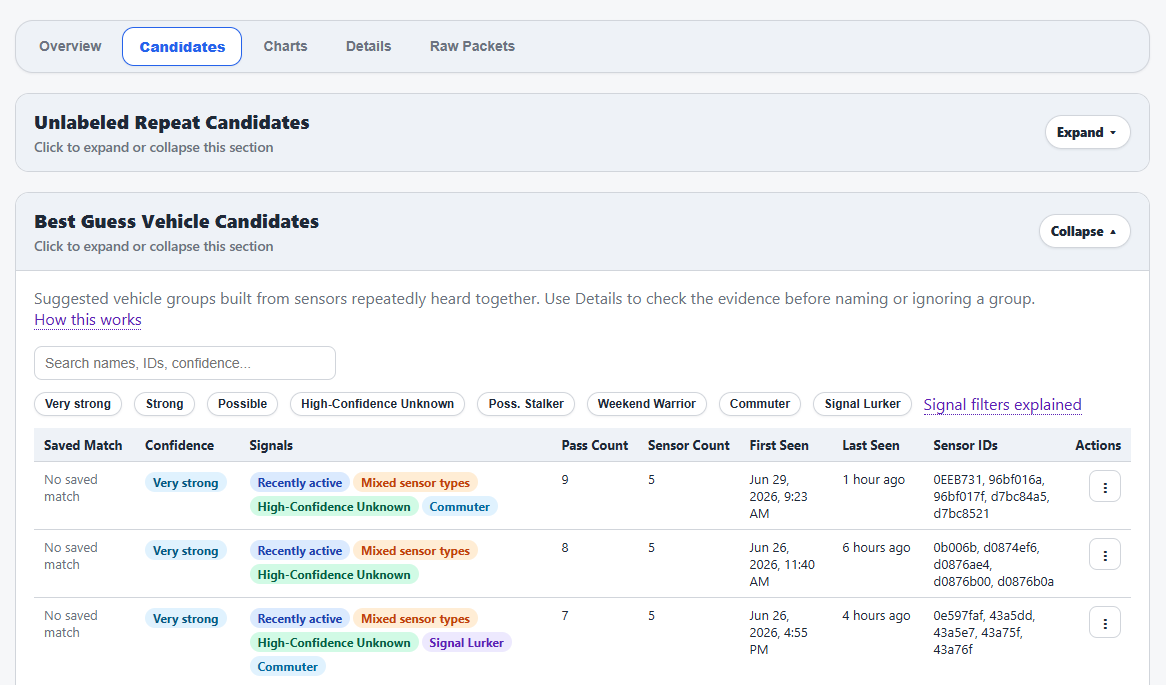
- Review the Candidates tab to identify unknown or repeated sensor groups. Use the row action menu (
⋮) on each row to label, ignore, move, or inspect candidates. Mixed sensor type warnings are informational only and do not affect scoring. - Leave scheduled refresh enabled to refresh the report daily.
- Direct access is available on port
8099when exposed by the add-on configuration.
Endpoints
| Method | Path | Description |
|---|---|---|
| GET | /health |
Checks service health. |
| GET | / |
Serves the HTML report. |
| GET | /report |
Serves the HTML report. |
| POST | /refresh |
Runs analysis and regenerates the report. |
| POST | /vehicle-map-edit |
Applies report UI vehicle-labeling changes and refreshes the report. |
Data Locations
| Path | Purpose |
|---|---|
/data/vehicles.json |
Persistent vehicle labels. |
/data/tpms.sqlite |
SQLite event database. |
/data/output/ |
Vehicle-map backups and support output. |
/config/www/rtl_433/tpms_report.html |
Published HTML report. |
/config/www/rtl_433/tpms_status.json |
Published status JSON. |
Troubleshooting
No report
Check log_path, confirm the file exists, then click Refresh in the report UI.
No data
Confirm rtl_433 is writing JSONL records to the configured log path.
Vehicle labels are not saving
Check vehicle_map_path and review the add-on logs for write or validation errors.
Update not appearing Reload the Home Assistant Add-on Store, then check for add-on updates again.
Comments