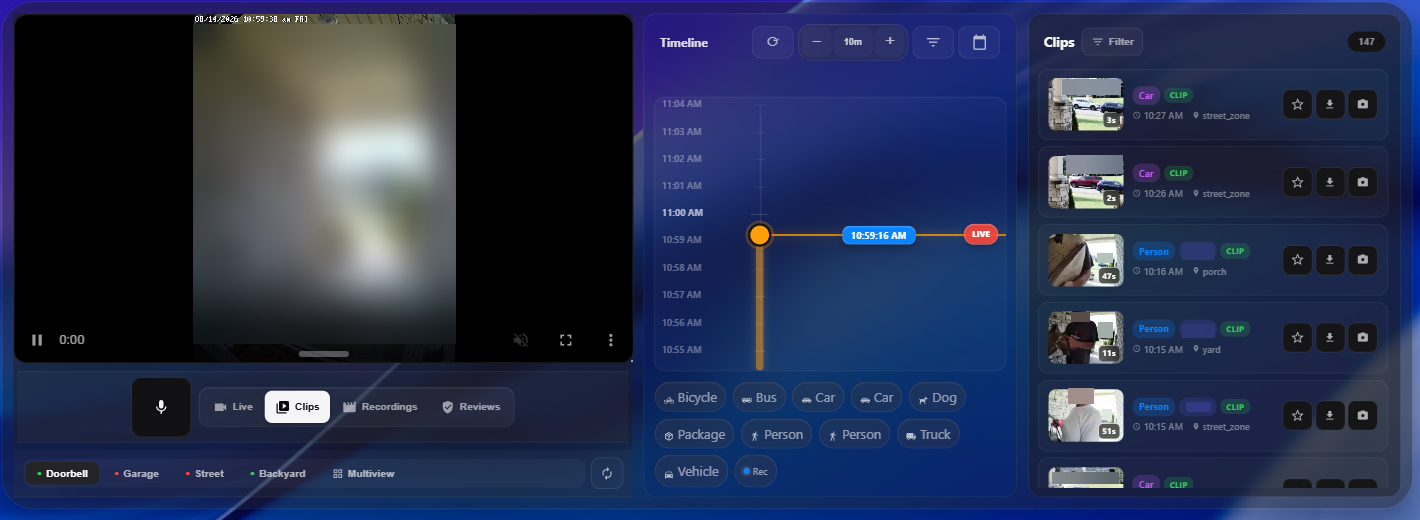
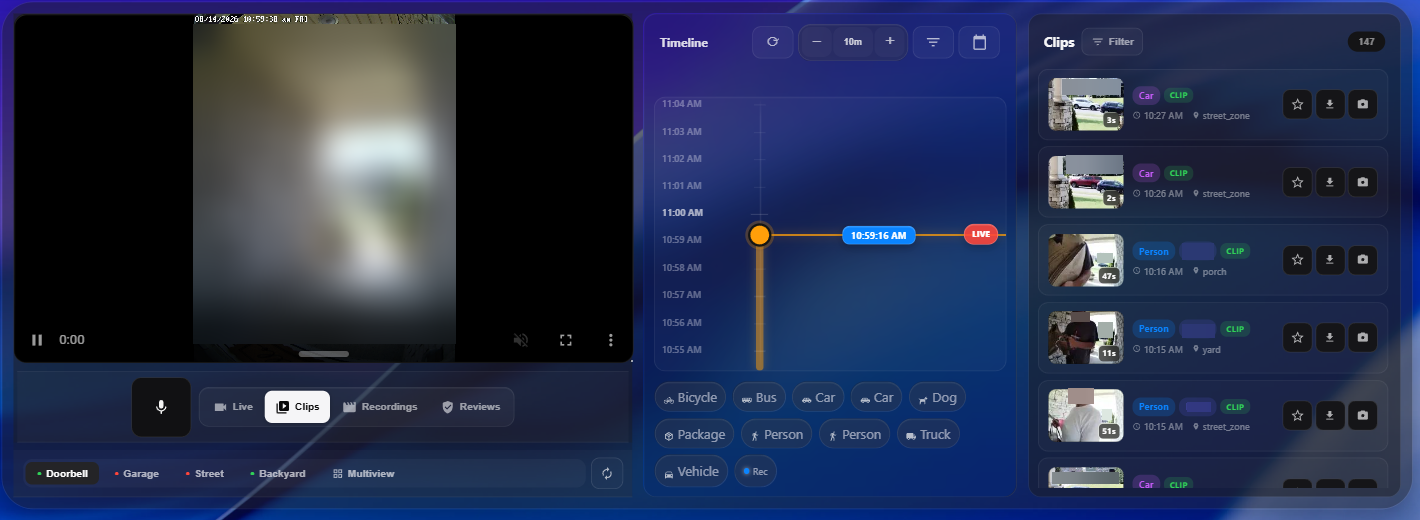
 Desktop Screenshot">
A modern, responsive Frigate NVR card for Home Assistant.
Sightline brings your Frigate cameras, live view, timeline, clips, recordings, reviews, downloads, filters, face recognition results, and two-way audio into one Lovelace card. It is designed to work equally well as a compact dashboard card or as a full-width camera workstation.
[!NOTE] Sightline is a community Home Assistant card built for Frigate. It is not the Frigate Home Assistant integration itself. You need a working Frigate installation and the Frigate Home Assistant integration before installing Sightline. I also want to be upfront and say this card is vibe coded. Any suggestions or code reviews are welcome.
Features
- WebRTC live view with HLS fallback
- Continuous recording playback and timeline seeking
- Clips, Recordings, and Reviews browsers
- Configurable startup tab with optional autoplay of the newest retained clip
- Frigate detection thumbnails and Material Design detection glyphs
- Configurable timeline thumbnail size
- Filters for labels, zones, review state, and recognized faces
- Timeline range selection for downloading recording clips
- Two-way audio for compatible go2rtc camera streams
- Multi-camera support for up to 4 Frigate cameras
- Single-camera, grid, and auto-rotation modes
- Full-card clip playback from grid/Multiview with an obvious return-to-live control
- Responsive wide-screen layout: video, timeline, and media browser can sit side-by-side
- iOS-inspired translucent/glass styling with configurable theme, tint, accent, and transparency
- Home Assistant visual card editor plus full YAML configuration
- Home Assistant 12/24-hour time and timezone awareness
- Designed to use the authenticated Home Assistant Frigate integration proxy rather than direct browser connections to Frigate
Requirements
Before installing Sightline, make sure you have:
- Home Assistant with dashboards enabled.
- Frigate NVR running and configured with your cameras.
- The Frigate Home Assistant integration installed and connected to the same Frigate instance.
- HACS if you want to use the recommended installation method.
- For WebRTC, a usable Frigate/go2rtc stream for the camera.
The official Frigate Home Assistant integration is available through HACS and requires MQTT to be configured between Frigate and Home Assistant. See the Frigate integration documentation for setup details:
https://docs.frigate.video/integrations/home-assistant/
Installation
HACS — recommended
Until Sightline is included in the default HACS catalog, add it as a custom Dashboard repository:
- Open HACS in Home Assistant.
- Open the ⋮ menu in the upper-right corner.
- Select Custom repositories.
- Paste the GitHub URL for this repository.
- Select Dashboard as the repository type.
- Select Add.
- Search for Sightline for Frigate in HACS and download it.
- Refresh Home Assistant after installation.
HACS should register the JavaScript resource automatically. If Home Assistant says Custom element doesn't exist: sightline-card, see Troubleshooting.
Manual installation
Download
dist/sightline-for-frigate.jsfrom the latest release/repository.Copy it to:
/config/www/sightline-for-frigate/sightline-for-frigate.jsIn Home Assistant, go to Settings → Dashboards → ⋮ → Resources.
Add the following resource as a JavaScript module:
/local/sightline-for-frigate/sightline-for-frigate.jsRefresh Home Assistant.
Add Sightline to a dashboard
After installation, edit a Home Assistant dashboard and select Add card. Search for Sightline for Frigate. The visual editor will only offer camera entities belonging to the Frigate Home Assistant integration.
You can also add the card directly with YAML:
type: custom:sightline-card
cameras:
  - entity: camera.front_door
Replace camera.front_door with the Frigate camera entity created by your Home Assistant Frigate integration.
Recommended starter configuration
This is a good starting point for a single camera:
type: custom:sightline-card
window_hours: 24
refresh_seconds: 30
theme: auto
transparency: 20
stream_type: webrtc
aspect_ratio: auto
stream_resizable: true
cameras:
  - entity: camera.front_door
    name: Front Door
    go2rtc_stream: front_door
If your Frigate camera name and go2rtc stream name are the same, go2rtc_stream can usually be omitted.
Multiple cameras
Sightline supports up to four Frigate cameras:
type: custom:sightline-card
default_view: single
cameras:
  - entity: camera.front_door
    name: Front Door
    go2rtc_stream: front_door

  - entity: camera.driveway
    name: Driveway
    go2rtc_stream: driveway

  - entity: camera.back_yard
    name: Back Yard
    go2rtc_stream: back_yard
With multiple cameras configured you can switch cameras, use grid mode, or enable automatic rotation. Camera filters are hidden automatically when the card is operating in a single-camera context.
When you open a clip while in grid/Multiview, Sightline temporarily gives playback the full card instead of squeezing the clip into one grid tile. Use the Back to Multiview control over the player to return to the camera grid.
Multiple Frigate instances
If Home Assistant has more than one Frigate integration instance, set the Frigate client/instance ID on each camera that needs it:
cameras:
  - entity: camera.front_door
    frigate_client_id: frigate_main
    go2rtc_stream: front_door
Live stream configuration
Sightline supports two live stream modes:
| Value | Description |
|---|---|
webrtc |
Default. Low-latency live playback through Frigate/go2rtc and the Home Assistant integration proxy. |
hls |
Compatibility fallback if WebRTC is unavailable for a camera/browser. |
Example:
stream_type: webrtc
aspect_ratio: auto
stream_resizable: true
Aspect ratio and stream height
aspect_ratio controls the player size when stream_height is not set. auto uses the selected camera/video dimensions when available.
aspect_ratio: auto
Supported examples include:
aspect_ratio: "16:9"
aspect_ratio: "4:3"
aspect_ratio: "1:1"
aspect_ratio: "21:9"
aspect_ratio: "9:16"
aspect_ratio: "3:2"
To force the live area to a viewport-relative height instead, set stream_height:
stream_height: 50
That means 50vh. An explicit stream_height intentionally overrides aspect_ratio for the player height.
Responsive / full-dashboard layout
Sightline adapts to the width of the card itself, not only the browser window.
On narrow dashboards, the live view, timeline, and media browser stack vertically. On wider cards, Sightline moves the timeline beside the video. On very wide cards, opening Clips, Recordings, or Reviews adds the selected media browser as another column:
Video | Timeline | Clips / Recordings / Reviews
The media browser has its own history/query range, so opening a 24-hour Clips browser does not change the timeline zoom or position.
Timeline
The timeline can display recording availability, Frigate detections, event thumbnails, detection glyphs, and a precise playhead. The left-side scale follows Home Assistant's 12/24-hour time preference without seconds, while the active playhead keeps second-level precision.
Example timeline configuration:
timeline:
  enabled: true
  default_minutes: 10
  show_thumbnails: true
  thumbnail_size: 84
  show_glyphs: true
  show_legend: true
  show_zoom_controls: true
  show_filter_button: true
  show_calendar_button: true
  clustering: true
  same_label_cluster_seconds: 12
  visual_cluster_max_seconds: 60
  glyph_min_px: 20
  glyph_max_px: 30
  max_glyphs: 3
  max_thumbnails: 12
Timeline options
| Option | Default | Description |
|---|---|---|
enabled |
true |
Show the timeline on Live. |
default_minutes |
10 |
Initial timeline window in minutes. |
show_thumbnails |
true |
Show event/review thumbnails. |
thumbnail_size |
84 |
Timeline thumbnail height in pixels. Valid range: 48–140. |
show_glyphs |
true |
Show detection icons. |
show_legend |
true |
Show the detection legend. |
show_zoom_controls |
true |
Show timeline zoom controls. |
show_filter_button |
true |
Show timeline filters. |
show_calendar_button |
true |
Show date/calendar control. |
clustering |
true |
Visually cluster nearby detections. |
same_label_cluster_seconds |
12 |
Merge nearby detections of the same label. |
visual_cluster_max_seconds |
60 |
Maximum gap for visual burst clustering. |
glyph_min_px |
20 |
Minimum responsive glyph size. |
glyph_max_px |
30 |
Maximum responsive glyph size. |
max_glyphs |
3 |
Maximum glyphs displayed for a burst. |
max_thumbnails |
12 |
Maximum visible timeline thumbnails. 0 hides them. |
Filters and face recognition
Sightline can filter Frigate media by object label, zone, review state, camera when multiple cameras are relevant, and recognized face.
Frigate stores a recognized person's name as the sub_label on a person event. Sightline exposes those recognized names in a separate Face filter instead of creating confusing labels such as person-verified.
For example, the Label filter can remain:
Person · Car · Dog
while the Face filter can contain:
Alice · Bob · Visitor
The Face filter appears when Frigate has reported recognized sub-labels. Face recognition itself must be configured in Frigate:
https://docs.frigate.video/configuration/face_recognition/
Clips, Recordings, and Reviews
Sightline includes separate media browsers for:
- Clips — event-oriented Frigate media.
- Recordings — continuous recording playback.
- Reviews — Frigate review segments and review state.
You can choose which tab is shown when the card first loads:
default_tab: clips
Valid values are live, clips, recordings, and reviews. If the configured default tab is also listed in hidden_tabs, Sightline falls back to Live.
When default_tab: clips is used, Sightline can optionally open and autoplay the newest retained clip after the initial media load:
autoplay_latest_clip: true
This startup autoplay runs once and only selects an event that Frigate reports as having a retained clip.
The initial browser history range is controlled with:
window_hours: 24
The background metadata refresh interval is controlled with:
refresh_seconds: 30
Reviews can default to all, reviewed, or unreviewed:
media:
  reviewed_default: all
When recorded playback is active, Sightline displays a clear Back to Live control over the player. If the clip was opened from grid/Multiview, the control becomes Back to Multiview and restores the grid.
Download a recording range
Use the download control on the timeline to select a start/end range and export that portion of the continuous recording.
download:
  default_range_seconds: 60
  max_range_minutes: 120
The range handles are touch-friendly and work independently of timeline scrubbing.
Two-way audio
For supported cameras, Sightline can expose a push-to-talk microphone control through Frigate/go2rtc.
two_way_audio: true
two_way_audio_disconnect_seconds: 90
Two-way audio requires:
- A Frigate/go2rtc stream configured for two-way audio.
- A microphone/audio-input device on the client.
- Browser microphone permission.
- HTTPS or localhost, as required by browser media APIs.
The microphone button stays hidden when no audio input is detected or microphone permission is unavailable.
Appearance and glass/transparency settings
Sightline can follow Home Assistant or use an explicit light/dark theme:
theme: auto
Available values are auto, dark, and light.
You can also set a custom accent and background tint:
accent_color: "#ffffff"
bg_color: "#020818"
transparency controls how much of the Lovelace wallpaper/theme is visible through Sightline's surfaces:
transparency: 80
The range is 0 to 100:
0keeps the normal card material.- Higher values reveal more of the dashboard background.
100makes the main material surfaces as transparent as possible while keeping controls/text visible.- The actual camera/video image remains opaque.
If bg_color is set, that color becomes the tint for the translucent card surfaces.
Main configuration reference
| Option | Default | Description |
|---|---|---|
cameras |
required | One to four Frigate camera definitions. |
window_hours |
24 |
Initial media-browser history range. |
refresh_seconds |
45 |
Frigate metadata/event refresh interval. Minimum 15 seconds. |
default_view |
single |
single or grid when multiple cameras exist. |
default_tab |
live |
Initial tab: live, clips, recordings, or reviews. |
autoplay_latest_clip |
false |
When starting on Clips, automatically open the newest retained clip once. |
rotate_on_load |
false |
Begin automatic camera rotation. |
rotate_seconds |
0 |
Rotation interval; 0 uses Sightline's 30-second default. |
hidden_tabs |
[] |
Hide clips, recordings, and/or reviews. Live is always available. |
stream_type |
webrtc |
webrtc or hls. |
aspect_ratio |
auto |
Automatic, preset, or custom W:H player ratio. |
stream_height |
unset | Explicit player height in vh; overrides aspect-ratio height. |
stream_resizable |
false |
Allow drag-resizing of the live view. |
theme |
dark |
dark, light, or auto. |
accent_color |
unset | Custom accent color. |
bg_color |
unset | Custom card/glass tint. |
transparency |
0 |
Surface transparency from 0–100%. |
two_way_audio |
false |
Enable push-to-talk when supported. |
two_way_audio_disconnect_seconds |
90 |
Delay before closing the talk WebRTC session after release. |
Camera object
Each entry in cameras: supports:
| Key | Required | Description |
|---|---|---|
entity |
Yes | Frigate camera.* entity from Home Assistant. |
name |
No | Optional display name. |
frigate_client_id |
No | Frigate integration instance/client ID, useful with multiple Frigate servers. |
go2rtc_stream |
No | Override the go2rtc stream name if it differs from the Frigate camera name. |
Complete example
type: custom:sightline-card
window_hours: 24
rotate_seconds: 0
refresh_seconds: 15
accent_color: "#ffffff"
bg_color: "#020818"
theme: dark
default_view: single
default_tab: live
autoplay_latest_clip: false
rotate_on_load: false
hidden_tabs: []
stream_height: 40
stream_type: webrtc
stream_resizable: true
aspect_ratio: auto
transparency: 80

timeline:
  enabled: true
  default_minutes: 10
  show_thumbnails: true
  thumbnail_size: 84
  show_glyphs: true
  show_legend: true
  show_zoom_controls: true
  show_filter_button: true
  show_calendar_button: true
  clustering: true
  same_label_cluster_seconds: 12
  visual_cluster_max_seconds: 60
  glyph_min_px: 20
  glyph_max_px: 30
  max_glyphs: 3
  max_thumbnails: 12

download:
  default_range_seconds: 60
  max_range_minutes: 120

media:
  reviewed_default: all

two_way_audio: true
two_way_audio_disconnect_seconds: 90

cameras:
  - entity: camera.front_door
    name: Front Door
    go2rtc_stream: front_door
Network and privacy model
Sightline is designed so the browser does not need a direct Frigate server URL or go2rtc server URL in the card configuration. Frigate media/API requests are routed through the authenticated Home Assistant Frigate integration endpoints.
Updating
If installed through HACS, update Sightline from HACS like any other Dashboard repository. After updating a frontend card, refresh/reload Home Assistant in your browser if the old JavaScript is still displayed.
If installed manually, replace sightline-for-frigate.js with the new release and refresh Home Assistant.
Troubleshooting
Custom element doesn't exist: sightline-card
Confirm the resource is loaded in Settings → Dashboards → ⋮ → Resources.
For a HACS install, the resource should resolve from the Sightline HACS directory, normally:
/hacsfiles/sightline-for-frigate/sightline-for-frigate.js
The resource type must be JavaScript module. Then refresh Home Assistant and reopen the dashboard editor.
My Frigate camera is missing from the visual editor
Sightline intentionally filters the camera selector to entities owned by the Frigate Home Assistant integration. Check that the camera exists under the Frigate integration in Settings → Devices & Services and is not disabled.
An already-saved Frigate camera is preserved in the editor even if it is temporarily unavailable.
WebRTC does not start
Make sure the camera has a working go2rtc stream in Frigate. If its go2rtc stream name differs from the Frigate camera name, configure go2rtc_stream for that camera. You can also test with:
stream_type: hls
Clips, recordings, or reviews are empty
First confirm the same camera has media available in Frigate itself and that the Home Assistant Frigate integration is connected. Sightline obtains Frigate data through Home Assistant rather than connecting the browser directly to your Frigate host.
Two-way audio button is missing
The button is deliberately hidden unless two-way audio is enabled and the browser detects a microphone. Check microphone permission, HTTPS/localhost requirements, and your go2rtc two-way-audio source.
Something changed but the dashboard still shows the old version
Refresh Home Assistant after updating the JavaScript resource. If necessary, close/reopen the Home Assistant app or perform a hard browser refresh.
The existing Sightline/Frigate Modern configuration schema is otherwise preserved.
Comments