EARLY BETA
This app is in early beta testing and is open to anyone willing to test it. You should be comfortable with Home Assistant, Mosquitto broker configuration, and local DNS overrides before attempting setup. Bug reports and feedback are very welcome; please use GitHub Issues.
Keep your Petlibro fountains and feeders running entirely on your local network. Petlibro Local intercepts your devices' MQTT credentials during setup, connects them directly to your Home Assistant Mosquitto broker, and gives you desktop and mobile control panel with no Petlibro cloud dependency after that.
⚠️ Installation type: Petlibro Local is a Home Assistant App requiring a Supervisor-managed installation (HA OS or HA Supervised). Home Assistant Core and Home Assistant Container are not supported.
If Petlibro Local keeps your fountain running after Petlibro changes their cloud or you just want your devices off the internet, consider sponsoring. Check out my other HA projects as well.
⭐ Finding this useful? Star the repo so other HA users can find it.
Disclaimer
Petlibro Local is an independent, community-developed project and is not affiliated with, endorsed by, or supported by Petlibro or its parent company in any way. "Petlibro" is a trademark of its respective owner. Use of that name here is solely for identification purposes.
This software is provided "as is", without warranty of any kind, express or implied, including but not limited to warranties of merchantability, fitness for a particular purpose, or non-infringement. The authors and contributors accept no liability for any damage to devices, data loss, voided warranties, disruption of pet care routines, or any other direct or indirect harm arising from the use or inability to use this software.
By installing and using Petlibro Local you acknowledge that:
- It works by intercepting your device's MQTT credentials and redirecting traffic away from the Petlibro cloud, a deliberate local-network configuration change that may void your device warranty.
- It is beta software. Features may break, change, or disappear without notice.
- You are responsible for maintaining an adequate care routine for your pets independent of any automation software.
If you are not comfortable with these terms, do not use this software.
Supported Devices
| Device | Serial Prefix | MQTT Model | Status |
|---|---|---|---|
| Dockstream 2 Smart Fountain (black) | WF03...BD... | PLWF106 | Supported |
| Dockstream 2 Smart Fountain (white) | WF03...BA... | PLWF106 | Supported |
| Dockstream 2 Cordless Fountain (black) | WF04...BD... (inferred) | PLWF116 | Beta |
| Dockstream 2 Cordless Fountain (white) | WF04...BA... (inferred) | PLWF116 | Beta |
| Dockstream RFID Smart Fountain | WF02 | PLWF305 | Beta |
| One RFID Smart Feeder | AF06 | PLAF301 | Supported |
Color variant encoding: On the Dockstream 2, I think the serial number encodes the color variant. The characters at positions 10–11 appear to indicate color: BD = black, BA = white. If other owners of the Dockstream 2 fountains could also let me know by opening an issue.
Dockstream RFID Smart Fountain: A user-submitted WF02 serial was initially assumed to be a plain Dockstream 2 (same prefix as an earlier report), but a real MQTT capture later showed it actually reports MQTT model PLWF305, a distinct, RFID-capable fountain. It reports which pet's tag was present during a drink (WEIGHT_CHANGE_EVENT), logged and attributed to that pet's activity the same way the One RFID feeder attributes eating sessions. Everything else (water level, filter, pump, light) works the same as the Dockstream 2. Serial prefix WF02 now maps to this device type instead of the plain Dockstream 2, correcting the earlier assumption. Only a white variant is confirmed so far. If your WF02 fountain doesn't have RFID tag support, or you have a black one, please open an issue so we can sort that out.
Cordless fountain: Feature-identical to the wired Dockstream 2 with the addition of battery level, charge state (Charging / Charged / Discharging), and battery percentage. MQTT model PLWF116 is taken from the cloud HA integration. The serial prefix WF04 and color encoding (BD/BA) are inferred by analogy with the wired model, not confirmed from a real device. If you own one, please open an issue with your serial number so we can confirm or correct these.
One RFID Smart Feeder: Significantly different from the fountain: RFID door, desiccant tray, feeding plan, display matrix, sound, and lid controls. Serial prefix confirmed as AF06, MQTT model confirmed as PLAF301. Color variant does not appear to be encoded at positions 10–11 the way fountain serials are. Note that Petlibro's product listing shows this device as model PLAF103; that's the retail box/product number and is unrelated to PLAF301, which is the MQTT topic model this app matches on. Serials on newer hardware revisions run a few characters longer than early units but use the same AF06 prefix and work the same way.
Additional devices can be added by contributing a device type entry, the MQTT model string (the topic prefix after dl/), and the serial number prefix used for auto-detection during capture. The MQTT topic structure is consistent across the Petlibro product line.
Ask Petlibro to Support Local Control
This app exists because Petlibro devices only connect to their cloud broker out of the box. One small firmware change would make local control dramatically simpler: no DNS tricks, no credential capture, no internet-blocking workaround needed:
- Configurable MQTT broker: a single settings field to override the broker host and port. One change, massive impact.
(A local audio URL for feeding sounds turned out not to need Petlibro's help at all, it's already writable over MQTT and this app supports it, see Custom feed sounds above.)
If you find this app useful, please send a short email to help@petlibro.com asking for configurable MQTT broker addresses. A polite, specific request from a real customer carries more weight than a feature thread. A ready-to-send email template is here.
Screenshots
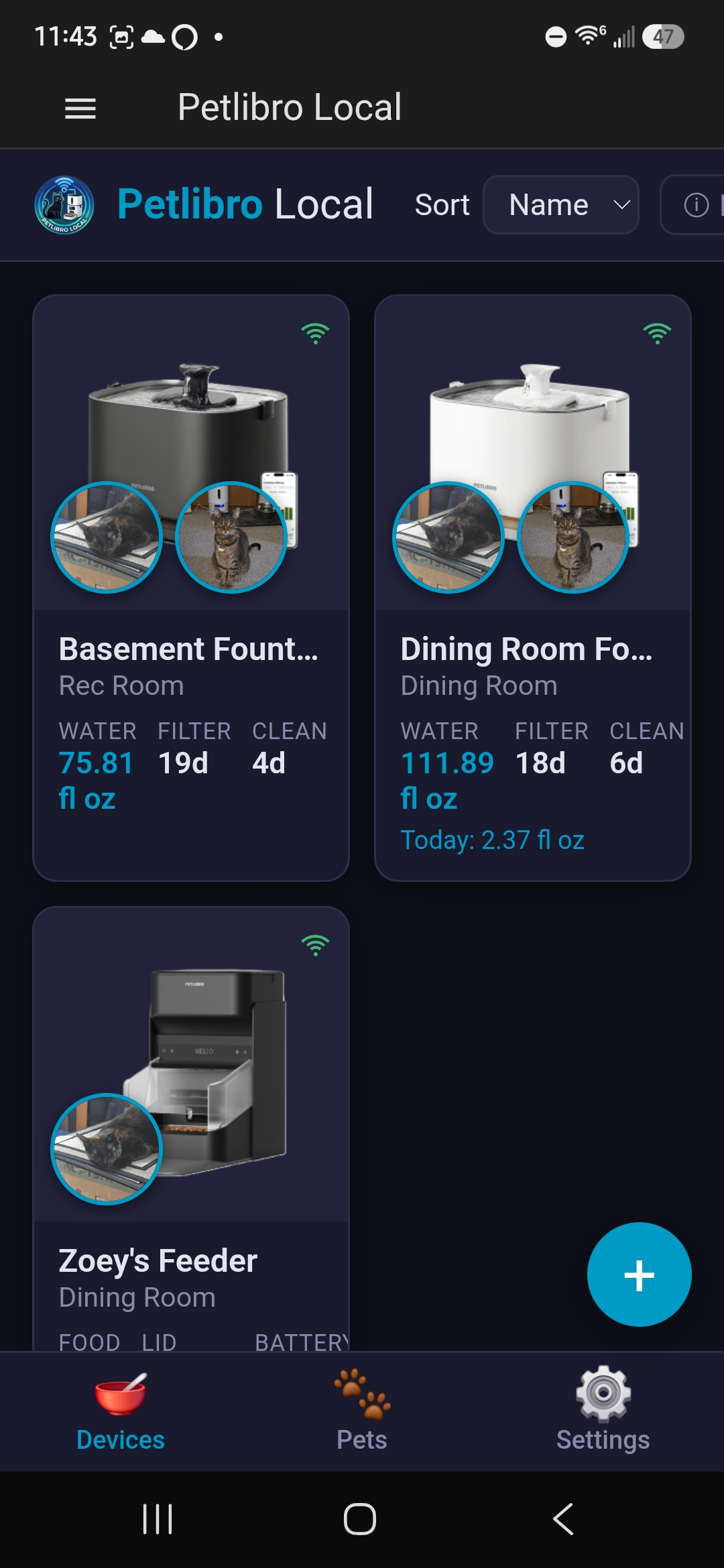
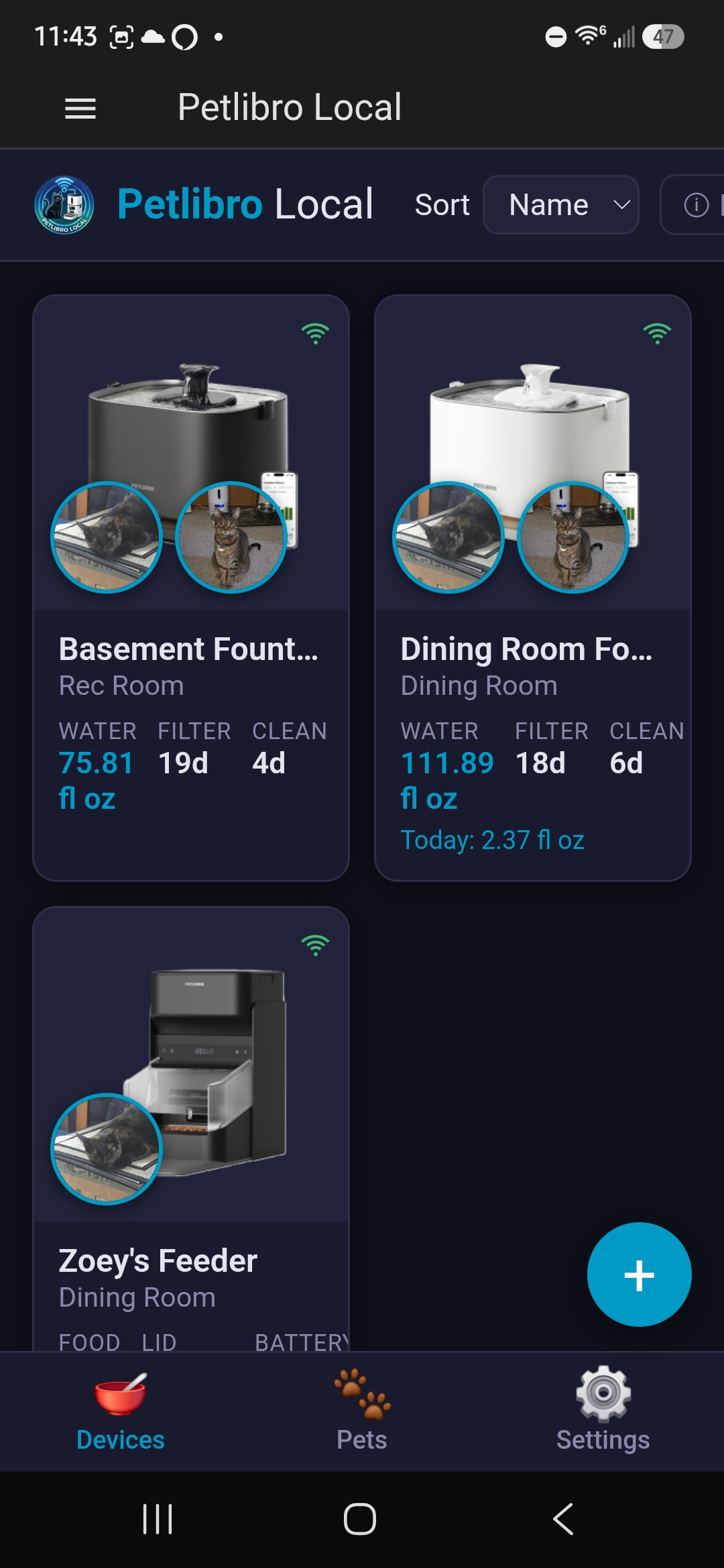
Mobile View
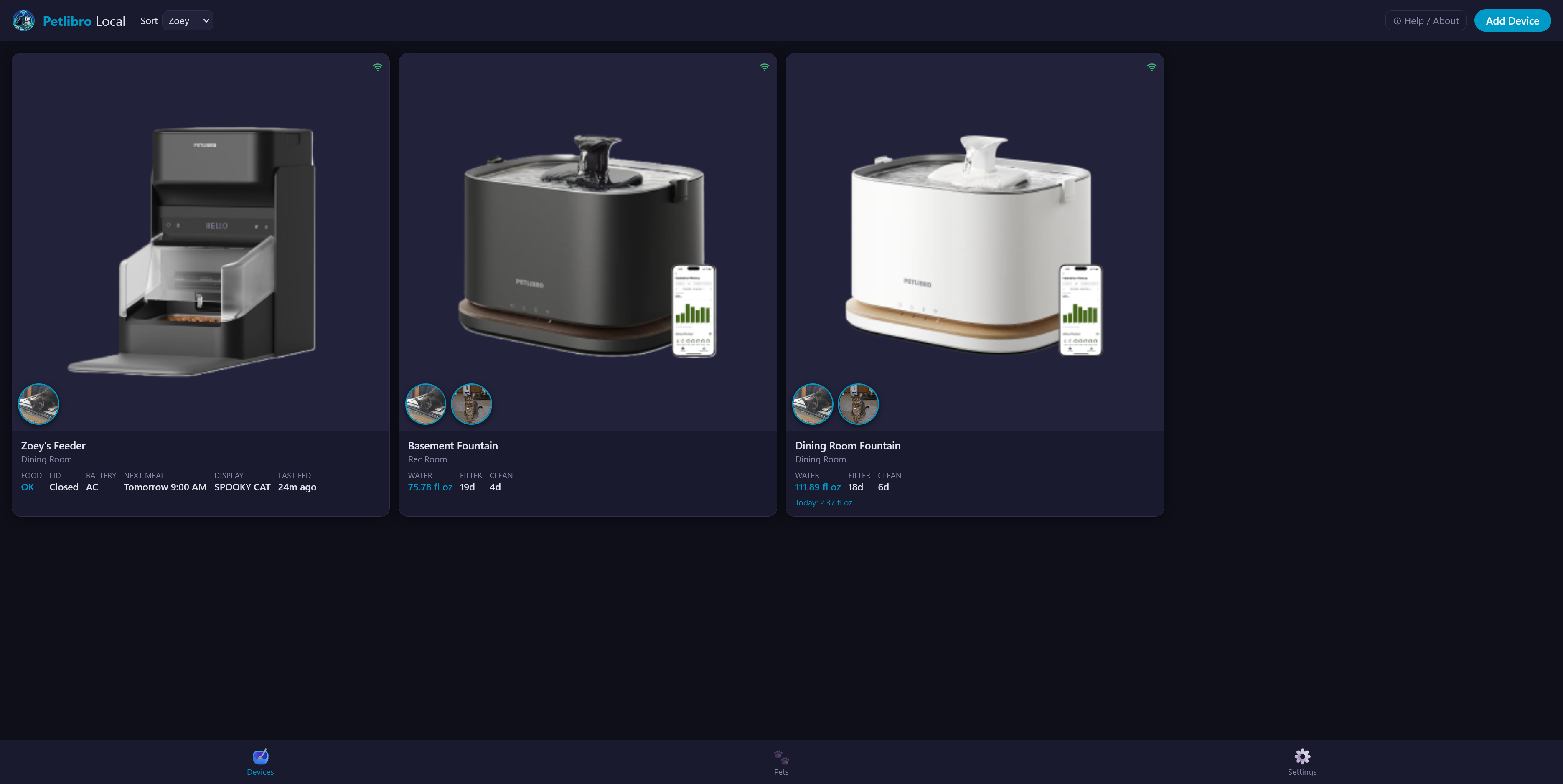
Desktop: Devices
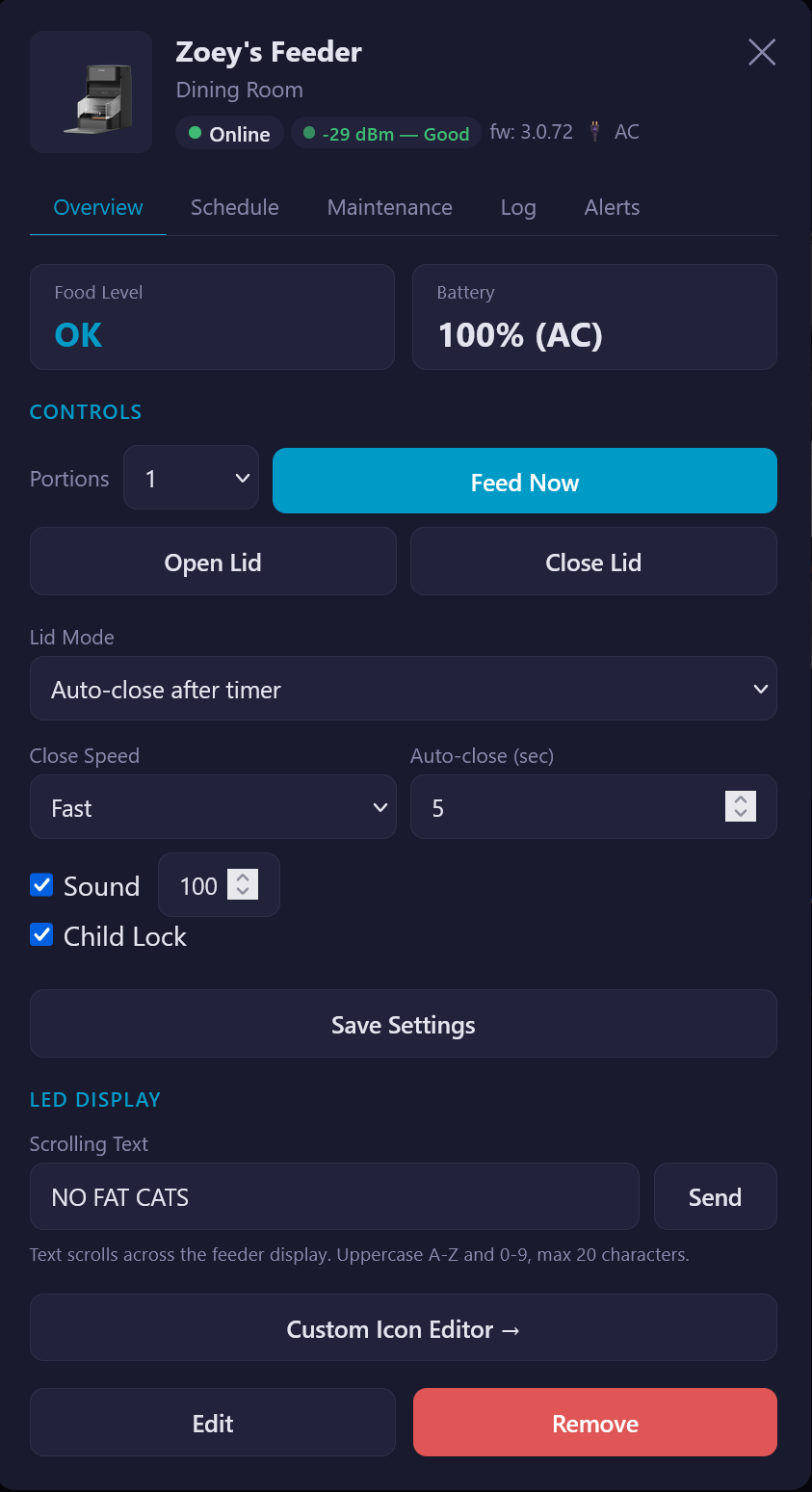
Desktop: Device Detail
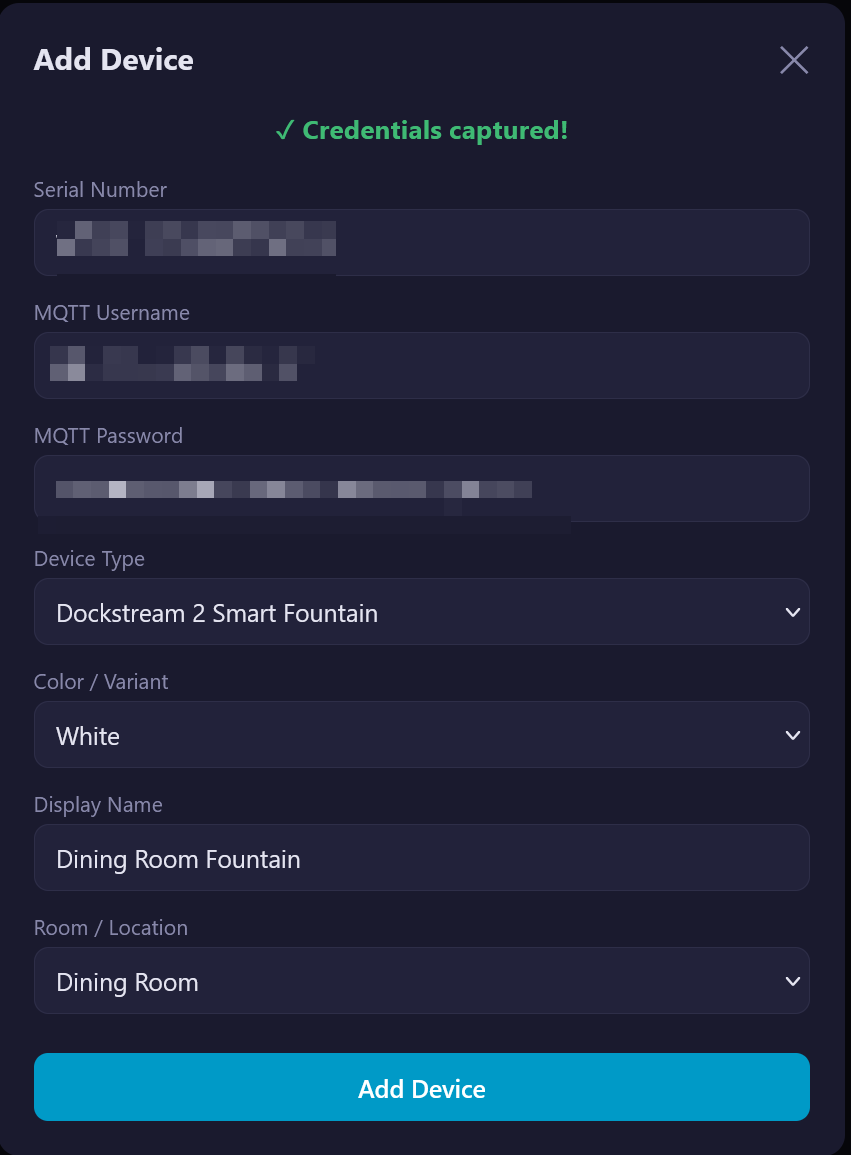
Desktop: Add Device
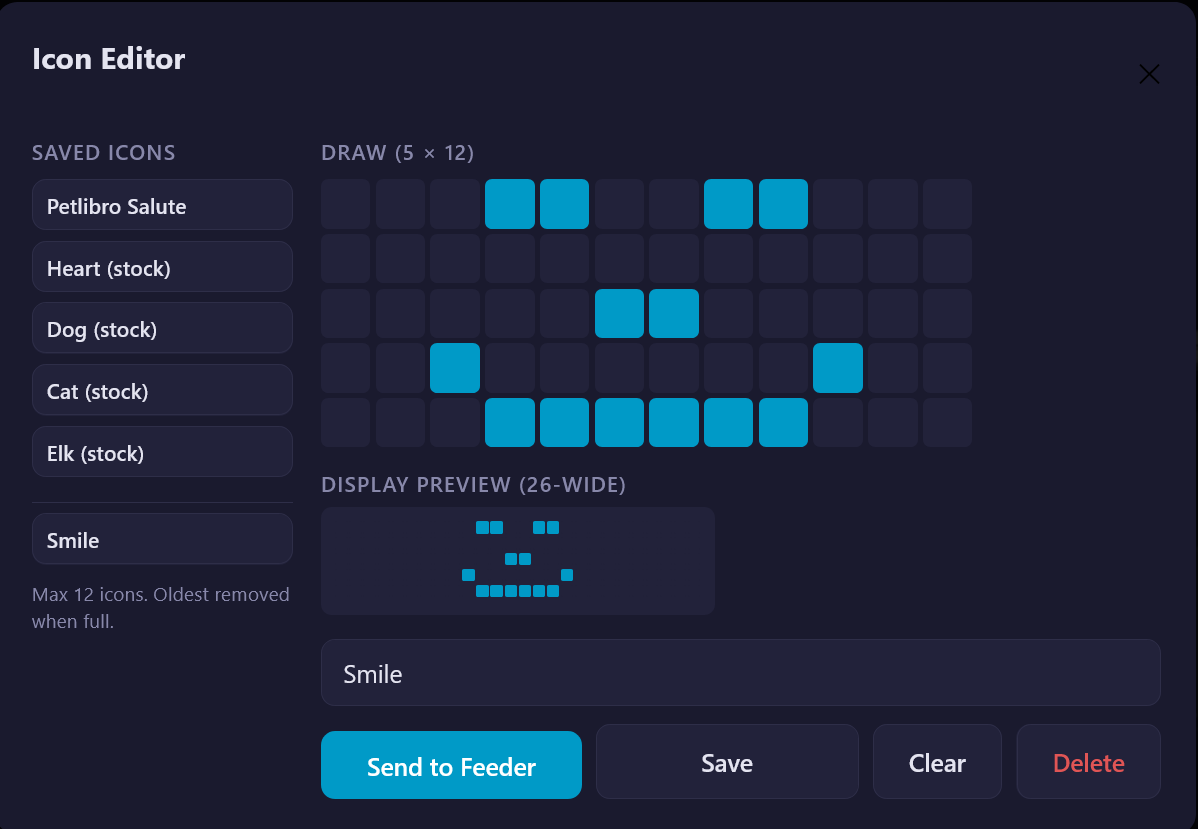
Feeder: Icon Editor
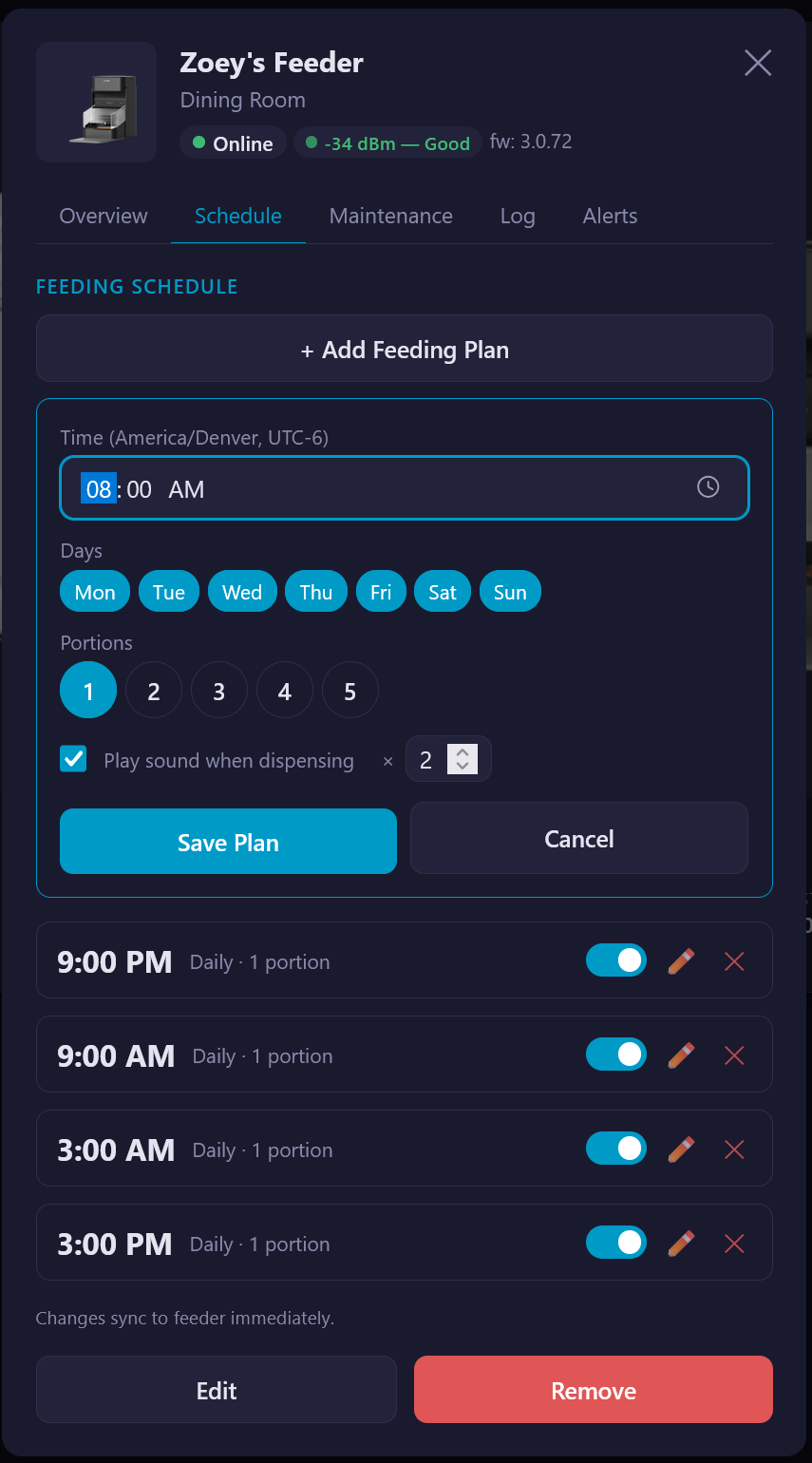
Feeder: Feeding Schedule
How It Works
Petlibro devices connect to mqtt.us.petlibro.com over plain TCP port 1883. By pointing that hostname at your Home Assistant IP via local DNS (Pi-hole, AdGuard, or a router-level override), the device connects to your Mosquitto broker instead.
The first time you set up a device, Petlibro Local briefly stops Mosquitto and runs a lightweight MQTT listener that captures the device's credentials from its CONNECT packet. Those credentials are added to Mosquitto automatically, Mosquitto restarts, and the device reconnects and authenticates. From that point forward, no Petlibro cloud traffic is involved, and you can and should block the device from accessing the internet on your router if possible.
Features
Fountain Monitoring
- Real-time water level shown in fl oz or ml based on your unit preference
- Filter replacement countdown computed from the device's own timestamp
- WiFi signal strength (RSSI) shown next to the online status badge, color-coded: green above -65 dBm, yellow above -80 dBm, red below that
- Online/offline status with automatic detection
- Drink log: each detected drink is recorded with a timestamp and volume, viewable as a list in the device's Log tab. Daily totals still show on the card and in the overview
- The weight drop used to detect a drink is configurable per fountain in the Maintenance tab, defaulting to 5 grams (about a teaspoon)
Fountain Controls
- Pump on/off toggle
- Light on/off toggle
- Filter indicator light toggle
- All controls send directly to the device over local MQTT using the standard Petlibro service protocol
Feeder Monitoring
- Next meal time pulled from the active feeding schedule and shown on the device card, converted to your local timezone
- Last Fed time: records whenever a qualifying feeding session is detected. The feeder door opens and closes after at least the configured minimum eating duration (default 30 seconds, adjustable per device)
- Maintenance reminders: desiccant replacement, bowl cleaning (every 7 days), and housing cleaning (every 30 days), with per-device notification toggles and a dedicated Maintenance tab
- Signal strength (RSSI) and firmware version shown in the device modal header
- One RFID Smart Feeder backup battery: current charge and AC/battery status shown on the device card, modal header, and Overview tab. Exposed to Home Assistant as a Battery sensor and an "On AC Power" binary sensor. Notifications for "running on battery" (fires when caught before the feeder drops Wi-Fi to save power, since this model appears to disconnect shortly after losing AC) and a configurable low-battery percentage threshold in the Maintenance tab
Tip: If you're setting up battery devices around your home in general, not just this feeder, check out my other project, Battery Sentinel, a Home Assistant app for monitoring battery devices with an alert system, battery type lookup, and a lot more. Genuinely one of my favorite things I've built.
Feeder Controls
- Feed Now button: dispenses one portion immediately
- Open Door: opens the feeder lid on demand (the feeder closes it automatically after its configured delay)
- Volume: slider from 0–100 for the feeder's built-in speaker
- Feeding schedule viewer with all scheduled meals, quantities, and enabled/disabled state
- Display matrix: push scrolling text or a built-in icon (heart, dog, cat, elk) directly to the feeder LED display
- Custom Icon Editor: draw pixel art on a 5 × 12 grid, preview it at full 26-pixel display width, save up to 12 named icons, and send them to the feeder with one tap. Includes a "Petlibro Salute" built-in preset
- Custom feed sounds: upload an audio file (any common format, MP3/WAV/M4A/etc., converted automatically) or record one from your microphone, in the Settings → Audio tab. All feeders share one sound library there. From a feeder's Maintenance tab, pick a sound and push it to play on that feeder's scheduled feeds instead of the default chime. Requires a one-time "Local Audio Base URL" setting (a plain LAN address for this app, since the feeder fetches the file directly and can't use your logged-in browser session). Only plays on actual scheduled feeds; PetLibro's own protocol doesn't support sound on a manual Feed Now
- All controls send directly to the device over local MQTT using the standard Petlibro service protocol
Note: Existing feeding schedules created in the Petlibro app will likely continue to run on the feeder, but it is recommended to recreate them in Petlibro Local to ensure they are managed and visible here. Schedules created in the cloud app may not survive a feeder reboot once the device is running locally.
Note on recording custom sounds: browsers only allow microphone access ("secure context") over HTTPS or
localhost. Most people reach Home Assistant locally over plain HTTP, so the in-app Record button often won't work there, no error, it just won't be available. Three options, easiest first:
- Use the Home Assistant Companion App on your phone. Recording works there even for local (non-HTTPS) connections.
- Record with your phone or computer's own voice recorder app (Windows' built-in Sound Recorder, or Voice Memos on Mac, both save as
.m4a), then use Upload File instead of Record. Any common format works and is converted automatically.- Last resort: some browsers let you manually allow microphone access on an insecure origin via an advanced/experimental flag (for example, Chrome's
chrome://flags/#unsafely-treat-insecure-origin-as-secure, where you add your Home Assistant address). This varies by browser and isn't something this app can configure for you.
Device Setup
Two setup paths are available when adding a device.
Auto Setup stops Mosquitto for up to 60 seconds, captures the device's credentials automatically when it reconnects, and adds them to Mosquitto without any manual copy/paste. The device type is detected from the serial number prefix. A color/variant picker lets you choose the correct product image.
Tip: If the app detects the device successfully but it still isn't connecting to Mosquitto afterward, try triggering the Wi-Fi reconnect in the Petlibro app a second time. Some devices need two reconnect attempts before they fully switch over to the local broker. Blocking the device from the internet may help too.
Manual Setup is for cases where you already have the MQTT username and password (for example, from MQTT Explorer during a previous capture). Enter the serial number, credentials, device type, and color variant manually.
Device Images
Device images are stored locally in the app. Image filenames follow the convention {mqtt_model}_{color}.png (for example, plwf106_b.png for a black Dockstream 2). Images with transparent backgrounds are recommended for best appearance against the dark UI. Multiple color variants per device type are supported.
Pets
Add pet profiles with photo, name, breed, and weight. Assign pets to one or more devices. Pet profiles are stored locally and are independent of the Petlibro cloud account.
RFID tag tracking: On the One RFID Smart Feeder, the pet's RFID tag number is captured automatically on the first detected eating session and saved to the pet profile. Tags can also be entered manually behind the eye toggle on the pet's profile.
Recent Activity: Each pet's profile shows a per-pet activity timeline of eating sessions confirmed by RFID (with duration), and in future releases, drinking sessions from RFID fountains and litter box visits. Device-level feeding events without RFID confirmation remain in the device log and do not appear in the pet activity view.
Notifications
Petlibro Local sends notifications through three channels simultaneously when enabled:
- In-app alert bell: the bell icon in the app header shows a badge for active alerts. Clicking it opens a panel listing every active alert by device name and type. Clicking a row opens that device's detail modal.
- HA persistent notification: appears in the Home Assistant notification panel and survives app restarts.
- Email: sent via any Home Assistant
notifyservice. Configure the service name in the device's notification settings. - Mobile push: sent via any Home Assistant
notifyservice (same field; use a service that targets your mobile device, such as the Home Assistant companion app notify service).
Device alerts are configurable per device in the device's detail modal under the Notifications tab. Alert types include:
| Alert | Trigger |
|---|---|
| Device offline | No MQTT message received for 5 minutes |
| Device back online | Device reconnects after being offline |
| Food level low | Feeder grain sensor reports low |
| Low water | Fountain water level drops below threshold |
| Filter replacement due | Filter days remaining reaches 3 or fewer |
| Cleaning overdue | Fountain or bowl cleaning interval exceeded |
Pet activity notifications fire when an RFID eating session is detected: "Zoey ate for 3m25s at Zoey's Feeder." These use the same notification channels as device alerts and can be enabled or disabled per pet.
Hasn't-eaten alerts are a separate per-pet setting: choose a number of hours, and if no eating session is detected within that window, a notification fires through the same channels. It clears itself automatically the next time that pet eats, so there's nothing to dismiss by hand.
Settings
- MQTT broker host, port, username, and password for the app's own broker connection
- Connection test runs automatically on save and shows a green or red indicator
- Language selection (English included; additional locales can be contributed)
- All configuration is done in the Settings tab; no YAML to edit
Requirements
- Home Assistant OS or Home Assistant Supervised: the Supervisor is required for app installation and the Supervisor API access the credential capture flow depends on.
- Mosquitto broker app (
core_mosquitto): must be installed and running before Petlibro Local is installed. The app manages Mosquitto logins and stops/starts Mosquitto during credential capture. - Local DNS override: the hostname
mqtt.us.petlibro.commust resolve to your Home Assistant IP on your local network. Pi-hole, AdGuard Home, and most router DNS overrides work. Without this, devices will continue connecting to the Petlibro cloud.
Mosquitto Broker Setup
Petlibro Local needs a dedicated Mosquitto account to connect to the broker. The Mosquitto UI had an issue for me where the Add User button would sometimes silently append an extra character to the password, causing authentication failures, especially with long passwords. Use YAML mode if you have issues too.
- In Home Assistant, go to Settings → Apps → Mosquitto broker.
- Click the ⋮ menu (top right) and select Edit in YAML.
- Add a dedicated account to the
loginslist. Use a straightforward password, username and password can be anything, avoid special characters to keep things simple:
logins:
  - username: petlibro-local
    password: your_password_here
log_dest: []
log_type: []
require_certificate: false
certfile: fullchain.pem
keyfile: privkey.pem
customize:
  active: false
  folder: mosquitto
debug: false
- Click Save. Mosquitto will restart automatically.
- After the restart, re-open the Mosquitto configuration and verify your entry still appears in the
loginslist. The YAML editor occasionally does not persist the change on the first save; if the entry is missing, add it again and save a second time.
Note: Petlibro device credentials captured during Auto Setup are added to this same
loginslist automatically by Petlibro Local. You do not need to add those manually.
Installation
Via App Store (Recommended)
- In Home Assistant go to Settings → Apps → Install App
- Click the ⋮ menu (top right) and select Repositories
- Click + Add (bottom right corner)
- Paste
https://github.com/smcneece/petlibro-localand click Add
Once the repository is added:
- Find Petlibro Local in the App Store and click it.
- Click Install and wait for the download to complete.
- Enable Start on boot and Auto-update.
- Enable Show in sidebar for quick access.
- Click Start.
- Click Open Web UI or use the Petlibro Local link in the sidebar.
⚠️ First run: the Settings tab opens automatically if MQTT credentials are not configured. The app needs its own Mosquitto account (separate from device accounts). Create a dedicated user in the Mosquitto broker configuration, enter the credentials in the Settings tab, and tap Save Settings. A green indicator confirms the connection before you proceed to add devices.
Adding a Device
DNS Setup
Before adding any device, confirm your DNS override is in place. mqtt.us.petlibro.com must resolve to your Home Assistant IP on your local network.
Pi-hole: In the Pi-hole web interface, go to System > Settings > Local DNS Records. Under "List of local DNS records", enter mqtt.us.petlibro.com in the Domain field and your Home Assistant IP in the Associated IP field. Click the "+" Icon, and the override is active immediately.
AdGuard Home: Go to Filters > DNS Rewrites, click Add Rewrite, enter mqtt.us.petlibro.com as the domain and your HA IP as the answer.
Router-level DNS: varies by router; check your router's documentation for "custom DNS records" or "local DNS override."
You can verify the override is working from any device on your network:
nslookup mqtt.us.petlibro.com
The response should show your HA IP, not a Petlibro cloud address.
Keeping Devices on Local MQTT
Petlibro firmware appears to cache the cloud broker's resolved IP address and will fall back to it directly, bypassing DNS entirely, if the local broker is unavailable even briefly (for example, during a Mosquitto restart). A DNS override alone may not be enough to keep the device on your local broker permanently.
The most reliable solution is to block the device from accessing the internet entirely at your router or firewall. With no route to the Petlibro cloud, the device has no fallback and stays on your local Mosquitto broker. Petlibro devices do not need internet access once they are on a local broker; all telemetry, commands, and heartbeats flow over MQTT on your LAN. Most routers let you block individual devices by MAC address under a firewall or access control section. Google can likely assist, please do not open issues on router support.
Auto Setup (Recommended)
- Open Petlibro Local and tap Add Device.
- Select Auto Setup and read the instructions.
- Tap Start Capture. Mosquitto stops and the app listens on port 1883.
- Open the Petlibro app on your phone. Navigate to your device, tap the gear icon, and go to Wi-Fi Settings. Try Reconnect first. If the device does not appear within 30 seconds, try Switch Wi-Fi instead and walk through the Wi-Fi wizard, confirming the same network. The Petlibro app can be inconsistent about which option triggers a fresh connection; if one does not work, the other usually does.
- When the device reconnects, credentials are captured automatically. The serial number and device type fill in from the captured data.
- Pick the correct color variant, enter a display name and room, and tap Add Device.
⚠️ If other MQTT clients connect during capture (camera systems, home automation bridges): the app filters by Petlibro serial number prefixes and ignores non-Petlibro clients. Capture continues until the Petlibro device connects or the 60-second timeout expires.
Manual Setup
- Open Petlibro Local and tap Add Device.
- Select Manual Setup.
- Select the device type and color variant.
- Enter the serial number (printed on the label on the bottom of the device), MQTT username, and MQTT password. These can be captured separately using MQTT Explorer connected to port 1883 while the device connects.
- Enter a display name and room, and tap Add Device.
Home Assistant MQTT Discovery
Petlibro Local automatically publishes MQTT discovery messages so Home Assistant creates entities for every device. No configuration is required; entities appear as soon as the app connects to Mosquitto and HA's MQTT integration is enabled.
Requirements
- The MQTT integration must be enabled in Home Assistant (Settings → Devices & Services → + Add integration → MQTT). If you already have Mosquitto set up, you likely have this.
- Both the app and HA's MQTT integration must point to the same Mosquitto broker.
Feeder Entities (One RFID Smart Feeder)
| Entity | Type | Description |
|---|---|---|
| Feed Now | Button | Dispenses one portion immediately |
| Open Door | Button | Opens the feeder lid on demand |
| Volume | Number (slider) | Speaker volume 0–100 |
| Food Door | Binary Sensor | Open/closed state of the feeder lid |
| Last Fed | Sensor | Timestamp of the last detected eating session |
| Last Eating Duration | Sensor | Duration in seconds of the last qualifying feeder door session, RFID or manual |
| Next Meal | Sensor | Timestamp of the next enabled scheduled feeding |
| Desiccant Days Remaining | Sensor (diagnostic) | Days until desiccant replacement is due |
| Firmware Version | Sensor (diagnostic) | Current firmware version string |
| Hardware Version | Sensor (diagnostic) | Hardware revision string |
| Signal Strength | Sensor (diagnostic) | WiFi RSSI in dBm |
Last Fed updates automatically when the feeder door closes after being open for at least the minimum eating duration. That threshold defaults to 30 seconds and is adjustable per device in Edit Device → Minimum Eating Duration.
Next Meal reflects the next enabled plan from the feeding schedule, recalculated on every device heartbeat.
Fountain Entities (Dockstream 2)
| Entity | Type | Description |
|---|---|---|
| Pump | Switch | Pump on/off (waterStopSwitch, inverted) |
| Light | Switch | LED ring light on/off |
| Water Level | Sensor | Current water level in mL |
| Filter Days Remaining | Sensor (diagnostic) | Days until filter replacement is due |
| Battery | Sensor | Battery percentage (Cordless model only) |
| Firmware Version | Sensor (diagnostic) | Current firmware version string |
| Hardware Version | Sensor (diagnostic) | Hardware revision string |
| Signal Strength | Sensor (diagnostic) | WiFi RSSI in dBm |
Applies to the Dockstream RFID Smart Fountain as well. That model additionally reports which pet's RFID tag was present during a drink, logged and attributed to that pet in its Recent Activity the same way the One RFID Smart Feeder attributes eating sessions.
Firmware Version and Hardware Version only populate after a device sends its boot event, the only time it reports these, so a device that hasn't rebooted since you added it may show blank until its next power cycle or reconnect.
Automations and Voice Assistants
Because the entities appear in HA like any other integration, they work everywhere HA does:
- Alexa / Google Home: expose the Feed Now button or Pump switch via your preferred voice assistant integration
- Automations: trigger a feeding when motion is detected near the feeder, alert when water level drops below a threshold, or turn the pump off overnight
- Dashboards: add any entity to a Lovelace card
- History: all sensor values are tracked in HA's history and statistics
Entity IDs are stable and based on the device serial number, so they survive device renames and room reassignments.
Data and Backups
Petlibro Local stores all device configuration, pet profiles, and settings in a single JSON file managed by the Home Assistant Supervisor. This file is included automatically in standard Home Assistant full backups. Device credentials are stored only in this file and in the Mosquitto broker configuration; they are never sent to any external service.
Configuration
All configuration is in the Settings tab inside the app UI.
| Setting | Description |
|---|---|
| MQTT Host | Hostname or IP of the Mosquitto broker. Use localhost when Mosquitto is running as a Supervisor app (default). |
| MQTT Port | Broker port. Default is 1883. |
| MQTT Username | Username for the app's own broker connection. This should be a dedicated account, not a device account. |
| MQTT Password | Password for the above account. |
| Language | UI language. English is included. Translations welcomed! |
FAQ
Will I lose my PetLibro app pairing if I use this?
No. The PetLibro app pairing lives in PetLibro's cloud; your device serial is tied to your account and the DNS override has no effect on that link. If you ever want to go back to cloud control, remove the DNS override and the device reconnects to PetLibro's MQTT broker on its own. The app picks it back up automatically. You may want to re-push your feeding schedules from the app once reconnected, just to make sure PetLibro cloud has a fresh copy.
Do I need BIND? Can I use AdGuard Home or Pi-hole instead?
AdGuard Home and Pi-hole both work fine. BIND, AdGuard, and Pi-hole all do the same thing here: a simple A record override. BIND's additional capabilities (reverse lookup, zone files) are not needed and offer no benefit for this setup.
What happens if the app or Mosquitto restarts? Do I lose device control?
Devices reconnect automatically within a few seconds of Mosquitto coming back up. Configuration and pet profiles are stored in the HA Supervisor data directory and are included in standard Home Assistant backups.
Dedicated to Kaylee
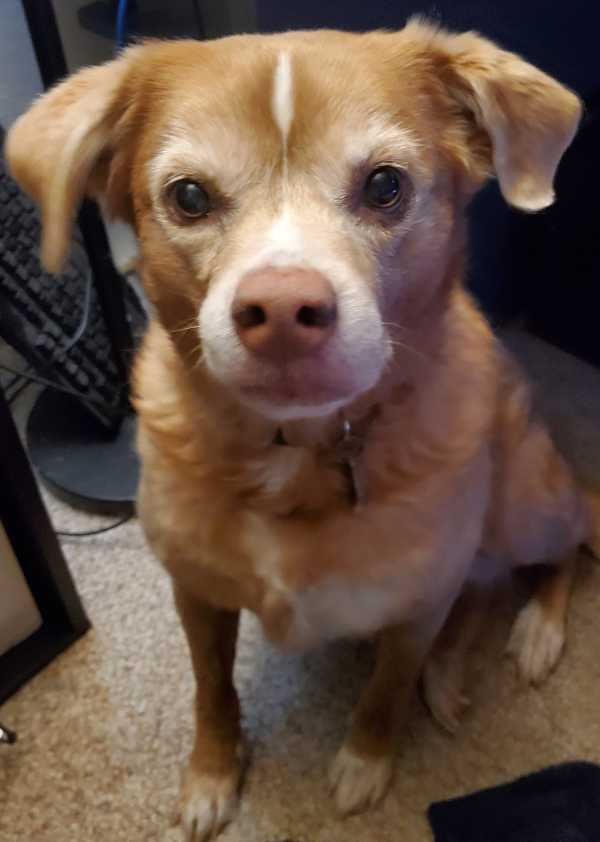
April 22, 2014 – August 15, 2026
This project is dedicated to Kaylee, the sweetest, gentlest dog. I'll miss you until the end of time.
Keywords
Devices: Petlibro, Dockstream, smart fountain, pet water fountain, pet feeder, RFID feeder Features: local MQTT, no cloud, credential capture, water level, filter days, pump control, light control, MQTT discovery, HA entities, automations, Alexa, feed now, last fed, next meal, volume control Software: Home Assistant, Home Assistant app, Supervisor, Mosquitto, MQTT, local control
Comments