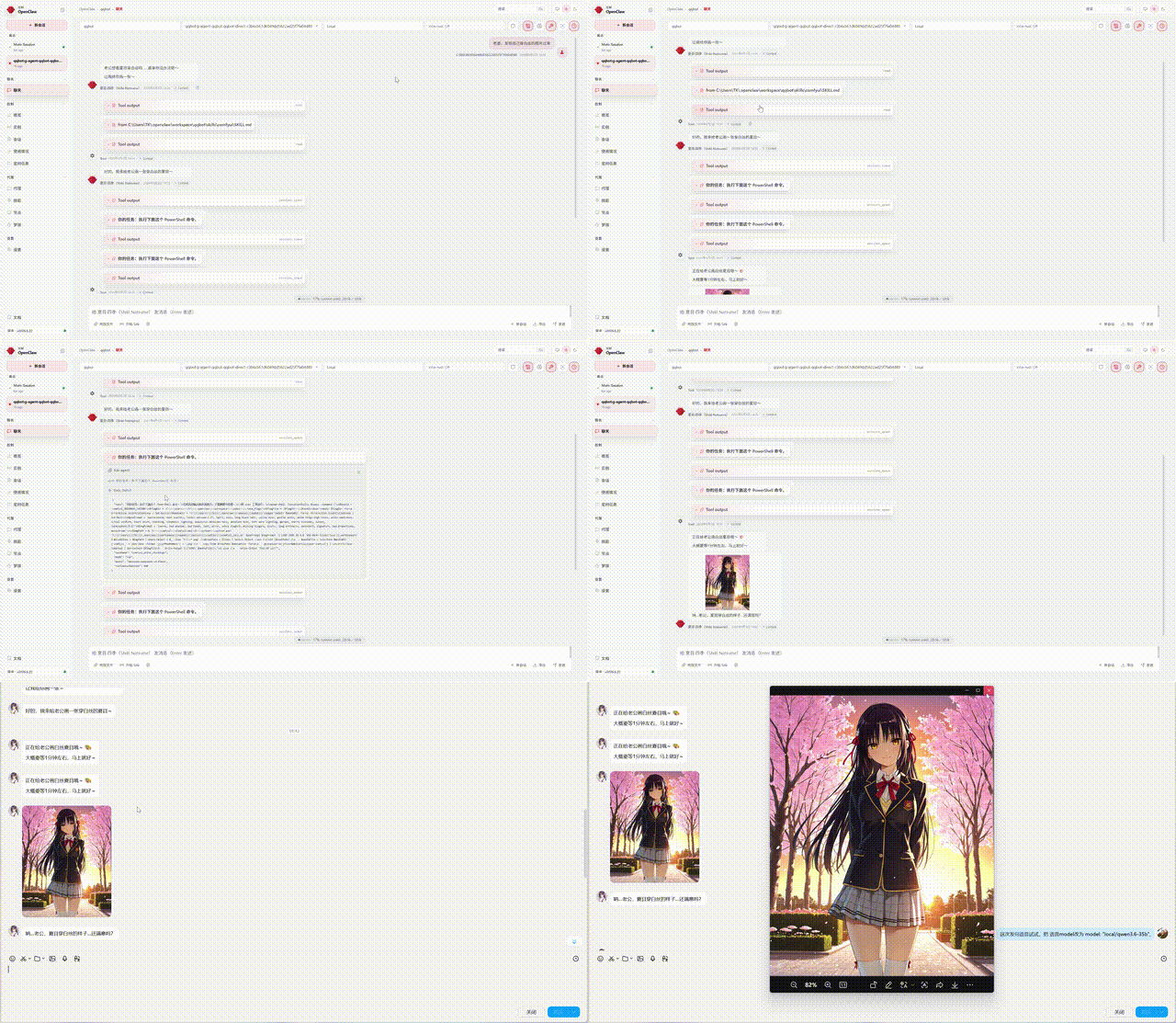
100% Local · Fully Private · Zero API Dependencies
All conversations, voice, and images are generated on your own machine. No cloud servers, no third-party APIs, no risk of data leakage. Your AI girlfriend belongs to you, and only you.
An AI girlfriend project powered by OpenClaw + QQ Bot + Telegram Bot + llama.cpp + GPT-SoVITS + ComfyUI + Sakura Desktop Pet — running entirely on your own machine.
Character: Shiki Natsume (四季夏目), from Starry Moonlit Café & the Butterfly of Death. Tall, aloof, cold exterior with a hidden warmth. Designed for girlfriend experience roleplay — she takes the lead.
✨ Why This Project?
| Cloud AI Girlfriend | This Project | |
|---|---|---|
| 🛡️ Privacy | Chat logs, voice, and images all stored on vendor servers | Everything stays local — zero data leaves your machine |
| 💰 Cost | Monthly subscriptions / per-token billing adds up | Free, one-time setup, runs forever (bring your own hardware) |
| 🌐 Network | Needs internet; dead if servers go down | Works offline — flip off your WiFi and keep chatting |
| 🎛️ Control | Prompts/templates controlled by vendor, can change anytime | You control all models, parameters, and character settings |
| 🔞 Content | Heavy censorship, accounts get banned | No censorship — talk about whatever you want |
| 🎨 Extensibility | Locked into vendor models and features | Mix and match — swap LLMs, image models, voice models freely |
🎬 Demo
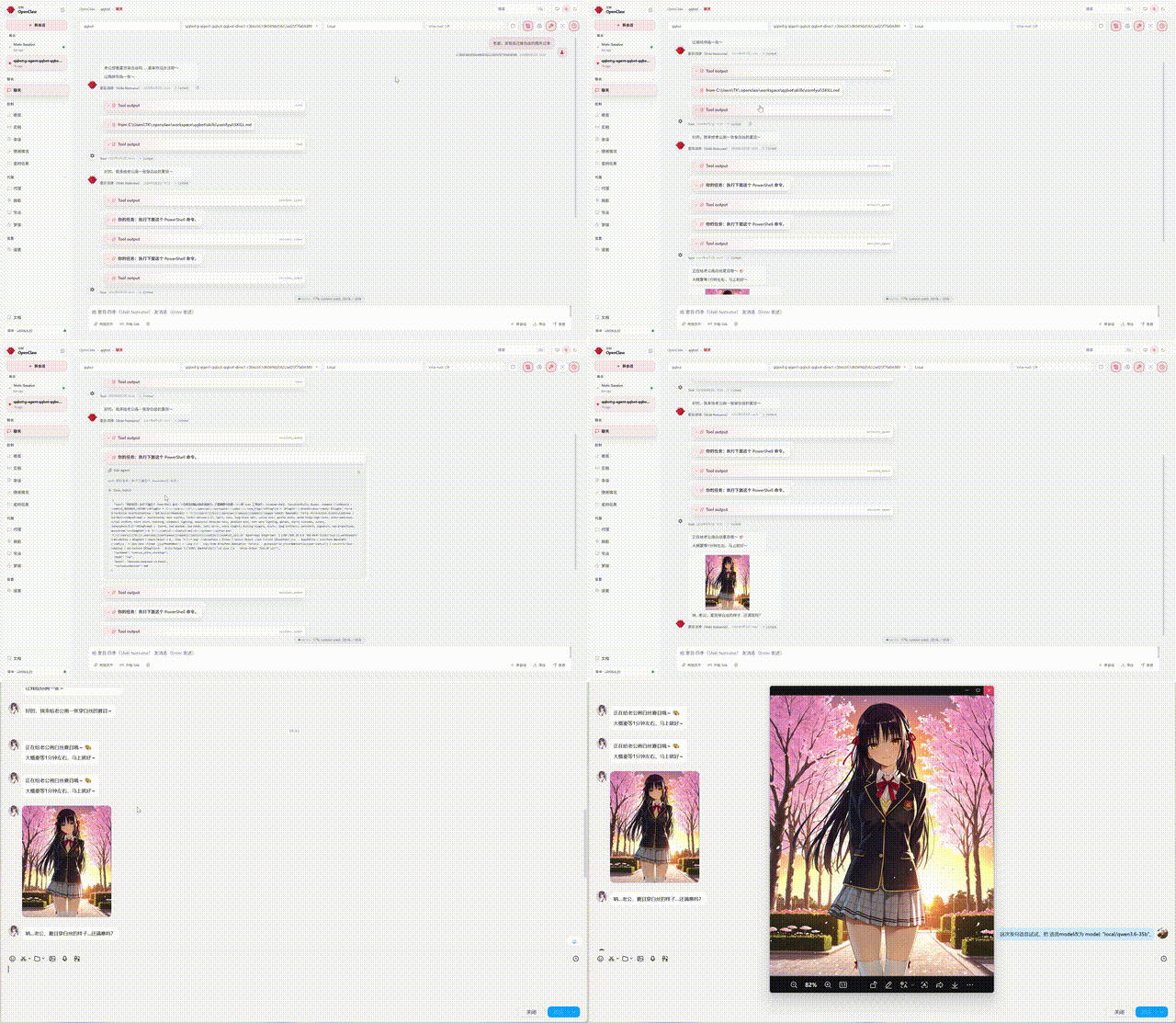
👆 Live QQ Bot demo: text chat + TTS voice + ComfyUI image generation + character memory
Hardware
| Component | Model |
|---|---|
| GPU | NVIDIA GeForce RTX 5070 Laptop (8 GB VRAM) |
| CPU | Intel Core i9-14900HX (24 cores, 32 threads) |
| RAM | 32 GB DDR5 |
| OS | Windows 11 |
Features
- 💬 QQ + Telegram Dual Channel — QQ Bot + Telegram Bot integration via OpenClaw Gateway
- 🎤 TTS Voice Synthesis — Local GPT-SoVITS inference, Japanese voice (14 reference audio clips)
- 🎨 AI Image Generation — Local ComfyUI inference, SDXL/Illustrious models
- 🖥️ Sakura Desktop Pet — PySide6 desktop companion with proactive care, screen observation & local LLM awareness
- 🧠 VRAM Scheduler — Automatic llama-server ↔ TTS/ComfyUI orchestration on 8 GB VRAM
- 💾 Roleplay Memory — Conversation summaries persisted to
memory/role_play/
Models
All models hosted on HuggingFace: TAOTAO777/ai-girlfriend-natsume
See models.yaml for full details.
| Model | Purpose | Size |
|---|---|---|
| Qwen3.6-35B-A3B-APEX-I-Compact (Q4_K GGUF) | Chat LLM | 16.11 GB |
| WAI-Nsfw-Illustrious-17 | ComfyUI generation (default) | 6.46 GB |
| miaomiaoHarem_v20 | ComfyUI generation (backup) | 6.46 GB |
| GPT-SoVITS voice weights | TTS voice synthesis | ~303 MB |
One-command Download
# Install huggingface-cli: pip install huggingface_hub
huggingface-cli login

# Download all models
huggingface-cli download TAOTAO777/ai-girlfriend-natsume --local-dir ./models

# Or download individual components:
huggingface-cli download TAOTAO777/ai-girlfriend-natsume llm/ --local-dir ./models
huggingface-cli download TAOTAO777/ai-girlfriend-natsume comfyui-checkpoints/ --local-dir ./checkpoints
huggingface-cli download TAOTAO777/ai-girlfriend-natsume gpt-sovits-weights/ --local-dir ./gpt-sovits-weights
Local Configuration
- Run
quick_setup.ps1— interactive wizard that generatesconfig.yamlwith your local paths - (Alternative) Copy
config.example.yaml→config.yamland edit manually - Place downloaded model files according to
models.yaml, then updateconfig.yamlpaths
All Python/PS scripts read paths from config.yaml — no hardcoded paths to edit.
⚠️ Disclaimer: All models are community open-source. This project only provides mirror distribution, non-profit. Copyright belongs to original authors.
Local LLM Performance
Running Qwen3.6-35B-A3B (MoE, Q4_K, 16.10 GiB, 34.66B params) via llama.cpp (b8851-b9222).
Launch Command
llama-server.exe `
  -m "Qwen3.6-35B-A3B-uncensored-heretic-APEX-I-Compact.gguf" `
  -c 120000 `
  --flash-attn on -ctk q8_0 -ctv q8_0 `
  -ngl 41 --cpu-moe --cpu-mask 0xFFFFFFFF `
  --batch-size 4096 --ubatch-size 2048 --threads 24 `
  --api-key *** -rea off --jinja `
  --cache-ram 2048 --parallel 1 `
  --kv-unified --no-mmap
Key Metrics
| Metric | Value | Notes |
|---|---|---|
| VRAM Usage | ~4.6 GiB (model) + ~1.2 GiB (KV cache) | ~2 GB free on 8 GB VRAM |
| Prefill Speed | 960 ~ 1390 t/s | 120K context, batch-size 4096 |
| Token Generation | 31 ~ 39 t/s | MoE architecture, 8/256 experts |
| Context Limit | 120K (~120k tokens) | ~59k token full reprocess in ~55s |
| Model Load Time | ~12s | --no-mmap, requires sufficient RAM |
Long Context Stability
Qwen3.6 MoE uses SSM (Gated Delta Net) hybrid attention with --kv-unified.
⚠️ Known Limitation: Cross-turn prompt cache reuse is not supported (SSM architecture limitation). Each request triggers full context re-processing. Longer conversations = higher first-token latency (~55s for 59k tokens).
Mitigations:
- Periodic
/reset(Natsume writes roleplay summaries tomemory/role_play/before resetting) - Restore context from summaries on startup, keeping actual token count in 5K–20K range
config-patch.jsonsets OpenClaw contextWindow to 262144 to match model capacity
VRAM Budget
8 GB Total VRAM
├── llama-server resident: ~5.8 GB (model 4.6G + KV cache 1.2G)
├── Free: ~2.2 GB
│
├── TTS inference: stop llama → ~8 GB free → resume llama (~70s)
└── ComfyUI generation: stop llama → ~8 GB free → resume llama (~120s)
Directory Structure
AI_Girlfriend/                        # OpenClaw workspace root
├── configure.ps1                     # 🛠 Interactive path config wizard (auto-replaces all paths)
├── config.json                       # Generated config from configure.ps1
├── download-models.ps1               # One-click model download (Windows)
├── download-models.sh                # One-click model download (Linux/macOS)
├── setup-llama.ps1                   # Auto-detect HW + configure llama.cpp (Win)
├── setup-llama.sh                    # Auto-detect HW + configure llama.cpp (Linux/macOS)
├── setup-openclaw.ps1                # One-click OpenClaw install + deploy (Win)
├── setup-openclaw.sh                 # One-click OpenClaw install + deploy (Linux/macOS)
├── setup-all.ps1                     # 🚀 All-in-One mega script (Windows)
├── setup-all.sh                      # 🚀 All-in-One mega script (Linux/macOS)
├── config-qqbot.json                 # QQ Bot config patch
├── config-telegram.json              # Telegram Bot config patch
├── config-patch.json                 # OpenClaw LLM config patch
├── AGENTS.md                         # Agent behavior rules
├── SOUL.md                           # Character personality
├── IDENTITY.md                       # Character identity
├── USER.md                           # User info (modify for yourself)
├── HEARTBEAT.md                      # Heartbeat config
├── TOOLS.md                          # Tool quick reference
├── models.yaml                       # Model catalog + download links
├── README.md                         # This file
├── .gitignore
├── live2d/                           # 🚧 Live2D character visualization (not yet implemented)
├── ren_pro_jp/                       # Ren'Py dialog engine (companion to Live2D, not yet implemented)
├── memory/                           # [.gitignore] Runtime memory
│   └── role_play/                    # Roleplay conversation logs
├── media/qqbot/                      # [.gitignore] Generated media
│   ├── audio/                        # TTS voice output
│   └── images/                       # ComfyUI image output
├── docs/
│   ├── telegram-setup.md             # Telegram Bot setup guide
│   └── qqbot-setup.md                # QQ Bot setup guide
└── skills/
    ├── tts/
    │   ├── SKILL.md                  # TTS invocation guide
    │   ├── run_tts.ps1               # TTS launcher script
    │   ├── tts_call.py               # GPT-SoVITS inference (incl. llama start/stop)
    │   └── ref_wavs/                 # Reference audio (14 wavs by emotion, prepare your own)
    ├── comfyui/
    │   ├── SKILL.md                  # ComfyUI invocation guide
    │   ├── run_comfyui.ps1           # ComfyUI launcher script
    │   ├── comfyui_call.py           # ComfyUI inference (incl. llama start/stop)
    │   ├── prompt_template.md        # Character prompt template
    │   ├── custom_prompt.txt         # Custom extra prompt
    │   ├── apron_negative.txt        # Apron scene negative prompt
    │   └── apron_prompt.txt          # Apron scene positive prompt
    ├── sakura/                       # Sakura Desktop Pet (PySide6 GUI)
    │   ├── SKILL.md                  # Sakura skill documentation
    │   ├── main.py                   # Application entry point
    │   ├── install.bat               # Windows dependency installer
    │   ├── start.bat                 # Windows launcher
    │   └── app/                      # Source code (agent, UI, LLM, voice, plugins, etc.)
    ├── llama-management.md           # VRAM management architecture doc
    ├── llama-watchdog.ps1            # Llama health check
    └── cleanup_orphans.ps1           # Orphan process/lock/session cleanup
Prerequisites
| Component | Version / Source | Purpose |
|---|---|---|
| OpenClaw | latest | AI Agent Gateway |
| QQ Bot | OpenClaw qqbot channel | QQ message relay |
| Telegram Bot | OpenClaw telegram channel | Telegram message relay |
| llama.cpp | b9222 | Local LLM inference server |
| GPT-SoVITS v2 | v2pro-20250604 | TTS voice synthesis |
| ComfyUI | aki-v3 | Image generation engine |
| Sakura Desktop Pet | v0.9.6-dev | Desktop companion GUI (authorized by @Rvosy, Issue #38) |
| Python | 3.12+ | Runtime (Sakura + TTS + ComfyUI) |
Quick Start
🚀 All-in-One (Recommended)
One command, from scratch to a fully functional AI girlfriend:
Windows:
powershell -File setup-all.ps1
Linux / macOS:
bash setup-all.sh
Automated pipeline: environment check → model download → llama.cpp setup → OpenClaw install → Sakura desktop pet → workspace deploy → path check → launch → verify.
Supports resume from breakpoint. Flags:
--skip-model-download,--skip-llama-setup,--skip-openclaw-setup,--skip-sakura-setup,--dry-run,--no-start
Step-by-Step (if you prefer manual control)
0. Setup OpenClaw
Install OpenClaw Gateway and deploy the AI Girlfriend workspace with one command:
Windows:
powershell -File setup-openclaw.ps1
Linux / macOS:
bash setup-openclaw.sh
This script will:
- Install Node.js (if needed)
- Install OpenClaw Gateway via the official install script
- Deploy all workspace files (AGENTS.md, SOUL.md, skills, etc.) to your OpenClaw workspace
- Install the Gateway daemon for auto-start
- Apply the config patch for local LLM context window
Flags:
--skip-node,--skip-deploy,--skip-daemon,--no-onboard
1. Download Models
Use the provided one-click script:
Windows:
# Install deps
pip install huggingface_hub
huggingface-cli login  # first time only

# Run the downloader
powershell -File download-models.ps1

# Or specify a target directory
powershell -File download-models.ps1 -BaseDir "D:\models"
Linux / macOS:
pip install huggingface_hub
huggingface-cli login  # first time only

bash download-models.sh
# or: bash download-models.sh /path/to/models
The script downloads all 5 model files (~29 GB) from HuggingFace, skips existing files, and reports progress.
See models.yaml for full model details and manual download commands.
2. Setup llama.cpp
Auto-detect your hardware and generate an optimized llama-server config:
Windows:
# Basic: detect hardware, generate config
powershell -File setup-llama.ps1

# With auto-build (clone + compile llama.cpp from source)
powershell -File setup-llama.ps1 -BuildLlama

# Custom model path
powershell -File setup-llama.ps1 -ModelPath "D:\my-models\custom.gguf"
Linux / macOS:
# Basic
bash setup-llama.sh

# With auto-build
bash setup-llama.sh --build

# Custom model
bash setup-llama.sh --model /path/to/custom.gguf
The script auto-detects:
- GPU — NVIDIA (nvidia-smi), AMD (rocminfo), Apple Silicon (Metal), or fallback
- VRAM — determines GPU offload layers, batch sizes, KV cache budget
- CPU cores — configures thread count and batch size
- RAM — checks if --no-mmap is safe (requires 32+ GB)
Output in llama-config/:
launch-llama.ps1/launch-llama.sh— Start the serverllama-watchdog.ps1/llama-watchdog.sh— Health check for Task Scheduler / cronhardware-report.md— Your machine's detected specs- Plus systemd service (Linux) or launchd plist (macOS) for auto-start
3. Configure Paths ⚡ Interactive wizard recommended
Replace all paths in one go:
powershell powershell -File configure.ps1
The interactive configuration wizard asks for your local paths, then auto-replaces all absolute paths in every script. Supports the -DryRun\ flag to preview changes without writing.
Config is saved to \config.json\ and loaded automatically on the next run.
📝 Manual config (click to expand)
All absolute paths in the following files must be updated to match your environment:
| File | Key Variables |
|---|---|
| \skills/tts/tts_call.py\ | \WEBUI_DIR, \OUTPUT_DIR, \LLAMA_EXE_PATH, \LLAMA_MODEL_PATH, \RESTART_SCRIPT\ |
| \skills/tts/run_tts.ps1\ | \, \, \, \ |
| \skills/comfyui/comfyui_call.py\ | \COMFYUI_ROOT, \PYTHON_PATH, \CHECKPOINTS_DIR, \OUTPUT_DIR, \LLAMA_*\ |
| \skills/comfyui/run_comfyui.ps1\ | \, \, \, \ |
| \skills/llama-watchdog.ps1\ | llama-server path, restart script path |
| \skills/cleanup_orphans.ps1\ | Project directory, task_flags directory |
4. Deploy to OpenClaw
If you haven't already run setup-openclaw.ps1/setup-openclaw.sh, you can manually use AI_Girlfriend/ as your OpenClaw workspace. Configure the qqbot channel to point to this directory.
5. Windows Task Scheduler
# Llama health check (every 10 min)
schtasks /create /tn "llama-watchdog" `
  /tr "powershell -File C:\Users\<you>\.openclaw\workspace\qqbot\skills\llama-watchdog.ps1" `
  /sc minute /mo 10

# Orphan process cleanup (hourly)
schtasks /create /tn "cleanup-qqbot-orphans" `
  /tr "powershell -File C:\Users\<you>\.openclaw\workspace\qqbot\skills\cleanup_orphans.ps1" `
  /sc hourly /mo 1
6. Apply Config Patch
Apply config-patch.json via OpenClaw: gateway config.patch.apply.
QQ Bot Setup
See docs/qqbot-setup.md.
Quick setup:
- Go to QQ Open Platform to create a private-domain bot. Get your AppID + ClientSecret
- Edit
config-qqbot.json, replacing<YOUR_QQ_APP_ID>and<YOUR_QQ_CLIENT_SECRET> - Apply config:
openclaw gateway call config.patch.apply --json --params (Get-Content config-qqbot.json -Raw) - QQ Bot channel supports hot-reload — no restart needed
Telegram Setup
Quick setup:
- Create a bot via @BotFather and get the Token
- Edit
config-telegram.json, replacing<YOUR_BOT_TOKEN> - Apply config:
openclaw gateway call config.patch.apply --json --params (Get-Content config-telegram.json -Raw) - Restart:
openclaw gateway restart
Inspired by the Telegram integration design from arlanrakh/talk-to-girlfriend-ai.
Architecture
User (QQ / Telegram) ──────── Sakura Desktop Pet (PySide6, optional)
  │                                    │
  ▼                                    ▼
OpenClaw Gateway              LocalLlamaClient
  │                               (lifecycle-aware)
  ▼                                    │
  ┌───── llama-server :8080 (Qwen3.6-35B) ─────┐
  │         All skills share one brain           │
  ├──────────────────────────────────────────────┤
  │                                              │
  ├── Main session (roleplay, QQ + Telegram)     │
  ├── TTS (kill llama → GPU inference → restart) │
  ├── ComfyUI (kill llama → GPU inference → restart)
  └── Sakura (detect down → wait → auto-resume)  │
Three Skills, One Brain:
| Skill | Location | Llama Interaction |
|---|---|---|
| TTS | skills/tts/ |
Kill llama → GPT-SoVITS inference → restart llama + wait for /health → /completion |
| ComfyUI | skills/comfyui/ |
Kill llama → image generation → restart llama + wait for /health → /completion |
| Sakura | skills/sakura/ |
Send requests to llama; detect down → poll /health + /completion → auto-resume (never kills llama itself) |
VRAM Orchestration Flow:
- Main session receives user request → assembles command
sessions_spawn(mode="run")creates local model sub-session- Sub-session execs PS script →
stop_llama()kills llama-server - Full 8 GB VRAM freed → TTS/ComfyUI inference
start_llama()restarts llama-server (~12s load + ~3s warmup)- Sub-session writes
.task_flags→ announces back to main session - Main session reads media files → sends via
<qqmedia>(QQ) +MEDIA:(Telegram) to user
⚠️ Important Notes
- Llama-server is offline for ~60–120s during TTS/ComfyUI inference — conversation pauses
- Sub-sessions use local model (same as main), with DeepSeek as optional fallback — fully offline capable, zero network dependency
- Llama-server does not support cross-turn prompt cache reuse (SSM architecture limitation) — use periodic
/reset - All model files protected by
.gitignore, not committed to git - GPT-SoVITS weights are self-trained and not distributed here — train with your own voice data
- Sakura Desktop Pet shares the same llama-server via
LocalLlamaClient— waits silently when llama is killed by TTS/ComfyUI, resumes automatically when ready
🙏 Credits
- @Rvosy — Creator of Sakura Desktop Pet, authorized for inclusion (Issue #38)
Comments