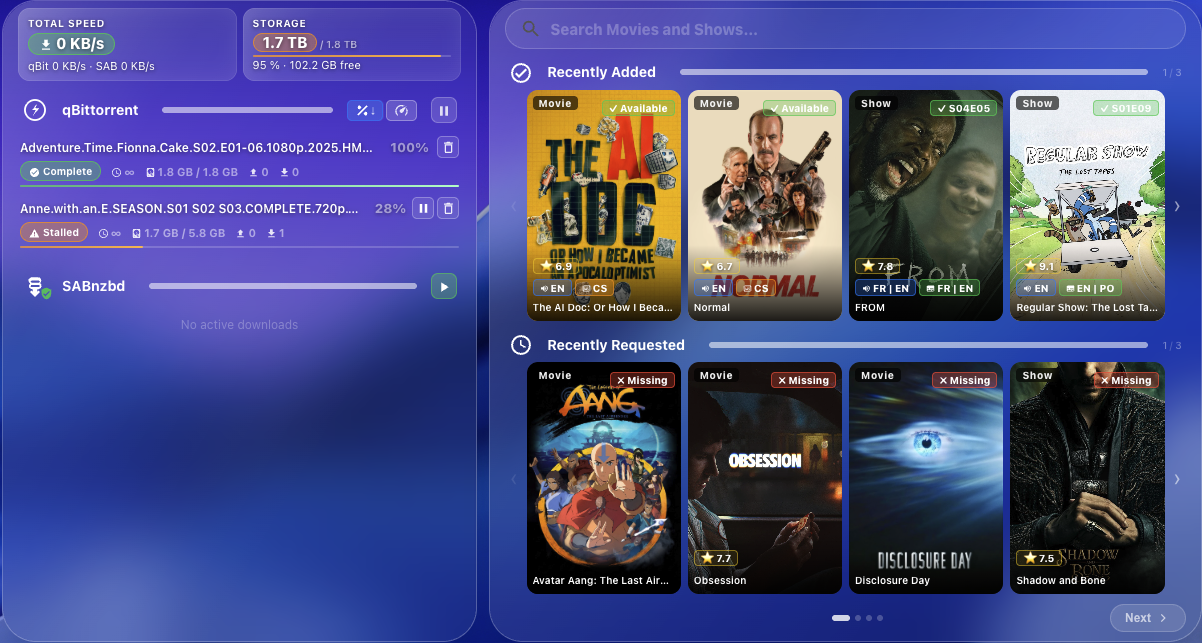
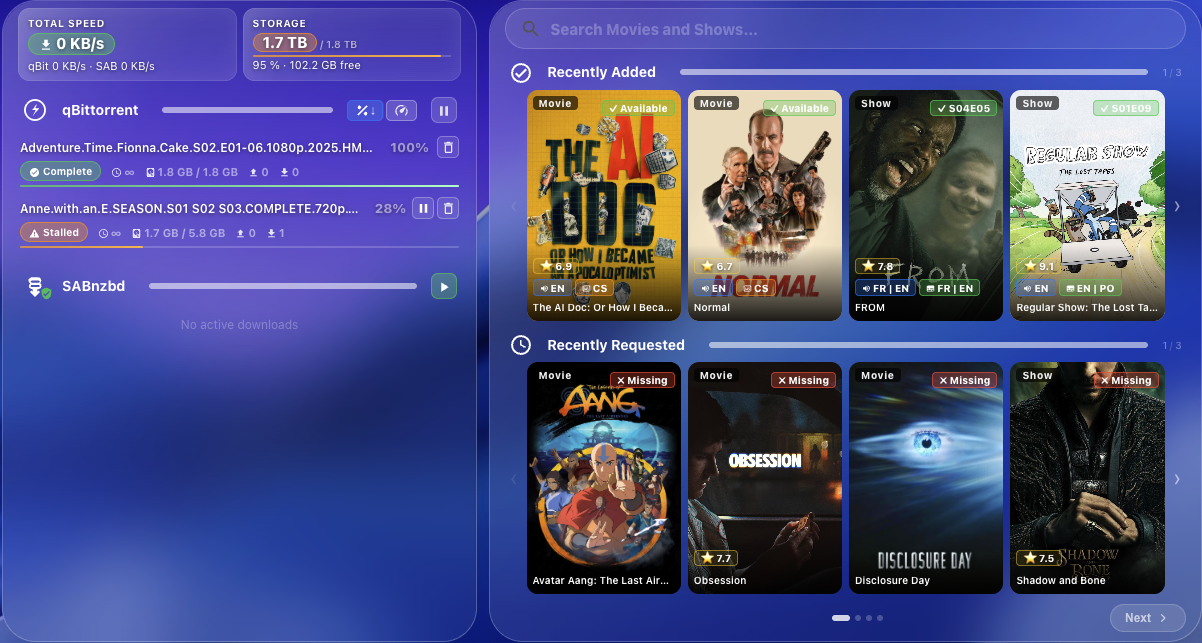
Manage your full media server stack — Radarr, Sonarr, SABnzbd, qBittorrent, Overseerr/Jellyseerr, Bazarr, Plex, Jellyfin, and Tautulli — directly from Home Assistant with a single unified dashboard card.
[!IMPORTANT] This project consists of two components — both are required:
- Arr Stack Integration — backend proxy (install first)
- Arr Stack Card (this repo) — the Lovelace frontend card
Quick Setup
- Install Arr Stack Integration via HACS → Integrations
- Install Arr Stack Card via HACS → Frontend (see Installation below)
- Add
custom:arr-stack-cardto your dashboard — done
type: custom:arr-stack-card
The card auto-detects all configured services. No YAML configuration required to get started.
How it works
HA Dashboard → Arr Stack Card → Arr Stack Integration → Radarr / Sonarr / Plex / …
The card never calls your services directly. All API calls go through the HA integration proxy — your credentials stay in Home Assistant, not in the browser.
Supported services
| Service | Role | Required |
|---|---|---|
| Radarr | Movie library, downloads, interactive search | ✅ Yes |
| Sonarr | TV library, episode calendar, downloads | ✅ Yes |
| Radarr 2 | Second Radarr instance — HD + 4K workflow | Optional |
| Sonarr 2 | Second Sonarr instance — HD + 4K workflow | Optional |
| qBittorrent | Torrent download management | Optional |
| SABnzbd | Usenet download management | Optional |
| Overseerr / Jellyseerr | Media requests, discovery, approvals | Optional |
| Bazarr | Subtitle status per movie/show | Optional |
| Plex | Active stream monitoring and playback control | Optional |
| Jellyfin | Active stream monitoring | Optional |
| Tautulli | Watch history, statistics, and usage graphs | Optional |
Services not configured in the integration are hidden automatically.
Features
Downloads (left panel)
The left panel shows your download managers. Each section only appears if that service is configured in the integration — if you only use qBittorrent, SABnzbd won't show up, and vice versa.
- qBittorrent — active torrents with progress, speed, seeder/leecher counts. Pause, resume, stop seeding, delete (with or without files), global pause/resume, sort by progress or speed.
- SABnzbd — NZB queue with progress and speed, completed downloads inline, failed history with retry/delete, global pause/resume. VPN shield indicator — green when VPN tunnel is active, red when off.
- Disk space — free space with usage bar, sourced from Radarr and Sonarr root folders. Root folders on the same physical disk are automatically deduplicated (by free space) and their paths combined (e.g.
movies · tv). If your media is spread across multiple disks, each disk appears as a separate card — use the chevron arrows to page through them. The card defaults to showing the disk that matches your SABnzbd download directory.
Right panel — configurable sections
The right panel is a modular dashboard. You choose which sections appear and in what order via the visual editor. Each section is powered by a different service and can be enabled or disabled independently.
Library (Radarr / Sonarr)
- Recently Added — mixed movies + TV shows with files, sorted by download date. TV shows show the most recently downloaded episode badge (e.g.
S04E04). - Recently Requested — monitored movies and shows not yet downloaded, with download status (downloading / missing / failed). Auto-refreshes when a download completes.
- Movies — full Radarr library with download status badges, IMDB rating, audio language tags (
CS | EN), and Bazarr subtitle status. Popup with poster, overview, ratings, and trailer link. Interactive Search — live indexer results with one-click grab. - TV Shows — full Sonarr library with per-season progress bars, IMDB rating, audio language tags, and Bazarr subtitle status. Upcoming episodes calendar with
S01E01badges and air dates. Interactive Search per season or episode.
Library — dual instances (Radarr 2 / Sonarr 2)
Configure a second Radarr and/or Sonarr instance for HD + 4K workflows. The popup shows per-instance status chips (available / downloading / missing) and lets you choose which instance to search or remove from.
Discovery
- Trending, popular, upcoming — movies and TV shows, always available
- One-click or profile-based media requests directly to Radarr/Sonarr
- With Overseerr / Jellyseerr (optional): approve and decline pending requests, family accounts with per-user request management
Now Playing (Plex / Jellyfin)
The card reads active sessions from media_player.plex_* and media_player.jellyfin_* entities created by the official Plex and Jellyfin HA integrations. Plex playback control additionally requires Plex to be configured in the Arr Stack Integration (step 5).
- Live view of active streams — title, user, media type, and playback progress
- Playback control: pause, resume, stop — works for most Plex clients; Android phones and web browsers are not supported
- Auto-hidden when no streams are active
Statistics (Tautulli)
- Watch history with search and filters
- Play count and duration charts by day, day of week, hour, and media type
- Stream type breakdown and concurrent stream graph
- Per-user and per-library statistics
- Account sharing detection — warns when the same account streams from multiple IPs; configurable threshold and history depth; acknowledge known IPs per user
Appearance & UX
- Day / night theming based on
sun.sun - Responsive layout — mobile, tablet, desktop
- Sticky bottom navigation bar on mobile
- Pagination for all sections; configurable columns per category
- See More overlay — full-screen grid for any section
- Visual card editor in HA (no YAML required for basic setup)
- Performance mode — disables backdrop blur; configurable card background colour and opacity
Requirements
- Home Assistant 2024.1+ with HACS installed
- Arr Stack Integration configured
- At minimum: Radarr and Sonarr — everything else is optional
All other services are optional — unconfigured services are hidden automatically.
With Overseerr / Jellyseerr you additionally get:
- Request approval workflow — admin can approve and decline pending requests
- Family accounts — household members can request and withdraw their own media
Now Playing (Plex / Jellyfin)
Both Plex and Jellyfin read from standard HA media_player entities:
- Plex — install the Plex integration in HA. It creates
media_player.plex_*entities automatically for each active session. - Jellyfin — install the Jellyfin integration in HA. It creates
media_player.jellyfin_*entities automatically.
The Now Playing section auto-hides when nothing is playing.
Playback control (pause, resume, stop) is available for Plex. This requires Plex to also be configured in the Arr Stack Integration (step 5). Works for most clients — Android phones and web browsers are not supported.
Installation
Via HACS (recommended)
- Open HACS → Frontend
- Click the ⋮ menu (top right) → Custom repositories
- Add
https://github.com/martinargalas/ha-arr-stack-card— category Dashboard - Click + Explore & Download Repositories, search for Arr Stack Card and install
- Hard refresh your browser (Cmd+Shift+R / Ctrl+Shift+R)
Manual
- Download
arr-stack-card.jsfrom the latest release - Copy to
/config/www/arr-stack-card.js - Add to Lovelace resources:
url: /local/arr-stack-card.js
type: module
Full Configuration
Visual editor — most settings are available via the HA dashboard editor (click the pencil icon). Only
styles.*andsecurity.*keys require manual YAML editing.
type: custom:arr-stack-card

# General
localisation: en             # en | cs  (default: en)
layout: both                 # both | left | right  (default: both)
sticky_nav_offset: 100       # px — when sticky nav bar appears on mobile  (default: 100)

# Download managers (left panel)
downloads:
  torrentItems: 3            # qBittorrent items per page  (default: 3)
  usenetItems: 3             # SABnzbd items per page  (default: 3)

# Discovery (right panel)
discover:
  categoriesCount: 3         # media categories shown per right-panel page  (default: 3)
  itemsPerCategory: 4        # columns per category grid  (default: 4)
  showMoreOnPage: 3          # page on which the "See More" overlay card appears  (default: 3)
  oneClickRequest: false     # skip request overlay on movie/show request — uses defaults below  (default: false)
  oneClickDefaultMovieProfile: ""  # quality profile name for one-click movie requests
  oneClickDefaultMovieTag: ""      # Radarr tag label for one-click movie requests  (optional)
  oneClickDefaultMovieRootFolder: ""  # Radarr root folder path for one-click movie requests  (optional)
  oneClickDefaultShowProfile: ""   # quality profile name for one-click TV requests
  oneClickDefaultShowTag: ""       # Sonarr tag label for one-click TV requests  (optional)
  oneClickDefaultShowRootFolder: ""   # Sonarr root folder path for one-click TV requests  (optional)

# Category order & visibility
categories:
  - id: recentlyAdded
    enabled: true
  - id: recentlyRequested
    enabled: true
  - id: upcoming
    enabled: true
  - id: tvUpcoming
    enabled: true
  - id: trending
    enabled: true
  - id: popular
    enabled: true
  - id: calendar
    enabled: true
  - id: streams
    enabled: true
  - id: tautulli
    enabled: true

# Security
security:
  ip_sharing_threshold: 2    # unique IPs per user before sharing warning appears  (default: 2)
  ip_history_depth: 200      # number of history records scanned for IP detection  (default: 200)

# Appearance
styles:
  performanceMode: false          # disable backdrop blur (improves perf on low-end devices)
  cardBackground: "#121216"       # card background colour (performance mode only)
  cardBackgroundOpacity: 90       # card background opacity 0–100 (performance mode only, default: 90)
  dayNightMode: true              # auto switch popup colours based on sun.sun — set false to keep night colours always
  searchBarIconColor: ""          # search bar icon colour when inactive (default: heading colour)
  headingTextColor: "#ffffff"
  headingColor: "#ffffff"
  primaryTextColor: "#ffffff"
  secondaryTextColor: "#aaaaaa"
  pagingButtonTextColor: "#ffffff"
  pagingButtonBackgroundColor: "#1e1e2e"
  pagingDotColor: "#555555"
  pagingDotActiveColor: "#ffffff"
  downloadButtonTextColor: "#ffffff"
  tagPillTextColor: "#ffffff"
  modalHeadingTextColor: "#ffffff"
  modalPrimaryTextColor: "#ffffff"
  modalSecondaryTextColor: "#aaaaaa"
  modalBackgroundColor: "#121216"      # set dayNightMode: false when using a custom colour
  modalOverlayColor: "#000000"
  modalCloseButtonIconColor: "#ffffff"
  modalCloseButtonBackgroundColor: "#333344"
  modalButtonTextColor: "#ffffff"
  modalButtonBackgroundColor: "#1e1e2e"
  modalRemoveButtonBackgroundColor: "#ff6030"
Category IDs
| id | Section |
|---|---|
recentlyAdded |
Recently Added |
recentlyRequested |
Recently Requested |
upcoming |
Upcoming Movies |
tvUpcoming |
New Shows |
trending |
Trending |
popular |
Popular Movies |
calendar |
Sonarr episode calendar |
streams |
Now Playing (Plex / Jellyfin) — auto-hidden when nothing plays |
tautulli |
Statistics (Tautulli) |
Security
Account sharing detection is available when Tautulli is configured.
| Key | Description |
|---|---|
security.ip_sharing_threshold |
Number of unique IPs per user that triggers the sharing warning. Default: 2 |
security.ip_history_depth |
Number of recent history records scanned per fetch to collect IP data. Default: 200 |
When sharing is detected, a warning card appears in the Statistics section. Clicking it opens the Users tab with a collapsible IP report — showing each flagged user, their IP addresses, last seen date, and play count. You can acknowledge known IPs per user to dismiss the warning.
Style notes
- All colour values accept
#rrggbbhex orrgb(r,g,b). dayNightMode: true(default) — popup followssun.sun. Setfalseto always use dark colours, required when setting custommodal*colours so day mode doesn't override them.performanceMode: true— disables backdrop blur;cardBackgroundandcardBackgroundOpacityapply only in this mode.modalRemoveButtonBackgroundColor— affects only the Remove › button, not the sub-buttons (Remove from Library / Remove from Disc).
Multi-user setup (Overseerr / Jellyseerr — optional)
This section only applies if you have Overseerr or Jellyseerr configured. Without it, all HA users (admin and non-admin) can add media directly to Radarr/Sonarr.
| HA account | What they can do |
|---|---|
| Admin | Browse, request, approve/decline pending requests |
| Non-admin | Browse, request, view and withdraw own requests |
The card detects the HA user role automatically (hass.user.is_admin). No extra card config needed.
Setup:
- Overseerr — create a non-admin user (Settings → Users → Add User).
- Home Assistant — create a non-admin HA user for each family member (Settings → People → Add Person → uncheck Administrator).
- Integration — in the Arr Stack integration config, enter the non-admin Overseerr user's email and password. The proxy forwards requests under that user's identity.
Comments