Galley
Write your client's website copy, get it signed off, and keep the tasks and files next to it.
Self-hosted, one container, one file to back up.
A galley proof is the first typeset pull of a page, laid out so the words can be checked before anything goes to print. Galley does that for a website: the copy is written page by page and section by section, it moves from draft to in review to approved, and the client signs it off through a link — no account, nothing to install.
Website projects rarely stall on the build. They stall waiting for the words, the logo and a decision. So the client's side of the link is not read-only: they can comment, approve, send files in, and write the sections you hand to them, and once a week they get a note saying what changed and what is still waiting on them.
The rest of the project lives in the same place — tasks, a calendar, the suppliers you book and the files you collect — because it is the same project. It is built for the person who runs the work: a web designer with six client sites on the go, a studio lead, someone organising an event. One screen per project, no seats to buy, no data leaving your server.
mkdir galley && cd galley
curl -O https://raw.githubusercontent.com/kevincardwell/galley/main/compose.yml
docker compose up -d
Open http://localhost:3000, create the admin account, and tick the box to load a worked example so nothing starts empty.
What is inside
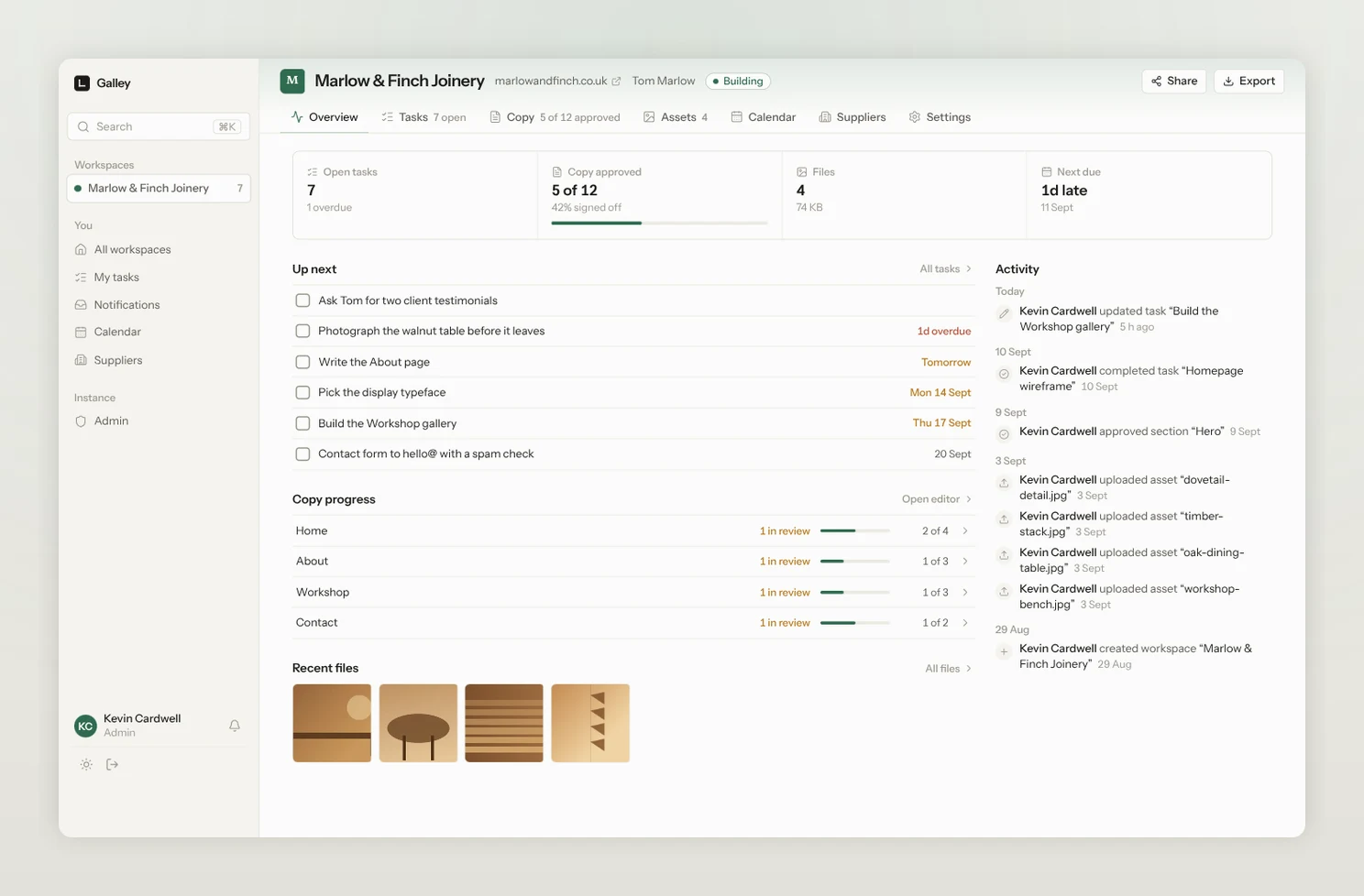
Every project on one page
Open a project and you can see where it has got to: what is overdue, how much of the copy is signed off, how many files there are, and what happened recently.
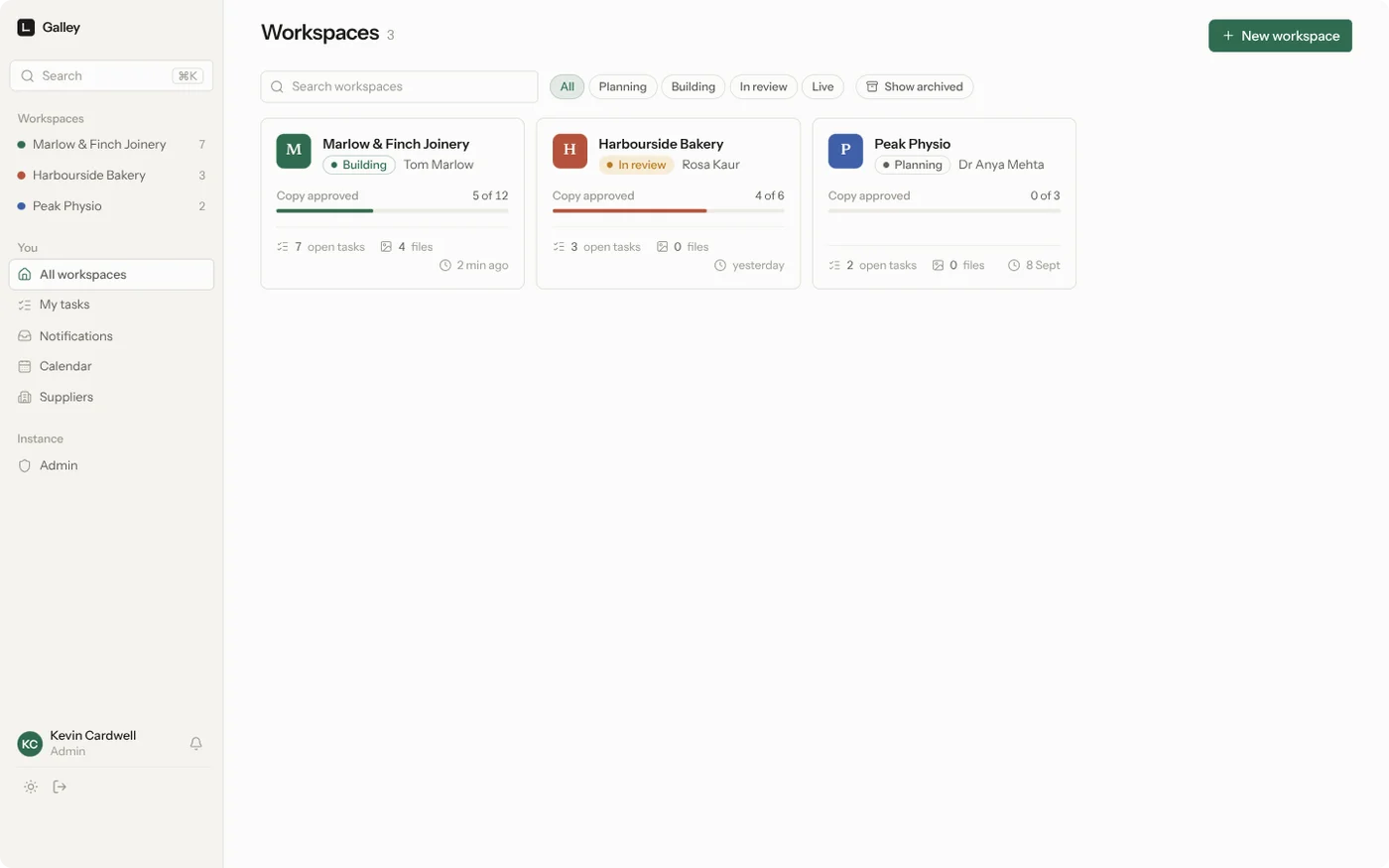
The link you send the client
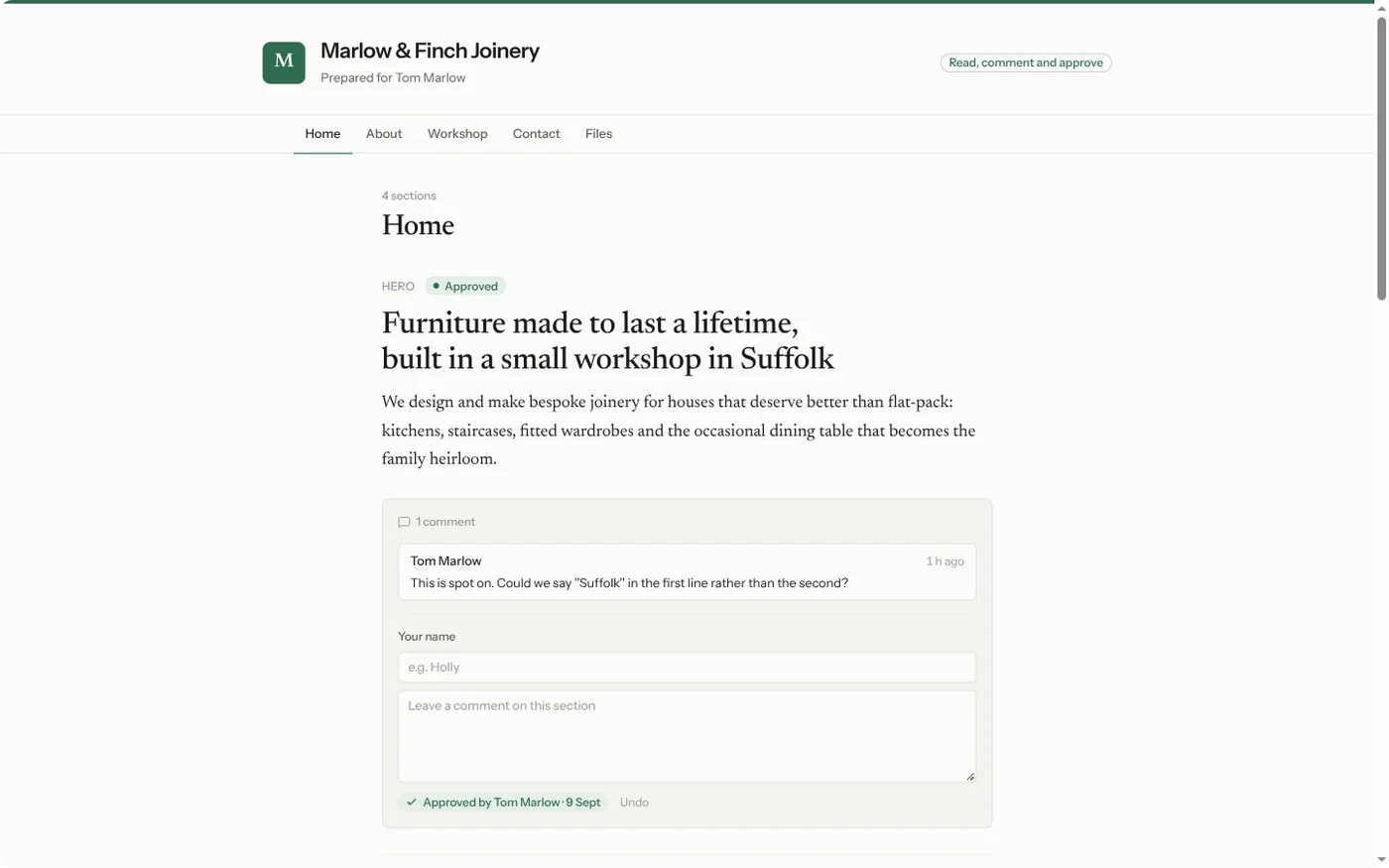
One link, no account, nothing to install. Read-only by default; switch on what you want them to do.
- Comment and approve, section by section. You are told the moment they do, and an approval lapses automatically if the wording changes afterwards — so it always refers to the words they actually agreed to.
- Send files in. Their logo, photographs, the old brochure. Files land in the project's library labelled with who sent them.
- Write the sections you hand over. Tick "they write this one" and the client gets a box for their words. It arrives in the version history like any other edit.
- A weekly note, if you want one: what you changed, what is still waiting on them, and the link back.
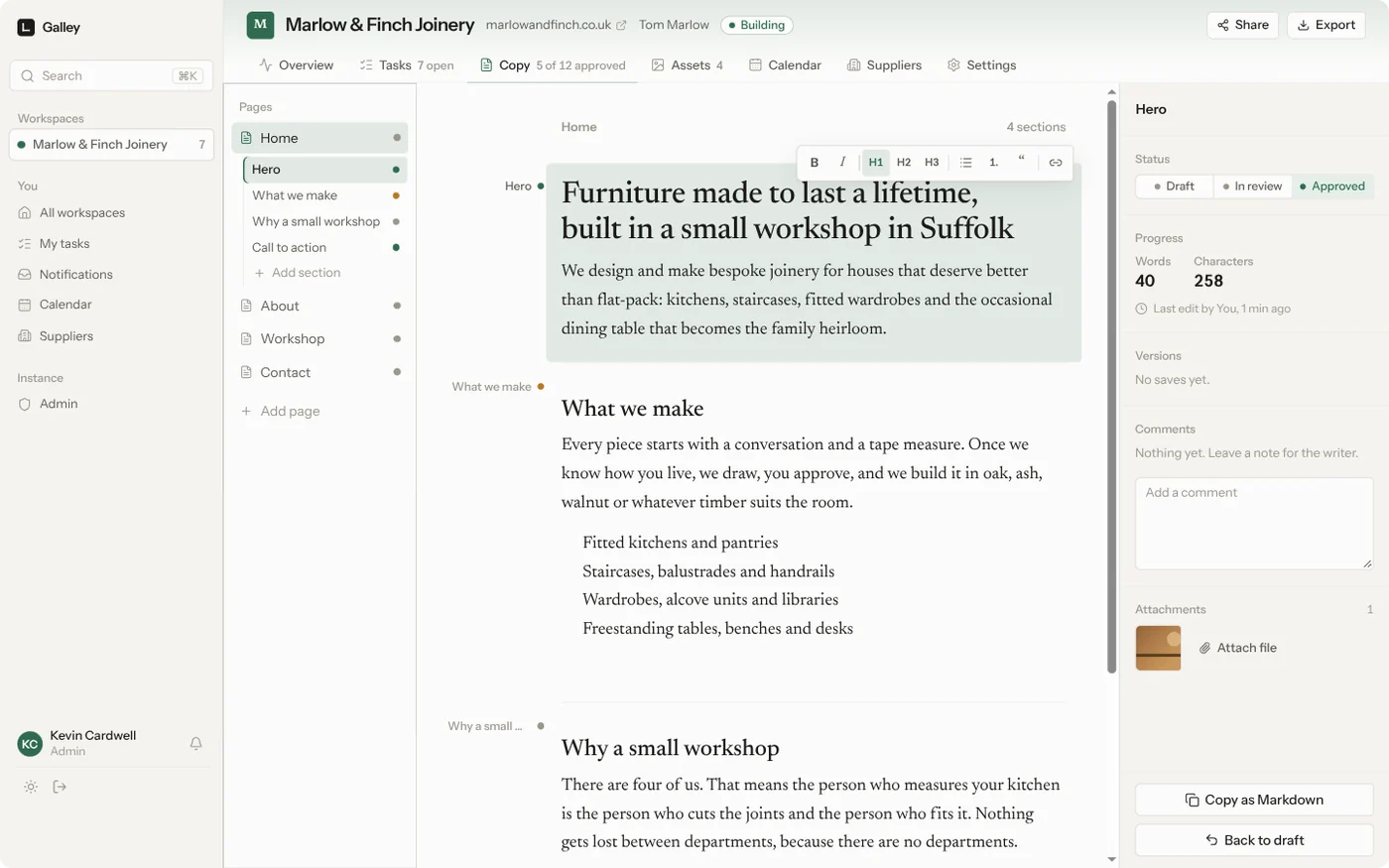
Copy written where it belongs
Pages and sections, each with its own draft, in review and approved state. Several people can write in the same section at once and see each other's cursors. Every save is kept, so you can compare any version with a word-level diff and put it back. One click copies clean Markdown or HTML for whatever the site is built in.
Tasks that behave like a to-do list, not a ticketing system
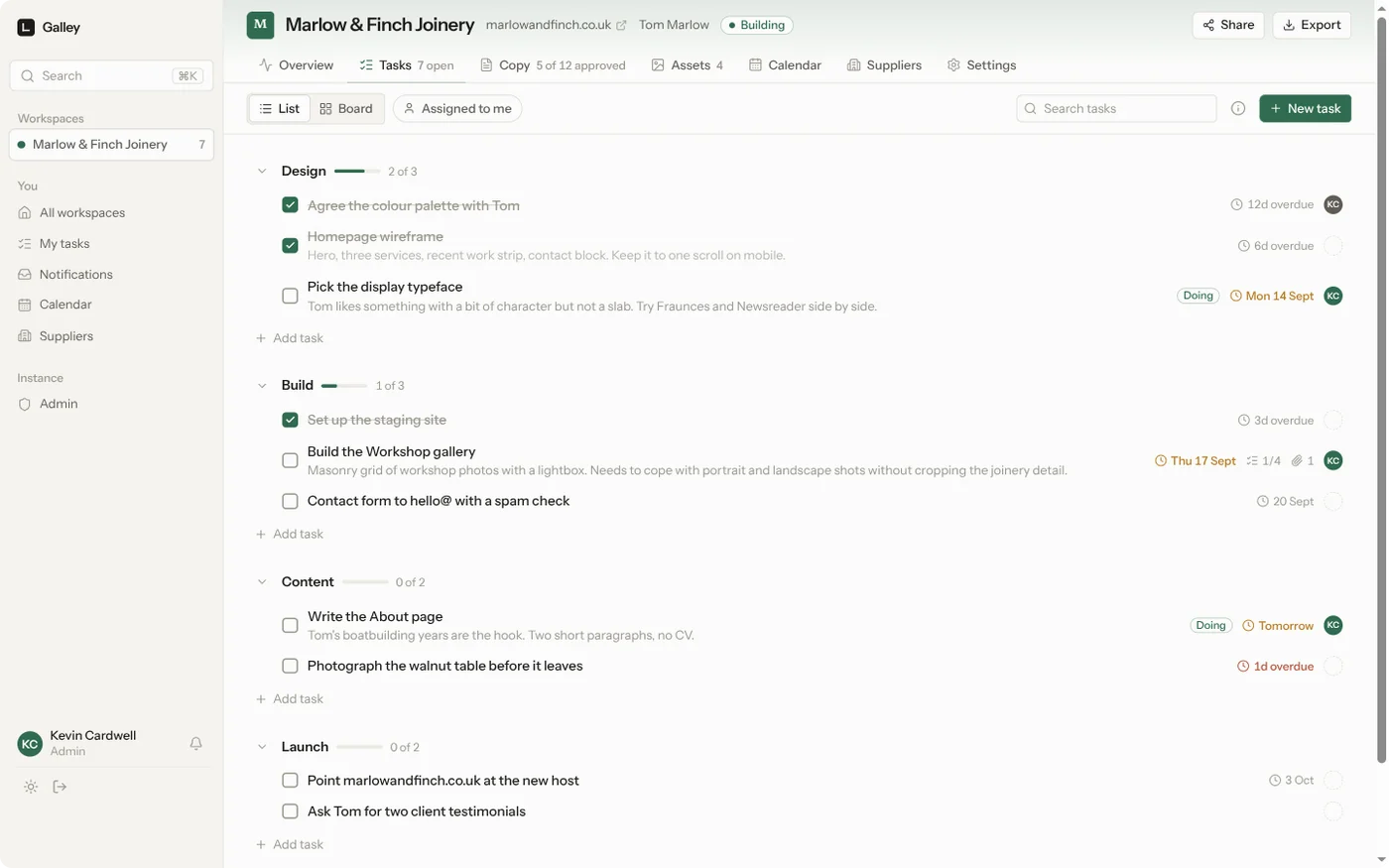
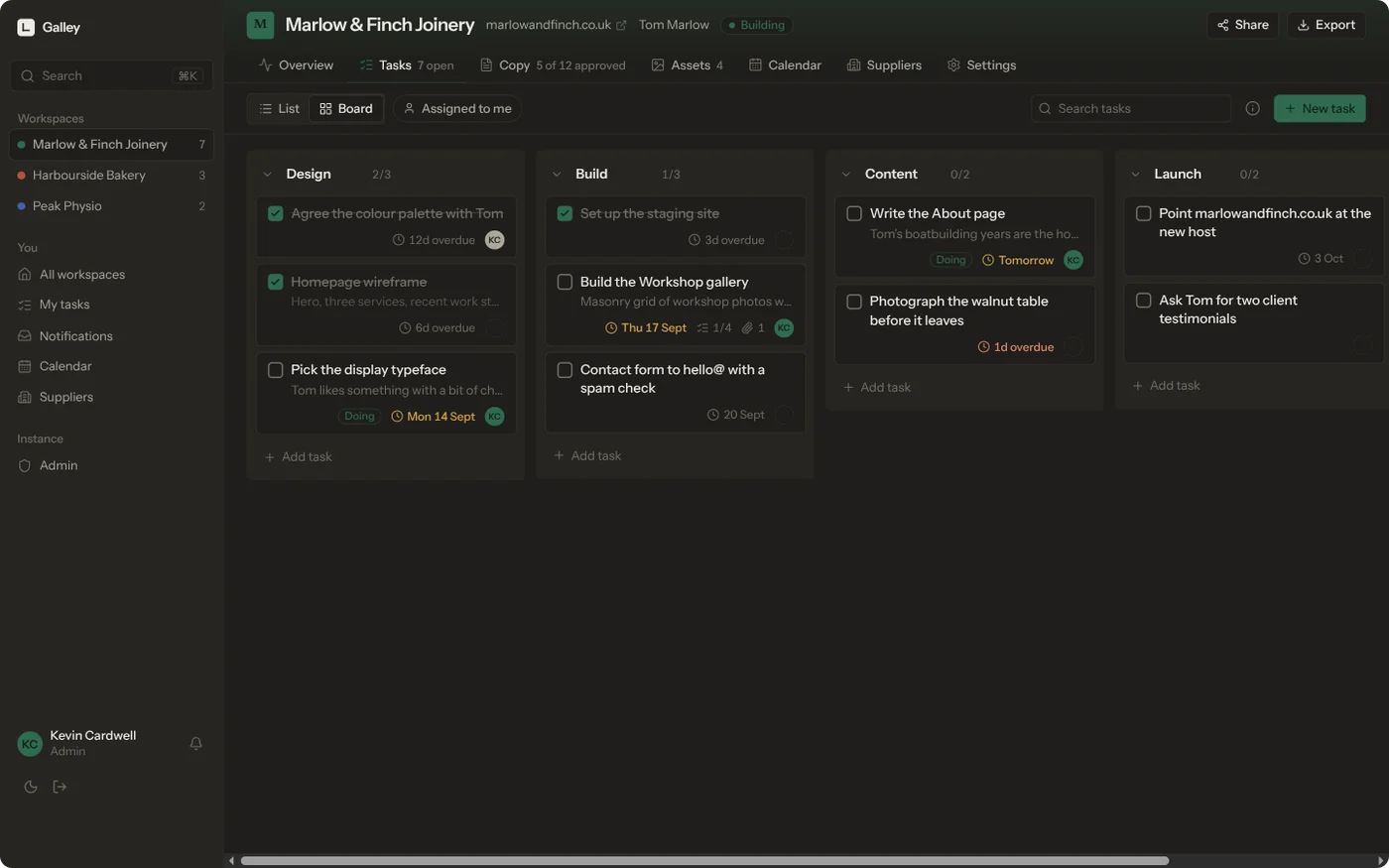
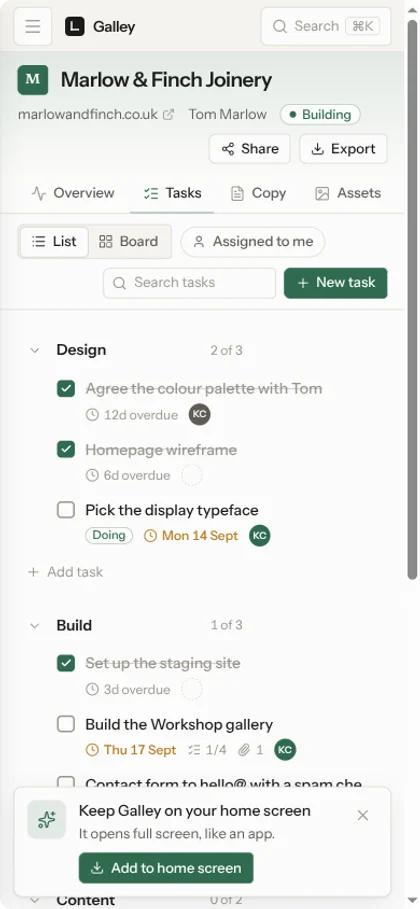
Sections you name yourself, a list or a board, drag to reorder, due dates that go amber then red, assignees, checklists, comments and attached files.
A calendar that already knows your deadlines
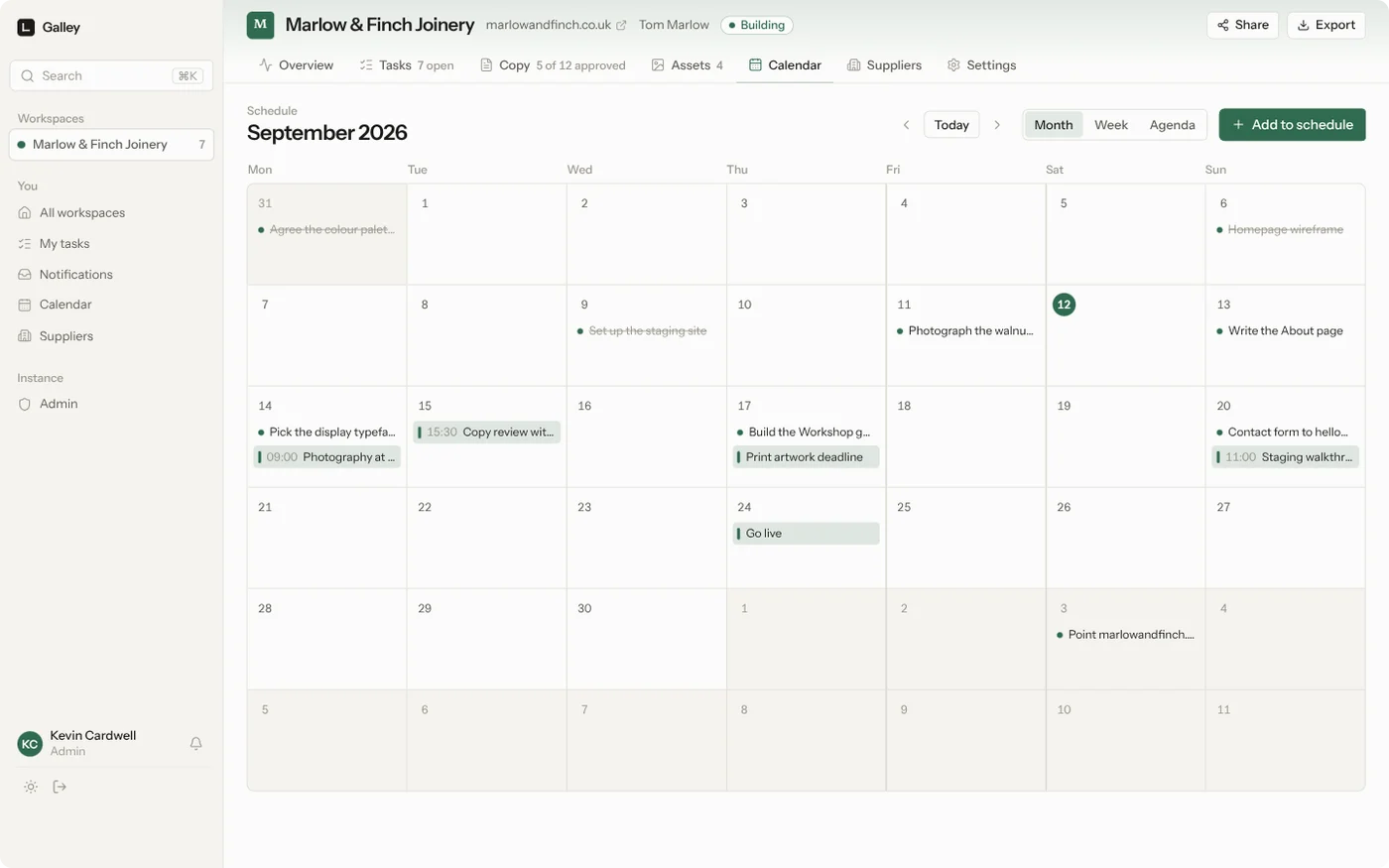
Task due dates appear automatically next to the things you schedule: site visits, photography, the print deadline, go-live. Month, week and agenda views, drag an entry to move it, and a subscribable feed so a client can follow the plan in their own calendar.
The people you hire, kept once
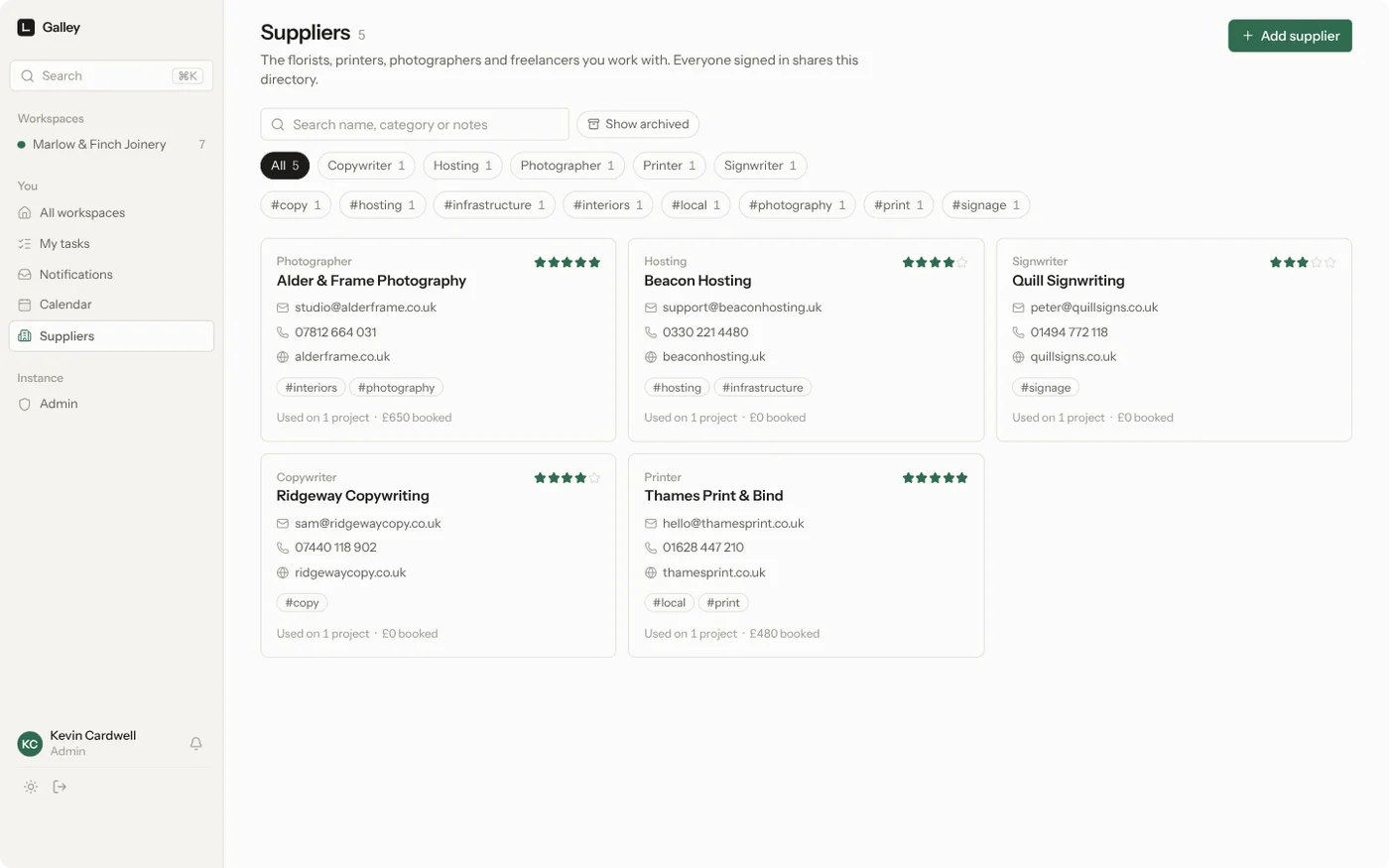
A shared directory of printers, photographers, copywriters and freelancers, with what you booked them for on each project and what it cost.
Files with the detail you actually need
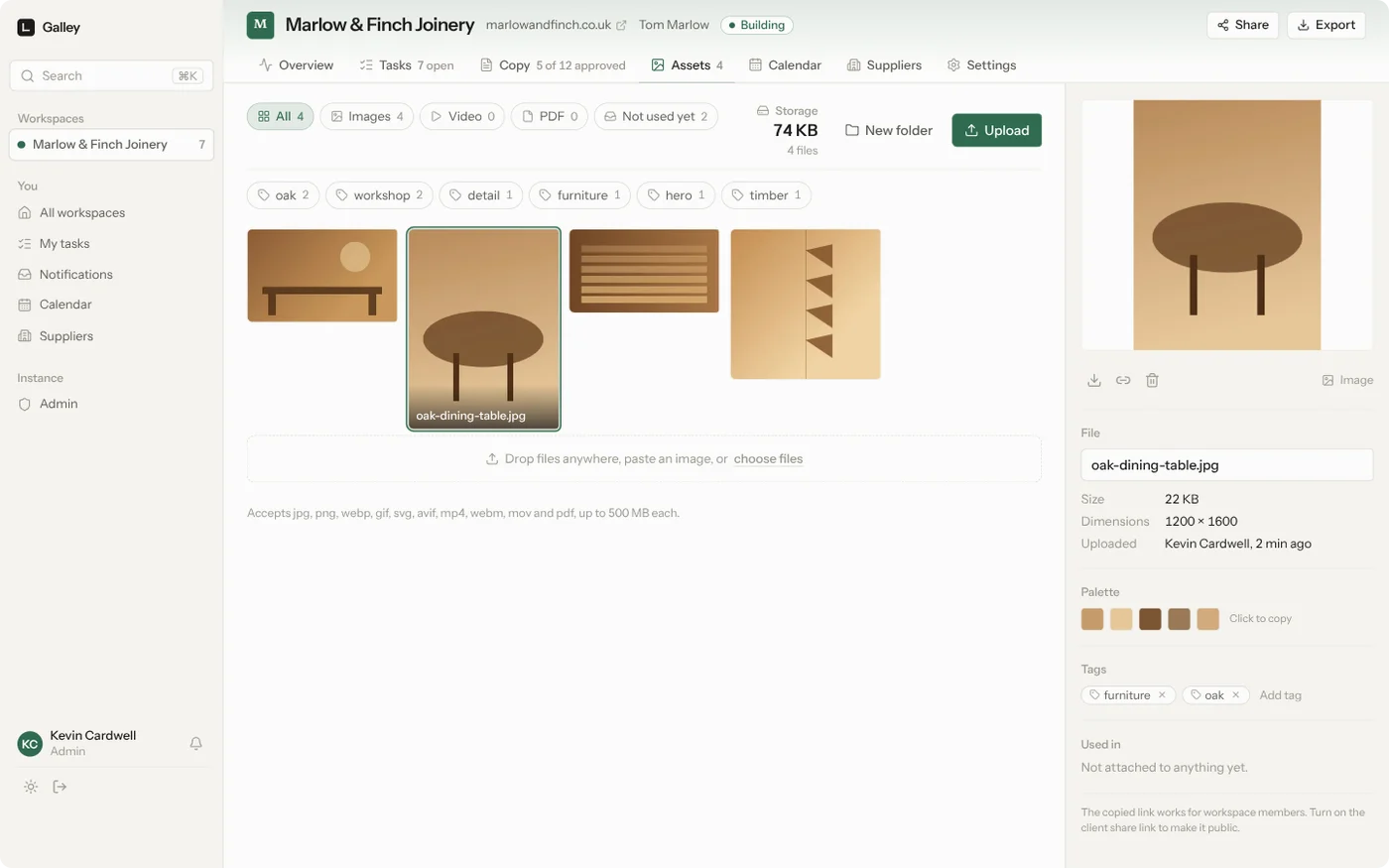
Drag anything in. Thumbnails, dimensions, duration for video, a colour palette pulled from each image, tags, folders, and a record of which task or paragraph each file belongs to.
On your phone, as an app
Add it to the home screen from Safari or Chrome and it opens full screen with its own icon.
Everything else it does
| Invite only | No public sign-up. The first account is the admin; everyone else is invited and sees only the projects they are added to. Each invite link lasts a day, a week, a month, three months, or forever — you pick when you make it. |
| Two-factor | Optional TOTP on any account, from Account → Two-factor: scan the QR with Google Authenticator, 1Password, Aegis or anything else that speaks TOTP. Ten one-shot recovery codes are shown once, when you turn it on. |
| Your own SMTP server, or Resend, Postmark, SendGrid or Mailgun when your host blocks SMTP ports. Invites send themselves. | |
| Notifications | An inbox for mentions, assignments and client feedback, with email when a provider is set up. |
| Search | ⌘K across tasks, copy, files and projects, scoped to what you are allowed to see. |
| Export | A zip of the whole project: copy as Markdown, tasks as CSV, every original file. |
| Backups | One click, or nightly with retention, from the admin panel, and the database is copied aside before any upgrade migrates it. |
| Project templates | Start a project from an existing one and keep the task list and page structure, without last client's content. |
| Repeating tasks | Weekly, monthly, quarterly. Tick one off and the next appears, which is how a care plan lives here alongside a build. |
| Currency | Set a three-letter code in Admin → Settings; costs are stored as minor units so nothing rounds twice. |
| Themes | Light by default; switch to dark, or let it follow the system. |
| Keyboard | ? lists every shortcut. |
Running it
With Docker
mkdir galley && cd galley
curl -O https://raw.githubusercontent.com/kevincardwell/galley/main/compose.yml
docker compose up -d
Images are published for linux/amd64 and linux/arm64 on every release:
| Registry | Image |
|---|---|
| GitHub | ghcr.io/kevincardwell/galley:latest |
| Docker Hub | kevincardwell/galley:latest |
Pin a version with a tag such as :0.1.0 if you would rather upgrade deliberately.
Data lives in the galley-data volume at /data. To keep it in a folder instead, change the volume to - ./data:/data and make it writable by uid 1000.
Behind a reverse proxy: forward to port 3000, set GALLEY_URL to the public https address, and raise the proxy's body limit to at least MAX_UPLOAD_MB. The https part matters, because home screen installation needs it.
To build the image yourself, uncomment build: . in compose.yml.
On Unraid
Galley ships an Unraid template. Until it appears in Community Applications, add it by hand:
- In Unraid, open Docker, then Add Container.
- Paste this into Template:
https://raw.githubusercontent.com/kevincardwell/galley/main/unraid/galley.xml - Check the appdata path and the port, then Apply.
The data path defaults to /mnt/user/appdata/galley and holds the database, uploads and backups, so that one folder is your backup. Set Public URL to the address you actually reach it on, especially behind a reverse proxy.
Without Docker
Node 22 or newer, plus ffmpeg on the PATH if you want poster frames for video.
git clone https://github.com/kevincardwell/galley.git
cd galley
npm ci
npm run build
GALLEY_DATA_DIR=/srv/galley PORT=3000 npm start
Settings
| Variable | Default | What it does |
|---|---|---|
GALLEY_URL |
none | Public address, used for invite links and to mark cookies secure. |
GALLEY_DATA_DIR |
./data, /data in Docker |
Where the database and uploads live. |
MAX_UPLOAD_MB |
500 |
Largest single upload. |
TRUSTED_PROXY_HOPS |
1 |
How many reverse proxies sit in front, so the real client address can be found for rate limiting. |
PORT |
3000 |
Port to listen on. |
TZ |
UTC |
Server time zone. Decides when the nightly backup runs and how dates are grouped. |
PUID / PGID |
1000 / 1000 |
Who Galley runs as. It takes ownership of the data directory on start, so a bind mount does not need chowning first. The Unraid template sets 99 / 100. |
GALLEY_AUTH_HEADERS |
off | Accept sign-ins from a reverse proxy that has already authenticated the caller. See below. |
GALLEY_AUTH_EMAIL_HEADER |
Remote-Email |
Which header carries the address. |
GALLEY_AUTH_NAME_HEADER |
Remote-Name |
Which header carries the display name, if any. |
GALLEY_AUTH_AUTO_CREATE |
off | Create an account the first time someone new arrives, instead of requiring an invite. |
Email and the backup schedule are set in the app, under Admin, not with environment variables.
Signing in through a reverse proxy
If everything on your server already sits behind Authelia, Authentik, oauth2-proxy or Tailscale, Galley can trust that and skip its own login.
environment:
  GALLEY_AUTH_HEADERS: "1"
  GALLEY_AUTH_AUTO_CREATE: "1"   # optional: invite nobody, let the proxy decide
[!WARNING] The proxy is the entire security model. These are ordinary HTTP headers, so anyone who can reach Galley without going through the proxy can set
Remote-Emailto whatever they like and become that person. Only turn this on when Galley is unreachable except through the proxy — bound to localhost, or on an internal network the proxy can see and nobody else can. Check it from another machine before you trust it.
Defaults suit Authelia. For others, point Galley at their headers:
| Proxy | GALLEY_AUTH_EMAIL_HEADER |
GALLEY_AUTH_NAME_HEADER |
|---|---|---|
| Authelia | Remote-Email (default) |
Remote-Name (default) |
| Authentik | X-authentik-email |
X-authentik-name |
| oauth2-proxy | X-Forwarded-Email |
X-Forwarded-Preferred-Username |
| Tailscale Serve | Tailscale-User-Login |
Tailscale-User-Name |
With GALLEY_AUTH_AUTO_CREATE off — the default — people still have to be invited first, and the proxy simply
saves them typing a password. With it on, the first person through becomes the admin and everyone after them
is an ordinary member, so restrict who reaches Galley in the proxy's own rules.
An account that an admin has deactivated stays out whatever the proxy says. The password login form stays available for anyone who was set up that way, so you are never locked out if the proxy misbehaves.
Backing up and upgrading
- Backup: Admin → Backups writes a zip of the database and every upload, on demand or nightly. Turn the nightly schedule on the first time you open that page.
- Copying the data directory works too, but only with Galley stopped. The database is in WAL mode, so a copy taken while it is running misses whatever is still in
galley.db-waland is not a backup you can trust. The zip does not have this problem: it snapshots the database properly (VACUUM INTO) and is safe to take at any time. - Treat backups as secrets. The database holds your SMTP password or provider API key in plain text, along with password hashes, session tokens and share links. Store backups somewhere you would store a password.
- Restore: stop Galley, unzip a backup into an empty data directory, start it again.
- Upgrade:
docker compose pull && docker compose up -d. Migrations run on start, and Galley copies the database tobackups/pre-migration-<date>.dbfirst. If an upgrade goes wrong, stop the container, put that file back asgalley.db(deleting anygalley.db-walandgalley.db-shmbeside it) and run the previous image tag.
How it is built
One process, one SQLite file, one uploads folder. No Postgres, no Redis, no object store, no worker container, because a tool for a handful of people should not need a fleet.
- Next.js 16 with the App Router and server actions
- SQLite through Drizzle, in WAL mode, with FTS5 for search
- Yjs for live collaborative editing, carried over server-sent events so there is no second port to proxy
- sharp and ffmpeg for thumbnails, palettes and poster frames
- Tailwind v4 with tokens for the light and dark palettes
npm run dev          # development server
npm test             # unit tests
npm run test:e2e     # end-to-end, after npm run build
npm run lint
npm run db:generate  # after editing src/db/schema.ts
CHANGELOG.md is what changed between releases. docs/DESIGN.md is the design direction, docs/PLAN.md the original plan, and docs/STATUS.md the running log of what is done and what is next.
What it is not
Worth knowing before you install it, rather than after.
- It is sized for a studio, not a company. One SQLite file, one process, no job queue. A handful of people and a few dozen projects is the shape it is built for. If you need fifty concurrent editors or horizontal scaling, this is the wrong tool and will stay the wrong tool.
- One instance is one organisation. Workspaces are projects, not tenants. Everyone invited shares one supplier directory, one set of instance settings and one admin panel. It is not built to host several unrelated businesses.
- Recovery codes are the only way back in. If someone turns two-factor on, loses their phone and loses their recovery codes, no admin screen can let them back in: clear
totp_secretfor that row ingalley.dbwith Galley stopped. - There is no OIDC or LDAP. Accounts are invite-only email and password. Galley will trust a reverse proxy that has already signed someone in (Authelia, Authentik, oauth2-proxy, Tailscale — see Running it), but it does not speak either protocol itself.
- Mail credentials are stored in plain text in the database, so treat a backup like a password. This is called out again under Backing up.
- The container starts as root for a moment, to take ownership of the data directory, then drops to
PUID:PGIDand runs the application unprivileged. Pass--userif you would rather it never ran as root at all — you then own chowning the directory yourself. - Dates are formatted
en-GB— "14 Sept", not "Sep 14". Currency is a setting; the date format is not one yet. If that grates, say so in an issue.
Comments