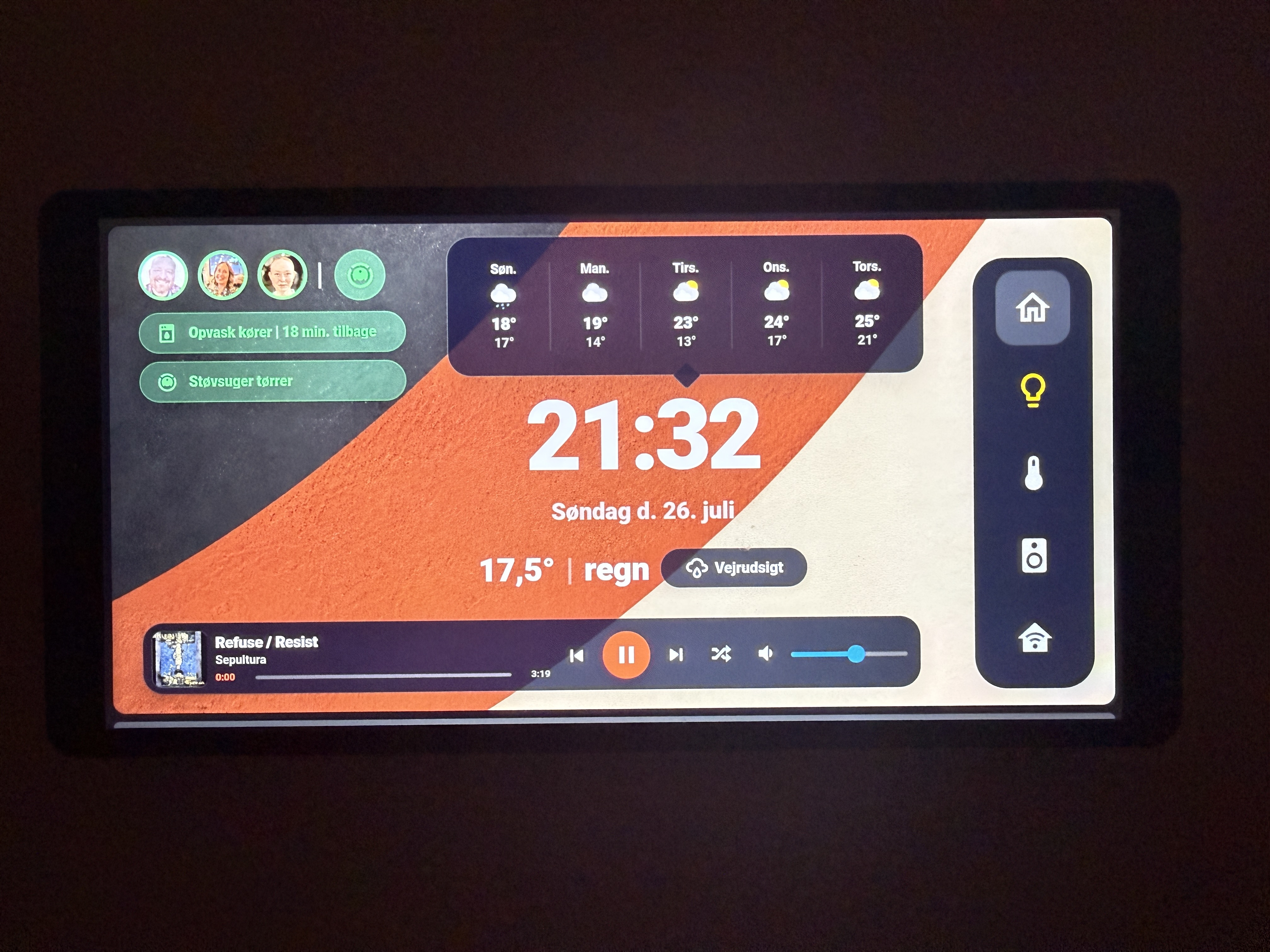
A full-screen Home Assistant dashboard designed for the Shelly Wall Display X2i, the older Shelly Wall Display X2, and other wall-mounted panels running in kiosk mode.
Features
- Full-screen panel layout with a custom background image
- Kiosk mode that hides the Home Assistant header and sidebar
- 6 main views: Home, Lys (Lights), Klima (Climate), Musik (Music), Status, and Vejr (Weather)
- Real-time clock and weather on the Home view
- Family presence indicators with avatar photos
- Robot vacuum quick-start/stop button with live status on Home view
- Dishwasher status pill shown only when a program is running
- Vacuum status pill shown only when the vacuum is running
- Mini music player with playback controls on the Home view
- Weather forecast view with multi-day forecast
- Fixed navigation menu with active-state highlighting
- Lights view with scenes, room controls, and a master switch
- All Lights drill-down with controls for every configured light group
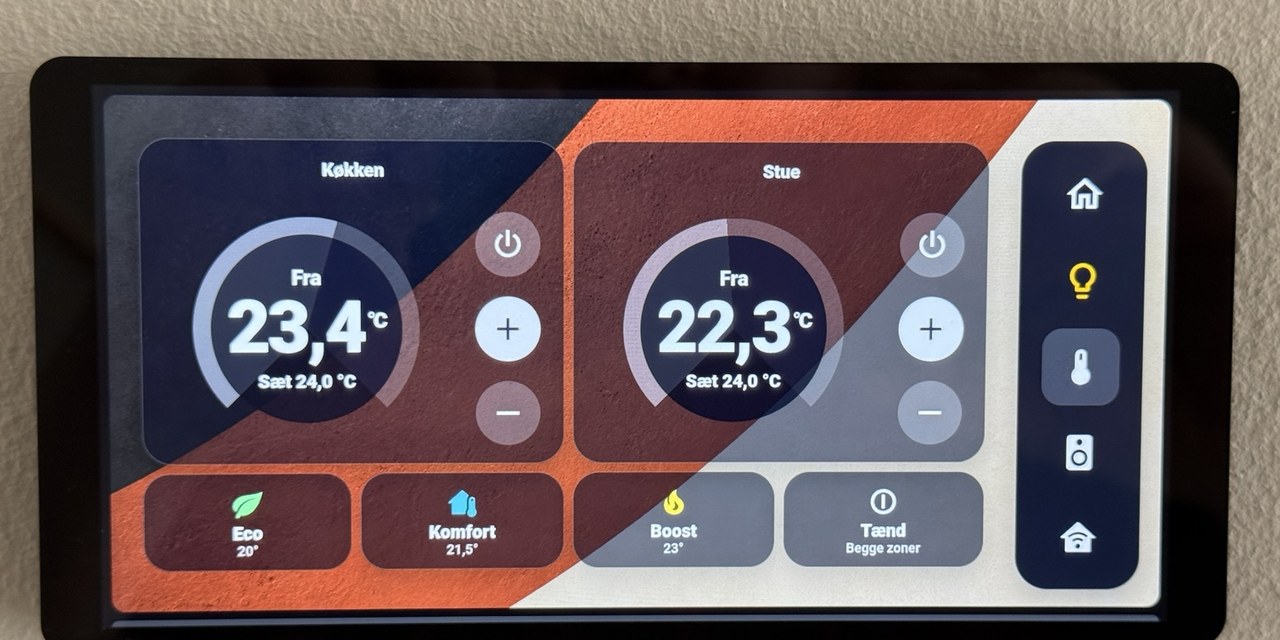
- Climate view with two heating zones and shared presets
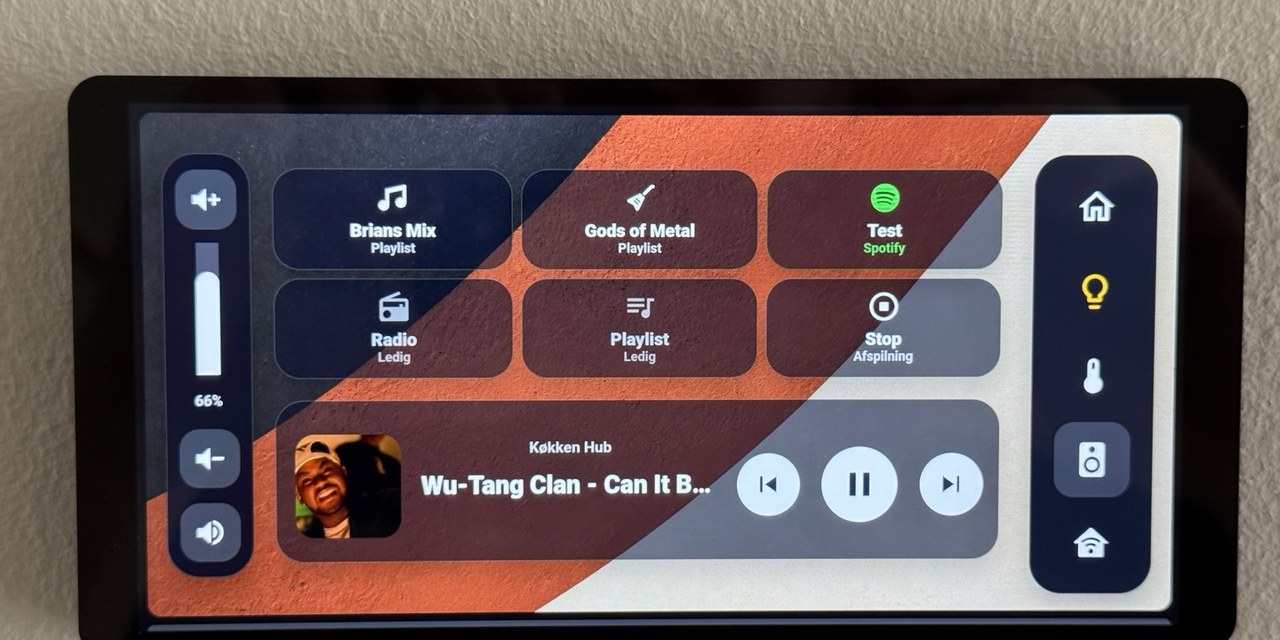
- Music view with playlist shortcuts, playback controls, and volume control
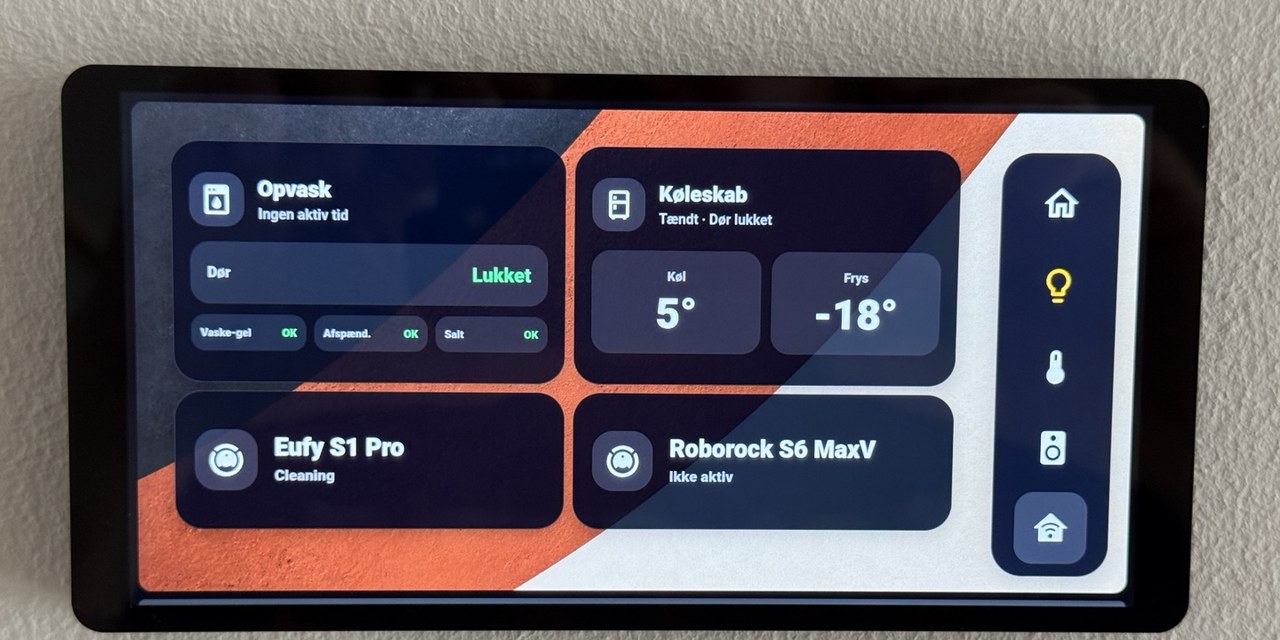
- Status view for appliances and robot vacuum cleaners
- Idle return that automatically navigates back to Home after 60 seconds of inactivity
Screenshots
Home
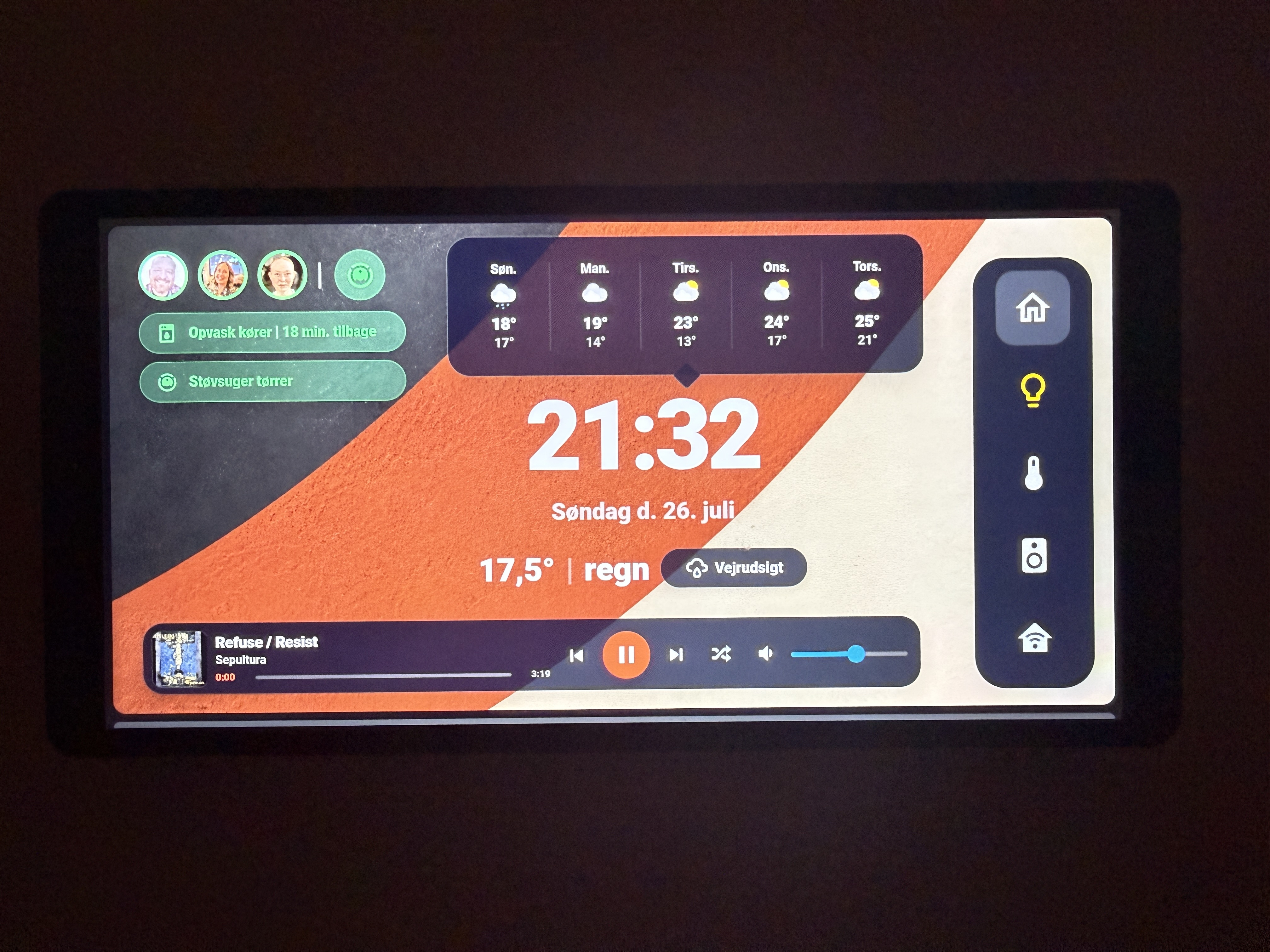
Main overview with clock, weather, family presence, robot vacuum button, dishwasher/vacuum status pills, mini media controls, and the fixed navigation menu.
Dashboard path: /dashboard-minipanel/home
Lights
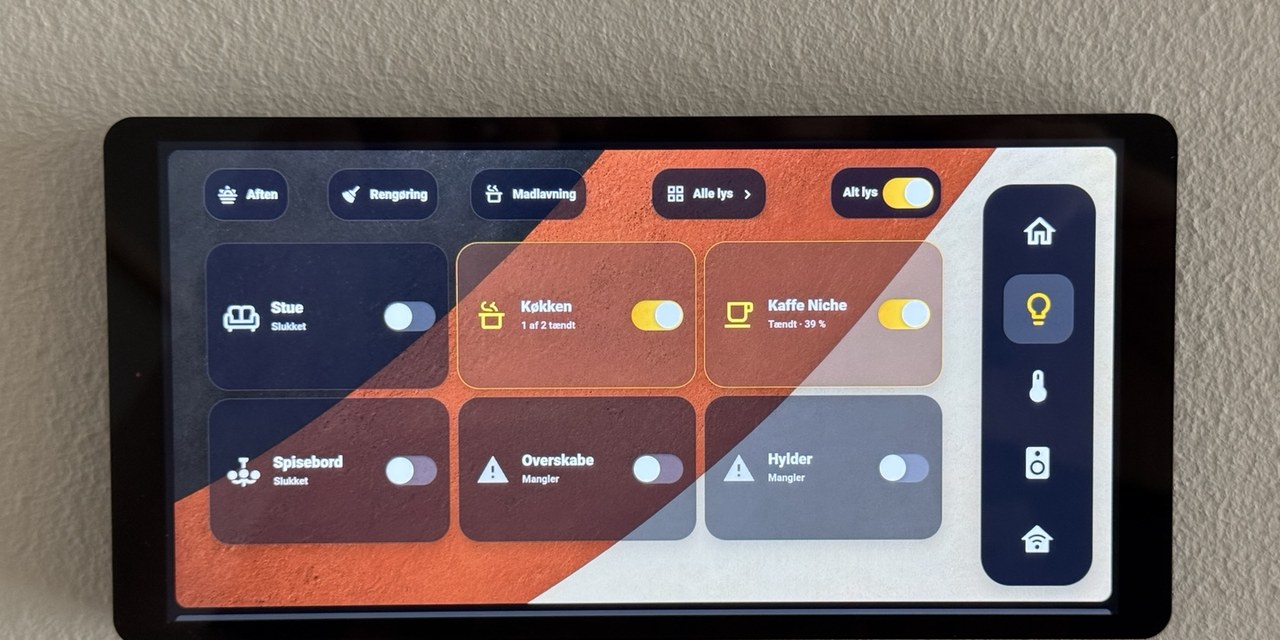
Primary lighting view with scenes, room-level controls, an All Lights shortcut, and a master switch.
Dashboard path: /dashboard-minipanel/lys
All Lights
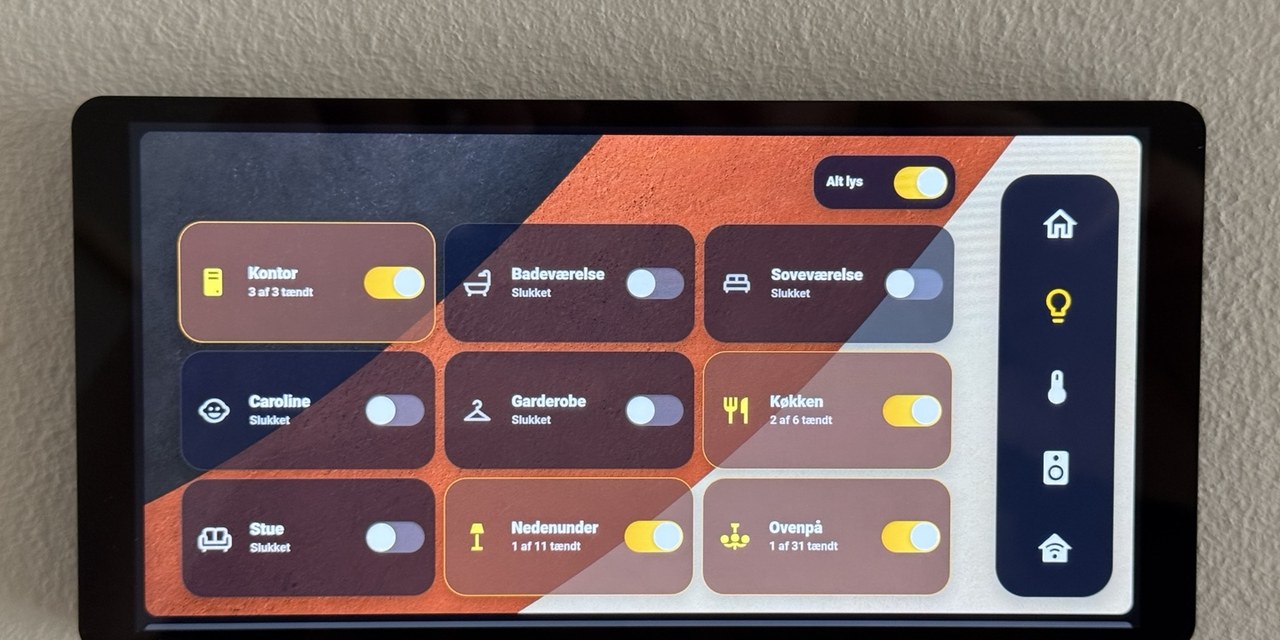
A drill-down page opened from the Lights view. It is not a separate item in the right-side navigation menu.
Climate
Two climate zones with current and target temperatures, power controls, temperature adjustment, and preset buttons.
Dashboard path: /dashboard-minipanel/klima
Music
Playlist shortcuts, source controls, a full media player, and vertical volume control.
Dashboard path: /dashboard-minipanel/musik
Status
Status information for the dishwasher, refrigerator/freezer, and robot vacuum cleaners.
Dashboard path: /dashboard-minipanel/status
Weather
Multi-day weather forecast with back navigation.
Dashboard path: /dashboard-minipanel/vejr
Views
| View | Path | Description |
|---|---|---|
| Home | /dashboard-minipanel/home |
Clock, weather, family, vacuum, dishwasher, mini player, and navigation |
| Lys | /dashboard-minipanel/lys |
Scenes, room controls, All Lights drill-down, and master switch |
| Klima | /dashboard-minipanel/klima |
Climate controls and presets |
| Musik | /dashboard-minipanel/musik |
Playlists, volume, and full music player |
| Status | /dashboard-minipanel/status |
Appliance and system status |
| Vejr | /dashboard-minipanel/vejr |
Multi-day weather forecast |
Required HACS Custom Cards
- button-card: Primary card used throughout the dashboard
- kiosk-mode: Hides the Home Assistant header and sidebar
Installation
1. Install the required HACS components
Install button-card and kiosk-mode through HACS.
Restart Home Assistant if required.
2. Copy the background image
Copy minipanelbackground.png to your Home Assistant www folder:
cp minipanelbackground.png /config/www/
The image will then be available in Home Assistant as:
/local/minipanelbackground.png
3. Create the dashboard
- Go to Settings > Dashboards
- Click Add dashboard
- Choose New dashboard from scratch
- Enter a title, for example
MiniPanel - Set the URL to exactly:
dashboard-minipanel
- Create the dashboard
The dashboard URL is important because the navigation buttons use fixed paths such as:
/dashboard-minipanel/home
/dashboard-minipanel/lys
/dashboard-minipanel/klima
/dashboard-minipanel/musik
/dashboard-minipanel/status
/dashboard-minipanel/vejr
If you use another dashboard URL, you must replace every /dashboard-minipanel/ reference in minipanel.json.
4. Import the dashboard configuration
- Open the new MiniPanel dashboard
- Select Edit dashboard
- Open the three-dot menu
- Select Raw configuration editor
- Replace the existing content with the contents of
minipanel.json - Save the dashboard
Do not copy the file directly into /config/.storage/. Home Assistant manages that folder internally.
5. Configure kiosk mode
The dashboard is configured to hide the interface for the Home Assistant user named Shelly.
Edit the kiosk_mode section in minipanel.json to match the user account used by your wall display.
6. Replace the example entities
The dashboard uses entity IDs from my own Home Assistant installation.
Replace them with the corresponding entities from your setup.
Customization
Entity IDs
| Dashboard reference | Replace with |
|---|---|
light.stue_lights |
Living room light group |
light.kontor_lights |
Office light group |
light.kokken_lights |
Kitchen light group |
light.nordtronic_a_s_rotdimz_98424072 |
Bathroom light |
light.caroline_lights |
Bedroom or family-room light group |
light.sovevaerelse |
Main bedroom light |
media_player.kokken_hub_2 |
Media player |
sensor.udendors_temperatur |
Outdoor temperature sensor |
weather.forecast_home |
Weather entity |
person.* or device_tracker.* |
Presence entities |
sensor.opvaskemaskine_current_program_remaining_time |
Dishwasher remaining-time sensor |
vacuum.eufy_robovac_s1_pro |
Robot vacuum entity |
sensor.running_status |
Vacuum running-status sensor |
Scripts
The music shortcut buttons reference these scripts:
script.1783163503917: Brians Mixscript.gods_of_metal: Gods of Metalscript.musik_liked_songs_pa_kokken_hub: Spotify Liked Songs
Replace them with your own Music Assistant or media-control scripts.
Background image
Replace minipanelbackground.png in /config/www/ with your own image while keeping the same filename.
You can also change the image path directly in minipanel.json.
Dashboard paths
The right-side navigation menu uses fixed dashboard paths.
Keep the dashboard URL as:
dashboard-minipanel
If you change it, update all navigation paths in minipanel.json.
Notes
- The layout is optimized for the Shelly Wall Display X2i in landscape orientation.
- It can also run on the older Shelly Wall Display X2, although spacing and scaling may require adjustment.
- Light commands are executed immediately. Any visible delay normally comes from the dashboard waiting for the updated entity state from Home Assistant.
- The All Lights page belongs to the Lights section and is not a sixth main navigation view.
- The screenshots show my own entities, names, temperatures, and media. Your setup will differ after replacing the example entities.
Repository structure
MiniPanel/
├── README.md
├── minipanel.json
├── minipanelbackground.png
└── screenshots/
    ├── 01-home.jpg
    ├── 02-lights.jpg
    ├── 03-all-lights.jpg
    ├── 04-climate.jpg
    ├── 05-music.jpg
    ├── 06-status.jpg
    └── Home2.jpg
Comments