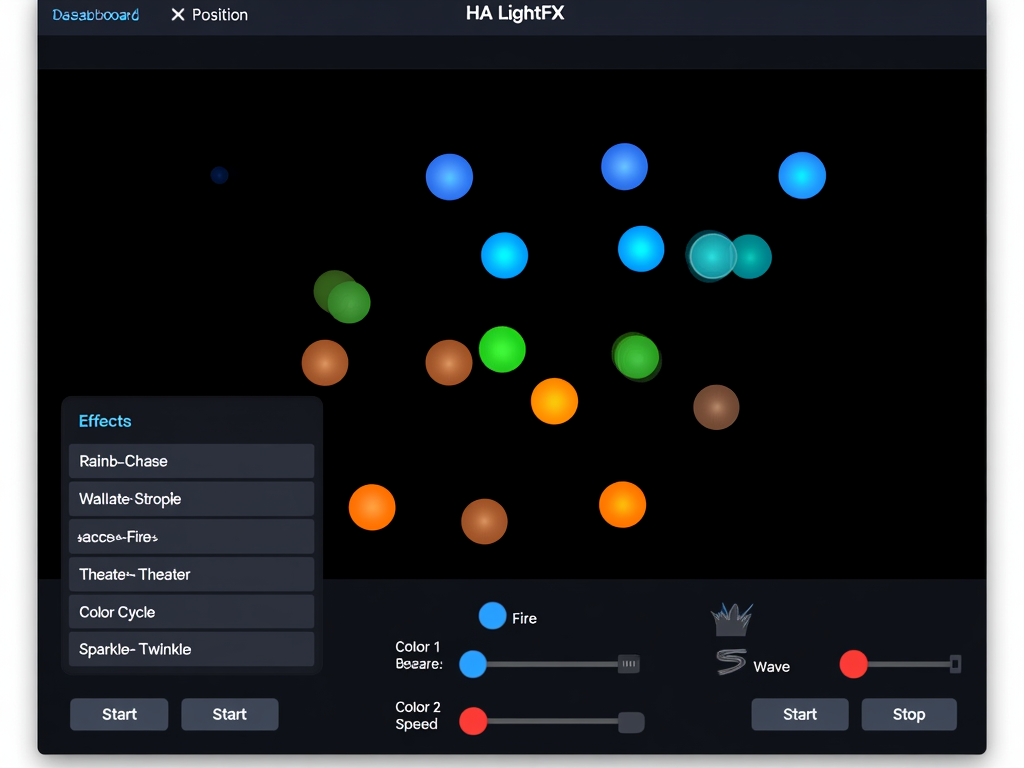
Version 1.0.7 — virtual WLED-style light effects for ordinary Home Assistant lights.
HA LightFX lets you build virtual room layouts, place Home Assistant light entities on a 0-100 grid, and run animated effects across them. It works with Zigbee, Z-Wave, Wi-Fi, Matter, Hue, ESPHome, or any other light that Home Assistant can control. No LED strip controller or WLED hardware is required.
What You Get
- A Home Assistant custom integration with persistent layout storage.
- A visual config-flow editor for layouts, lights, profiles, and layout groups.
- A bundled Lovelace custom card served by the integration at
/ha_lightfx/ha-lightfx-card.js. - 16 Home Assistant services for automation, previewing, layout management, profiles, groups, and sequences.
- 10 built-in effects:
rainbow,chase,breathe,strobe,theater_chase,fire,color_cycle,sparkle,wave,twinkle. - Zone-aware effects, direction control, brightness/speed/transition controls, and optional audio-reactive brightness modulation.
Supported Effects
| Effect | Description | Main Controls |
|---|---|---|
rainbow |
Smooth hue sweep across lights based on virtual position. | brightness, speed, direction |
chase |
A single active light moves through the layout. | color, brightness, speed, direction |
breathe |
Slow fade in/out using the primary color. | color, brightness, speed |
strobe |
Alternating flash/on-off pulses. | color, brightness, speed |
theater_chase |
Alternating primary/secondary color chase. | color, color2, brightness, speed, direction |
fire |
Warm randomized flicker based on the primary color. | color, brightness, speed |
color_cycle |
Global hue transition across all mapped lights. | brightness, speed |
sparkle |
Random sparkle/twinkle flashes. | brightness, speed |
wave |
HSV wave across the virtual x/y layout. | brightness, speed, direction |
twinkle |
Random twinkling between two colors. | color, color2, brightness, speed |
Concepts
Layouts
A layout is a named virtual space, such as Living Room, Bedroom, or Downstairs. Layout IDs are generated from the name by lowercasing and replacing spaces with underscores. For example:
| Name | Layout ID |
|---|---|
Living Room |
living_room |
Kitchen |
kitchen |
Downstairs Hall |
downstairs_hall |
Light Positions
Each light has:
entity_id— the Home Assistant light entity, for examplelight.living_room_lamp.x— horizontal position, 0-100.y— vertical position, 0-100.z— optional depth, 0-100. Current effects preserve and expose it; future effects can use it for 3D-style spatial animation.zone— one ofceiling,wall,accent,floor,other.
Zones
Zones let you run different effects on different areas in one layout. Example: ceiling lights can run chase while wall lights run breathe.
Profiles
Profiles are named effect presets. They store an effect config so you can reuse it from automations or the visual editor.
Layout Groups
Layout groups let you run the same effect across several layouts at once, such as downstairs containing living_room, kitchen, and hallway.
Previous State Restore
When an effect starts, HA LightFX stores the previous state of every mapped light. ha_lightfx.stop_effect can restore those previous states with restore_previous: true.
Installation
HACS Installation (Recommended)
- Open HACS → Integrations → ⋮ → Custom repositories.
- Add this repository URL:
https://github.com/rusty4444/ha-lightfx - Select category Integration.
- Click Add.
- Find HA LightFX in HACS and click Download.
- Restart Home Assistant.
- Go to Settings → Devices & Services → Add Integration and search for HA LightFX.
Manual Installation
- Download or clone this repository.
- Copy the integration folder:
into your Home Assistant config folder:custom_components/ha_lightfx//config/custom_components/ha_lightfx/ - Restart Home Assistant.
- Go to Settings → Devices & Services → Add Integration and search for HA LightFX.
Dashboard Resource
The Lovelace card is bundled inside the integration and served at:
/ha_lightfx/ha-lightfx-card.js
The Lovelace card is auto-registered as a dashboard resource when the integration starts. A hard browser refresh (Ctrl+Shift+R / Cmd+Shift+R) may be needed to pick up the card on first install.
If the card does not appear, verify the resource exists under Settings → Dashboards → Resources:
/ha_lightfx/ha-lightfx-card.js
with type JavaScript Module. Add it manually if needed.
Quick Start
- Install the integration and restart Home Assistant.
- Add the integration from Settings → Devices & Services → Add Integration → HA LightFX.
- Open the integration entry and click Configure.
- Choose Manage Layouts → Create Layout and create a layout, for example
Living Room. - Choose Manage Lights ��� Add Light.
- Pick a Home Assistant light entity.
- Set its
x,y, optionalz, andzone. - Repeat for each light in the room.
- Add the dashboard card:
type: custom:ha-lightfx-card - Select the layout, choose an effect, and press Play.
Lovelace Card
The built-in card type is:
type: custom:ha-lightfx-card
The card auto-discovers layouts through the integration WebSocket API. No card-level YAML options are required for basic use.
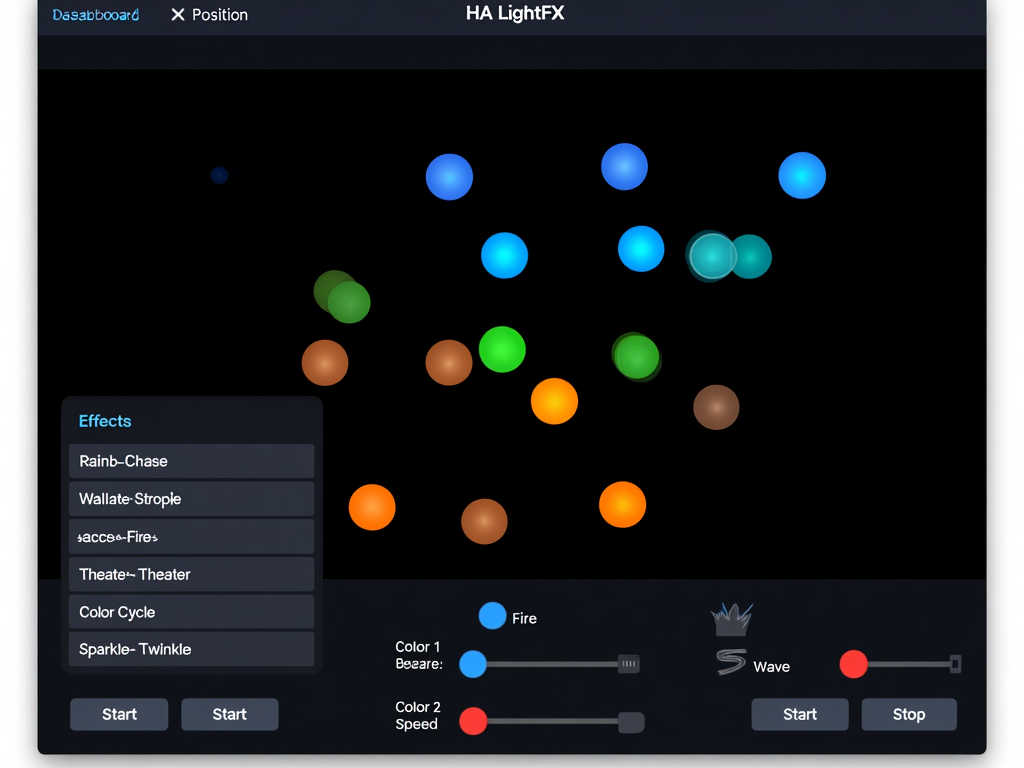
The card provides:
- Lovelace visual card editor via the dashboard UI.
- Layout selector buttons.
- Optional default layout selection.
- 2D layout visualization.
- Zone-colored light dots.
- Optional drag-and-drop light repositioning.
- Effect selector.
- Primary and secondary color pickers.
- Brightness and speed sliders.
- Optional refresh button.
- Play/Stop controls.
Lovelace Visual Editor Options
Open the dashboard editor, add Custom: HA LightFX, then configure the card from the visual editor. YAML editing is optional.
| Option | Type | Default | Description |
|---|---|---|---|
title |
string | HA LightFX |
Card header title. |
default_layout |
string | empty | Layout ID to auto-select, for example living_room. Leave empty to select the first available layout. |
show_layout_selector |
boolean | true |
Show buttons for switching layouts. Disable this for a single-layout dashboard card. |
show_zone_legend |
boolean | true |
Show the zone color legend under the grid. |
allow_drag |
boolean | true |
Allow dragging light dots to update x/y positions. |
show_refresh_button |
boolean | true |
Show the header refresh button for reloading layouts. |
confirm_stop |
boolean | true |
Ask for confirmation before stopping and restoring lights. |
Example YAML equivalent:
type: custom:ha-lightfx-card
title: Living Room FX
default_layout: living_room
show_layout_selector: false
show_zone_legend: true
allow_drag: true
show_refresh_button: true
confirm_stop: true
Visual Editor
Open Settings → Devices & Services → HA LightFX → Configure.
Available menus:
- Manage Layouts — create and delete layouts.
- Manage Lights — add, update, and remove mapped lights.
- Manage Profiles — create and delete effect profiles.
- Manage Groups — create and delete layout groups.
The visual editor is the recommended setup path. Services are available for automation and advanced users.
Services Reference
All services use the domain ha_lightfx.
| Service | Required Fields | Optional Fields | Response Support | Description |
|---|---|---|---|---|
create_layout |
name |
icon |
Optional | Create a layout. With return_response: true, returns the generated layout_id. |
remove_layout |
layout_id |
— | No | Delete a layout. |
list_layouts |
— | — | Required | Return all layouts, light counts, and status. |
add_light |
layout_id, entity_id, x, y |
z, zone |
No | Add or update a light's layout position. |
remove_light |
layout_id, entity_id |
— | No | Remove a light from a layout. |
start_effect |
layout_id |
effect, color, color2, brightness, speed, transition, direction, audio_entity_id, effect_per_zone |
No | Start an effect loop. |
stop_effect |
layout_id |
restore_previous |
No | Stop an effect and optionally restore previous light states. |
preview_effect |
layout_id |
effect, params |
Optional | Compute one preview frame without starting an effect. |
create_profile |
name |
config |
No | Save an effect profile. |
delete_profile |
profile_id |
— | No | Delete a profile. |
list_profiles |
— | — | Required | Return all saved profiles. |
create_group |
group_id, layout_ids |
— | No | Create or replace a layout group. |
delete_group |
group_id |
— | No | Delete a layout group. |
list_groups |
— | — | Required | Return all layout groups. |
start_sequence |
layout_id, sequence |
effect, brightness |
No | Run timed effect steps on one layout. |
start_layout_group |
group_id |
effect, color, color2, brightness, speed, transition, direction |
No | Start the same effect across a layout group. |
Common Field Values
| Field | Accepted Values |
|---|---|
effect |
rainbow, chase, breathe, strobe, theater_chase, fire, color_cycle, sparkle, wave, twinkle |
color, color2 |
RGB list such as [255, 0, 0] or a hex string where supported by service calls. |
brightness |
Integer 0-100. |
speed |
Integer 1-100. |
transition |
Seconds, 0.1-5.0. |
direction |
forward, reverse, bounce. |
zone |
ceiling, wall, accent, floor, other. |
Service Examples
Create a Layout and Get the ID
service: ha_lightfx.create_layout
return_response: true
data:
  name: "Living Room"
  icon: mdi:sofa
Response:
layout_id: living_room
Add Lights to a Layout
service: ha_lightfx.add_light
data:
  layout_id: living_room
  entity_id: light.living_room_ceiling
  x: 50
  y: 20
  z: 10
  zone: ceiling
service: ha_lightfx.add_light
data:
  layout_id: living_room
  entity_id: light.floor_lamp
  x: 20
  y: 80
  z: 0
  zone: accent
Start a Basic Effect
service: ha_lightfx.start_effect
data:
  layout_id: living_room
  effect: rainbow
  brightness: 60
  speed: 40
  transition: 0.5
  direction: forward
Start a Two-Color Effect
service: ha_lightfx.start_effect
data:
  layout_id: living_room
  effect: theater_chase
  color: [255, 0, 0]
  color2: [0, 0, 255]
  brightness: 70
  speed: 50
Stop and Restore Previous Light States
service: ha_lightfx.stop_effect
data:
  layout_id: living_room
  restore_previous: true
Preview One Frame
service: ha_lightfx.preview_effect
return_response: true
data:
  layout_id: living_room
  effect: fire
  params:
    color: [255, 100, 0]
    brightness: 70
    speed: 40
Zone-Aware Effects
service: ha_lightfx.start_effect
data:
  layout_id: living_room
  brightness: 60
  speed: 45
  effect_per_zone:
    ceiling: chase
    wall: breathe
    accent: sparkle
    floor: wave
Audio-Reactive Effect
audio_entity_id can point at a media_player. HA LightFX uses the player's volume_level attribute to modulate effect brightness.
service: ha_lightfx.start_effect
data:
  layout_id: living_room
  effect: fire
  color: [255, 100, 0]
  brightness: 70
  audio_entity_id: media_player.living_room
Create a Profile
service: ha_lightfx.create_profile
data:
  name: "Warm Fire"
  config:
    effect: fire
    color: [255, 120, 20]
    brightness: 55
    speed: 35
Create a Layout Group
service: ha_lightfx.create_group
data:
  group_id: downstairs
  layout_ids:
    - living_room
    - kitchen
    - hallway
Start an Effect Across a Group
service: ha_lightfx.start_layout_group
data:
  group_id: downstairs
  effect: rainbow
  brightness: 50
  speed: 40
Run a Sequence
service: ha_lightfx.start_sequence
data:
  layout_id: living_room
  brightness: 80
  sequence:
    - effect: rainbow
      duration_seconds: 30
    - effect: chase
      duration_seconds: 15
      speed: 60
    - effect: strobe
      duration_seconds: 10
      brightness: 100
Automation Examples
Motion-Triggered Rainbow After Sunset
alias: "Rainbow on Arrival"
trigger:
  - platform: state
    entity_id: binary_sensor.motion_living_room
    to: "on"
condition:
  - condition: sun
    after: sunset
action:
  - service: ha_lightfx.start_effect
    data:
      layout_id: living_room
      effect: rainbow
      brightness: 40
      speed: 30
  - delay:
      minutes: 5
  - service: ha_lightfx.stop_effect
    data:
      layout_id: living_room
      restore_previous: true
Bedtime Breathe
alias: "Bedtime Breathe"
trigger:
  - platform: time
    at: "22:00:00"
action:
  - service: ha_lightfx.start_effect
    data:
      layout_id: bedroom
      effect: breathe
      color: [255, 50, 50]
      brightness: 20
      speed: 20
Doorbell Party Sequence
alias: "Doorbell Party Sequence"
trigger:
  - platform: state
    entity_id: binary_sensor.doorbell
    to: "on"
action:
  - service: ha_lightfx.start_sequence
    data:
      layout_id: living_room
      brightness: 80
      sequence:
        - effect: rainbow
          duration_seconds: 30
        - effect: chase
          duration_seconds: 15
          speed: 60
        - effect: strobe
          duration_seconds: 10
          brightness: 100
Troubleshooting
The card is not available in the dashboard card picker
- Confirm the integration is installed and Home Assistant has been restarted.
- Confirm the dashboard resource exists:
/ha_lightfx/ha-lightfx-card.js - Resource type must be JavaScript Module.
- Hard refresh the browser: Ctrl+Shift+R / Cmd+Shift+R.
- Check browser dev tools for failed requests to
/ha_lightfx/ha-lightfx-card.js.
A layout has no lights
- Open Configure → Manage Lights and add at least one light.
- Or call
ha_lightfx.add_lightwith the correctlayout_idandentity_id. - Use
ha_lightfx.list_layoutswithreturn_response: trueto inspect current layout state.
Effects start but lights do not visibly change
- Confirm the mapped entities are real
lightentities and are available in Home Assistant. - Some lights may not support RGB color; try effects that rely mostly on brightness or use supported color modes.
- Try lower
transitionand higherbrightness. - Check Home Assistant logs for
ha_lightfxwarnings.
Effects stop but lights do not restore
- Use:
service: ha_lightfx.stop_effect data: layout_id: living_room restore_previous: true - Restore only applies to lights that were part of the layout when the effect started.
A grouped layout was deleted
start_layout_group skips stale/missing layout IDs and logs a warning. Recreate the missing layout or update the group with create_group using the current list of layout IDs.
Storage and Data
HA LightFX stores layouts, lights, profiles, and groups in Home Assistant storage under the integration's storage key. Data persists across Home Assistant restarts.
Stored data includes:
- Layout names and icons.
- Light entity IDs and x/y/z/zone positions.
- Effect profiles.
- Layout groups.
Development
Repository structure:
custom_components/ha_lightfx/
├── __init__.py             # Integration setup, service registration, WebSocket API, frontend serving
├── config_flow.py          # Initial setup and visual configuration editor
├── const.py                # Constants, service names, effects, storage version
├── lightfx_engine.py       # Effect engine and persistence model
├── manifest.json           # Home Assistant manifest
├── services.yaml           # Service definitions shown in Developer Tools
├── strings.json            # Config-flow UI strings
├── translations/
│   └── en.json             # English translations
├── brand/
│   ├── icon.png
│   ├── icon@2x.png
│   ├── logo.png
│   └── logo@2x.png
└── www/
    └── ha-lightfx-card.js  # Bundled, browser-loadable Lovelace custom card

frontend/
└── ha-lightfx-card.js      # Source for the card/editor before bundling
The committed custom_components/ha_lightfx/www/ha-lightfx-card.js file is the browser-loadable bundle used by Home Assistant. Edit frontend/ha-lightfx-card.js, then rebuild the bundle:
npm install
npm run build:card
Useful validation commands:
python3 -m py_compile custom_components/ha_lightfx/*.py
python3 -m json.tool custom_components/ha_lightfx/manifest.json >/dev/null
python3 -m json.tool hacs.json >/dev/null
python3 -m json.tool custom_components/ha_lightfx/strings.json >/dev/null
python3 -m json.tool custom_components/ha_lightfx/translations/en.json >/dev/null
ruby -e 'require "yaml"; YAML.load_file("custom_components/ha_lightfx/services.yaml")'
node --check frontend/ha-lightfx-card.js
node --check custom_components/ha_lightfx/www/ha-lightfx-card.js
AI Used in Development
This project used AI-assisted development for code review, bug fixing, documentation, and release tasks. Multi-model sequential reviews were run across the codebase to catch issues before release. All AI-generated changes were reviewed by a human before merging.
Comments