A lightweight Home Assistant custom integration (HACS) with two structured
sensors: one detects failed automation runs from trace data, the other
proactively flags entities referenced by your automations/scripts/scenes
that are stuck unavailable - a failure mode the trace-based sensor cannot see at
all (see Linked entity unavailability detection). Optional Repairs issues,
toggled independently per sensor (see Repairs issues), plus Logbook/Activity
history for both, on by default (see Logbook) - no dashboard card,
no retention logic beyond that. Detection and structured exposure is the
focus; how you display or act on the data (Markdown card, auto-entities,
your own automations, ...) is up to you.
See CHANGELOG.md for release notes.
Complementary to Watchman, which checks statically for missing entities/services in your config. Automation Monitor covers the other half: runtime errors when an automation actually runs.
In plain terms
Two different things can go wrong with an automation, and this integration watches for both:
- "It ran, and it broke." Your automation actually fired, and
something inside it went wrong (a light didn't respond, a step threw
an error). Like turning a car's key and hearing the engine cough.
→ watched by
sensor.failed_automations. - "It's already broken, waiting to happen." A light, switch, or
other device your automation uses has gone offline - but no
automation has tried to use it yet, so nothing has failed yet.
Like a flat tire on a parked car: broken right now, you just haven't
driven anywhere to notice.
→ watched by
sensor.linked_entities_unavailable.
Each is its own sensor, and they run completely independently of each other - use either one on its own, or both together:
| Sensor | Catches | Example |
|---|---|---|
sensor.failed_automations |
An automation ran and something in it errored out | A script step calls a service that fails |
sensor.linked_entities_unavailable |
A device an automation would use is offline, whether or not that automation has run | A Zigbee light drops off the network |
Both show up as data (a sensor with a list), not as a fix. This integration never changes anything in your house - it only watches and reports. What you do with that report (a notification, a dashboard, a follow-up automation) is entirely up to you.
What this can't do: it can't catch a mistake before you save it (a typo'd device name, a setting that doesn't exist) - that's a config check, and HA's own Settings → System → Repairs (or the separate Watchman add-on) already does that well. This integration only speaks up once something has actually gone wrong, or is already sitting broken.
Why not just use Watchman / HA's built-in Repairs?
Both check for problems before you run into them, but only for
static config mistakes (a typo'd service name, a missing entity) -
the same category Watchman
covers. Automation Monitor is for the other half: problems that only
show up at runtime, with a perfectly valid config - a template that
hits None depending on live state, a deliberate stop: ... error: true,
a cloud integration failing due to its own backend issues. See
TECHNICAL.md
for the full comparison, including how this integration's own optional
Repairs issues (see Repairs issues below) differ from HA's static ones.
Requirements
- Home Assistant 2024.1 or newer
- HACS installed (for the HACS installation method below; not required for a manual install)
Installation
Not yet published to the default HACS store - install via a custom repository for now.
One-click (recommended)

Click the badge above to add this repository to HACS directly - it handles adding the custom repository and finding the integration for you. Then click Download and restart Home Assistant.
Via HACS (custom repository, manual)
- Open HACS in your Home Assistant sidebar
- Go to ⋮ → Custom repositories
- Add
https://github.com/olli-dot-dev/ha-automation-monitorwith category Integration - Find Automation Monitor in the HACS integration list and click Download
- Restart Home Assistant
Manual
- Copy the
custom_components/automation_monitorfolder into your HAconfig/custom_components/directory - Restart Home Assistant
Setup
After installation and restart:
- Go to Settings → Devices & Services → + Add Integration
- Search for Automation Monitor and click it
- Confirm - no configuration needed to enable it
Both sensor.failed_automations and sensor.linked_entities_unavailable
appear immediately. To change any setting afterward, open the
integration's entry and click Configure (see Configuration).
Usage
Both sensors work passively once installed - there's nothing to trigger manually day to day:
sensor.failed_automationsreflects currently-failing automations in itsautomationsattribute; see Recommended display / Recommended notification automation below for ready-to-use ways to surface it on a dashboard or as a notificationsensor.linked_entities_unavailablereflects entities referenced by your automations/scripts/scenes that have been unreachable past the configured threshold, in itsentitiesattribute- Call
automation_monitor.resetto clear a stuck failure entry without waiting for a restart or a successful re-run (see Actions) - Call
automation_monitor.rebuild_linked_entitiesright after editing a script's content, to pick up the change immediately instead of waiting for the periodic safety-net rebuild (see Actions) - A Home Assistant restart resets both sensors - no persistence
across restarts, by design.
sensor.failed_automationsstarts empty (only reacts to a fresh trigger, not whatever was already broken before). Forsensor.linked_entities_unavailable, a device that's been broken for days typically needs to wait out the full threshold again after a restart, since most entities get a fresh timestamp from their own integration when HA starts up.
Failure classification
Only genuine runtime errors count as "failed" - read as HA's trace
script_execution result, not string-matched log text. A mid-run
condition: action not being met is not a failure (intended
behaviour); a stop: ... error: true, an unhandled exception, or a step
that used continue_on_error: true to swallow a real error all are.
See TECHNICAL.md for the full
script_execution value table and the reasoning behind each one -
including why this needed live testing to get right, since a first
attempt at telling "intended stop" and "real abort" apart from the trace
data alone turned out to be wrong.
Classifying a run as a failure doesn't necessarily flag it right away: a
second, independent setting - the failure streak threshold (default 1,
i.e. flag on the very first failure) - decides how many consecutive
failures an automation needs before sensor.failed_automations actually
reports it, with an optional per-entity override for particularly flaky
devices. See Configuration.
Uses HA's trace API rather than parsing log messages (fragile - free text, language-dependent, changes between HA versions) - see TECHNICAL.md for how that's implemented and what to check first if this breaks on a future HA version.
Linked entity unavailability detection
A second, independent sensor for a failure mode the trace-based sensor
above cannot see at all: a service call targeting an entity that's
currently unavailable (e.g. an unresponsive Zigbee/Wi-Fi device) is
silently skipped by HA's core service dispatch, with no trace error, log
warning, or other signal. This sensor takes a proactive approach instead
of waiting for an automation to run and fail: it finds every entity
referenced by your automations, scripts, and scenes, watches their
state, and flags any that have been continuously unavailable (not
unknown - that's often legitimate, e.g. right after a restart) for
longer than a configurable threshold (default 15 minutes).
See TECHNICAL.md for exactly how entities are resolved (including device/area targets), how the reference map stays fresh, and the reasoning behind each Configuration option below.
Configuration
Click Configure on the integration's entry (Settings → Devices & Services → Automation Monitor) to open a three-way menu:
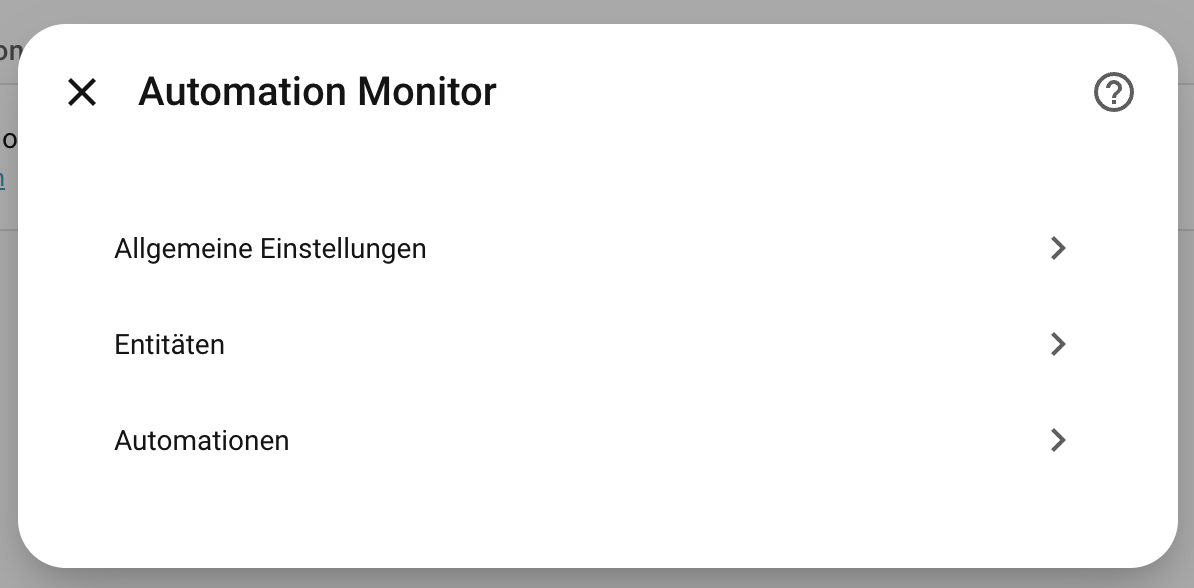
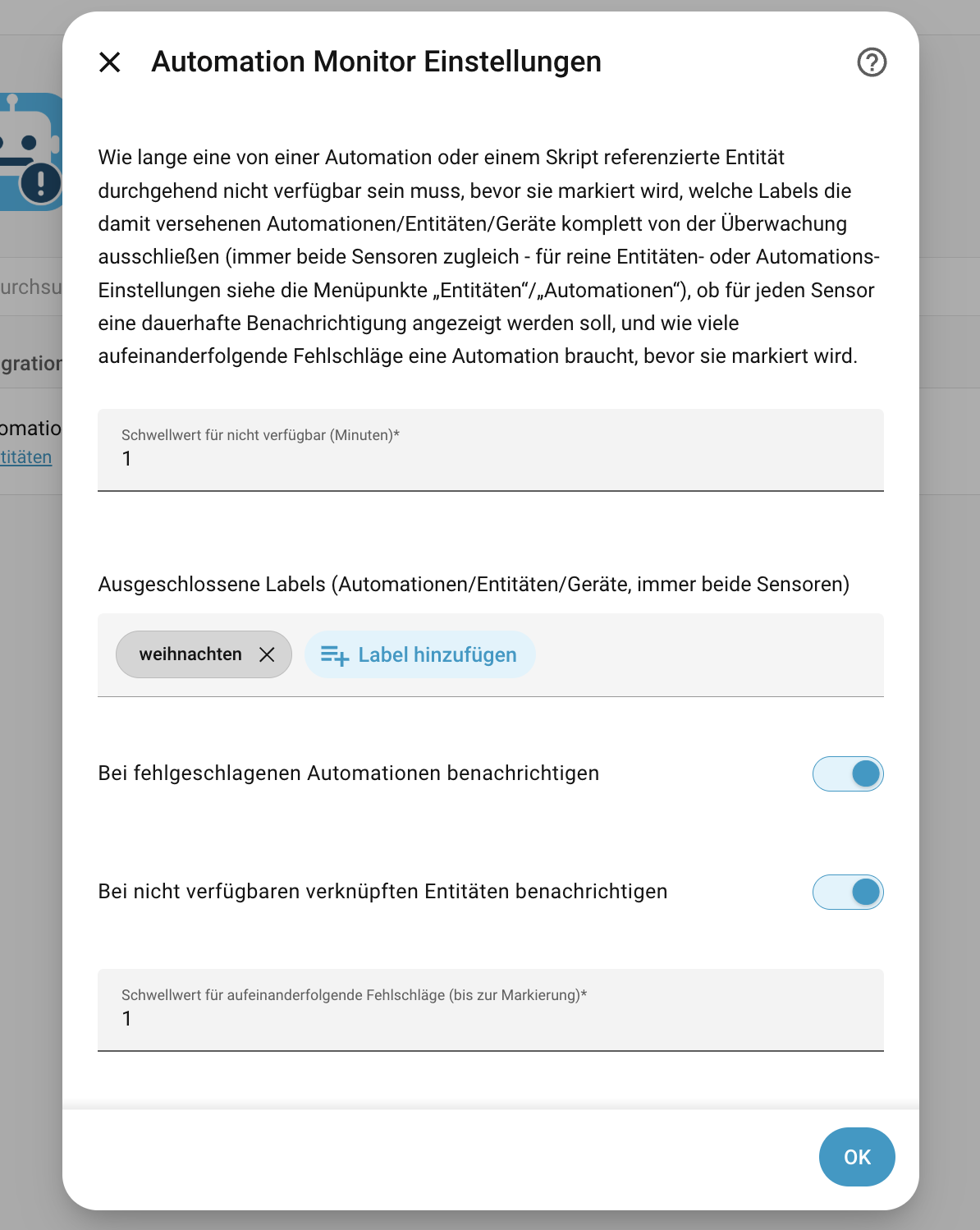
General settings
Settings that aren't clearly entity- or automation-specific: the
linked_entities_unavailable threshold (see Linked entity unavailability
detection), excluded labels (affects both sensors at once - see below
for how that differs from the entity-/automation-specific settings),
whether to open a Repairs issue per sensor (see Repairs issues), and the
global failure streak threshold (see Failure classification).
Entities
Entity-level settings - picked here, values entered on a second screen since HA's selectors have no single widget for "entity + number":
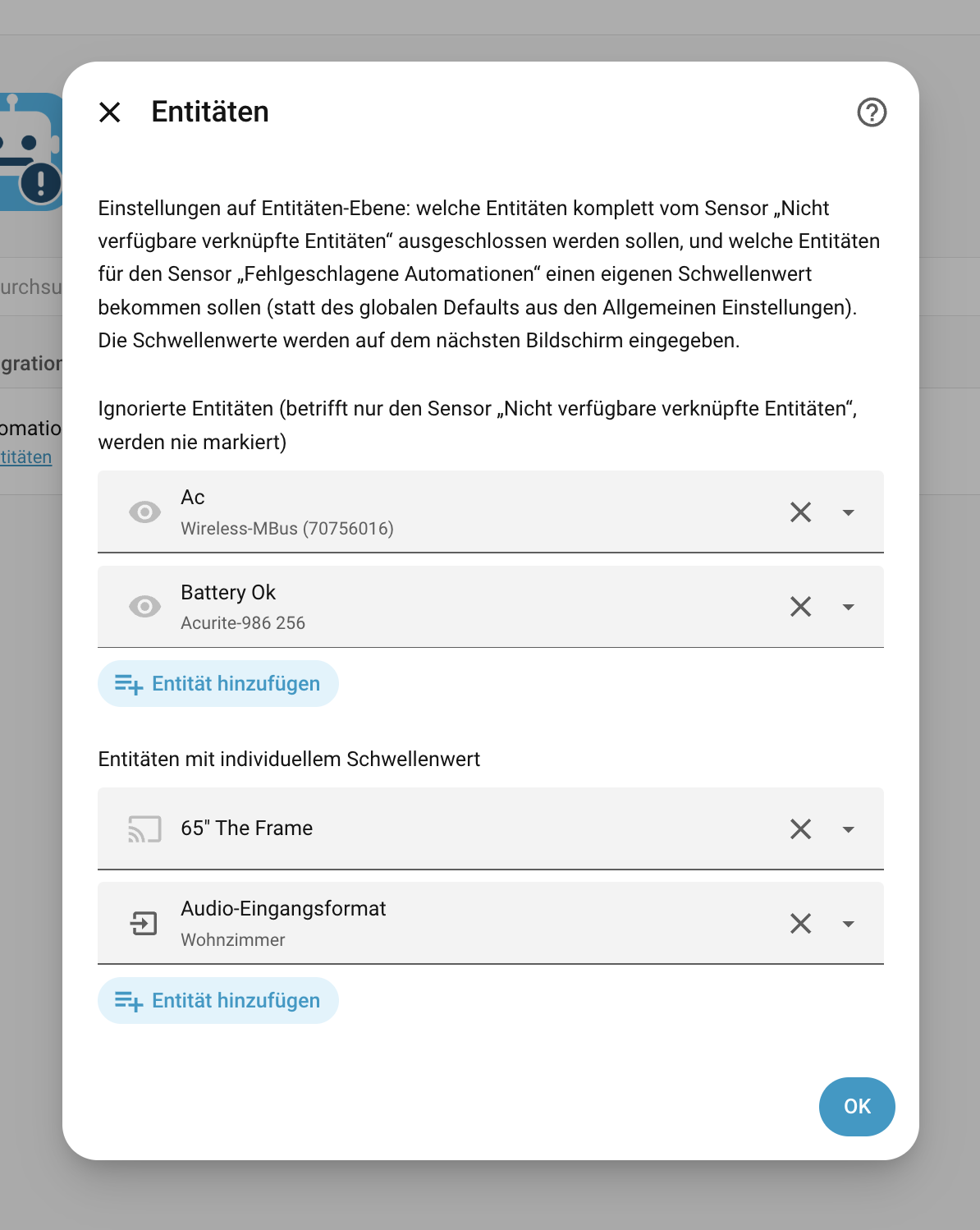
- Ignored entities - only affects
sensor.linked_entities_unavailable(see Linked entity unavailability detection) - Entities with an individual streak threshold - only affects
sensor.failed_automations: overrides the global default from General settings for automations that touch this specific entity - useful for one specific flaky device (e.g. a Zigbee mesh outlier) without raising the threshold for every automation. See TECHNICAL.md for matching details and what happens with multiple overrides.
Automations
Automation-level settings, same picker-then-detail-screen shape as Entities above:
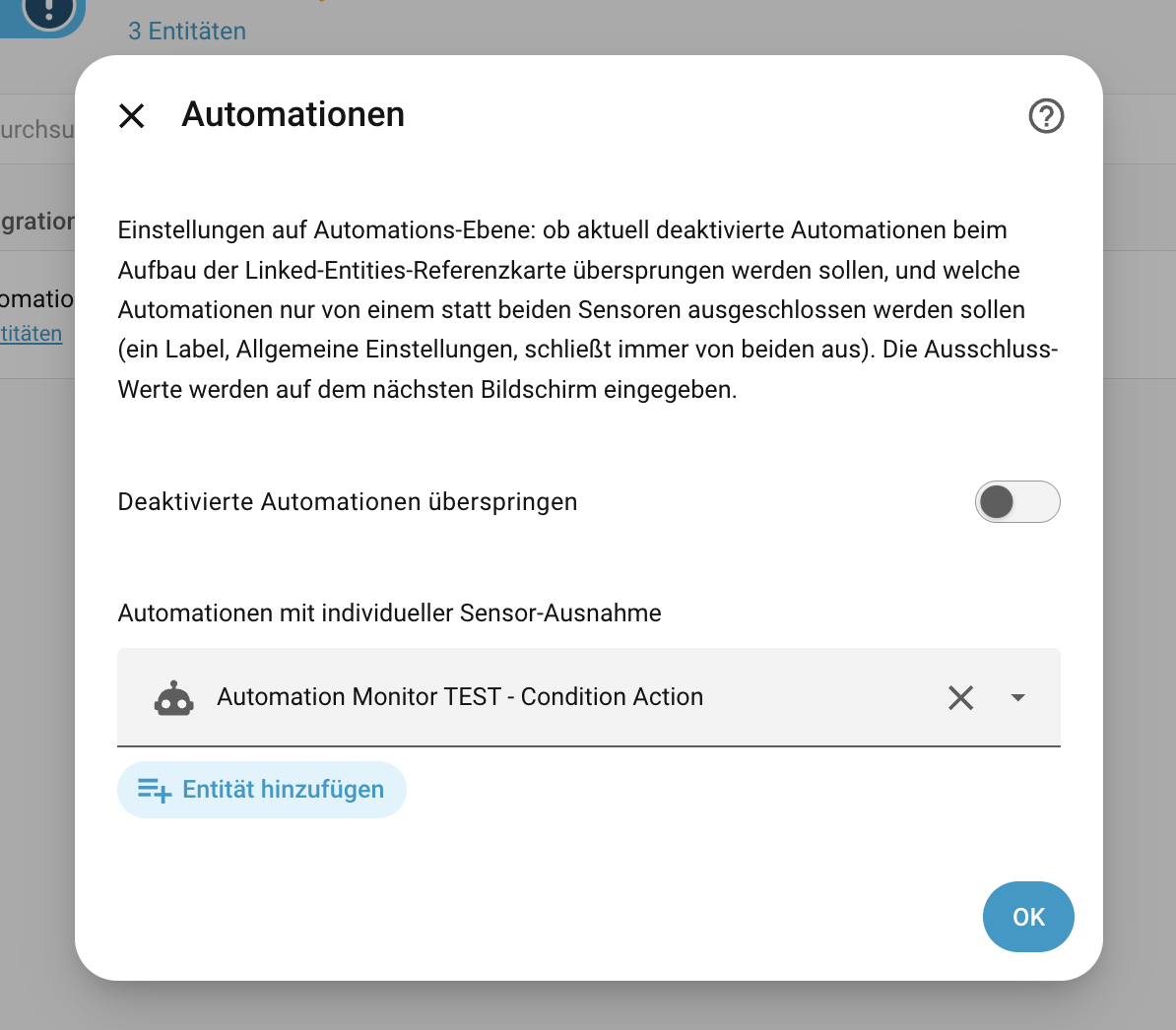
- Skip automations that are turned off - only affects
sensor.linked_entities_unavailable(see Linked entity unavailability detection) - Automations with individual per-sensor exclusion - pick automations
here, then choose on the next screen which sensor(s) each one should be
excluded from. Unlike an excluded label (General settings, always
excludes from both sensors), this lets an automation be excluded from
just one - e.g. a known-flaky automation excluded from
sensor.failed_automationswhile its referenced entities are still tracked bysensor.linked_entities_unavailable(other automations may reference the same entities).
Repairs issues
Two independent toggles under General settings (see Configuration), off
by default: one for sensor.failed_automations, one for
sensor.linked_entities_unavailable. Enable either, both, or neither -
they don't affect each other.
Shows up under Settings → System → Repairs - admin-only, unlike the persistent (bell-icon) notification this replaced (that HA component has no per-user/admin targeting at all - see TECHNICAL.md for why that mattered enough to migrate away from entirely).
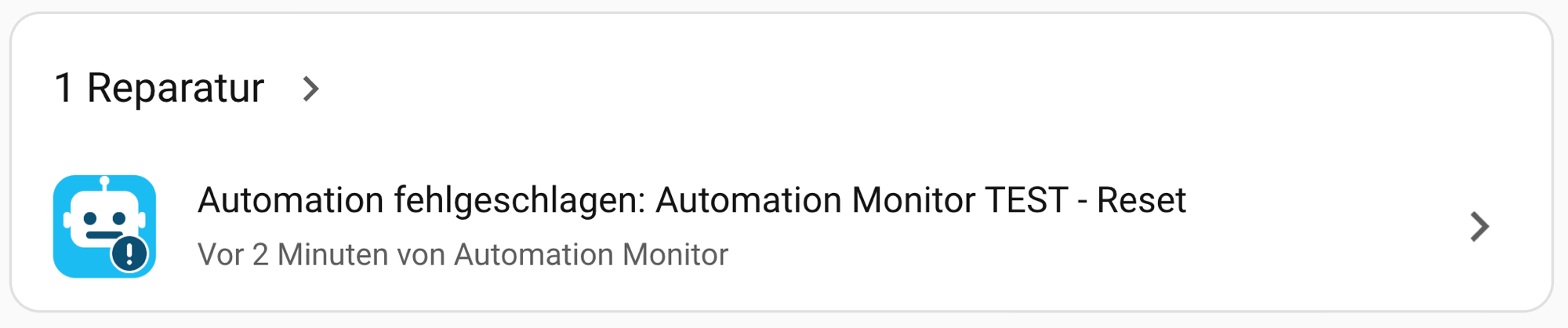
One issue per currently-failed automation / currently-unavailable linked entity - not one combined card the way the old notification worked. Matches how the Repairs page already presents multiple issues as separate, individually-dismissible rows:
Created the moment an automation/entity is flagged, updated in place on every subsequent failure (fresh error message/timestamp - the issue_id stays the same, so it's the same row, not a new one piling up), and automatically deleted once it resolves: a successful run, the entity becoming available again, or the
resetaction clearing it (see Actions).Opening an issue shows the full detail, including a clickable link straight to the automation editor (or, for a linked entity, its device page) and, for a linked entity, which automation(s)/script(s) reference it:
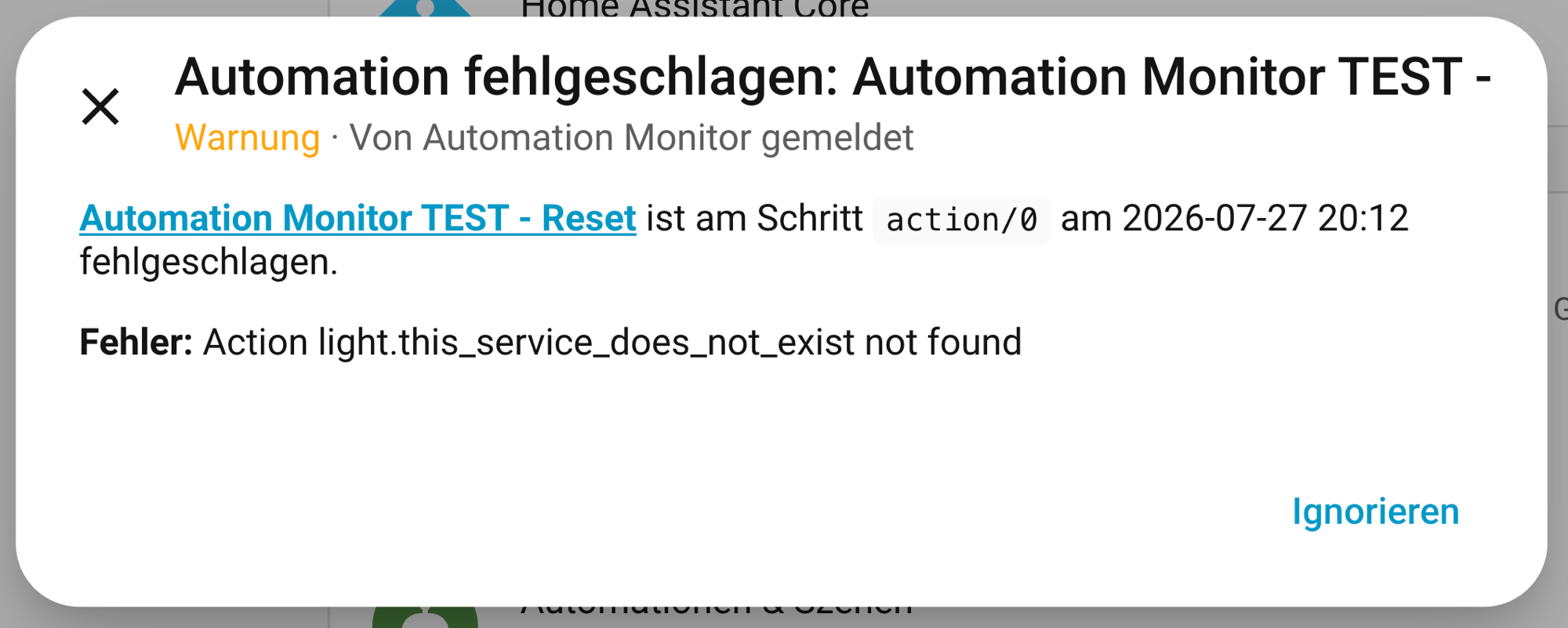
Turning a toggle off clears every open issue for that sensor immediately, even if some were currently open.
Saving any option (even an unrelated one, like the threshold) does not clear already-open issues that are still genuinely true - each sync only touches issues under its own sensor's prefix, diffing against what the sensor currently reports rather than clearing everything and starting over.
"Ignorieren"/"Ignore" on an issue hides it from the main Repairs list without deleting anything, and - unlike you might expect - it stays hidden even through repeated updates of the same problem (fresh error message/timestamp on each new failure). It only reappears once the issue is actually deleted and later re-created from scratch, i.e. the automation/entity has to genuinely recover at least once before failing again. See TECHNICAL.md for how that's verified against HA's own source.
Severity is always warning (not critical) - a real problem worth
looking at, but not something that took HA itself down. Detection only,
same as the sensors: no "fix" flow is offered, the issue is just a
pointer to the same underlying problem the sensor already tracks - go
use the editor link, fix the automation/device, and the issue clears
itself once resolved.
This is meant for a quick, always-on-if-you-want-it admin view, not a push alert to your phone - for that, see Recommended notification automation below, which you can run alongside these toggles (they don't conflict; one opens a Repairs entry, the other fires a one-off push notification per new failure).
Logbook
Both sensors fire an entry to HA's built-in Settings → Activity page
(called Logbook in older HA versions - the sidebar entry was renamed
to "Activity"/"Aktivität" in a more recent frontend release; the
underlying page and URL are still logbook) once per genuine
flag/resolve transition - not on every repeated update of an
already-open issue, so it reads as real history rather than noise:
sensor.failed_automations: "<name> failed: <error message>" / "<name> recovered"sensor.linked_entities_unavailable: "<name> became unavailable (referenced by an automation/script/scene)" / "<name> became available again"
On by default and independent of the Repairs-issue toggles above (General
settings) - you can have Activity history without Repairs pop-ups, or the
other way around. No configuration, same as HA's own built-in
automation_triggered Logbook entries.
Language
English, German, French and Spanish (en/de/fr/es) so far - German
was added first, requested by a German-speaking user who found the
(English-only, at the time) notifications hard to follow. Automatically
follows HA's own system language (Settings → System → General →
Language, hass.config.language) - nothing to configure. Falls back to
English for any other language.
Entity names, the Options dialog, and Repairs issue titles/descriptions all go through HA's own built-in translation system - nothing special here, even though Repairs issue text is generated at runtime from live data (error message, timestamp, link) rather than static form text. See TECHNICAL.md for how that works and why it replaced an earlier hand-rolled approach. Entity/automation names and error messages themselves are never translated (they're your own data, or another integration's error text).
Adding another language: add translations/<lang>.json mirroring
translations/en.json - covers entity names, the Options dialog, and
Repairs issue text together, no separate mechanism to update.
Actions
automation_monitor.reset clears currently tracked failures without
waiting for a restart or for each automation to succeed again - also
resets its consecutive-failure streak count (see Configuration /
Failure classification) back to zero, so it doesn't immediately re-flag
itself on the next failure:
- No target: clears all currently tracked failures.
entity_id: automation.xyz: clears only that automation's entry, if present.
automation_monitor.rebuild_linked_entities immediately rebuilds the
automation/script/scene → referenced-entity map used by the
linked-entities sensor, instead of waiting for the periodic 20-minute
safety-net rebuild. No target/fields - useful right after editing a
script's or scene's content (see Linked entity unavailability detection
for why scripts and scenes specifically need this).
Updating
Installed via HACS (recommended, see Installation)? HACS creates its own
update entity for every repository it manages, custom repositories
included - look for an entity along the lines of
update.automation_monitor_update (exact name may vary), which can
actually install the new version, unlike a from-scratch GitHub-polling
entity this project used to ship (removed in v0.9.0 for exactly this
reason - see CHANGELOG). You can also just check the HACS panel itself.
Installed manually (no HACS)? There's no automatic update detection at all - watch the Releases page or CHANGELOG.md, and repeat the Manual installation steps with the new version when you want to update.
Recommended display (documentation only, not part of the integration)
type: markdown
content: >
  {% for a in state_attr('sensor.failed_automations', 'automations') %}
  **{{ a.name }}** - {{ a.last_error_time }}
  {{ a.error_message }}

  {% endfor %}
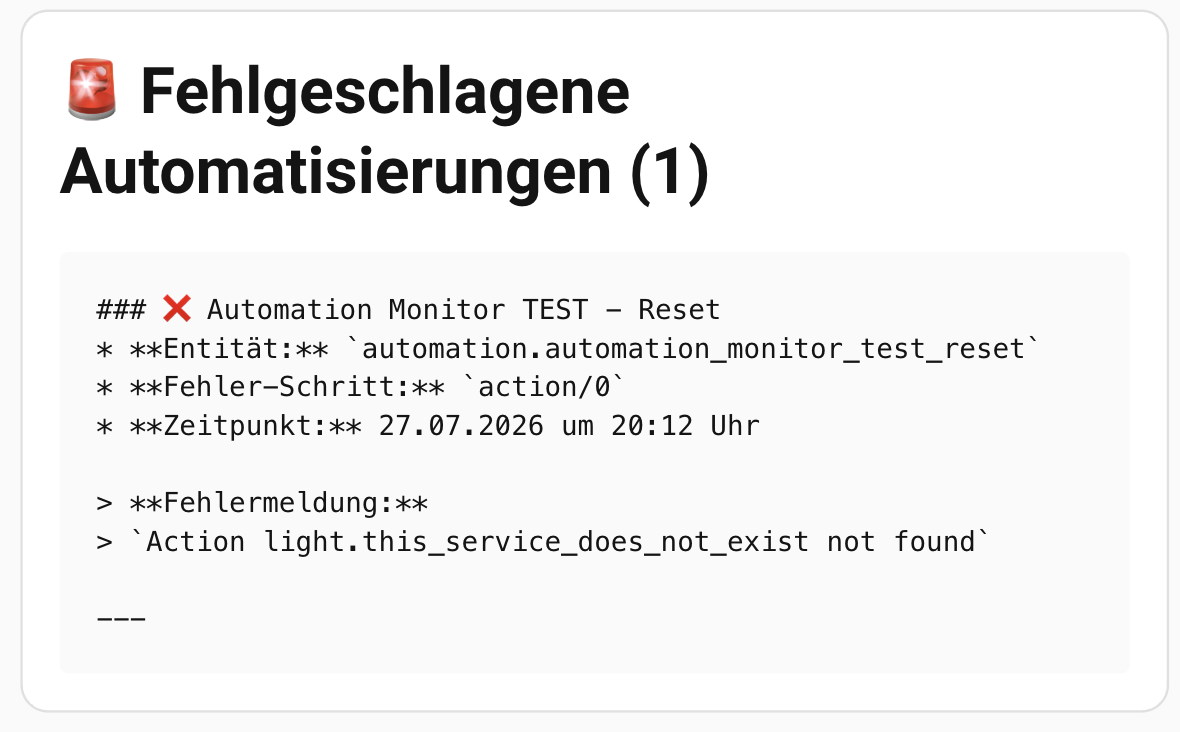
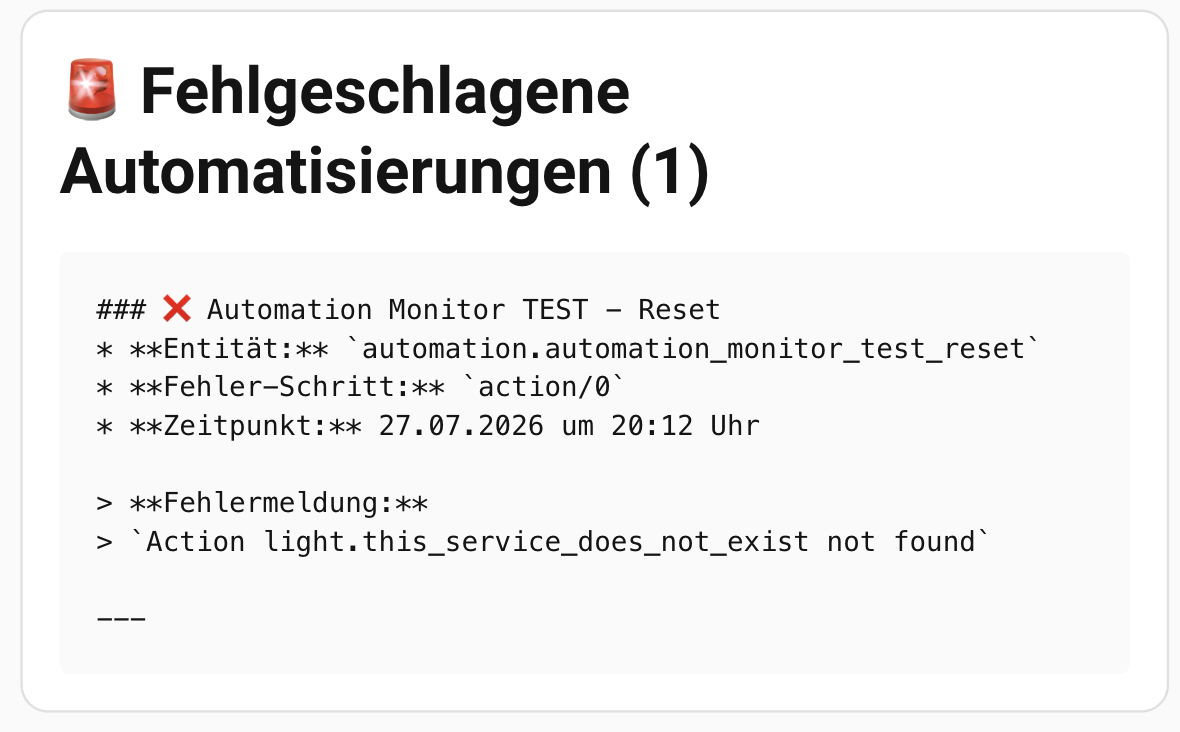
A more detailed variant, shared by community member ArnaudFeld (smarterkram.de forum) - a heading with the current failure count, one block per failed automation (name, entity_id, error step, formatted timestamp, error message), and a success message when there's nothing to report:
type: markdown
content: >
  {% set monitor_entity = 'sensor.failed_automations' %}
  {% set failed_list = state_attr(monitor_entity, 'automations') %}
  {% if failed_list is defined and failed_list and failed_list | length > 0 %}
    # 🚨 Fehlgeschlagene Automatisierungen ({{ failed_list | length }})

    {% for item in failed_list %}
      ### ❌ {{ item.name }}
      * **Entität:** `{{ item.entity_id }}`
      * **Fehler-Schritt:** `{{ item.error_step }}`
      * **Zeitpunkt:** {{ as_timestamp(item.last_error_time) | timestamp_custom('%d.%m.%Y um %H:%M Uhr') }}

      > **Fehlermeldung:**
      > `{{ item.error_message }}`

      ---
    {% endfor %}
  {% else %}
    # ✅ Automatisierungs-Monitor

    🎉 **Alles super!** Aktuell wurden keine fehlerhaften Automatisierungen erfasst.
  {% endif %}
Same pattern for the linked-entities sensor, using its entities attribute:
type: markdown
content: >
  {% for e in state_attr('sensor.linked_entities_unavailable', 'entities') %}
  **{{ e.name }}** - unavailable since {{ e.unavailable_since }}
  Used by: {{ e.referenced_by | join(', ') }}

  {% endfor %}
Recommended notification automation (documentation only, not part of the integration)
Want a push notification to your phone instead of (or alongside) the
built-in Repairs-issue toggles from Repairs issues above? Use this - a
Repairs issue is admin-only and lives in Settings → System → Repairs,
not something that pushes to your phone. Fires only when the failure
count increases (a genuinely new failure),
not on every state write and not when the count drops from a reset or a
retry succeeding. Diffs the automations list against its previous value
so the notification only covers the newly-added entries, even if several
failures land in the same update.
triggers:
  - trigger: state
    entity_id: sensor.failed_automations
condition: >
  {{ trigger.to_state.state | int(0) > trigger.from_state.state | int(0) }}
actions:
  - variables:
      previous_ids: >
        {{ trigger.from_state.attributes.automations
           | default([]) | map(attribute='entity_id') | list }}
      new_failures: >
        {{ trigger.to_state.attributes.automations
           | rejectattr('entity_id', 'in', previous_ids) | list }}
  - repeat:
      for_each: "{{ new_failures }}"
      sequence:
        - action: notify.notify  # replace with your actual notify target, e.g. notify.mobile_app_your_phone
          data:
            title: "Automation failed: {{ repeat.item.name }}"
            message: >
              {{ repeat.item.error_message }}
              ({{ repeat.item.error_step }}, {{ repeat.item.last_error_time }})
mode: queued
Replace notify.notify with a specific notify target (e.g.
notify.mobile_app_your_phone). mode: queued so that failures arriving
in quick succession each still get their own notification instead of
cancelling one another.
Comments