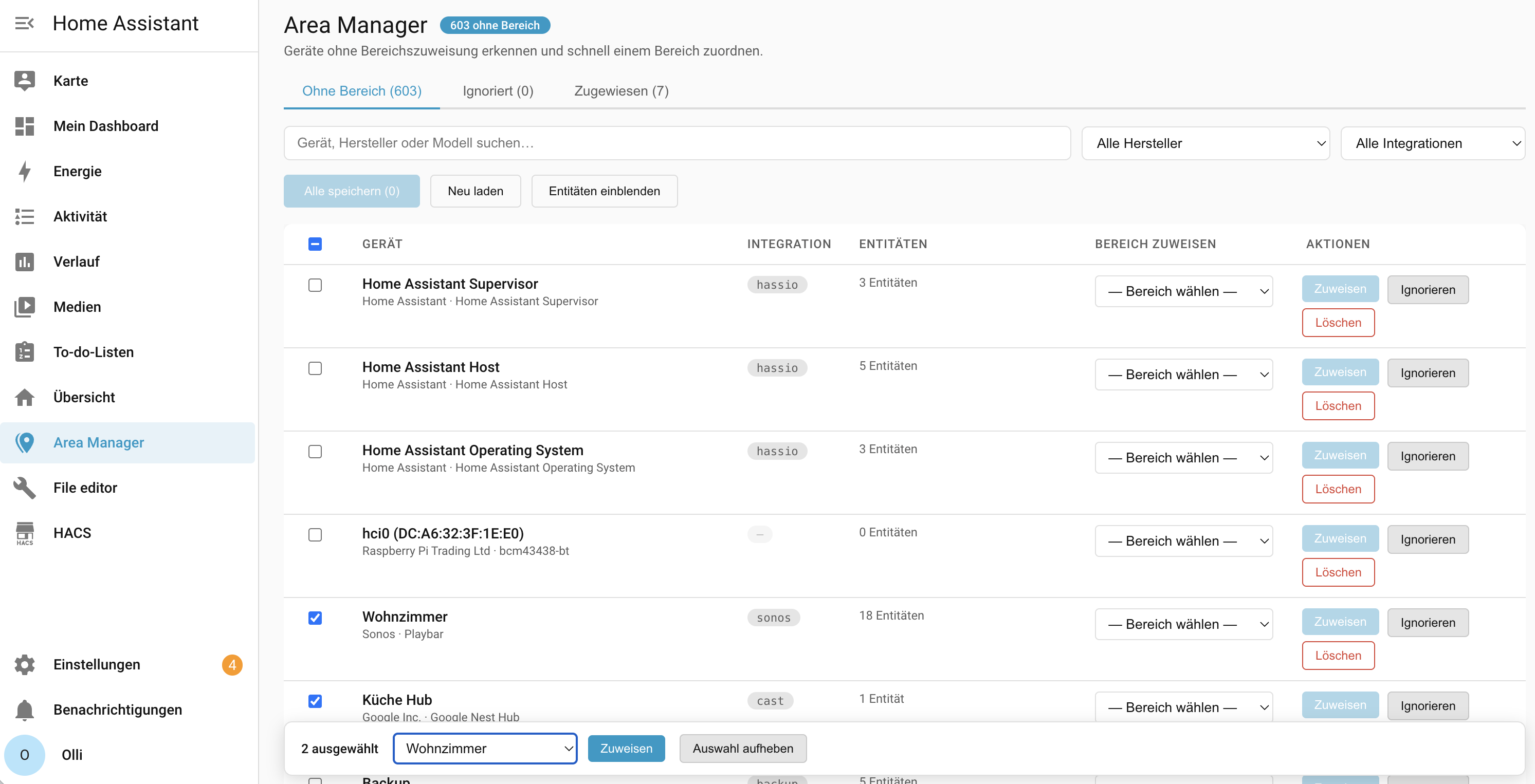
A Home Assistant custom integration that adds a sidebar panel for finding devices without an area assignment and quickly assigning them — without navigating through multiple settings pages.
📺 Watch the walkthrough video · 📝 Read the blog post (both in German)
See CHANGELOG.md for release notes (English/Deutsch).
Features
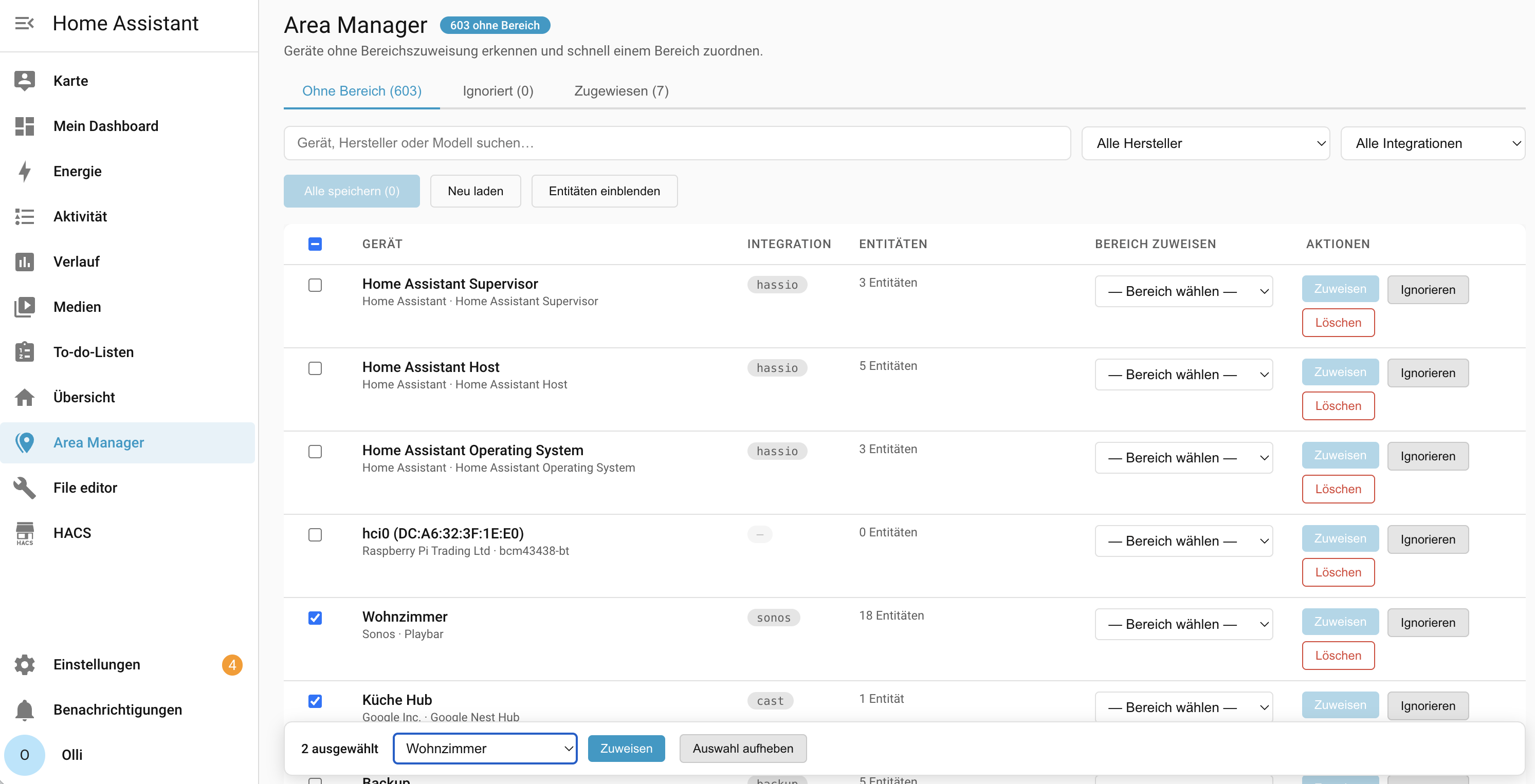
- Overview — lists all devices that have no area assigned yet
- Quick assignment — pick an area from a dropdown and assign per device or save all at once
- Bulk assignment — select multiple devices via checkbox and assign them all to one area at once; selection is preserved while filtering
- Assigned tab — review devices that already have an area and correct misassignments, including unassigning back to "Without area"
- Filter bar — search by device name, manufacturer, or model; filter by manufacturer or integration domain
- Device detail dialog — click any row to open a detail popup with device info and its full entity list
- Ignore list — mark devices that intentionally have no area (e.g. virtual or cloud-only devices); revisit and restore them at any time
- Delete devices — remove orphaned devices from the registry directly, with an inline confirmation step
- Persistent ignore list — ignored device IDs are stored in HA's
.storageand survive restarts - i18n — UI available in German and English, follows your HA language setting
Requirements
- Home Assistant 2024.1 or newer
- HACS installed
Installation
One-click (recommended)

Click the badge above to add this repository to HACS directly — it handles adding the custom repository and finding the integration for you. Then click Download and restart Home Assistant.
Via HACS (manual)
- Open HACS in your Home Assistant sidebar
- Go to ⋮ → Custom repositories
- Add
https://github.com/olli-dot-dev/ha-area-managerwith category Integration - Find Area Manager in the HACS integration list and click Download
- Restart Home Assistant
Manual
- Copy the
custom_components/area_managerfolder into your HAconfig/custom_components/directory - Restart Home Assistant
Setup
After installation and restart:
- Go to Settings → Devices & Services → + Add Integration
- Search for Area Manager and click it
- Confirm — no further configuration needed
The Area Manager entry appears in the sidebar immediately.
Usage
Assigning areas
| Step | Action |
|---|---|
| 1 | Open Area Manager in the sidebar |
| 2 | Browse the list of devices without an area |
| 3 | Use the filter bar to narrow down by name, manufacturer, or integration |
| 4 | Select an area in the dropdown for one or more devices |
| 5 | Click Assign per row, or Save all (n) for all pending changes at once |
Bulk assignment
Tick the checkbox on one or more rows (or the header checkbox to select all currently visible/filtered rows) to reveal a sticky bar at the bottom with an area dropdown, an Assign button, and a Clear selection button. The selection is kept even while you change the filter, so you can filter, select, filter again, and select more before assigning everyone at once. This works independently of — and alongside — the per-row dropdown.
Reviewing already-assigned devices
Open the Assigned tab to see every device that already has an area. Each row's dropdown is pre-filled with its current area; the Assign button only activates once you actually pick a different value. Choose "— No area —" to unassign a device (it moves back to the Without area tab). The same filter bar and bulk-selection mechanic from the Without area tab are available here too.
Device detail
Click anywhere on a row (outside buttons and the dropdown) to open the device detail popup. It shows manufacturer, model, integration, current area, and all entities belonging to that device. A Go to device page button navigates to HA's built-in device page.
Ignoring devices
Click Ignore on any row to move a device to the Ignored tab. Ignored devices are excluded from the unassigned list. Open the Ignored tab at any time to review the list and click Show again to restore a device.
Deleting devices
Click Delete on a row to remove the device from the HA device registry. An inline confirmation appears before anything is deleted. Use this for truly orphaned devices that no longer have an active integration.
Tabs
| Tab | Contents |
|---|---|
| Without area (n) | Devices with no area assigned and not ignored |
| Ignored (n) | Devices explicitly excluded from the unassigned list |
| Assigned (n) | Devices that already have an area, editable/correctable here |
Supported languages
| Language | Code |
|---|---|
| German | de |
| English | en (fallback) |
Pull requests for additional languages are welcome — add a block to TRANSLATIONS in area-manager-panel.js and a matching file in translations/.
Comments