[![GitHub Release][releases-shield]][releases] [![GitHub Activity][commits-shield]][commits] [![hacs][hacsbadge]][hacs]

Intelligent battery health monitoring for Home Assistant — automatically discovers all your batteries, learns their behavior, and tells you which ones actually need attention.
Stop guessing based on percentages. BatteryBrain classifies each battery by how it behaves and applies smart thresholds — so a coin cell sitting at 1% for months doesn't trigger a false alarm, but a steadily draining sensor gets flagged before it dies.
Key Features
- Zero-config auto-discovery — finds all battery entities automatically, including voltage-based and binary sensors
- Behavioral classification — categorizes batteries into 7 archetypes based on their actual drain patterns, not just a percentage
- Smart health status — each battery gets a Normal / Warning / Critical status using category-specific thresholds
- Stale detection — flags batteries that stop reporting
- Remaining lifetime estimation — for linear-drain batteries
- History seeding — imports up to 1 year of existing data from the HA recorder on first setup, so classification starts immediately
- Summary sensors — ready-made sensors for dashboards and automations
Installation
HACS (recommended)

- Open HACS in your Home Assistant instance
- Click the three-dot menu (top right) > Custom repositories
- Add this URL with category Integration:
https://github.com/larsbaum/battery_brain - Search for BatteryBrain and click Install
- Restart Home Assistant
- Go to Settings > Devices & Services > Add Integration and search for BatteryBrain
Manual Installation
- Download the latest release
- Copy the
custom_components/battery_brain/folder into your Home Assistantconfig/custom_components/directory - Restart Home Assistant
- Go to Settings > Devices & Services > Add Integration and search for BatteryBrain
Setup
After adding the integration, BatteryBrain starts working immediately:
- It discovers all battery entities in your system
- It imports historical data from the HA recorder (up to 1 year)
- After 7 days of data, it classifies each battery into an archetype
- It derives a health status for each battery based on its category
Note: If you have existing recorder history, most batteries will be classified right away. New batteries need about 7 days of data before classification.
Sensors
BatteryBrain creates four summary sensors:
| Entity | State | Attributes |
|---|---|---|
sensor.battery_brain_all_batteries |
Total number of monitored batteries | Per-battery details (category, status, value, confidence, stale) |
sensor.battery_brain_batteries_normal |
Count of healthy batteries | List of battery names and details |
sensor.battery_brain_batteries_warning |
Count of batteries needing attention | List of battery names and details |
sensor.battery_brain_batteries_critical |
Count of batteries needing replacement | List of battery names and details |
Each sensor carries detailed attributes for every battery in its group, including:
category— the detected archetype (e.g.linear,rechargeable)status— current health statuslast_value— last reported battery levelconfidence— classification confidence (default/low/medium/high)stale— whether the battery has stopped reportingsource_entity— the original entity ID
Use these attributes to build detailed dashboards or trigger automations.
Configuration Options
Access via Settings > Devices & Services > BatteryBrain > Configure:
| Option | Default | Description |
|---|---|---|
Scan for battery_level attributes |
Off | Also monitor entities that report battery level as an attribute instead of a dedicated sensor |
| Treat binary low-battery as critical | Off | Escalate binary battery sensors directly to critical instead of warning |
| Exclude entities | — | Select specific entities to exclude from monitoring |
| Developer Mode | Off | Enables debug logging and developer tools (see below) |
Battery Archetypes
BatteryBrain classifies each battery into one of 7 archetypes based on its behavior pattern. Each archetype uses different thresholds for health status — because a rechargeable at 15% means something very different than a linear-drain sensor at 15%.
| Archetype | Typical Devices | How It's Detected |
|---|---|---|
| Linear | Zigbee door/window sensors, motion sensors | Steady, roughly monotonic drain over time |
| Plateau-Cliff | Coin cell devices (CR2032) | Stays near 100% for a long time, then drops sharply |
| Rechargeable | Wall panels, phones, tablets | Regular charge/discharge cycles detected |
| Low-Stable | Sensors reporting 1% for months | Persistently low values with minimal variation |
| Voltage | Sensors reporting in V/mV instead of % | Detected by unit or value range (0.3 V – 20 V) |
| Binary | Simple low/normal battery indicators | Binary sensor with device_class: battery |
| Unknown | New batteries, insufficient data | Fallback until 7+ days of data are available |
Dashboard Examples
Quick Overview Card
A simple entities card showing the battery counts at a glance. No extra frontend cards required.
Show YAML
type: entities
title: Battery Brain
entities:
  - entity: sensor.battery_brain_batteries_critical
    name: Critical
    icon: mdi:battery-alert
  - entity: sensor.battery_brain_batteries_warning
    name: Warning
    icon: mdi:battery-low
  - entity: sensor.battery_brain_batteries_normal
    name: Normal
    icon: mdi:battery
  - entity: sensor.battery_brain_all_batteries
    name: Total Monitored
    icon: mdi:battery-heart
Detailed Battery Dashboard
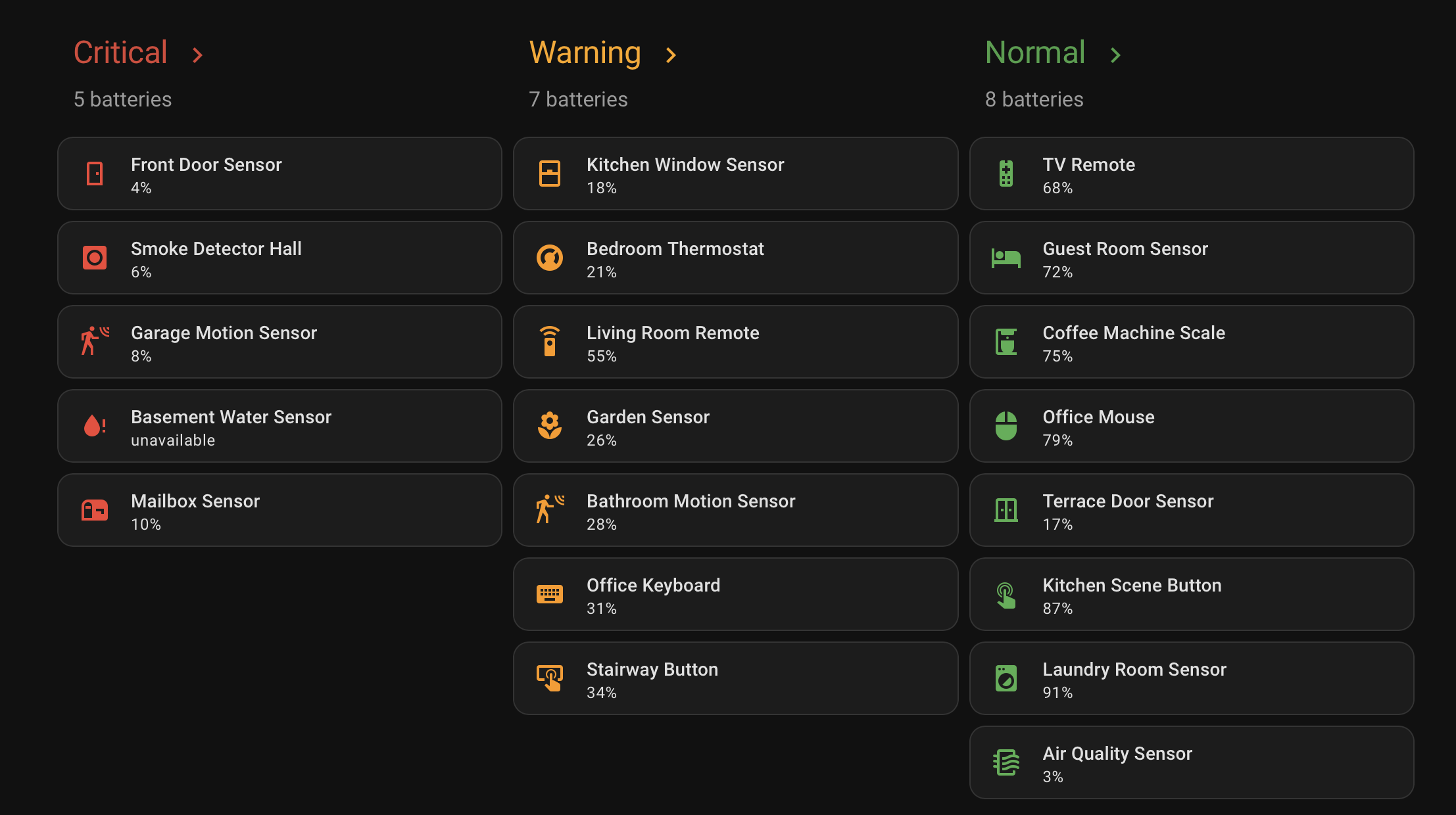
For a full battery overview grouped by health status, you can use auto-entities + mushroom cards. Each battery shows its current value, archetype, and confidence — color-coded by status.
Show dashboard YAML
Three columns side by side — critical, warning, normal — each with mushroom cards showing value, archetype, and confidence. Tap any card to open the entity details.
type: horizontal-stack
cards:
  - type: vertical-stack
    cards:
      - type: custom:mushroom-title-card
        title: Critical
        subtitle: "{{ states('sensor.battery_brain_batteries_critical') }} batteries"
        title_tap_action:
          action: more-info
          entity: sensor.battery_brain_batteries_critical
        card_mod:
          style: |
            ha-card { --title-color: var(--error-color, #db4437); }
      - type: custom:auto-entities
        card:
          type: grid
          columns: 1
          square: false
        card_param: cards
        filter:
          template: >
            {%- set ent = 'sensor.battery_brain_batteries_critical' -%} {%- set
            ns = namespace(cards=[]) -%} {%- for n in states[ent].attributes -%}
              {%- set d = states[ent].attributes[n] -%}
              {%- if d is mapping and d.source_entity is defined -%}
                {%- set ns.cards = ns.cards + [{'type': 'tile', 'entity': d.source_entity, 'color': 'red'}] -%}
              {%- endif -%}
            {%- endfor -%} {{ ns.cards }}
        sort:
          method: friendly_name
          ignore_case: true
        show_empty: false
  - type: vertical-stack
    cards:
      - type: custom:mushroom-title-card
        title: Warning
        subtitle: "{{ states('sensor.battery_brain_batteries_warning') }} batteries"
        title_tap_action:
          action: more-info
          entity: sensor.battery_brain_batteries_warning
        card_mod:
          style: |
            ha-card { --title-color: var(--warning-color, #ffa726); }
      - type: custom:auto-entities
        card:
          type: grid
          columns: 1
          square: false
        card_param: cards
        filter:
          template: >
            {%- set ent = 'sensor.battery_brain_batteries_warning' -%} {%- set
            ns = namespace(cards=[]) -%} {%- for n in states[ent].attributes -%}
              {%- set d = states[ent].attributes[n] -%}
              {%- if d is mapping and d.source_entity is defined -%}
                {%- set ns.cards = ns.cards + [{'type': 'tile', 'entity': d.source_entity, 'color': 'orange'}] -%}
              {%- endif -%}
            {%- endfor -%} {{ ns.cards }}
        sort:
          method: friendly_name
          ignore_case: true
        show_empty: false
  - type: vertical-stack
    cards:
      - type: custom:mushroom-title-card
        title: Normal
        subtitle: "{{ states('sensor.battery_brain_batteries_normal') }} batteries"
        title_tap_action:
          action: more-info
          entity: sensor.battery_brain_batteries_normal
        card_mod:
          style: |
            ha-card { --title-color: var(--success-color, #43a047); }
      - type: custom:auto-entities
        card:
          type: grid
          columns: 1
          square: false
        card_param: cards
        filter:
          template: >
            {%- set ent = 'sensor.battery_brain_batteries_normal' -%} {%- set ns
            = namespace(cards=[]) -%} {%- for n in states[ent].attributes -%}
              {%- set d = states[ent].attributes[n] -%}
              {%- if d is mapping and d.source_entity is defined -%}
                {%- set ns.cards = ns.cards + [{'type': 'tile', 'entity': d.source_entity, 'color': 'green'}] -%}
              {%- endif -%}
            {%- endfor -%} {{ ns.cards }}
        sort:
          method: friendly_name
          ignore_case: true
        show_empty: false
grid_options:
  columns: 24
  rows: auto
Requires HACS frontend cards: auto-entities and mushroom.
Troubleshooting
Common Issues
Some batteries are not discovered
BatteryBrain discovers batteries in three ways:
- Sensors with
device_class: battery - Sensors with
device_class: voltagein the 0.3 V – 20 V range - Binary sensors with
device_class: battery
If a battery is missing:
- Check that the entity has the correct
device_classset - Enable "Scan for battery_level attributes" in the integration options — some integrations report battery level as an attribute rather than a dedicated sensor
- Make sure the entity is not in the excluded entities list
- Wait for the next scan cycle (every 5 minutes)
A battery is classified incorrectly
Classification improves over time as more data becomes available. Confidence levels:
- default — less than 7 days of data, using fallback thresholds
- low — 7–14 days
- medium — 14–30 days
- high — 30+ days of data
If a battery is still misclassified after 30+ days, please report it as an issue (see Reporting Issues below).
A battery shows as "critical" but is still working fine
This can happen when:
- The battery reports very low percentages but is still functional (common with some Zigbee devices). BatteryBrain should eventually classify this as
low_stableand stop alerting. - The battery has stopped sending updates and is marked as
stale. Check if the device is still online.
If the issue persists, please report it.
No batteries found after installation
BatteryBrain runs a second discovery pass after Home Assistant is fully started, because some integrations (Mobile App, Zigbee2MQTT, etc.) load after BatteryBrain. If batteries are still missing after a few minutes, try restarting Home Assistant once more.
Reporting Issues
If you encounter a problem, please open an issue on GitHub. To help us diagnose the problem, include:
- What battery is affected — the entity ID (e.g.
sensor.kitchen_motion_battery) and what kind of device it is - What you expected vs. what happened (e.g. "classified as
rechargeablebut it's a CR2032 coin cell") - The log file — BatteryBrain writes a daily log file at:
Attach the log file from the day the issue occurred (or the last few days). The log contains classification events and state changes that are essential for debugging.config/battery_brain/logs/YYYY-MM-DD_batterybrain_logging.jsonl - A screenshot of the battery's history graph from Home Assistant (the entity's History tab) — this helps us understand the drain pattern
Privacy: The log files only contain battery entity IDs, values, and classification data. No personal information is logged.
Developer Mode
For advanced debugging, you can enable Developer Mode in the integration options. This provides:
- Debug log file at
config/battery_brain_debug.jsonl— verbose logging with full classification details - Test Mode switch — for development only, accelerates time by 200x (destroys real sensor data — do not use in production!)
- Reclassify button — forces immediate reclassification of all batteries
How It Works (Technical Details)
Discovery
Every 5 minutes, BatteryBrain scans all entities for:
sensorentities withdevice_class: batterysensorentities withdevice_class: voltageand values between 0.3 V – 20 V (filters out mains voltage sensors)binary_sensorentities withdevice_class: battery- Optionally: any entity with a
battery_levelattribute
History & Storage
- On first discovery, imports up to 365 days of history from the HA recorder (Long-Term Statistics first, raw states as fallback)
- Stores the last 30 days of raw data points (hourly resolution)
- Aggregates older data into daily summaries (up to 365 days)
- All data is stored locally in
.storage/battery_brain— independent of the HA recorder
Classification
Batteries are classified after 7+ days of data. The classification algorithm checks archetypes in this order (first match wins):
- Binary — is it a binary sensor?
- Voltage — does it report in volts?
- Rechargeable — are there gradual charge/discharge cycles?
- Low-Stable — is it stuck at a low value with minimal variation?
- Plateau-Cliff — does it stay near max and then drop sharply?
- Linear — is it steadily declining?
- Unknown — fallback
Reclassification runs automatically every hour.
Status Derivation
Each archetype has its own thresholds:
| Archetype | Warning | Critical |
|---|---|---|
| Linear | ≤ 20% | ≤ 10% |
| Plateau-Cliff | < 95% of plateau | < 70% of plateau |
| Rechargeable | ≤ 15% | ≤ 5% |
| Low-Stable | Deviation from stable floor | Large deviation from floor |
| Voltage | ≤ 25% of range | ≤ 10% of range |
| Binary | Low signal | Low for 3+ days |
| Unknown | ≤ 20% | ≤ 10% |
Requirements
- Home Assistant 2024.6 or newer
- HACS (for easy installation — manual install also works)
- The Recorder integration must be enabled (it is by default)
Comments