
⚠️ Unofficial, community-built integration. Not affiliated with, endorsed by, or supported by Geely. Use at your own risk.
A security-hardened Home Assistant integration for Geely vehicles that use the Geely Global / International mobile app. Owner-tested on the Geely EX5 (Europe, Australia and Brazil - battery-only) and the Geely Starray PHEV (Australia, petrol + plug-in); it is capability-driven, so other Geely models should work too - only the entities your specific car reports are created, and a car with a tank gets the fuel and engine ones on top.
It talks directly to Geely's own cloud - the same servers the official app uses
- and adds a hardened transport, full data exposure, efficient polling and a polished setup on top.
What the app cannot do remotely, this cannot either. Every command here goes through the same cloud the official app talks to, so the app is the ceiling rather than a starting point. The powered tailgate is the worked example: the car opens it from the key fob and its own screen, and neither the app nor this integration can - the module that would execute it has no handler for the command at all (#20). Anything the car offers only on its own touchscreen is likely to be in the same position.
✨ Highlights
- 🔒 Security-first - verified TLS plus public-key pinning.
- 📊 Everything enabled - all 74 entities are on from the start (87 on a hybrid), no duplicates, nothing to switch on by hand.
- 🧮 Computed extras - charging power, charge completion time, range at full charge and efficiency, none of which the car reports itself.
- ⛽ Hybrids and PHEVs - fuel level and range, engine state, oil and coolant, the tank flap, and the lifetime split between petrol and battery kilometres, all added automatically when the car has a tank.
- 🔋 Efficient polling with selectable modes (Eco / Normal / Live / Manual), changeable at any time.
- 🌍 EU, North-American and APAC backends, detected from the vehicle.
- 🗣️ Translated setup - the configuration dialogs are in English, Hebrew, Arabic, Russian and French. Entity names follow Home Assistant's own language.
- 🖥️ Five built-in dashboard cards - a full cockpit with a complete climate panel, a top-down status view, a compact tile, a mini square and a one-row strip - registered automatically, plus ready-made automations and Blueprints
- 🚗 The cards stand down while you drive - a banner instead of buttons the car would refuse, keyed on the ignition rather than a speed field that reads zero at every red light.
- 🧭 Navigate to the car in Google Maps, Waze, Apple Maps or HERE WeGo, straight from the card.
- ⛽ A car with a tank reads differently - combined range as the headline with the two halves under it, a second bar for the tank, and the engine state.
- ⏱️ One command at a time - the car drops a command that arrives while it is still working, so the cards space them out and the temperature stepper sends once you stop tapping instead of once per tap.
- 🩺 A diagnostics report worth reading - poll health, the last 25 commands with their outcomes, and the raw capability catalogue, all redacted.
- 📈 Long-term statistics on every numeric entity, so history survives the recorder's purge window.
📚 Contents
- Installation · Updating
- The built-in dashboard cards
- Sensors · Controls
- Polling modes
- Automations, dashboards & widgets
- Troubleshooting & debugging
- Security · Supported regions
- Changing settings later · Known limitations
- Repository structure · License & credits
📥 Installation (HACS)
Geely Connect is in the HACS default store, so there is no repository URL to add.
One-click:
Or manually:
- HACS → search Geely Connect → open it → Download, then restart Home Assistant
- Settings → Devices & Services → Add Integration → Geely Connect
- Enter your email, pick country / tire-pressure unit / polling mode, then enter the 6-digit code sent to your inbox
The repository doesn't show up in HACS?
- Clear any active filters in the HACS search box, and make sure you are looking under Integrations.
- HACS caches its repository list. Force a refresh with ⋮ → Reload data on the HACS main page.
Added it as a custom repository before? It still works, but you can tidy up: HACS → ⋮ → Custom repositories → 🗑 next to this repository. Removing the custom repository entry does not uninstall the integration - the store copy takes over and updates continue normally.
Manual installation
Copy custom_components/geely_connect/ into config/custom_components/ and
restart.
🛜 Setup times out? Check these hosts are reachable
The whole setup flow runs from the Home Assistant machine - not from your browser - so VPNs or DNS settings on the laptop don't matter, only the network the HA box itself is on. During setup it must reach:
| Host | Where | When |
|---|---|---|
captcha4.geely.com |
🇨🇳 China (Alibaba, Hangzhou) | Login only - the captcha that runs before the email code |
access-app-global.geely.com |
🇩🇪 Frankfurt | Login only - sends the email code, exchanges the OTP |
m-lcmsam-eu.geely.com |
🇩🇪 Frankfurt | Login only - the vehicle list |
api.ecloudeu.com |
🇩🇪 Frankfurt (AWS) | Once at setup - provisions the certificate |
apis.ecloudeu.com |
🇩🇪 Frankfurt (AWS) | Ongoing - every poll and every command |
An APAC-market car uses the Korean pair instead: api.ecloudkr.com and
apis.ecloudkr.com (AWS, Seoul/Incheon) plus m-lcmsam-kr.geely.com.
Blocking China after setup is fine. Only the captcha lives there, and only
the login touches it - day-to-day polling and commands never do. Lift the block
when you add a car, or if Home Assistant ever asks you to re-authenticate.
Note the captcha host resolves through *.geely-auto-gtm.com to rotating
Alibaba addresses, so a static IP allowlist will not hold; scope a firewall
rule to the Home Assistant machine instead.
If the form spins and then reports the captcha server as unreachable, the usual culprits are DNS filtering (Pi-hole / AdGuard / router blocklists that include Chinese domains) or firewall geo-blocking of Chinese IP ranges. Test from the HA box itself:
curl -sv --connect-timeout 10 https://captcha4.geely.com/ -o /dev/null
# or, if curl is missing:
python3 -c "import socket;s=socket.create_connection(('captcha4.geely.com',443),10);print('TCP OK ->',s.getpeername());s.close()"
A healthy DNS answer chains through geely-auto-gtm.com to
*.cn-shanghai.alb.aliyuncsslb.com; if your resolver returns 0.0.0.0 or a
private address instead, allowlist captcha4.geely.com,
*.geely-auto-gtm.com and *.aliyuncsslb.com and try again.
🔄 Updating
You never need to remove and re-add the integration. Your vehicle, history, automations and dashboards all survive an update.
- HACS → Geely Connect → Update
- Restart Home Assistant - always required. Python caches modules it has already imported, so Reload on the integration rebuilds the entities from the code already in memory and will not pick up a new version.
Turn on HACS → ⋮ → Settings → Show notification when a new version is available and updates also appear under Settings → Updates alongside everything else.
No update showing?
- HACS refreshes repository data on a timer. Force it: HACS → Geely Connect → ⋮ → Update information, or ⋮ → Reload data on the HACS main page.
- If you installed before the first release existed, HACS is tracking the
branch, not releases, and has no version to compare against. Fix it once:
⋮ → Redownload → pick a version such as
v1.4.0from the dropdown. Every later release then shows up as a normal update. - Conversely, choosing main in that same dropdown tracks the branch, so every push is available immediately without waiting for a release - handy while a change is being tested.
🖥️ Dashboards & cards
The big cards link straight to the car in your map app. Google Maps and Waze by default, with Apple Maps and HERE WeGo available through
nav:- links under the actions, from the position the car reported. Not commands, so they keep working while the car is being driven, which is exactly when someone wants them, and absent until the car has actually reported where it is.
One command at a time. The car refuses a command that arrives while it is still executing the last one, and the refused command is dropped, not queued - so the tap is lost and Home Assistant raises "the last request has not yet been executed". The cards hold every control for three seconds after each command and grey them out while they wait, then hand them all back at once. The greying is done on the buttons themselves, not by redrawing the card, so nothing moves on screen. The temperature stepper does not send per tap at all: it writes the new number straight into the display and tells the car once you stop tapping, and it keeps showing your number until the car confirms it - so it never flicks back to the old target while the command is in flight. A command refused because the car was busy is retried once, quietly, since it never ran.
cooldown:in the card config changes the wait (seconds; 0 turns it off). Nothing can report when the car has actually finished - the gateway acknowledges receipt, not execution - so this is a spacing, not a status.
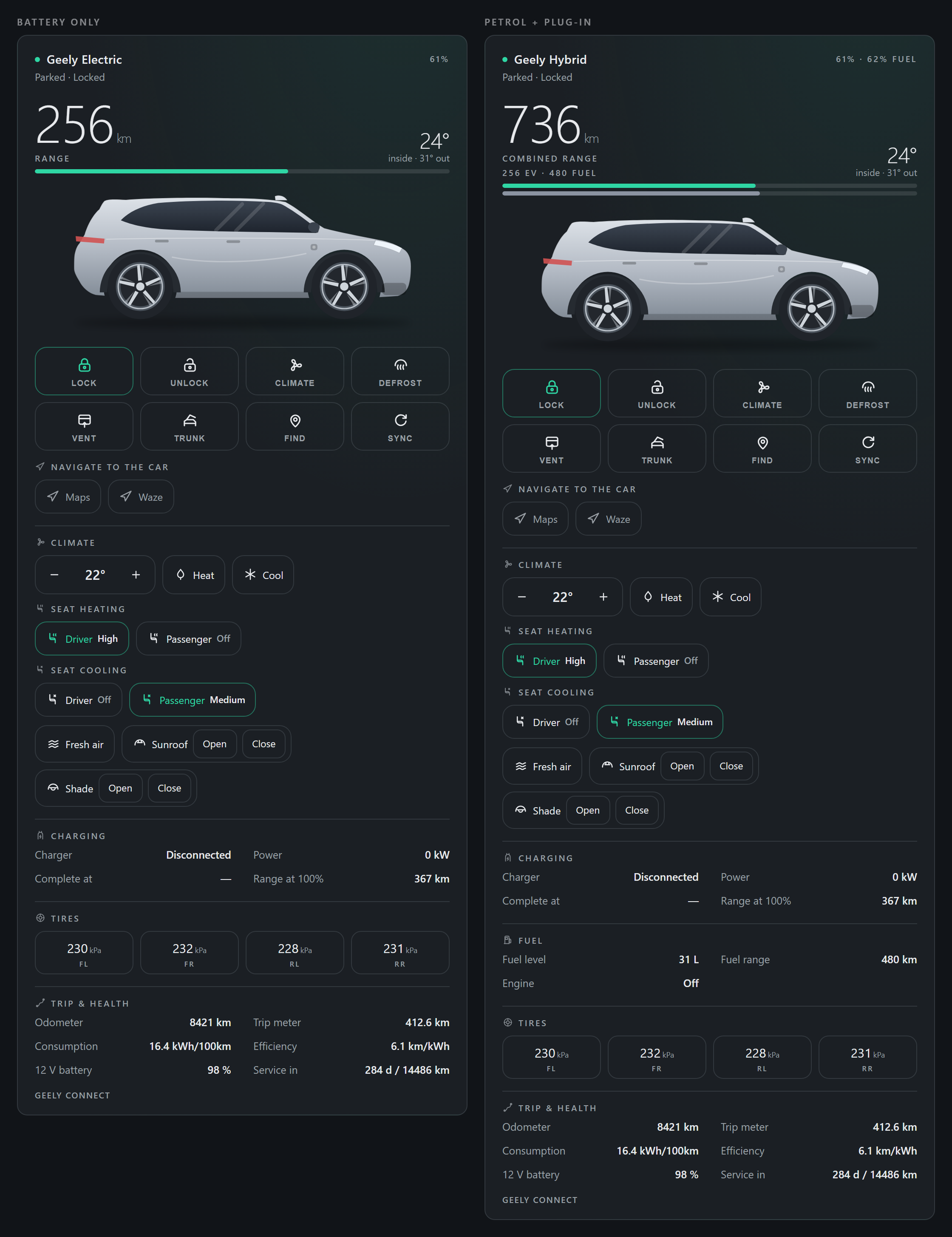
The cards read a car with a tank differently from a battery-only one. The integration only creates the fuel entities when it has decided the car has a tank, so their presence is what the cards go by - no configuration. On a hybrid or plug-in hybrid the headline becomes the combined range, because the electric range alone understates how far the car can go by hundreds of kilometres, with the two halves spelled out under it ("256 EV · 480 fuel"). There is a second bar for the tank - one bar cannot say which tank it means - both percentages in the header, and a Fuel section carrying the level, the fuel range and whether the engine is running. A trim that reports only some of those figures falls back through them rather than showing a dash, and a car with a tank but no traction battery gets the fuel bar on its own instead of an empty battery bar implying it cannot move. The mini card shows no bar or percentage on any car by design, so there the difference is the number itself. See both side by side.
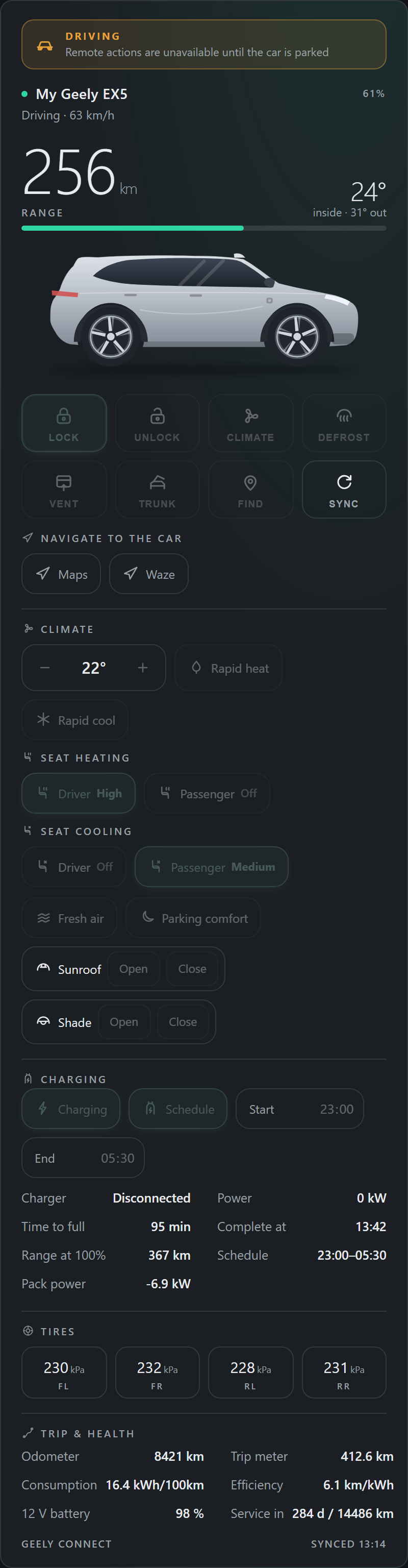
While the car is being driven, every card locks itself. The three larger cards show a banner - "Driving · remote actions are unavailable until the car is parked" - and the two one-row cards say the same thing on their status line; every button and time field is greyed out, and the handler refuses the command even if a button is reached another way. Refresh Data stays live, because it reads the car rather than commanding it, and a moving car is when fresh data is worth most. Driving means engine running or any speed, the same test the poller uses - speed alone reads 0 at every red light, and a lock keyed on it would hand the buttons back at each stop. A car that reports neither field is never locked.
🚙 The built-in cards - zero setup
The integration ships five custom cards and registers them by itself - no HACS frontend package, no resource to add, nothing to copy. Open any dashboard, Add card, and search "Geely":
| Card | What it is |
|---|---|
Geely Card (custom:geely-card) |
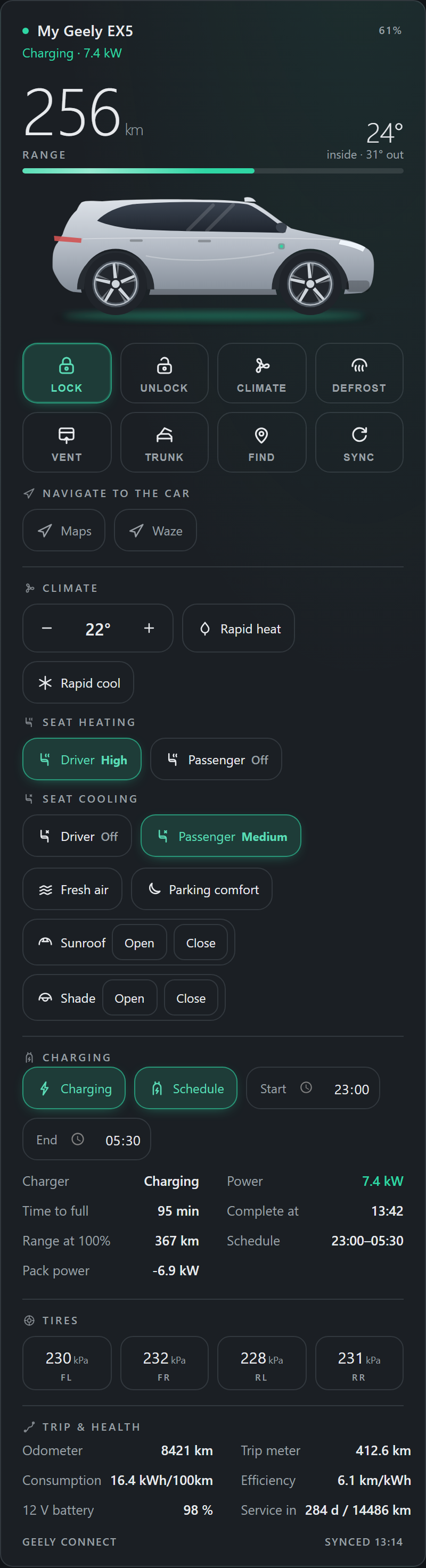
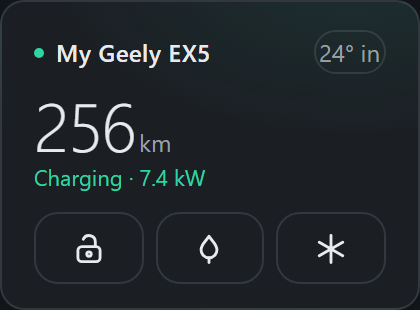
The full cockpit: range and battery up top, the EX5 silhouette that glows while charging and flags every opening, one-tap Lock / Unlock / Climate / Defrost / Vent / Trunk / Find / Sync, a full climate panel (temperature, rapid heat / cool, seat heating and cooling, fresh air, sunroof and shade), charging and schedule toggles with editable start / end times, links that navigate you to wherever the car is parked, then charging, tires, trip and service health - each block hides itself when the car doesn't report it |
Geely Card (top view) (custom:geely-card-top) |
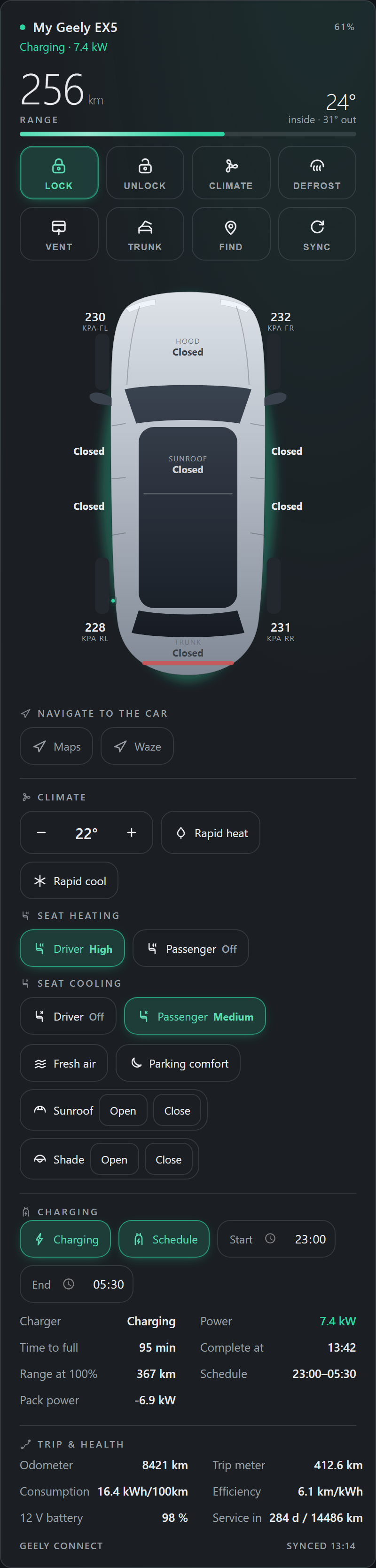
The car from above: tire pressure beside each wheel, bold live status on every door, the hood, the sunroof and the trunk - with the same header, actions and climate panel. The driver's door follows your market automatically (right-hand-drive countries show it on the right; rhd: true/false in the card config overrides) |
Geely Card (compact) (custom:geely-card-compact) |
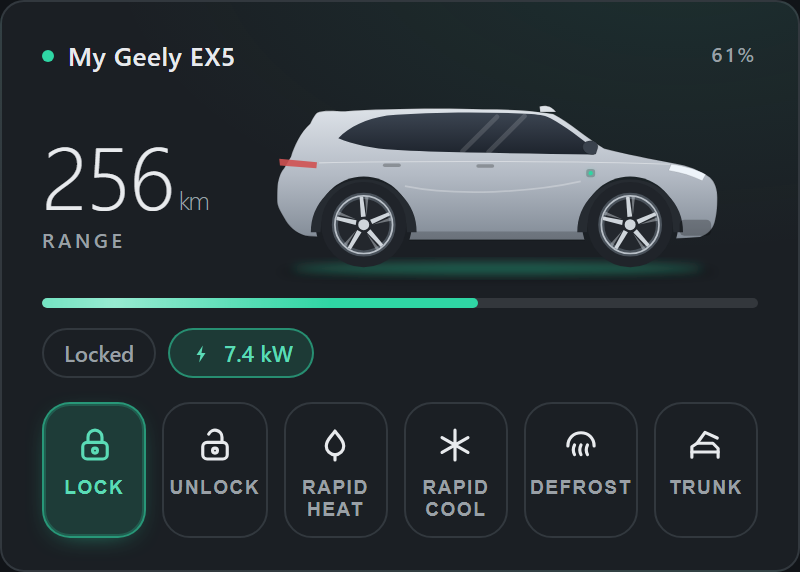
The essentials in one tile: battery, range, status chips - and Lock, Unlock, rapid Heat / Cool, Defrost and Trunk |
Geely Card (mini) (custom:geely-card-mini) |
A small square: range, cabin temperature, status, a lock button that follows the car (locked offers Unlock, unlocked offers Lock), and one-tap quick heat / quick cool |
Geely Card (strip) (custom:geely-card-strip) |
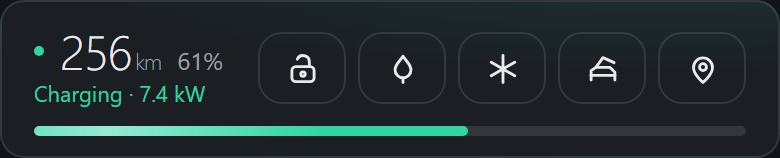
One row: range, battery and lock state, with lock, rapid heat / cool, trunk and find as icon buttons - for the top of a dashboard or a narrow column |
| Full | Top view |
|---|---|
 |
 |
| Compact | Mini |
|---|---|
 |
 |
And the same card while the car is being driven. The banner replaces the guesswork, every control is greyed out, and Sync stays live because it reads the car rather than commanding it. The navigation links keep working too - they open a map, they do not touch the car.
The same card, two different cars. Nothing is configured: the integration only creates the fuel entities once it has decided the car has a tank, so the cards go by whether those entities exist. On the right the headline is the combined range with the two halves under it, there is a second bar for the tank, the header carries both percentages, and a Fuel section reports the level, the fuel range and whether the engine is running.
With one Geely on the account the cards find their entities on their own - even after you rename them. With several cars, point each card at one:
type: custom:geely-card
prefix: my_geely_ex5      # the slug in sensor.my_geely_ex5_battery
Everything else is optional:
| Option | Default | What it does |
|---|---|---|
nav: |
[maps, waze] |
Which navigate-to-the-car links to show, in this order. Any of maps (Google Maps), waze, apple (Apple Maps), here (HERE WeGo). An empty list hides the row |
nav_travel: |
the app's own default | walking, driving, transit or bicycling, passed to the apps that accept it. Left unset on purpose: you walk to a car parked round the corner and drive to one left at the airport, and the app guesses better than the card can |
cooldown: |
3 |
Seconds to hold the controls after a command, so the next one does not arrive while the car is still executing the last. Everything is handed back in one go, and the card is not redrawn to do it. 0 turns the wait off |
driving_lock: |
true |
Set false to keep the controls live while the car reports itself moving. Worth knowing about: the engine flag can stick on, and this is how you get the buttons back if it does |
boot: |
by country | true labels the tailgate Boot, false Trunk |
rhd: |
by country | true draws the driver on the right in the top view, false on the left |
name: |
the device name | A different title for this card |
type: custom:geely-card
nav: [apple, here]        # an iPhone with HERE WeGo on it
nav_travel: walking       # you are walking to the car
The climate panel
The full and top-view cards carry a complete Climate section:
- Temperature stepper - bound to the climate entity's own min / max / step (15.5-28.5 °C in 0.5° steps on the EX5), so it can never send a value the car refuses.
- Rapid heat / Rapid cool - the car's own Rapid Warming / Rapid Cooling presets, which drive the setpoint to its maximum or minimum and run the seats too, exactly as the official app does. They are labelled rapid because they are not a plain "start heating", and an owner reasonably read the old labels that way.
- Seat heating / Seat cooling per front seat - each tap steps Off → Low → Medium → High → Off.
- Fresh air (G-Clean), Parking comfort, Wheel heat (on cars that have a heated steering wheel), and Open / Close for the sunroof and the sunshade. Parking comfort never lights up, deliberately: the car does not report whether it is on - the field that looks like its flag reads 1 with the feature off - so the button toggles it without claiming a state.
- Every block hides itself on a trim that lacks the entity - and there is no fan-speed control because the car's cloud API simply has none.
Two touches worth knowing: Unlock and Trunk arm on the first tap and fire
on the second (a stray touch on a wall tablet can't open the car), and the
accent colour follows the state - teal while charging, amber when something
needs a look. --geely-accent / --geely-warn theme variables override both.
The cards also read your Home Assistant country for two bits of local
wording and layout: the boot is labelled Boot where English-speakers call it
that and Trunk elsewhere, and the driver's door is drawn on the correct side
in right-hand-drive markets. Both are overridable per card with boot: true
/ false and rhd: true / false.
If a card ever misbehaves
The picker holds one more entry, Geely Card (status vX.Y.Z) - a plain text tile that always renders, shows which version of the card script is actually running in your browser, and reports the registration timeline. If a card sticks on a spinner or looks outdated after an update, a screenshot of that tile is the whole bug report. (Old cards after an update usually mean a cached copy: update, restart Home Assistant, then hard refresh - or Reset frontend cache in the companion app.)
The YAML card and view files that used to live in
cards/andviews/are gone - the built-in cards replace them and stay current on their own.
📊 What you can see (sensors)
All of these are created enabled - nothing to switch on by hand.
Battery & charging
| Entity | Description |
|---|---|
| Battery | State of charge (%) |
| Electric Range | Remaining driving range (km) |
| Charger Connection | Disconnected / Plugged in / Charging. Reads Charging whenever the car actually is, including DC fast charges - some cars leave the underlying field on "Plugged in" for the whole session |
| Charger Plug | Binary - cable connected |
| Time To Full Charge | Minutes remaining while charging (the car's own countdown, blank when it has no estimate) |
| Average Consumption | Energy use (kWh / 100 km), lifetime |
| Trip Consumption | kWh/100 km for the current trip, next to the lifetime figure |
🔋 Range at full charge - two honest answers
This entity can be read two ways, and they differ by more than half on the same car. One owner's card said 426 km while the same card showed his lifetime consumption at 22.7 kWh/100 km - which on a 60.22 kWh pack is 265 km. Both numbers are real:
- The car's own estimate, scaled to 100% (the default). Inherits whatever the car assumed about the driving to come, which lands near the rated figure.
- The range at this car's measured consumption - pack size x the efficiency the car itself reports. What it actually does, in the driving it has actually had.
The second needs the pack size, and nothing in the payload carries it. It cannot be guessed either, because it is not one number per model:
| Pack | Claimed range | Which cars |
|---|---|---|
| 49.52 kWh | 440 km CLTC · ~275 km WLTP | standard-range EX5 |
| 60.22 kWh | 530 km CLTC · ~495 km NEDC · ~425 km WLTP | the long-range EX5 most export markets got first |
| 68.39 kWh (2025→) | 610 km CLTC · 475 km WLTP on Complete (18-inch wheels) · 450 km WLTP on Inspire (19-inch wheels, glass roof) | the bigger pack from the 2025/26 update |
Note the last row: the same pack, same model, 25 km apart on trim alone - wheels and weight. That is why the integration will not pick a number for you.
Set usable battery capacity (kWh) in Configure (see
Changing settings later) and the entity
switches to the measured figure. Leave it at 0 and nothing changes. Either way
both numbers, and which one is being shown, are in the entity's attributes -
method, at_measured_consumption_km, car_estimate_scaled_km - so the two can
always be compared instead of one of them looking like a bug.
Driving & trip
| Entity | Description |
|---|---|
| Speed / Average Speed | Current & average speed (km/h) |
| Trip Meter | The car's own trip meter A - the one the driver resets on the dash, not a single journey |
| Total Mileage | Odometer (km) |
| Engine State | Off / Running |
| Park Brake | Engaged / Released |
Climate
| Entity | Description |
|---|---|
| Interior Temperature | Cabin temp (°C) |
| Exterior Temperature | Outside temp (°C) - treat with suspicion, see Known limitations. Owners of both the Starray and the EX5 have measured it ten degrees out |
| Steering Wheel Heating | On / off, on the trims that have it. The reading was measured on a real car: 1 means heating at any level, 2 means off. A car that reports 0 does not have the feature and the entity says unknown rather than a confident "off" - the evidence is a comparison across models: an EX5 whose capability catalogue does advertise a heated wheel reads 2 with it switched off, while three Starrays read 0. The app's own command was captured and confirmed to turn the wheel on (#4), so there is also a controllable Steering Wheel Heat switch (and a card button) reading the same field |
Tires
Three sets of four, one reading each corner:
| Entity | Unit |
|---|---|
| Tire Front-Left / Front-Right / Rear-Left / Rear-Right | Always the unit you picked at setup |
| Tire Pressure FL / FR / RL / RR | Whatever Home Assistant decides |
| Tire Temperature FL / FR / RL / RR | °C, from the same TPMS sensors - and the closest thing to an ambient reading this payload has on a car that has stood a while, see Outside temperature |
Use the first set. The second carries device_class: pressure, which hands the
display unit to Home Assistant: it reads suggested_unit_of_measurement only
when the entity is first registered and falls back to the unit system after
that, so an install created before you picked psi keeps showing kPa forever no
matter what the integration reports. The first set has no device class, so
nothing converts it and the setup choice is honoured - on a fresh install, on
an existing one, and again whenever you change the unit under Configure.
The originals stay, so anything already pointing at them keeps working.
If the card shows
—for all four tires, check that the first set is enabled: the card reads those four and nothing else, so disabling them as duplicates - a reasonable thing to do on seeing three sets - empties the panel while every other view keeps working from the second set (#39).
All three units are always there. Each of the four carries psi, bar and
kPa attributes, whatever the state itself is showing - so a card or template
can take whichever it wants without depending on the setup choice:
# psi regardless of what the sensor's own unit is
{{ state_attr('sensor.my_geely_ex5_tire_front_left', 'psi') }}
Miles instead of kilometres
There is no setting for this in the integration, because there does not need to
be: every distance and speed entity carries device_class: distance or
speed, so Home Assistant does the conversion itself - including in
long-term statistics, which a template sensor would lose.
- One entity - open it, press the gear, set Unit of measurement to
mi(ormph). Range, odometer, trip meter, distance to service and both speeds can each be set on their own. - All of them - Settings → System → General → Unit system → US customary changes the default for every entity nobody has overridden.
The cards follow whatever the entity says rather than assuming: the range tile
and the driving banner print mi and mph when that is what the entity is in
(#37).
Body (open / closed)
Driver door, Passenger door, Rear-Left door, Rear-Right door, Trunk, Hood, Driver seatbelt.
The Trunk Lock sensor is worth knowing about separately: it reads the tailgate's own latch, not whether the gate is open. On the cars in #20 the Unlock Trunk button releases that latch without the gate moving, and until now the only feedback was the indicators flashing - so this is how you tell whether the command did anything.
Maintenance & health
| Entity | Description |
|---|---|
| 12V Battery / 12V Voltage | Auxiliary battery level & voltage |
| Days To Service / Distance To Service | Maintenance intervals |
Location
Location (device tracker) - GPS position on the map, with altitude.
🧮 Computed - not reported by the car
| Entity | Description |
|---|---|
| Efficiency | km per kWh, derived from average consumption |
| Charge Complete | When charging finishes, as a time rather than a minute count - so a notification can fire on it |
| Charging Power | How fast the car is charging, in kW. The car reports volts and amps but never their product, so this is the only place the charge rate exists. A real power entity, so it records long-term statistics and can be graphed alongside your house load. Reads 0 kW unless the car is genuinely charging: the connection field alone is not enough, because some cars never move it off "Plugged in" through an entire DC fast charge, so the DC contactor and the sign of the pack current count as well. Without that gate the pack pair - which carries traction current while you drive - publishes a 17 kW "charge" on the motorway |
| Charge Voltage / Charge Current | The two halves behind that number (diagnostic). Worth a look when a charge is slower than expected - a derated circuit shows up as low current, not low voltage. The car sends an AC pair and a DC pair and never labels them, so the DC contactor decides which one is live: closed means a DC session, open means the AC leg. Comparing the two by apparent power used to do this job and was wrong - one car reports a nonsense 1586 V on the DC pair during AC charging, which won that comparison and published 25 kW on a 6 kW wallbox |
| Pack Power | The battery's own power flow in kW, signed the way the car signs it: positive leaving the pack, negative going in. This is the figure the car's dashboard shows while driving - about 17 kW up a hill, and around −1.5 kW on a 1.8 kW wall charge, the difference being the onboard charger's losses and the 12 V systems. Reads unknown rather than a number when the pack voltage the car reports is physically impossible - one car sends about 1586 V during AC charging, which would otherwise publish −25 kW into long-term statistics |
| Range At Full Charge | Remaining range extrapolated to 100% at the current efficiency, so it's comparable week to week. Blank below 10% charge, where the estimate is mostly noise |
| Last Trip | How far the last completed journey went, worked out from the odometer between engine-on and engine-off |
| Trip In Progress | How far the current journey has gone; 0 when parked |
| Connected | Is the integration reaching the car right now |
| Last Updated | Timestamp of the last successful poll |
⛽ Hybrid & PHEV only
These appear only on a car that has a fuel tank, so a battery-electric EX5
shows none of them. Which set you get is decided by the powerType your account
reports (混动, PHEV, 纯电动, BEV, …); if that value is missing or is a
wording this integration hasn't seen yet, the car's own telemetry decides
instead, and the raw string is written to the log so it can be added.
| Entity | Description |
|---|---|
| Fuel Level / Fuel Level Percent | Litres in the tank, and the same as a percentage |
| Fuel Consumption / Trip Fuel Consumption | L/100 km, lifetime average and current trip |
| Mileage On Fuel / Mileage On Battery | Lifetime split of the odometer: how far the car has ever run on petrol vs on the battery. The two add up to the odometer, so they answer "what fraction of my driving is actually electric". Not a trip figure - for that, reset a trip meter |
| Engine Coolant Temperature | °C |
| Engine Speed | rpm - 0 whenever the engine is off, which on a PHEV is most of the time |
| Engine Oil Health / Engine Hours To Service | Oil condition %, and engine hours until the next service |
| Fuel Flap | Open / closed |
| Fuel Range | The car's own figure where it reports one - some trims do, and it matches the cluster exactly. Where it doesn't (the EX5 sends no such field), it falls back to tank litres ÷ average consumption; on a plug-in hybrid that projection runs high, because the lifetime average is mostly-electric driving. Blank when neither is available |
| Combined Range | Computed. Electric range + fuel range. Deliberately blank unless both halves are known - a "combined" range showing only the electric half would read far too low to a driver with a full tank |
Two of the odometers (
odometerOnFuelOnly,odometerOnBatteryOnly) arrive from the server in units of 0.1 km and are scaled here. If you compare against the raw diagnostics download, expect a factor of ten.
🔍 Full exposure (optional)
Every other field the server returns can be exposed as an auto-generated diagnostic sensor. It is off by default - on an EX5 it is around 180 entities, which buries the ones worth looking at. Turn it on under Configure if you are hunting for a field that isn't exposed yet. Turning it back off removes the generated entities again.
🎛️ What you can do (controls)
| Control | Actions |
|---|---|
| Lock | Lock / unlock the doors |
| Trunk | Asks the car to release the tailgate latch, which then re-locks itself after a short window if nobody lifts the gate - which is exactly what the official app's own tailgate button does. Four owners now report the app only ever unlocking, never opening, across the EX5 Inspire, the EX5 Tech and the P145 PHEV, with the powered open coming from the key fob or the car's own screen. So this button is not a poor imitation of the app; it is the same action. The latch is confirmed releasing on three of the four - the EX5 Tech, the EX5 Inspire standard range and the P145 PHEV. On the fourth the indicators flash and the latch does not move, which is a different question from the powered open and the one thing still unexplained here. Watch the Trunk Lock sensor to see which of the two your car does. On the powered open itself: the EX5 capability catalogue declares remote_control_open_2 (target trunk), but that lead is now closed - an owner read the car's own vehicleCtrl firmware binary and found the open command (RDO) is provisioned in config with no handler: the module's real handlers are RDU RDL RWS RHL RES RCC RFD RPP RSM RCE PAA PAE, and RDO is not among them. So the powered open cannot be executed over any remote channel the app or this integration reaches - the fob and the dashboard drive the actuator directly. This button sends the unlatch, which is all the cloud exposes; see #20 |
| Climate (remote pre-conditioning) | Remote pre-heat/pre-cool: on/off, set temperature (15.5-28.5 °C), Rapid Warming, Rapid Cooling. The rapid presets drive the setpoint to the coldest or hottest the car allows and ask for both front seats at the highest level - heat when warming, ventilation when cooling - inside the same single request the car accepts, since a second command racing the first gets rejected while the car is still working. On a car with a heated steering wheel, rapid warming asks for the wheel too (sw, exactly as the captured app body does) - confirmed on a real car to heat the wheel (#4). On some cars the cabin obeys and the seats do not; Troubleshooting has the script that fixes that, and why fan speed cannot be asked for at all. Only reflects remote pre-climate cycles: the cloud does not report manual cabin HVAC |
| Seat heating | Driver & passenger (rear if supported): Off/Low/Medium/High |
| Seat ventilation | Driver & passenger (rear if supported) |
| Defrost | Windscreen defrost on/off |
| Steering Wheel Heat | On/off, on cars that show evidence of the feature, and on the built-in cards next to Fresh air. The command comes from a capture of the official app's own button (#4) - rce.heat: steering_wheel, an underscore where every seat name uses hyphens, and no level, because the car cannot report one. Confirmed on a real car - both rapid warming and this standalone toggle turn the wheel on. The car's status field is slow to catch up, so the button holds its requested state for a moment and re-checks the car twice |
| Windows | Open / close / ventilate |
| Sunroof / Sunshade | Open / close |
| Charging | Start / stop, plus scheduled charging (start & end time). Stopping a charge does not release the cable: the charge-port latch follows the doors, so to let someone unplug remotely, stop the charge and unlock the car - it re-locks itself afterwards if no door is opened |
| Parking Comfort | On/off. The switch reports unknown rather than a state: the field that looked like its on/off flag reads 1 on a car with the feature off, and no field in this API reports it truthfully |
| Cabin purge (G-Clean) | On/off |
| Find Car | Horn + lights |
⚡ Efficient, adaptive polling
Geely's backend allows one active session per account, so every poll briefly logs the phone app out. Polling is therefore kept as light as possible: few calls per cycle, GPS wake-ups and secondary data fetched sparingly, and long intervals whenever nothing changes (with an overnight quiet period). You pick a profile at setup:
| Mode | Charging / driving | Parked (base → cap) | Secondary data | GPS wake |
|---|---|---|---|---|
| 🔋 Eco - fewest interruptions | every 90 s | 300 s → 30 min | every 6th cycle | every 12th |
| ⚖️ Normal - balanced | every 30 s | 90 s → 15 min | every 4th cycle | every 6th |
| ⚡ Live - freshest | every 15 s | 45 s → 5 min | every 3rd cycle | every 3rd |
| ✋ Manual - you sync | never | never | on every sync | on every sync |
The mode is not fixed at setup - change it any time from Configure on the device page (see Changing settings later below).
Everything is per-mode: the active-polling rate, the parked back-off, the cap, and how often secondary/GPS calls run.
✋ Manual mode - sync only when you ask
Manual runs no timer at all. Home Assistant never contacts the car on its own, so the phone app is never signed out by the integration. The trade is explicit: entity values stay exactly as old as your last sync, and there is no "is it plugged in yet?" without asking.
A sync happens when - and only when - one of these occurs:
- you press the Refresh Data button on the device page
- something calls
homeassistant.update_entityon any entity of the car (a dashboard button, an automation, a schedule you define yourself) - you send a command - lock, climate, charging and the rest still poll afterwards on their own, so the entity reflects what the car actually did
Because syncs are rare in this mode, each one fetches everything: the full status, the secondary state and scheduled-charging data, and a fresh GPS position. The other modes ration those across cycles; Manual does not.
Two things worth knowing before you pick it:
- Automations that read car state will act on stale data unless they sync
first. Call
homeassistant.update_entityat the start of the automation and the data will be fresh for the conditions that follow. - A failed sync is shown, not hidden. The Refresh Data button reports the error instead of silently leaving the old values on screen.
Sync on your own schedule - this polls once an hour, and only during the day:
automation:
  - alias: Geely - hourly sync
    triggers:
      - trigger: time_pattern
        hours: "/1"
    conditions:
      - condition: time
        after: "07:00:00"
        before: "23:00:00"
    actions:
      - action: homeassistant.update_entity
        target:
          entity_id: sensor.geely_ex5_4143_battery
Other smart behaviour: long-term statistics (battery, range, consumption,
pressures feed HA statistics + the Energy dashboard) and ready-made
Blueprints in blueprints/ (charging complete, low battery, door/trunk left
open, tire pressure out of range, left unlocked away from home, pre-condition
climate before departure).
💡 Automations, dashboards & widgets
📐 Finding your entity suffix
For automations below, find your entity suffix: Settings → Devices &
Services → Geely Connect → your car → click any entity. Your ids will look
like sensor.geely_ex5_4143_battery - the device name always ends in the
last four VIN characters - so there the suffix is geely_ex5_4143.
my_geely_ex5 in every file below is a placeholder - search-replace it
with your own suffix.
🤖 Automations - automations/
Ready-to-paste automations. Append a file to your automations.yaml, or copy
one entry at a time through the automation editor's ⋮ → Edit in YAML.
Replace notify.mobile_app_your_phone with your own notifier.
automations/charging.yaml- charge finished, charge nearly finished (uses the Charge Complete timestamp), low battery, and "you forgot to plug in".automations/security.yaml- something left open, left unlocked after leaving, windows open with rain forecast, and a bedtime check.automations/comfort-and-maintenance.yaml- weekday pre-heat, hot-cabin pre-cool, low tire pressure, service due, and 12V battery health.
The tire-pressure thresholds are in psi, matching the setup default. Change them if you picked bar or kPa - the file says where.
Prefer a UI? The same ideas are in blueprints/ as importable
blueprints - plus one that is only available there:
blueprints/script/geely_connect/rapid_climate_with_seats.yaml builds a
button that fires Rapid Cooling (or Warming) and then the seat vents or heaters,
spaced out so the car accepts every command. See
Troubleshooting for why the spacing matters.
🖥️ Full dashboards - dashboards/
A dashboard starts with title: / views: and is pasted via
Settings → Dashboards → Add dashboard → New dashboard from scratch → open →
⋮ Edit → ⋮ Raw configuration editor → paste → Save (NOT "Add card").
dashboards/dashboard-premium.yaml- ⭐ four views (Overview with a map, Charging, Climate, Trip & Health). Built-in HA cards only - and the Geely cards above drop straight into any of them.dashboards/dashboard-builtin.yaml- a complete multi-section dashboard using only built-in cards. No HACS needed.
Any entity your car doesn't report shows as "unavailable" - just delete that tile. The fuel, engine and electric-vs-petrol sections are the exception: they hide themselves on a battery-only car, so leave them alone either way.
📱 Home-screen widgets - android-widgets/
Not dashboard cards. These are Jinja templates for the companion app's
Template widget, which puts a live line of text on your phone's home screen.
Pasting card YAML into that field shows you the YAML as text - different thing
entirely. Start with all-in-one.jinja: lock, charge bar, charging and its
finish time, what's open, any warning, and data age, all in one widget.
✍️ Copy-paste examples
Replace my_geely_ex5 with your suffix and notify.mobile_app_xxxx with your
phone's notify service. Ready-made Blueprints for these live in
blueprints/ if you prefer a UI.
Notify when charging finishes
automation:
  - alias: Geely - charging complete
    trigger:
      - platform: numeric_state
        entity_id: sensor.my_geely_ex5_battery
        above: 80
    action:
      - service: notify.mobile_app_xxxx
        data:
          title: "🔋 Geely"
          message: "Charging done - battery at {{ states('sensor.my_geely_ex5_battery') }}%."
Warm up the car on weekday mornings
automation:
  - alias: Geely - pre-heat before work
    trigger:
      - platform: time
        at: "07:20:00"
    condition:
      - condition: time
        weekday: [mon, tue, wed, thu, fri]
      - condition: state
        entity_id: device_tracker.my_geely_ex5_location
        state: home
    action:
      - service: climate.set_temperature
        target: { entity_id: climate.my_geely_ex5_climate }
        data: { temperature: 22 }
      - service: climate.set_hvac_mode
        target: { entity_id: climate.my_geely_ex5_climate }
        data: { hvac_mode: heat_cool }
Auto-lock when you leave home
automation:
  - alias: Geely - lock on leaving home
    trigger:
      - platform: state
        entity_id: device_tracker.my_geely_ex5_location
        from: home
    condition:
      - condition: state
        entity_id: lock.my_geely_ex5_doors
        state: unlocked
    action:
      - service: lock.lock
        target: { entity_id: lock.my_geely_ex5_doors }
Alert if a door or the trunk is left open
automation:
  - alias: Geely - left open
    trigger:
      - platform: state
        entity_id:
          - binary_sensor.my_geely_ex5_door_driver
          - binary_sensor.my_geely_ex5_trunk
          - binary_sensor.my_geely_ex5_hood
        to: "on"
        for: { minutes: 3 }
    action:
      - service: notify.mobile_app_xxxx
        data:
          title: "⚠️ Geely"
          message: "{{ trigger.to_state.attributes.friendly_name }} has been open for 3 minutes."
Low-battery reminder
automation:
  - alias: Geely - low battery
    trigger:
      - platform: numeric_state
        entity_id: sensor.my_geely_ex5_battery
        below: 20
    action:
      - service: notify.mobile_app_xxxx
        data:
          title: "🔋 Geely"
          message: "Battery low ({{ states('sensor.my_geely_ex5_battery') }}%). Time to charge."
Tip: press the Refresh Data button (or call button.press on
button.my_geely_ex5_refresh_data) any time you want an immediate update.
🩺 Troubleshooting & debugging
Everything here is designed so a report can be complete on the first try. The car takes one remote command at a time and drops - not queues - whatever arrives while it is busy, so most puzzling behaviour is a timing story, and a timing story needs a timeline.
1. Download the diagnostics
Settings → Devices & Services → Geely Connect → ⋮ → Download diagnostics.
It is a JSON file, redacted, and safe to attach to an issue. Home Assistant wraps
it with your HA version and system info, the version of every custom component
you have installed, this integration's manifest, and how long setup took - so
"which version is this?" never needs asking. Under data is ours:
| Section | What it answers |
|---|---|
polling |
Why the data is as old as it is. Poll cycle, how many polls in a row saw nothing change, the interval the adaptive logic settled on, whether the last fetch succeeded, and the last error |
recent_commands |
The last 25 remote commands: what was sent, what came back, and how far apart. This is the section that shows a command the car refused because it was still busy - which leaves no other trace at all |
logging |
Whether debug logging is actually on, so "I enabled it and got nothing" has an answer |
capabilities |
The feature flags this trim advertises, as the integration derived them |
capabilities_raw |
The capability catalog exactly as the server sent it. This is what answers "does this car support X at all, or is it only missing from the integration?" |
status |
The full vehicle payload behind every sensor |
charge_server |
The car's schedule slots, read live when you press the button. Two of them are known - Parking Comfort and Scheduled Charging - and the rest of the range is read because a feature nobody has located may be sitting in one. A slot that does not exist answers with an error, and that is recorded rather than hidden |
cards |
Whether the dashboard cards are being served, and from where |
What is removed: tokens, certificates, the captcha secret, and the mTLS key
material outright; VIN, user ID, e-mail and device IDs down to their last four
characters. Two independent passes run over the whole report - the
integration's own, which matches key names and the {key, value} parameter
shape where the field name is itself a value, and then Home Assistant's, which
matches key names. Neither can see a VIN sitting inside a sentence, so error
messages are scrubbed for it separately, where they are recorded and again where
they are reported. Tests assert that none of it survives - see
tests/test_diagnostics.py, tests/test_redaction.py.
What stays, so you know what you are sharing: which commands you sent and when, your polling mode, your car's feature list, its current state including tire pressures and battery level, and any charging or comfort schedule times the car is holding. No location - GPS is redacted.
2. Turn on debug logging when the timing matters
The integration page's ⋮ menu has Enable debug logging; press it, reproduce
the problem, then Disable debug logging and Home Assistant hands you the log
slice as a download. For a longer window, put this in configuration.yaml:
logger:
  default: warning
  logs:
    custom_components.geely_connect: debug
Command responses are logged with every secret masked, so a debug log is as safe to attach as the diagnostics file.
3. Probe a control the integration doesn't expose yet
Two admin-only actions in Developer Tools → Actions, for feature work rather than daily use:
geely_connect.fire_control- anyserviceId+ parameters through the telematics endpoint. This is how the tailgate and steering-wheel candidates get tested - though the steering wheel is also the cautionary tale: two rounds of guessed candidates were all accepted and did nothing, and the real command only surfaced when an owner captured the app itself (#4).geely_connect.fire_rapid- the compound rapid warm/cool body, with the seat positions, level and any extra field you choose.
⚠️ A "Success" here proves nothing. The gateway answers
code 1000to any well-formed request, including one naming a seat position the car does not recognise - that is exactly the open question in #19. Fire it, wait, then look at whether an entity actually moved. Both actions poll the car twice afterwards so the answer lands in the entity history.
Rapid warming / cooling and the seats
The presets ask for the front seats inside the same single request they use for
the cabin - heat when warming, ventilation when cooling, both at the highest
level, with the setpoint driven to the lowest or highest temperature the car
advertises. On a car that shows evidence of a heated steering wheel, rapid
warming also carries sw: "true", matching the app's own captured body (#4);
every other car sends the body exactly as before.
An owner reported the cabin warming and the seats staying cold, and for a while
the suspicion was the seat position encoding. It is not. He fired the exact
same request by hand with fire_rapid and both seats went to high, so the
positions the presets send are correct and the request was never the problem.
What differed between the two paths was the read-back: the preset polled the car
once, eight seconds after firing, and the seat state arrives in the car's own
time - so the seat entities could read Off while the seats were warming, with
nothing polling again to correct them. The presets poll twice now.
blueprints/script/geely_connect/rapid_climate_with_seats.yaml
is still there if your car genuinely ignores the bundled seat block: it fires the
preset and then the individual Seat Heat / Seat Vent entities, spaced out so the
car accepts every command.
Fan speed is not available. No field for the blower exists anywhere in this
API - not in the accepted parameters of the rapid command, and not as a
capability this car advertises. When the app's rapid cooling runs the fan hard,
that is the car's own program, not something the request asks for. If a future
capabilities_raw from any trim shows otherwise, that changes.
🔒 Security
Security was a first-class goal of this build. Every connection is validated
against the public CAs. The two Geely control gateways that use Geely's own
private CA - apis.ecloudeu.com and apis.ecloudus.com - are each verified
against a public-key pin that ships with the integration, so they are checked
from the very first connection and a man-in-the-middle is refused rather than
trusted. No other host may use that fallback, and a host that has validated
publicly once can never be pushed onto it. Credentials are stored with owner-only access, secrets are masked in logs
and in the diagnostics report, and all traffic goes only to Geely's own servers
- no telemetry, no third parties.
If Geely ever rotates that gateway's key you will see a GeelyTLSPinError
naming the host and the key it presented. That is the pin doing its job - it
cannot tell a legitimate rotation from an attacker, and neither can you from
the error alone. So:
- Do not pin the reported key. If the error was caused by someone intercepting your connection, that key is theirs, and pinning it would hand them exactly the trust the pin exists to withhold.
- Open an issue with the
host and key from the error. A rotation hits everyone at once, so it is
quickly confirmed from other reports and networks, and a release with the
new pin ships. The integration keeps showing the last known data meanwhile
- you lose remote commands, not the car.
- Only if you must unblock yourself sooner: confirm the same key is reported
from a different network (e.g. mobile hotspot instead of home Wi-Fi -
an attacker rarely controls both), and only then add it to the
pinslist for that host in.storage/geely_connect/<VIN>/server_pins.jsonand restart.
What "hardened" means here
Because this account can unlock and start your car, the transport gets treated like a credential path rather than a convenience:
| How this integration handles it | |
|---|---|
| Certificate validation | Strict public-CA validation with hostname checking on every connection. The private-CA fallback is allowlisted to two known gateways, requires a private-CA verify code, and is permanently disabled for any host that has ever validated publicly - so a bad certificate cannot force a downgrade |
| Server identity | SPKI public-key pins ship with the integration and are remembered on disk, so a swapped server key is caught across restarts, before any credential is sent |
| Logs & diagnostics | Tokens, certificates and the captcha secret are masked; VIN, user ID, e-mail and device IDs are reduced to their last four characters. Masking matches key names and also the {key, value} parameter shape, where the field name is itself a value and a name-only pass sees nothing - the same blind spot that let the VIN out through a scheduled-charging field once. The diagnostics download runs a second, independent pass and scrubs the VIN from free-text error messages, so a bug report is safe to attach |
| Request building | The VIN, user ID and server-supplied headers are rejected if they contain CR/LF, so a hostile backend value cannot smuggle a second request onto the authenticated socket |
| Stored secrets | The mTLS private key is created 0600 from the first byte - never briefly world-readable - inside a 0700 directory |
| Identifiers | VIN and user ID must match a strict charset before they reach a filesystem path or a request line |
| Re-authentication | Signing in as a different Geely account is refused rather than silently rebinding the entry |
| Where data goes | Only Geely's own servers. No telemetry, no analytics, no third-party host |
The new Geely EM (Zeekr) platform — a different, experimental model
Geely released a separate new app on a new backend, and the setup form now opens with a platform picker. The default is the existing backend and nothing changes for current installs — an entry with no platform marker stays on the legacy path. The new Geely EM (Zeekr) option is experimental: at the time of writing it is live-verified on a single Australian account, with door lock/unlock confirmed and climate, windows and non-AU regions still untested.
Its security model is genuinely different from the legacy one above, and it is only fair to state that plainly:
- No per-device mTLS certificate and no SPKI pins. Connections are validated against the public CAs with hostname checking on, but the private-CA pinning that protects the two legacy control gateways does not apply here — those hosts have not had their leaf keys captured.
- It stores your Geely account password, not a device key. The new
platform has no OTP-only login, and the session it issues lasts ~2 days; the
integration renews it silently from the stored password exactly as the app
does. That password is redacted from logs and from the diagnostics report,
and is encrypted at rest (AES-256-GCM) if you add a
geely_password_keytosecrets.yaml— otherwise it is stored in plain text in Home Assistant's.storage, the same place the legacy mTLS key lives. You can decline to store it and re-authenticate manually every couple of days instead.
If keeping your account password out of .storage matters to you, set the
secrets.yaml key before adding the entry, or stay on the legacy backend.
🌍 Supported regions
Geely runs a separate backend per area, each with its own app credentials:
| Area | Backend | Status |
|---|---|---|
| EU / International | api.ecloudeu.com |
✅ supported |
| NA (US, CA, MX - and Brazilian accounts, which resolve here) | api.ecloudus.com |
✅ supported |
| APAC (AU, NZ, JP, KR, SG, TH…) | api.ecloudkr.com |
✅ supported |
| SA | tsp-geely-api-sa.xcloudsvc.com |
❌ credentials not public |
The area belongs to the vehicle, not to the country you pick at setup - the
two can differ - so it is read from the login response
(tspInfo[].serviceRegion, falling back to edgeInfo.code, then the vehicle
record's top-level serviceRegion, then saleMarket/tcamMarket - APAC
accounts have "AP" - and finally a safe EU default) and stored on the
config entry. Login, the email code and the vehicle list are not regional in
practice; only certificate provisioning, the session exchange and control
commands are.
One rule turned out to hold everywhere: the login code must be minted by
the same regional backend that will exchange it. A code from the wrong
region is refused with an opaque 8500, which is what stopped Brazilian
accounts until the mint host was made to follow the region - NA accounts now
mint on m-lcmsam-us.geely.com, APAC on m-lcmsam-kr.geely.com, everyone
else on the EU host.
APAC specifics: the session exchange runs on the public host
api.ecloudkr.com at /auth-center/account/session (not on the mTLS control
host), requires receiverId (the login email) in the body, an
Accept: application/json; charset=utf-8 header and uppercase
X-SIGNATURE/X-TIMESTAMP signature headers. See docs/APAC-SUPPORT.md for
the full write-up.
A car in an area whose credentials are unknown stops the setup with a clear
message naming the area, rather than being signed against the European backend
and failing with the opaque 1501 geelyos verify error that the upstream
project reports. Adding SA needs that area's app id and secret.
🎚️ Changing settings later
Settings → Devices & Services → Geely Connect → Configure changes the polling mode (Eco / Normal / Live / Manual) and tire-pressure unit at any time - no reinstall, no restart. Changing the pressure unit also re-points the four existing tire sensors, so history is kept rather than restarting.
Switching to Manual stops the timer immediately, and switching away from it starts polling again - no entity is created or removed either way, so history and automations are untouched.
Exterior temperature offset lives here too - degrees added to that one entity, 0 by default. Only worth setting if you have compared your own car against its own cluster; see Outside temperature.
Usable battery capacity (kWh) lives here too. It is optional and 0 by default; a real figure switches Range At Full Charge from the car's own optimistic estimate to the range at this car's measured consumption. See Range at full charge for the per-trim pack sizes.
Which entities appear
Everything is on from the start - nothing is hidden and nothing needs enabling. Everything the car reports, plus the computed extras above.
The one thing that varies by car is propulsion: the thirteen fuel and engine
entities are created only for a car with a tank, so a battery-electric EX5 gets
74 entities and a PHEV gets 87. That's a decision made once at startup from your
account's powerType plus the car's own telemetry - there is no option to set.
The only thing not created is the raw full-exposure pass (see below), because those are duplicates of the curated entities by definition. Two aggregates that restated entities already on the list - a "lowest tire pressure" and a "service due" date - were removed rather than shipped alongside the four pressures and the two service counters.
The window, sunroof and sunshade controls are live. They are ordinary dashboard controls, so put them somewhere you won't hit them by accident.
⚠️ Known limitations
One session per account
When Home Assistant logs in, the phone app is signed out, and vice-versa. If it happens, HA shows a Reconfigure prompt - request a fresh code and re-authenticate. Tip: run the first setup on a network you trust.
Temperature: the car stops reporting when it sleeps
This is the mechanism behind every temperature complaint, and it is worth reading before the numbers below. An owner graphed his EX5's exterior and interior temperatures against two real sensors over 24 hours. Both Geely lines sat perfectly flat - the outside one at 35 °C - from midnight until 14:00, while the real air went from 13 down to 9 and back up to 19. They moved only when he shifted the car a couple of metres.
A parked Geely stops reporting. The cloud keeps serving its last snapshot, a poll every thirty seconds faithfully republishes it, and Home Assistant's recorder draws that as a confident flat line which reads exactly like a live measurement. It is history.
Two entities exist so you can see this rather than guess at it:
- Car Reported At - the car's own timestamp on the snapshot, from a field
nothing read until v1.32.0.
Last Updatedis our clock and advances on every poll; this one only advances when the car actually says something. - Interior / Exterior Temperature carry
car_reported_atandage_minutesattributes, because those are the two readings people hold a thermometer against.
If a temperature looks wrong, check its age first. Fourteen hours old explains most of it.
Outside temperature
On top of the staleness, the exteriorTemp field is also offset on every car
anyone has measured, and the shape of that error is now well characterised. Six synchronised readings -
a photograph of the car's own cluster beside the same minute's payload:
| Car | Situation | Cluster / real | Reported | Delta |
|---|---|---|---|---|
| Starray (P145) | after driving | 15 °C | 25.0 | +10.0 |
| Starray (P145) | after driving | 15 °C | 25.0 | +10.0 |
| Starray (P145) | after driving | 24 °C | 34.0 | +10.0 |
| Starray (P145) | after a short trip | 19 °C | 29 | +10 |
| EX5 (E245) | after driving | 22 °C | 32.0 | +10.0 |
| Starray (P145) | parked for hours | 19.7 °C | 10 | −9.7 |
Five of the six are exactly +10.0, on two different platforms. The sixth is the reason there is still no automatic correction: on a car that had stood for hours the field read ten degrees the other way, and it returned to the same 10 every time that car was parked. A blanket −10 would have turned that reading into 0 °C - which is why the one shipped in v1.21.4 was retracted a day later.
The likeliest reading of all six is that the field is live only while the car is awake, and holds some other value once it has been sitting - but nobody has proved that, and the integration does not guess. It is passed through untouched.
What you can do about it
- If you have measured your own car against its cluster and the offset is consistent, set exterior temperature offset in Configure (see Changing settings later). It is yours, not ours: 0 for everyone who has not measured, applied to that one entity and nothing else.
- The tyre temperatures are a better ambient proxy on a car that has stood a
while. All four are now real entities - they come from the same TPMS sensors
as the pressures and were sitting in the payload unread. In the diagnostics
behind the table above they read 19-21 °C while
exteriorTempsaid 25 and the cluster said 15. They are not an air thermometer, and a drive warms them - but on a cold car they are the closest thing this payload has. - For automations that need real outside air, use one of Home Assistant's weather integrations. That is still the honest answer.
Inside temperature
Worth stating plainly, because it gets mentioned in the same breath: nobody has reported the cabin reading being wrong, and it holds up in the same diagnostics that condemn the outside one - 21.1 °C and 26.5 °C in cars whose real ambient was 15 °C and 24 °C, which is what a closed cabin does. It updates on the same poll as everything else, so a parked car's cabin reading ages with the rest of the payload rather than freezing on its own.
📁 Repository structure
custom_components/geely_connect/   the integration itself (what HACS installs)
├── brand/                         icon.png / logo.png shown in the HA UI
├── translations/                  UI translations (en, he, ar, fr, ru)
├── geely-card.js                  the five built-in dashboard cards
├── manifest.json                  integration metadata
└── *.py                           platforms, API client, config flow, …
automations/                       ready-to-paste automations
blueprints/automation/             the same ideas as importable blueprints
blueprints/script/                 rapid warm/cool including the seats, spaced
dashboards/                        full dashboards (paste in Raw config editor)
docs/images/                       the card screenshots in this README
hacs.json                          HACS metadata
The icon and logo live in custom_components/geely_connect/brand/. Since Home
Assistant 2026.3 a custom integration serves its own brand images from there
and they take priority over the CDN, so no home-assistant/brands submission
is needed. On older versions the folder is simply ignored.
📜 License & credits
The reverse-engineered Geely protocol and vehicle field mappings are derived
from nitaybz/geely-global-ha
under the MIT License - the protocol research that made any of this possible.
That credit and the full license text are in NOTICE.txt.
Everything built on top of it is original work under MIT (see LICENSE):
- Transport and security - strict CA validation with allowlisted public-key pinning, a persistent pin store, log and diagnostics redaction, CR/LF request guards, owner-only key storage and identifier validation (see Security)
- Multi-region support - EU and North-American backends with per-vehicle region detection, and a clear error for regions with no public credentials
- Adaptive polling - Eco / Normal / Live profiles with idle back-off and quiet hours, which matters because Geely allows one session per account
- Computed sensors - efficiency, trip distance, charge-completion time and range-at-full-charge, none of which the car reports directly
- Setup and upkeep - options flow, config-entry migrations, diagnostics, tyre-pressure unit choice, and five translations
- Ready-made dashboards - cards, views, blueprints, automations and home-screen widgets
Unofficial, provided "as is" with no warranty. Not affiliated with Geely or ECARX. Remote commands are used at your own risk.
Comments